Skip to content
ChatterfyHelp Center
HomeGeneralCRMAI ManagerTrackerPlatformsFAQUpdate log
Main
Bot Settings
Automation & AI
CRM defaults
Flow Settings
AI Settings
Steps
Communication
Changes
Terms
Tracking
Additional
Messenger
Client card
Chat data
Events
Users
Users
User data — what is shown in the table
Column settings — what is shown in the table
User filtering — 11 parameters
Bulk actions — Edit Chats for a group of leads
Creating a mailing from Users — Create Mailing
CSV Export — Exporting the Lead Database
Mailings
Analytics
  1. CRM
  2. Users
  3. Users

Users

Раздел Users — таблица всех пользователей конкретного бота или личного аккаунта. В отличие от (где работа идёт с одним диалогом за раз), Users — про работу с базой массово . Здесь вы фильтруете тысячи

Updated September 25, 20264 min
РазделUsers— таблица всех пользователей конкретного бота или личного аккаунта. В отличие от Messenger(где работа идёт с одним диалогом за раз), Users — про работу с базоймассово. Здесь вы фильтруете тысячи лидов по любому параметру, выбираете нужных, применяете действия группой, экспортируете для внешних систем или создаёте рассылку.
Один из самых частых рабочих экранов: каждый день оператор открывает Users, фильтрует по своему сегменту (например, «новые лиды без менеджера»), выбирает несколько и закрепляет за собой. Sales Lead открывает «без депозита 7 дней» и запускает рассылку.
What tasks it solves
Найти всех VIP-лидов с депозитом > $100 и создать на них рассылку. Массово закрепить лиды без менеджера за оператором. Выгрузить базу для внешнего анализа в Excel / AmoCRM. Поменять статус 50 «спящим» лидам сразу. Настроить кастомные колонки чтобы видеть нужные поля прямо в таблице. Понять масштаб: сколько у бота лидов на каждом этапе воронки.


Когда Users, а когда Messenger

—Идти в Messenger: ответить на новое сообщение, перевести лида с AI на ручной режим, написать конкретному лиду, посмотреть подробности диалога.
—Идти в Users: найти 50 лидов под рассылку, выгрузить CSV для отчёта, массово сменить status / tag / manager, посмотреть «сколько у меня в каждой стадии воронки».


What is inside

Six subsections — each reveals a part of working with the table.
User data — what is shown in the table
The section is a table with all users of the bot or personal account. Each row is a separate lead. Each column is information about them: name, status, tags, funnel step, and other parameters. This is
Column settings — what is shown in the table
The Columns button at the top of the table allows you to configure which data is displayed in the user list. By default, only standard fields are shown, but if needed, you can add: Custom fields — cus
User filtering — 11 parameters
The Filters section in the table is used to work with a large customer database. With it, you can do the following in just a few seconds: find the leads you need build an audience for a broadcast see
Bulk actions — Edit Chats for a group of leads
When one or more chats are selected in the Users table (using checkboxes), the Edit Chats button appears at the top. This is a bulk change of the main parameters for all selected leads at once: add/re
Creating a mailing from Users — Create Mailing
The Create Mailing button in the table is a quick way to create a mailing for the current lead selection. Select chats using checkboxes or the “select all” filter, click Create Mailing, and the mailin
CSV Export — Exporting the Lead Database
The Export CSV button at the top of the Users table exports leads to a CSV file. The file includes only the fields enabled in . Useful for backups, external analysis in Excel or Google Sheets, migrati
—Данные пользователей— что показывается в таблице по умолчанию (имя, ID, теги, даты, статус).
—Настройка колонок— добавление кастомных и трекерных полей в таблицу.
—Фильтрация— 11 параметров для отбора + сохранение в My Filters.
—Массовые действия— изменение тегов, статусов, менеджеров для пачки чатов.
—Создание рассылки из Users— кнопка Create Mailing для отфильтрованной выборки.
—Экспорт CSV— выгрузка таблицы в файл.


Use cases by segment

—Маркетолог в арбитраже: каждый день в Users отбирает лидов с Reg без FD за последние 24 часа → массовый bulk-action добавляет тег «hot reactivation» → запускает рассылку с напоминанием про депозит.
—Sales-команда: в начале дня лидер команды отбирает лидов без менеджера, фильтрует по тегу «качественный лид», массово закрепляет за свободными операторами.
—Поддержка SaaS: для квартального отчёта выгружает CSV всех закрытых тикетов с Custom Fields (тип проблемы, время решения), импортирует в BI-tool.
—Инфобизнес: перед запуском нового модуля курса фильтрует студентов с тегом текущего курса → массовое уведомление через Mailings.


Where to start

Depends on the task:
If you want to find specific leads — User filtering — 11 parameters(11 filter parameters + saving).
Need additional fields in the table — Column settings — what is shown in the table(Custom Fields + Tracker Fields).
Bulk update something for a group of leads — Bulk actions — Edit Chats for a group of leads.
Launch a campaign for a segment — Creating a mailing from Users — Create Mailingor directly How to create and set up a broadcast.
Export the database — CSV Export — Exporting the Lead Database.
Open a specific lead's card directly from the table — click on the row, and the Customer Cardwill open.


Integration with other sections

Users is a tabular view of what is displayed as a chat stream in Messenger. The same 11 filter parameters as in Smart Filters — advanced search in Messenger. Saved Custom Filters — saved segmentsare available here and in Messenger. If you want to work with leads as dialogues — use Messenger. If as a database — use Users. Custom fields shown are the same as those configured in Custom Fields — custom fields. Campaigns for filtered audiences — Mailings.


FAQ

Messenger is for stream-based work with one chat at a time: open a dialogue, reply, close. Users is for tabular work with the database: filter, group selection, bulk actions, export. These are different views of the same database. One lead is visible in both places. It is more convenient to communicate in Messenger, and to analyze and segment in Users.

They apply to all selected chats at once. There is no undo, no "apply to 5 for testing." Before clicking Save, check: is the filter correct, do all these leads really need to receive the change? See Bulk actions — Edit Chats for a group of leads.

Only those included in Column settings — what is shown in the table. If the required field is not in the file, add it as a column first, then export.

Filter the necessary leads via Filter. Select using checkboxes (or "select all"). Click Create Mailing — a form will open with the audience pre-selected. Details — Creating a mailing from Users — Create Mailing.

Depends on the role in the Space. Owner / Admin / Manager — see everyone. Operator — usually everyone, but Space settings may restrict this to "only Assign = me". Hide Operator — sees leads with anonymized names. Read more in Managing users and roles within a Space.

No. Users is tied to a specific bot selected in the dropdown above. To view leads for a different bot, switch to it. A cross-bot table is not available yet (it is in the roadmap). If you need a summary for the entire company, go to Dashboards — Summary Analytics (general traffic analytics).

Technically, everyone who meets the filter criteria. The view uses pagination. For bulk actions / exports / broadcasts, you can select the entire filtered set, not just the visible page — use the "Select all matching" button at the top of the table. For very large segments (10k+), the broadcast will proceed more slowly due to Telegram limits, see How Mass Broadcasts Work.


Section articles

Bulk actions — Edit Chats for a group of leads
When one or more chats are selected in the Users table (using checkboxes), the Edit Chats button appears at the top. This is a bulk change of the main parameters for all selected leads at once: add/re
Column settings — what is shown in the table
The Columns button at the top of the table allows you to configure which data is displayed in the user list. By default, only standard fields are shown, but if needed, you can add: Custom fields — cus
User data — what is shown in the table
The section is a table with all users of the bot or personal account. Each row is a separate lead. Each column is information about them: name, status, tags, funnel step, and other parameters. This is
CSV Export — Exporting the Lead Database
The Export CSV button at the top of the Users table exports leads to a CSV file. The file includes only the fields enabled in . Useful for backups, external analysis in Excel or Google Sheets, migrati
User filtering — 11 parameters
The Filters section in the table is used to work with a large customer database. With it, you can do the following in just a few seconds: find the leads you need build an audience for a broadcast see
Creating a mailing from Users — Create Mailing
The Create Mailing button in the table is a quick way to create a mailing for the current lead selection. Select chats using checkboxes or the “select all” filter, click Create Mailing, and the mailin


Related

Messenger
Раздел Messenger — рабочее место команды операторов в CRM . Здесь вы видите все диалоги бота или личного аккаунта, отвечаете лидам, переключаете статусы, фильтруете нужные чаты, открываете карточку кл
Mailings
The Mailings section is the bulk mailing module in Chatterfy . The team uses it to send one message to many leads at once: new offers, reminders, warm-up messages for “dormant” leads, and change notif
Custom Filters — saved segments
The Bot Settings → Custom Filters section is where saved filters for lead segmentation are created. These are pre-built combinations of conditions that select the required audience from the entire dat
Custom Fields — custom fields
Custom Fields (Bot Settings → Custom Fields) — a section for creating additional fields in the customer card. Standard fields already exist in Chatterfy: name, username, status, and Telegram ID. But o


Favorite filter

In Users, you can filter leads marked as favorites. This is useful for priority handling, follow-up contact, and quick segments for broadcasts.
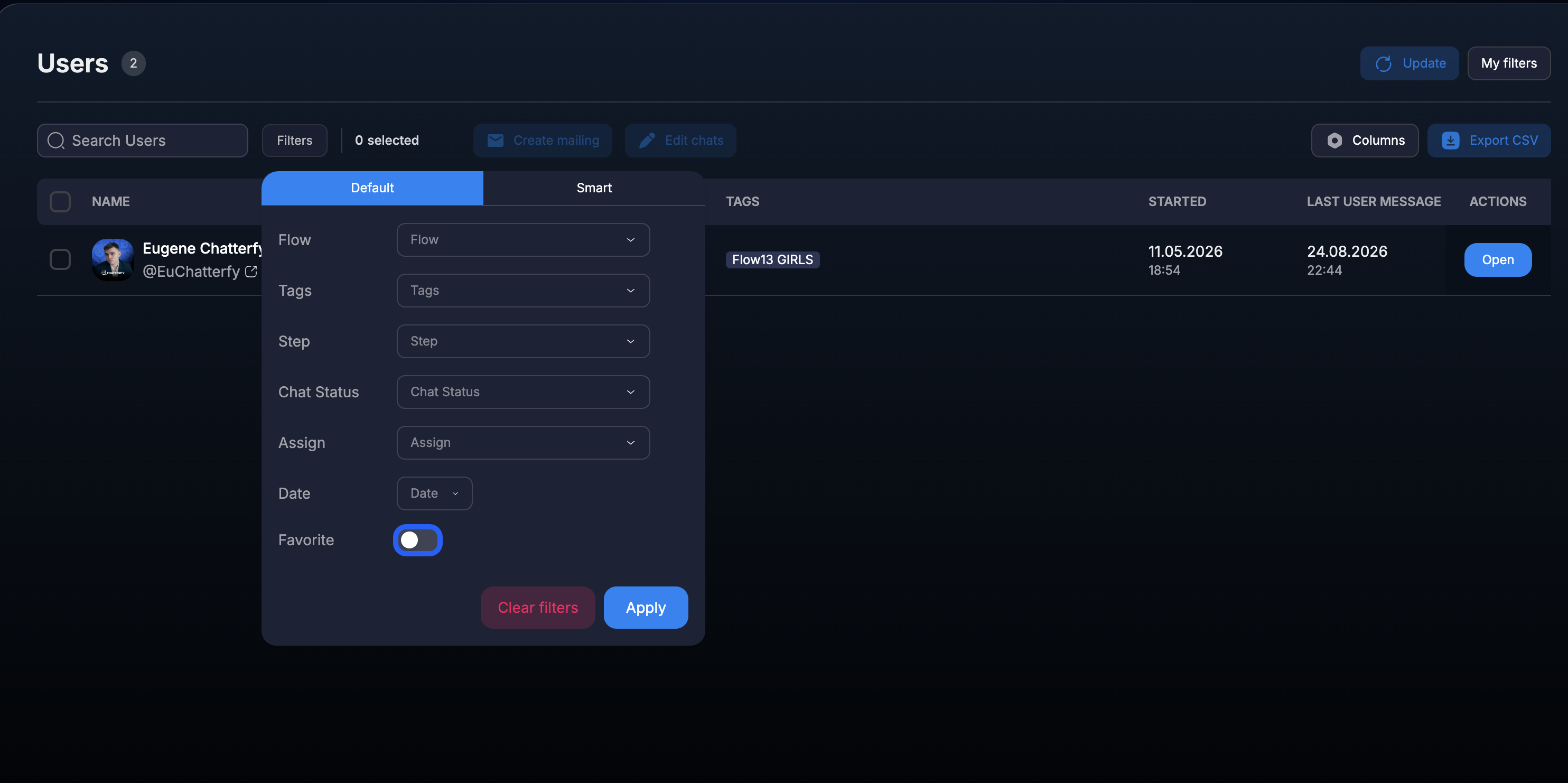
Favorite toggle in standard Users filters
Enable Favorite and click Apply to keep only favorite chats in the table.

Open Filters and enable the Favorite toggle. After clicking Apply, the table will update. To show all records, use Clear filters.
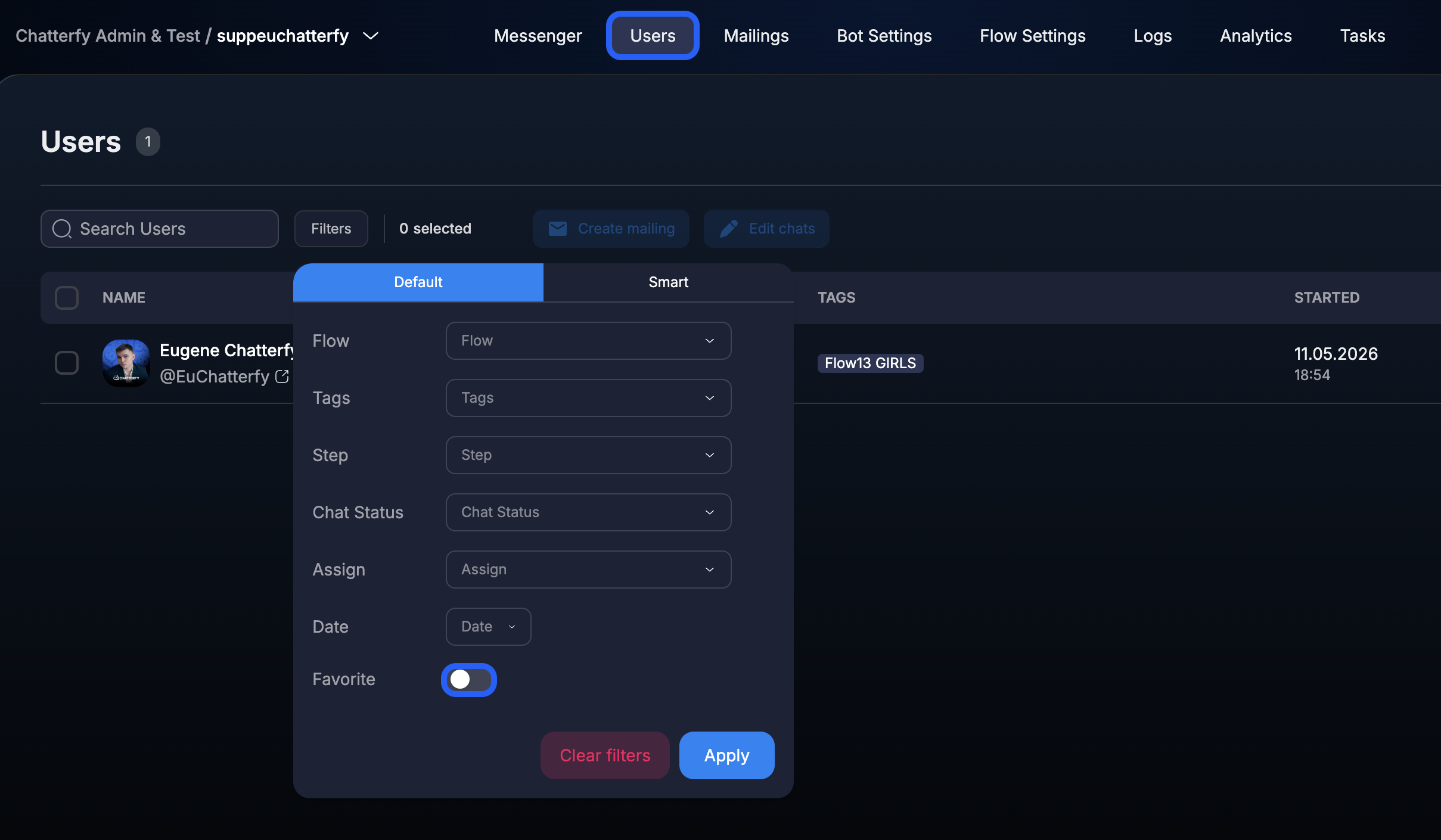
Favorite filter in the Users section
The filter is available in the standard Default tab.


Favorite in Smart filters

In Smart filters, the Favorite field can be added as one of the conditions. It can be combined with status, operator, sales stage, events, total deposits, and creation date.
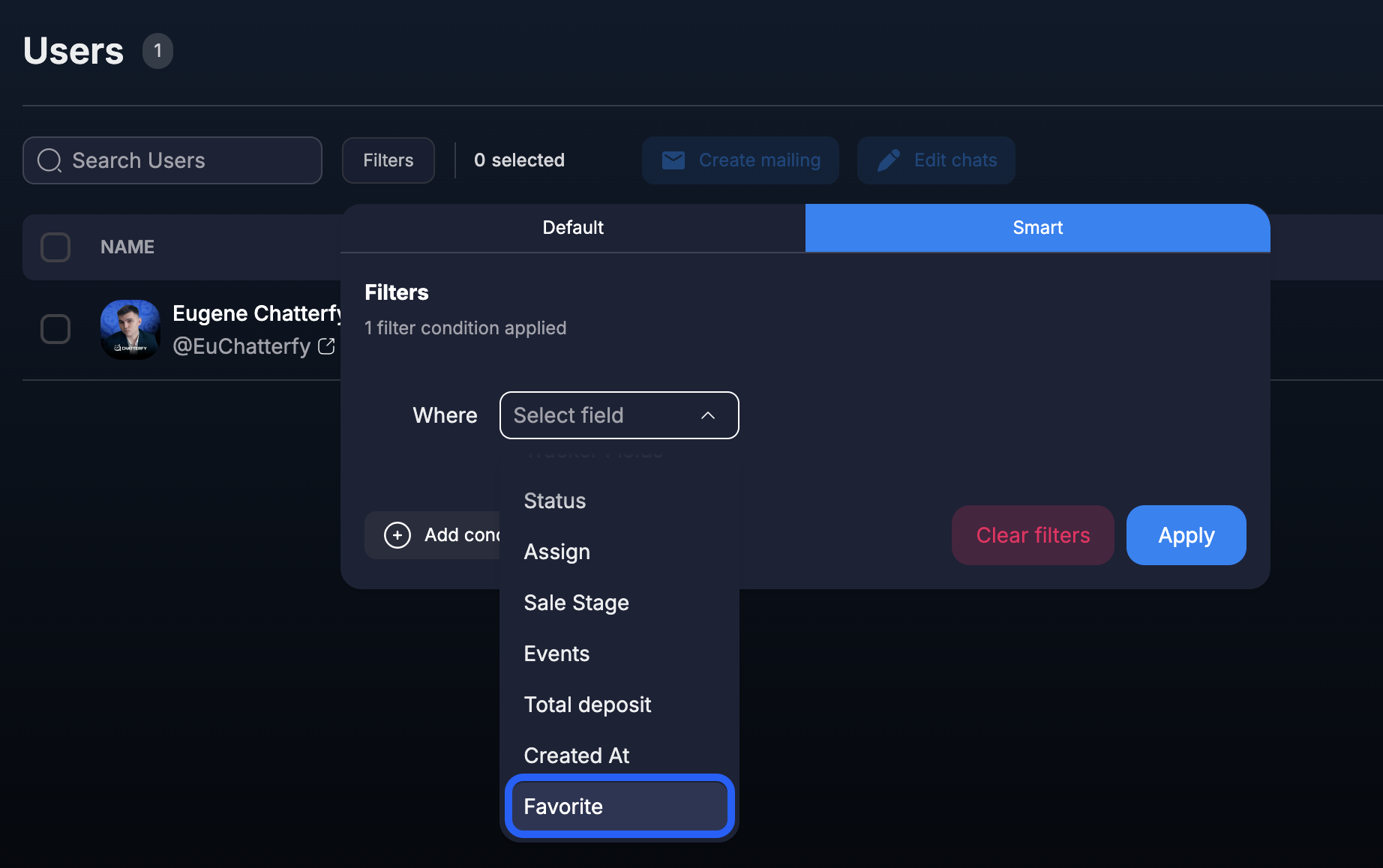
Favorite field in the Smart filters conditions list
Select Favorite from the field list and add it to your complex segment.


Was this article helpful?

NextUser data — what is shown in the table

On this page

  • Когда Users, а когда Messenger
  • What is inside
  • Use cases by segment
  • Where to start
  • Integration with other sections
  • FAQ
  • Section articles
  • Related
  • Favorite filter
  • Favorite in Smart filters