

Customer Card
The client card is the right-hand panel in , which opens when you click a chat. It contains 3 tabs : Chat data (current lead parameters + actions), Events (event feed), Media (all files from the conve
The client card is the right-hand panel in Messenger, which opens when you click a chat. It contains 3 tabs:
Chat data (current lead parameters + actions), Events (event feed), Media (all files from the conversation). This is the operator’s workspace when working with a specific lead — all data is visible here, and you can manage it from here as well.The card updates in real time: a postback came from Tracker — Overview— the event appeared in Events. AI changed sale_stage — it was updated in
Chat data → Manual. The lead sent a photo — it is in Media. Closing or switching chats preserves unsaved manual edits only in fields that autosave. For Manual / Custom data, click Save before leaving.When to open it
A lead wrote — open the chat and check what is in
Chat data: which sale stage, which tags, which flow step. A lead is silent and you need to understand the history — Events. A lead sent a document or screenshot — Media. Want to manually change sale_stage / tag / assign to an operator — Chat data → Manual. Download the conversation for an audit or pass it to another operator — Chat data → Actions. Preparing for a call and need to build a lead “profile” in a minute — open the card and go through all three tabs.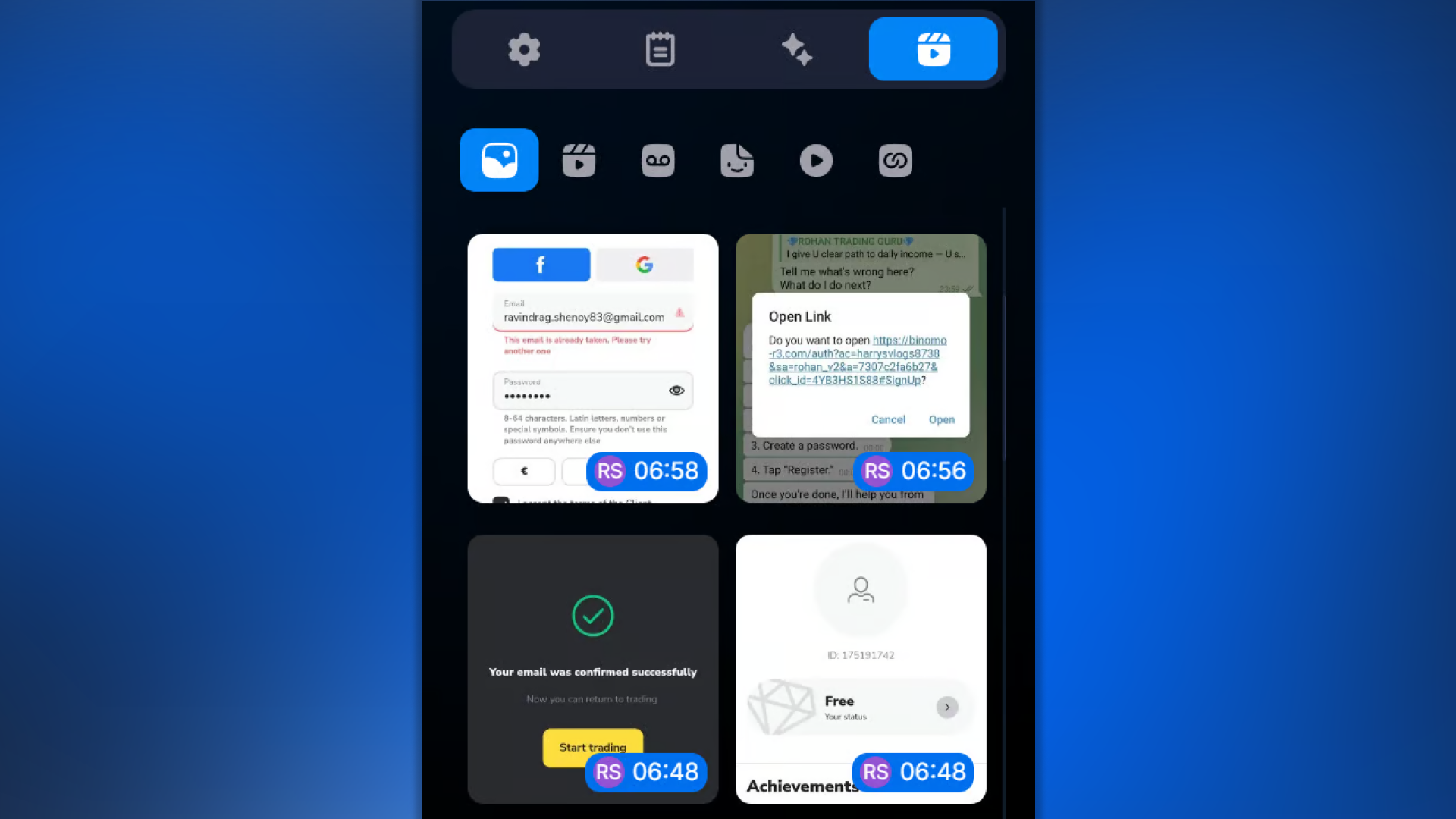


What’s useful in the card
— Current lead state — sale_stage, tags, flow + step,
Custom Fields, conversation status. All of this is in Chat data → Manual and Custom data. It is changed automatically by the bot or manually by the operator.— Lead source —
Tracker Data + User information: which campaign they came from, which clickid, which Telegram username, when the conversation started. Read-only, but it answers the key question: “where did this lead come from?”— Behavior history — the feed in Events (external events: subscribed / registered / FD / RD), Show events (internal: status / step changes),
Media (everything they sent). Helps you quickly restore context after a pause or after transferring the lead to another operator.Use cases by segment
The card is applicable everywhere, but what exactly people check depends on the segment:
— Sales before a call: open the card → check
Tracker Data (which campaign they came from) + Custom Data (notes) + Events (what the lead already knows about the product) → start the conversation prepared.— Traffic arbitrage: open the card → check
Tracker Data (source + clickid) + Events (whether there was an FD / RD) + Manual (sale_stage) → decide whether nurturing is needed or whether to close as cold.— Support: open the card →
Custom Data (order number, product version) + User information (ChatID for a request to the tech department) + Media (error screenshots) → work on the ticket with full context.What’s inside
Three tabs. The first one opens by default.


— Chat data — the main tab with 6 blocks: manual parameter changes (
Manual), custom fields, basic user information, tracking data, service event filter, actions on the conversation.— Events — the lead’s real-time event feed:
Page View / Click / Subscribe / Contact / Registration / FD / RD. Plus the ability to send an event manually.— Media — all media files from the conversation in one place (photos, videos, voice messages, documents). Convenient for searching without scrolling through the history.
Where to start
Depends on the task:
Opened a new chat — first, check Manual — Manually Changing Lead Parameters(status, sale stage, tags).
A lead sent an important file and you need to find it quickly — Media — all files from conversations.
A postback did not arrive, and you need to send the event manually — Send event — manual event triggering.
Relationship with other sections
The client card is the operator’s control point for a single lead. Most parameters (Sale Stage, Tags,
Custom Fields, Flow, Step) are defined in Bot Settingsand are processed in Flow Settings, the card only shows them and lets you adjust them individually. The traffic source is visible in Tracker Data — traffic source data(if the bot is connected to Tracker — Overview). Affiliate program events come via postback from Tracker — Overviewand are displayed in Events. When you need not “this one card” but bulk work with the database — Users.FAQ
Articles in this section
Related


Was this article helpful?