The Export CSV button at the top of the Users table exports leads to a CSV file. The file includes only the fields enabled in . Useful for backups, external analysis in Excel or Google Sheets, migrati
Updated May 16, 20263 min
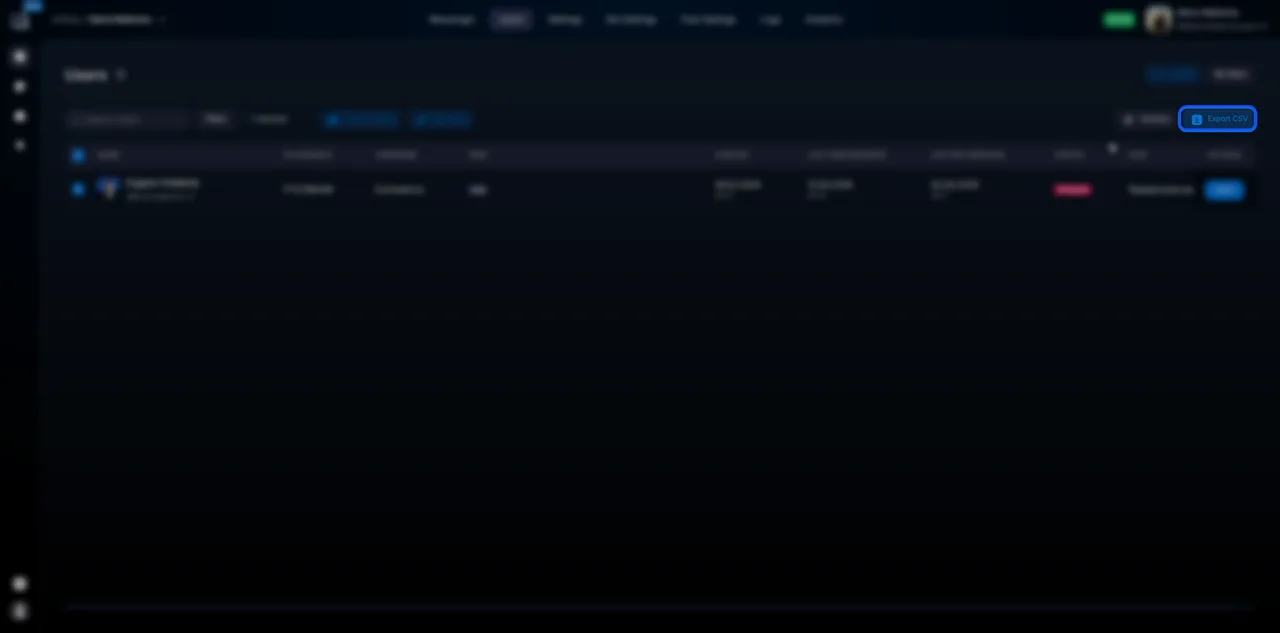
The Export CSV button at the top of the Users table exports leads to a CSV file. The file includes only the fields enabled in Column settings — what is shown in the table. Useful for backups, external analysis in Excel or Google Sheets, migration to a third-party CRM (HubSpot, AmoCRM, Bitrix24), and reporting.
When to use it
Back up the database before major changes (for example, updating a flow). Export data for accounting for the quarter. Migrate to a third-party CRM. Analyze data in Google Sheets / Power BI / any tool that supports CSV. Report to management — a table in Excel format.
If you need only part of the database, first filter via User filtering — 11 parameters. Without a filter, all bot leads will be exported.
4
Click Export CSV
The button is at the top of the table.
5
Wait for the file to be generated
Large exports (10,000+ leads) may take from a few seconds to tens of seconds. The file will be downloaded in the browser automatically.
Columns define the contents of the CSV
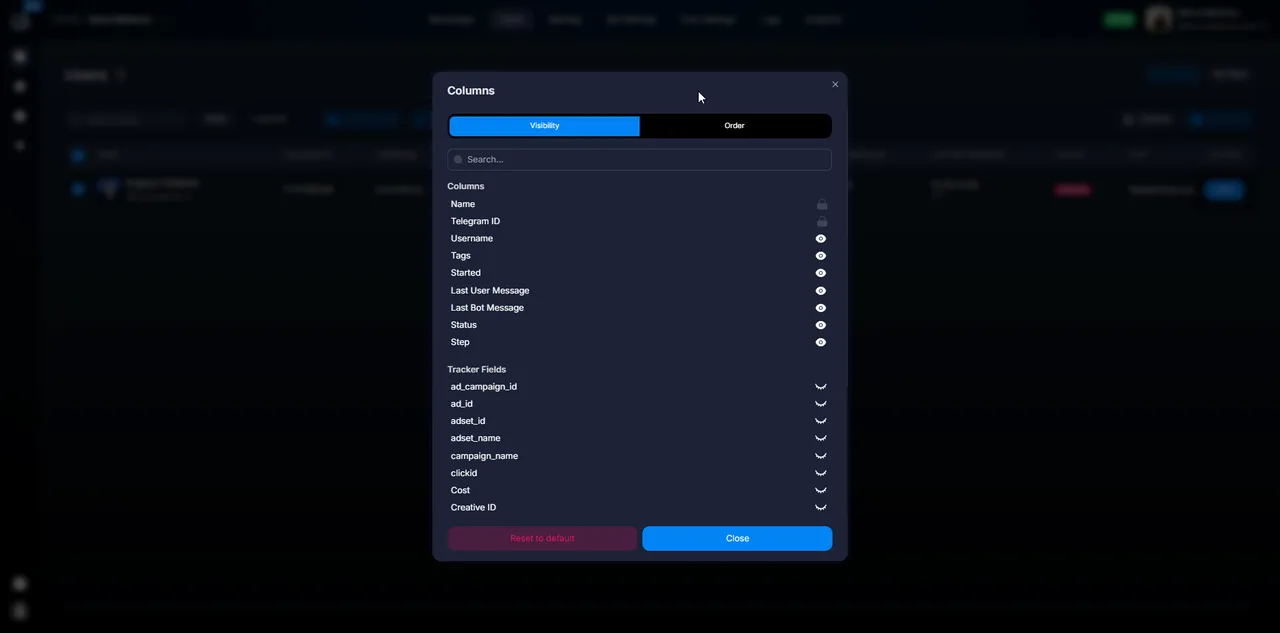
The CSV includes ONLY the columns that are active in Columns. If the required field is missing from the file, first enable the column, then export. This is the #1 pitfall when working with exports: you exported the file, opened it in Excel, and trader_id is missing — because it is not in Columns.
What is in the file
Each row is one lead. Each column is one column from Columns. Standard CSV with a comma delimiter and UTF-8 (opens in Excel, Google Sheets, or any text editor).
Contains:
System fields — Telegram ID, Username, name, statuses, dates.
Custom Fields — everything enabled in Columns.
Tracker Field — everything included in Columns.
Sale Stage, Manager, Tags — if enabled.
Not included in CSV: message history (for conversations, use Actions — exporting and clearing a conversation → Download messages for a specific chat), media from the conversation, events from Tracker (use analytics in Tracker).
Use cases
Scenario 1 — backup before an update:
The team plans to update Flow “Main” to “Main v2”.
Before starting: Filter: Status not Stopped + Status not Finished → Export CSV.
The file is saved locally. If something goes wrong, you have a basic backup.
Scenario 2 — quarterly report:
The accounting team needs a report on leads with deposits for Q1.
Filter: Event “FD” exists + Created At ≥ January 1 + ≤ March 31.
Columns: Telegram ID + Username + Tracker Field source + Total Deposit + Tags.
Export CSV → send it to accounting.
Important considerations
PII in CSV
CSV contains leads’ personal data (name, Telegram ID, contacts). Handle the file carefully: store it in a secure location, do not send it over open channels without encryption, and delete it after use. This is especially important when working with large databases — a CSV leak means a leak of your entire lead database.
Export size and time
There is no file size limit on the Chatterfy side (up to hundreds of thousands of rows). Export time: up to 1,000 leads — seconds; 10,000 — 10–30 sec; 100,000+ — may take a minute. If it hangs, contact support.
Frequently asked questions
Standard CSV (Comma-Separated Values), UTF-8 encoding, separator — comma. Opens in Excel, Google Sheets, Numbers, or any editor. If Cyrillic text is displayed incorrectly in Excel, change the encoding to UTF-8 during import (Excel → Data → From Text/CSV).
On the Chatterfy side, there is no fixed limit. Exports of up to 100,000 leads work normally. If your database is larger, split it into parts using filters (for example, by Created At periods).
Yes, absolutely. CSV contains what is visible in the table at the moment you click Export. If a filter is active, the filtered selection is exported. Without a filter, all bot leads are exported.
Yes, the export is recorded in Logs — company activity log — operator, time, export size. This is an audit trail for compliance / GDPR.
Via the UI — no, manual export only. For automation, contact support — there are API endpoints that let you export programmatically (for example, a daily backup via cron).
No, the CSV contains only lead data and their fields. Messages / correspondence are exported separately via Download messages in the customer card ( Actions — exporting and clearing a conversation).