

Managing users and roles within a Space
To configure a custom set of permissions, use Company → Roles & permissions. Creating and assigning custom roles for the company and spaces are described in a separate instruction: . Main points If th
To configure a custom set of permissions, use Company → Roles & permissions. Creating and assigning custom roles for the company and spaces are described in a separate instruction:
Main points
If the user is not in the company, first invite them via How to Invite Users. If they are already in the company but do not have access to a Space, add them through the Space section. Only then will they see the bots and chats for that space.
How to add a user
1. Open the required Space
Company → Spaces → select a Space from the list.
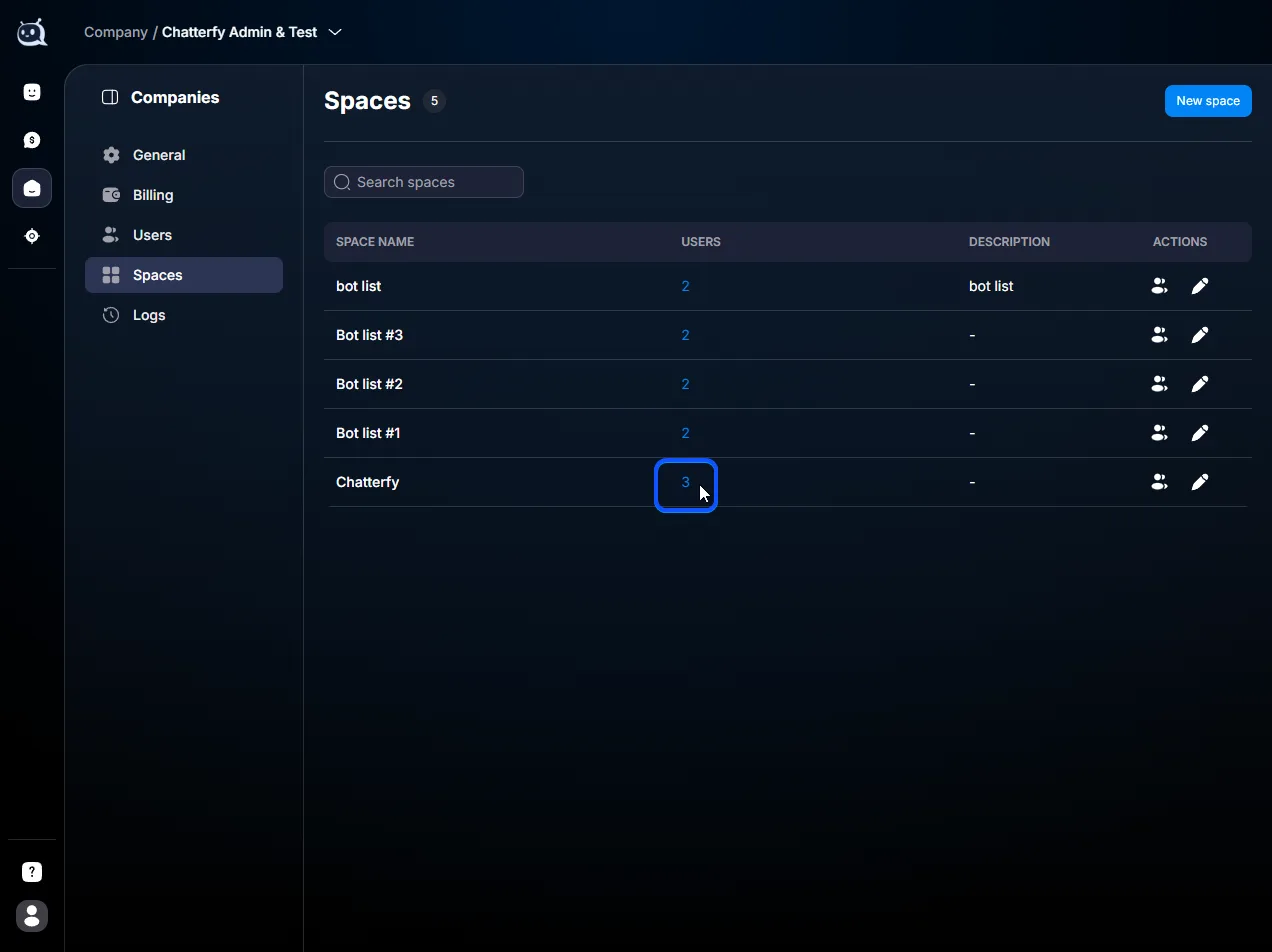
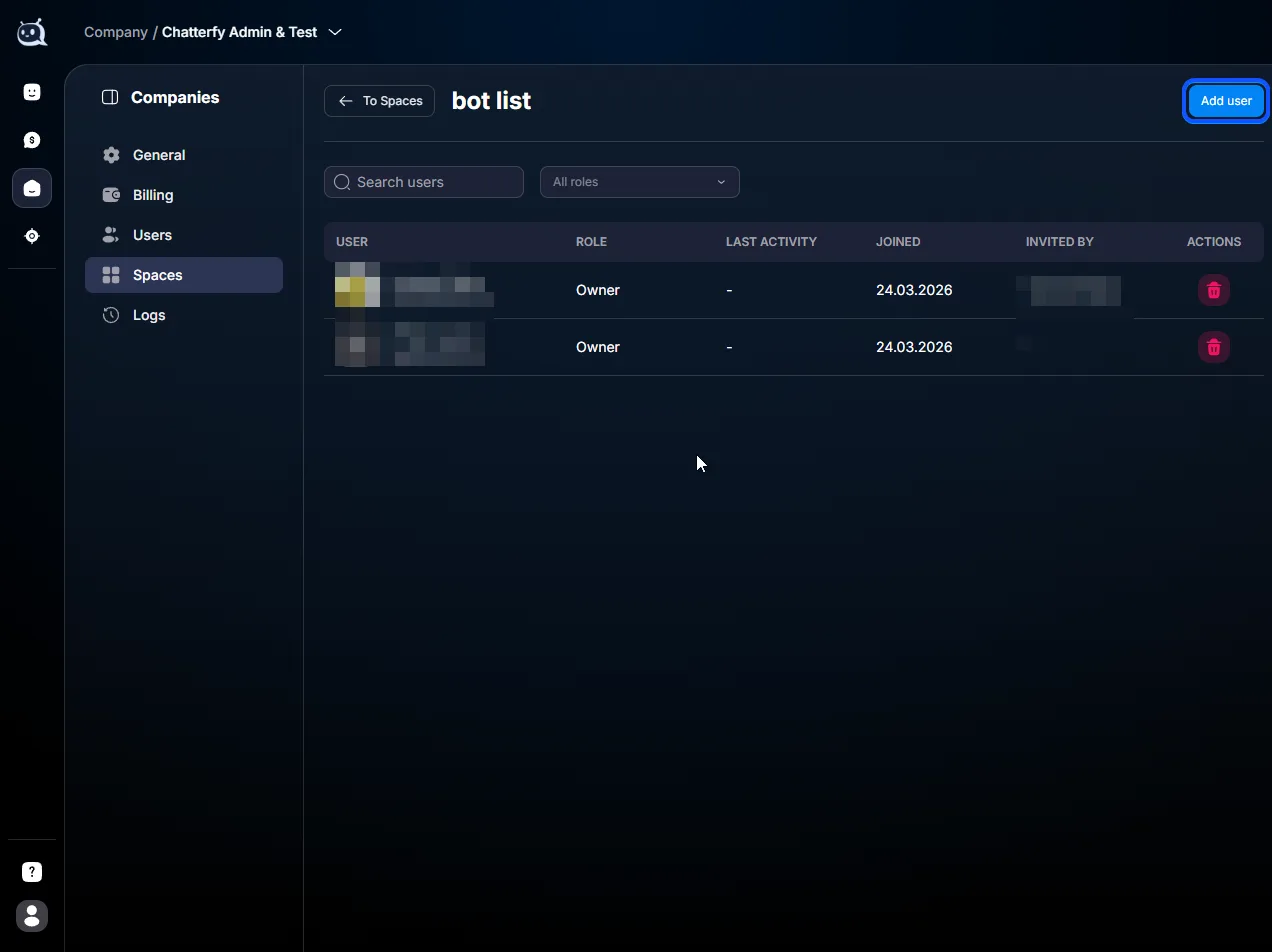
2. Click Add user
Button at the top of the participant list.
3. Select a user
The list shows all company users who are not yet in this Space.
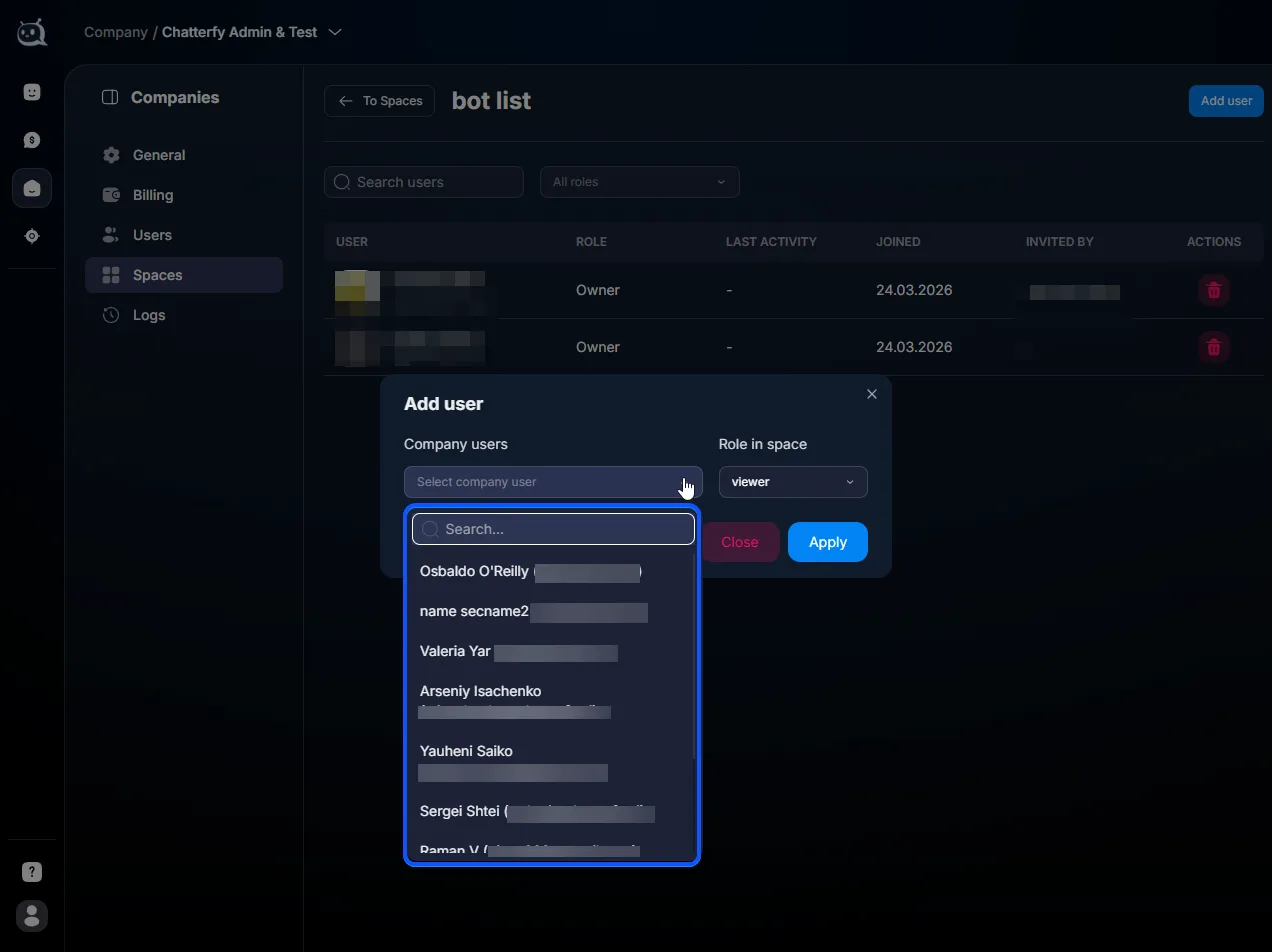
4. Assign a role within the Space
Within a Space, 8 roles with different access levels are available. The choice depends on the user's task. The full matrix is provided below.

Access matrix by role in Space
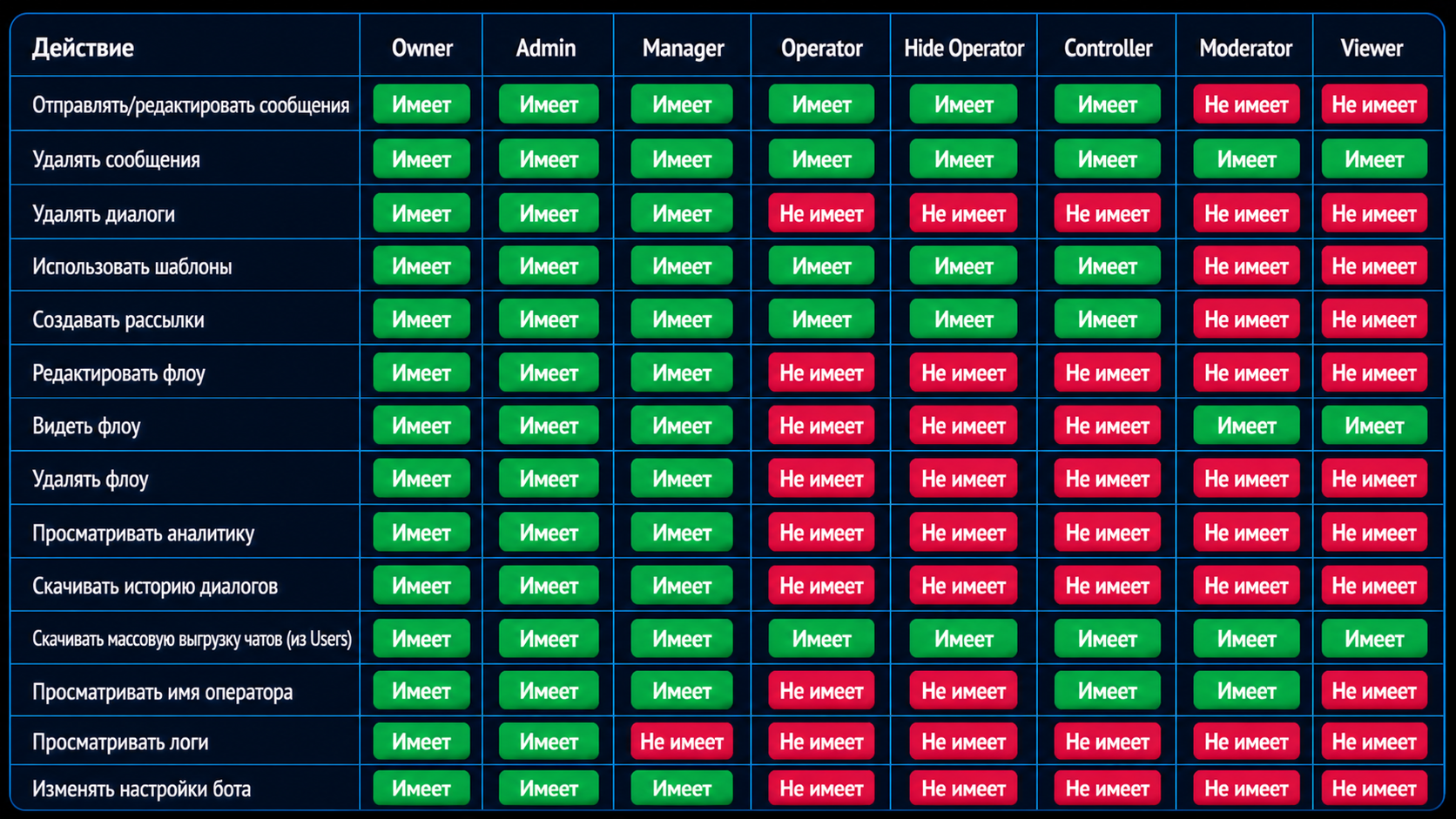
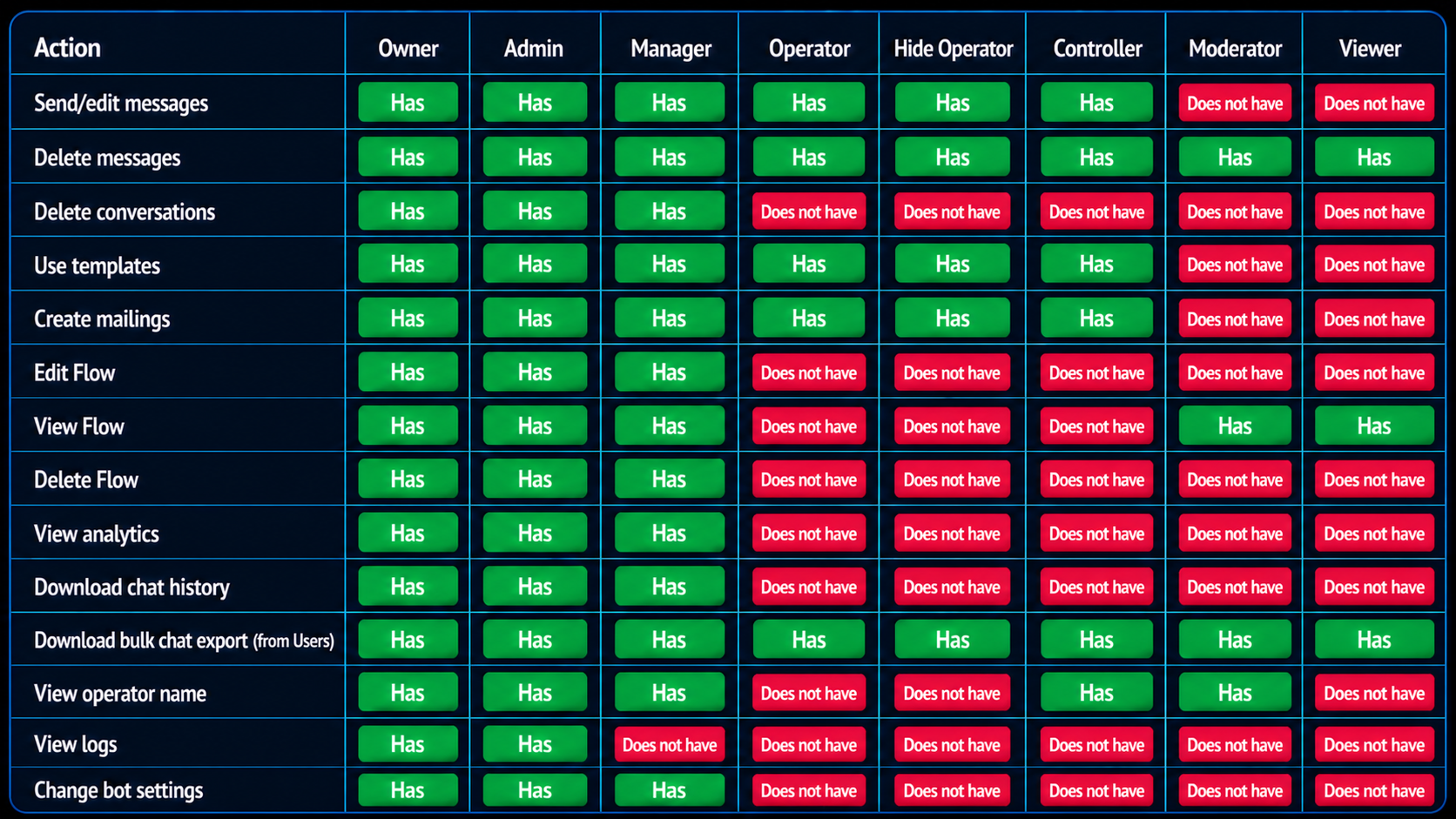
Note on Hide Operator: this role allows replying to clients, but the client's name and username are replaced with a technical ChatterfyID. Use it when the operator should not see the client's personal data.
Key differences in permissions
Manager: has access to all specified actions except viewing logs.
Operator and Hide Operator: can work with messages, templates, and broadcasts, as well as trigger bulk chat exports from Users. They do not have access to Flow, analytics, individual chat history, operator names, logs, or bot settings.
Controller: can work with messages, templates, and broadcasts, trigger bulk chat exports, and view operator names. They do not have access to chats, Flow, analytics, individual chat history, logs, or bot settings.
Moderator: can delete messages, view Flow and operator names, and trigger bulk chat exports. They cannot send or edit messages and have no access to the other actions in the matrix.
Viewer: can delete messages, view Flow, and trigger bulk chat exports. Other actions from the matrix are unavailable.
Detailed breakdown of each role
Owner
The creator and owner of the Space. Has full access to all space features. Each Space can have only one Owner; the Space owner cannot be removed.
Admin
Has full access within the Space: manages members, bot settings, and Flow. Cannot remove the Space Owner.
Manager
A lead or analyst. Has access to all actions specified in the matrix: manages messages, chats, templates, broadcasts, Flow, analytics, exports, and bot settings. Cannot view logs. Suitable for a team lead.
A Manager within a Space is not the same as a company Admin. These are different roles in different hierarchies. Learn more — User Roles.
Operator
Handles chats: can send, edit, and delete messages, use templates, create broadcasts, and trigger bulk chat exports from Users. Cannot delete chats, work with Flow, view analytics, download individual chat history, see operator names, view logs, or change bot settings.
Hide Operator
Has the same functional permissions as an Operator but works with anonymized client data: the name is replaced with a ChatterfyID, and the username is hidden. Can work with messages, templates, and broadcasts, as well as trigger bulk chat exports from Users. Other actions from the matrix are unavailable.
Controller
Controls team operations and can send, edit, and delete messages, use templates, create broadcasts, launch bulk exports of chats from Users, and view the operator's name. Cannot delete dialogues, work with Flow, view analytics, download individual dialogue history, view logs, or change bot settings.
Moderator
A role for limited control. Can delete messages, view Flow and the operator's name, and launch bulk exports of chats from Users. Cannot send or edit messages, delete dialogues, use templates, create broadcasts, edit or delete Flow, view analytics and logs, download individual dialogue history, or change bot settings.
Viewer
A role with a minimal set of actions. Can delete messages, view Flow, and launch bulk exports of chats from Users. Cannot send or edit messages and does not have access to other actions in the matrix.
Important to know
For daily operations, usually Manager is used for the team lead, Operator or Hide Operator for handling chats, and Controller or Moderator for monitoring without changing settings.
Related


Selecting the Moderator role
The
Moderator role is available in the same list as other Space roles. Its permissions are described in the access matrix above: it is a Viewer role with the ability to see the operator's name.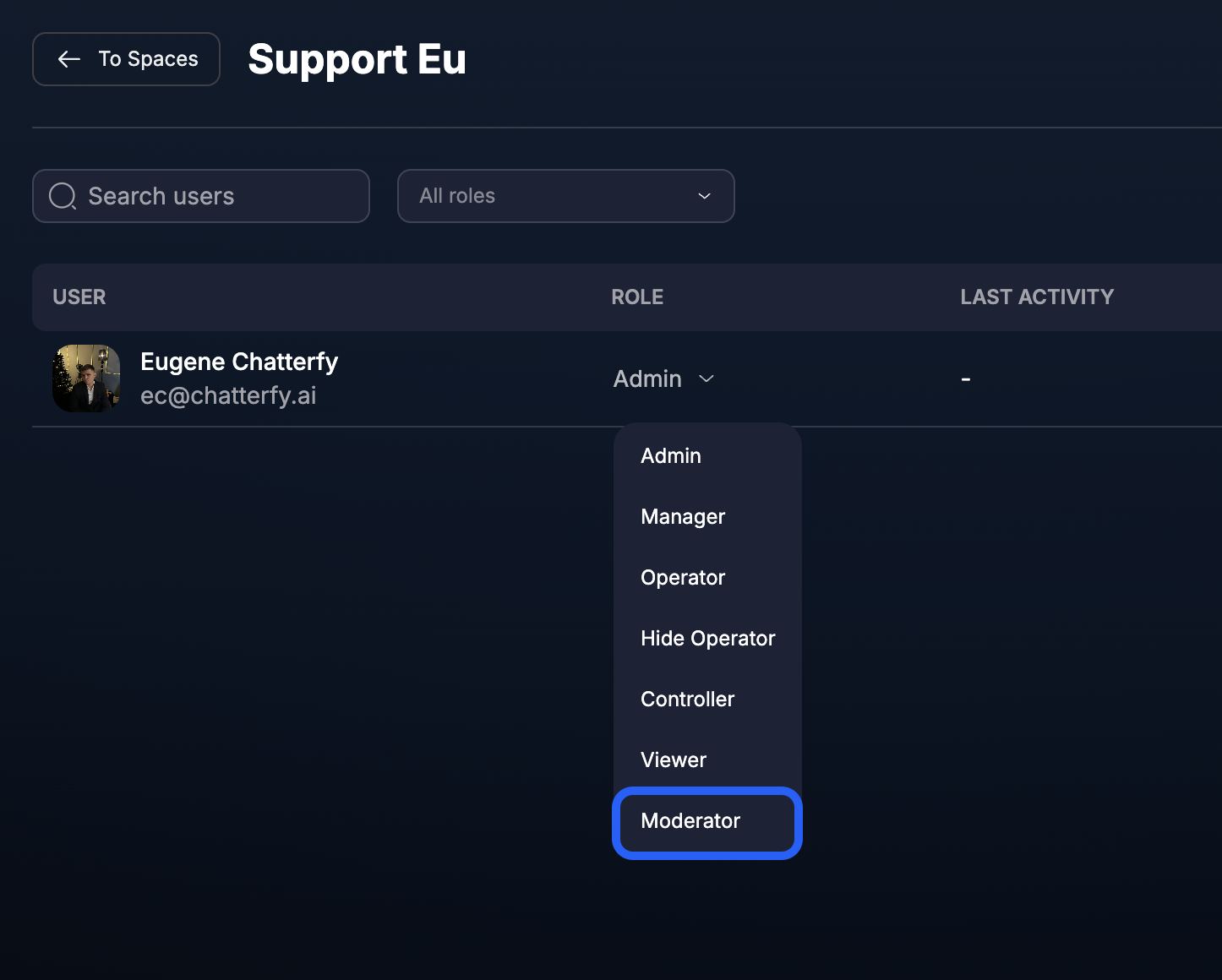
Was this article helpful?