

Messenger
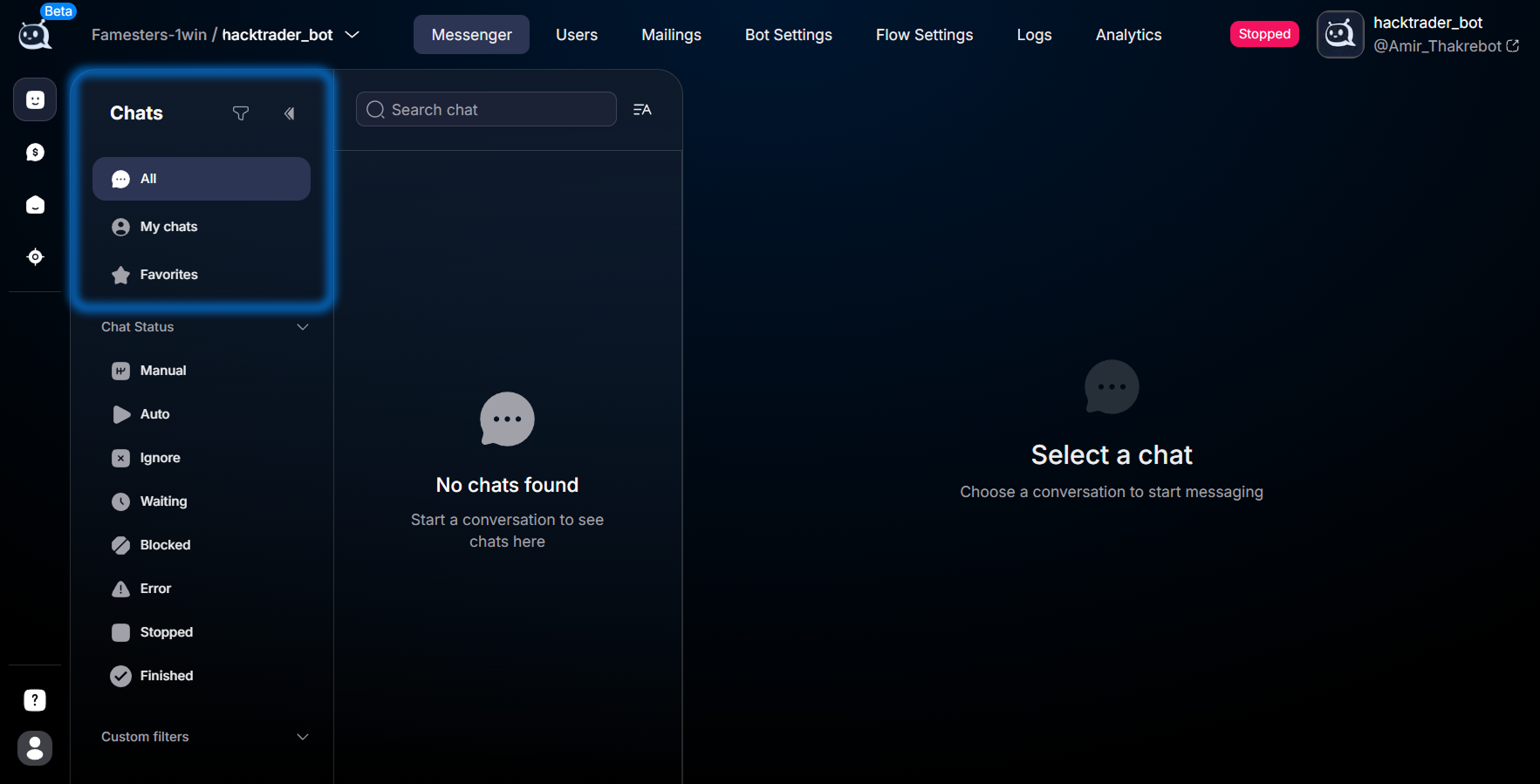
Раздел Messenger — рабочее место команды операторов в CRM . Здесь вы видите все диалоги бота или личного аккаунта, отвечаете лидам, переключаете статусы, фильтруете нужные чаты, открываете карточку кл
РазделMessenger— рабочее место команды операторов в
CRM. Здесь вы видите все диалоги бота или личного аккаунта, отвечаете лидам, переключаете статусы, фильтруете нужные чаты, открываете карточку клиента. Это главный экран оператора — на 80% рабочего времени он именно тут.Список чатов слева, активный диалог в центре, карточка клиента справа. Переключение между ботами через селектор сверху. Вверху правее — индикатор состояния бота:
Active(работает) илиStopped(остановлен). Если ботStopped— он не принимает и не отправляет сообщения, а в Messenger вы видите только историю.What tasks does it solve
Receive an incoming chat and guide a lead to a target action. Switch an AI-dialogue to manual mode when the AI gets confused. Distribute new chats among operators. Find a specific lead among thousands by tag or filter. Reply to a lead in a foreign language using the built-in translator. Use ready-made templates instead of typing the same things manually. Open the customer profile to see where they came from, what they wrote, and what events they have completed.
How different teams use Messenger
— Forex/crypto arbitrage: The media buyer operator manages 50-100 chats in parallel. Use the
My Chats tab, smart-filters by waiting status and VIP tag, and quick-reply templates for common questions about registration and deposits. Use the customer profile to check Tracker Data and understand which campaign they came from.— Sales team: The manager handles 10-15 high-value leads. Each chat is handled manually with long, meaningful messages and minimal templates. Use
Custom Filters by deal stage, priority tags, and the translator if the lead is foreign-speaking. Use the profile to keep notes on the lead's needs.— SaaS / e-commerce support: The operator works with 5-15 current tickets. Use the
All tab, filter by manual status, templates for common issues, and Custom Fields with order numbers / product versions. Use the profile to view the lead's support history.— Info-business: The expert answers students directly via a personal account-bot. Use the
My Chats tab with course tag filters, templates with links to materials, and the profile for progress notes.What is inside
Seven subsections plus the customer profile — each covers a specific part of the operator's workflow with a dialogue.


— Inbox Control — switching between
All / My Chats / Favorites tabs, status bar, and filters.— Chat Status — 8 dialogue statuses (Auto /
Manual / Waiting / Ignore / Blocked / Error / Stopped / Finished) and what they mean.—Smart FiltersиCustom Filters— две точки доступа к одним и тем же сохранённым фильтрам прямо из
Messenger. Каноническое создание — в Bot Settings.— Translator — built-in translation of incoming and outgoing messages, language selection for the entire dialogue or a single message.
— Templates — quick-reply templates using
#, categories, and import from another bot.— Customer Profile — three tabs (
Chat data / Events / Media) with lead data and actions for the dialogue.Where to start
Depends on what you are currently working on:
Только зашли в
Messenger и хотите разобраться в навигации — Inbox Control — Managing Your Chat List(tabs, status panel, filters).A lead is "stuck" in a status and you don't understand why — Chat Status — conversation statuses(full breakdown of all 8 statuses).
Want to speed up work with canned responses — Templates — Quick Reply Templates(templates using
#).Leads in different languages — enable Translator — communicating with leads in different languages(incoming to operator language, outgoing to lead language).
Team of 3+ operators — configure segmentation via Custom Filters — saved segmentsand use saved filters via Smart Filters — advanced search in Messenger.
Connection with other sections
Messenger — the operator entry point for chats, but data comes from all sides. Lead parameters (Status / Sale Stage / Tags / Custom Fields) are set in Bot Settingsand arrive here through the work of Flow Settings. The traffic source is visible in Tracker Data — traffic source data(if the bot is connected to Tracker — Overview). Chat visibility between operators is regulated via roles in Managing Users and Roles within a Space(including Hide Operator mode with name anonymization).If you want to view the database not as a stream of chats, but as a table with filters and bulk actions — this is Users. Same database, different view: in
Messenger it is more convenient to communicate with a lead, in Users — to segment hundreds of leads at once.Frequently Asked Questions
Section articles
Related


Unread and read messages
The counter on the chat line shows how many of your messages the lead has not yet read. To process all current messages, use the
Mark all as read button next to the input field.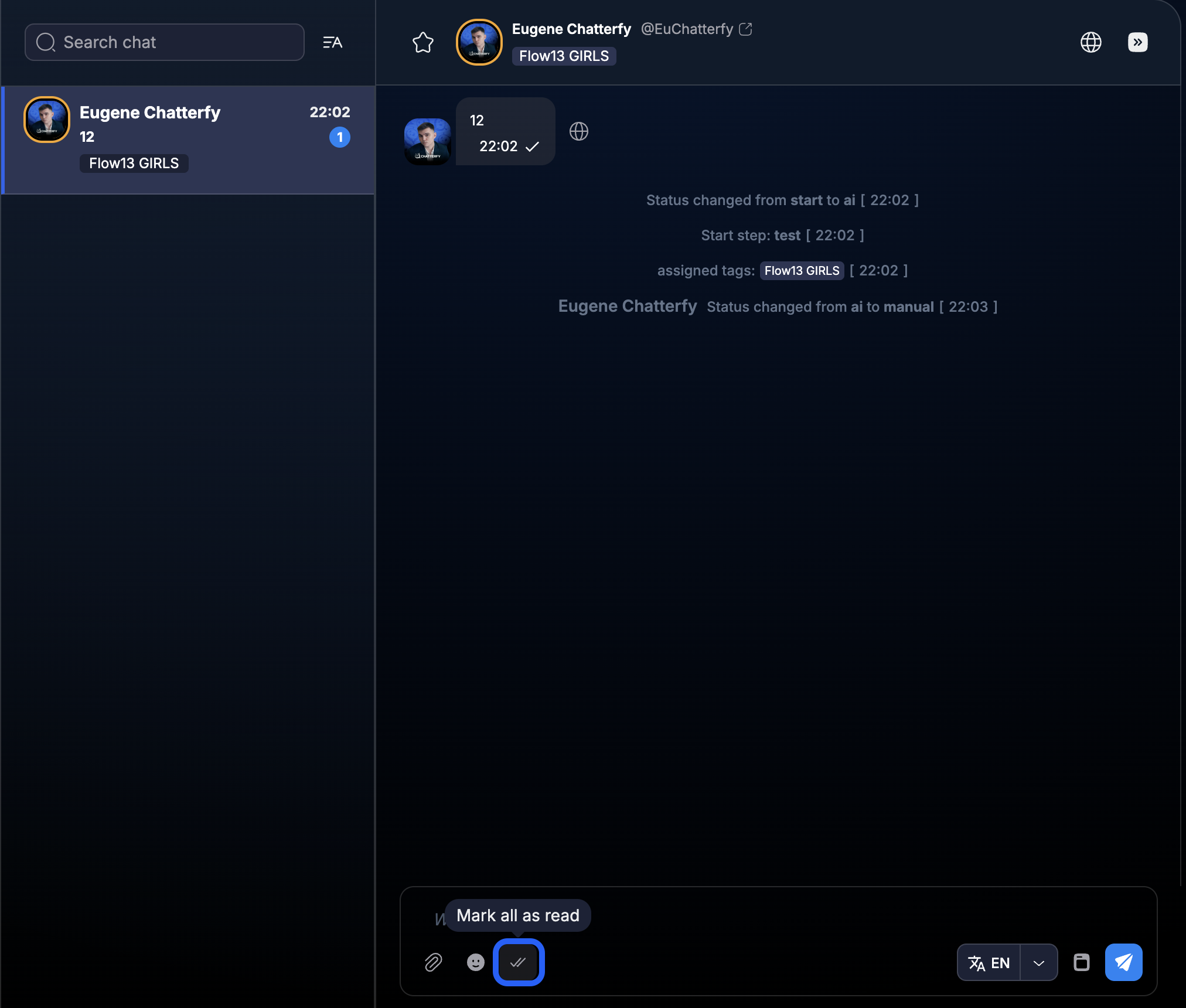
Read and sent time
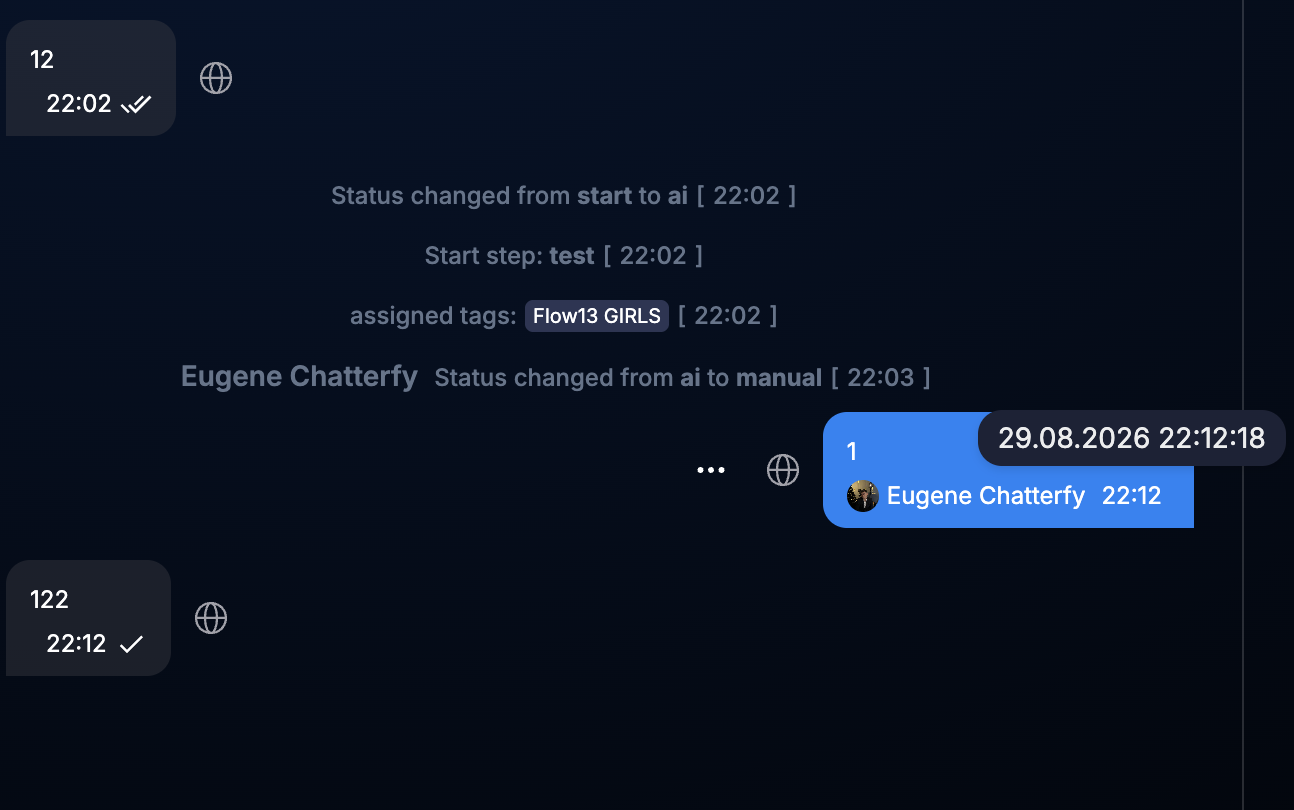
Hover over a message to see the exact date and time it was sent or read. One or two checkmarks next to a message help quickly assess its status.
Was this article helpful?