When one or more chats are selected in the Users table (using checkboxes), the Edit Chats button appears at the top. This is a bulk change of the main parameters for all selected leads at once: add/re
Updated September 11, 20264 min
When one or more chats are selected in the Users table (using checkboxes), the Edit Chats button appears at the top. This is a bulk change of the main parameters for all selected leads at once: add/remove tags, change status, move to another flow or step, reassign the manager. The main tool for segmentation and distributing the database.
When to use
Distribute 50 leads among 5 operators. Add the “interested” tag to 200 people who replied. Move 100 inactive leads to Finished to stop pushes. Move a group of new leads to the updated Flow version 2.0. Bulk-remove the “cold” tag from leads that suddenly became active again.
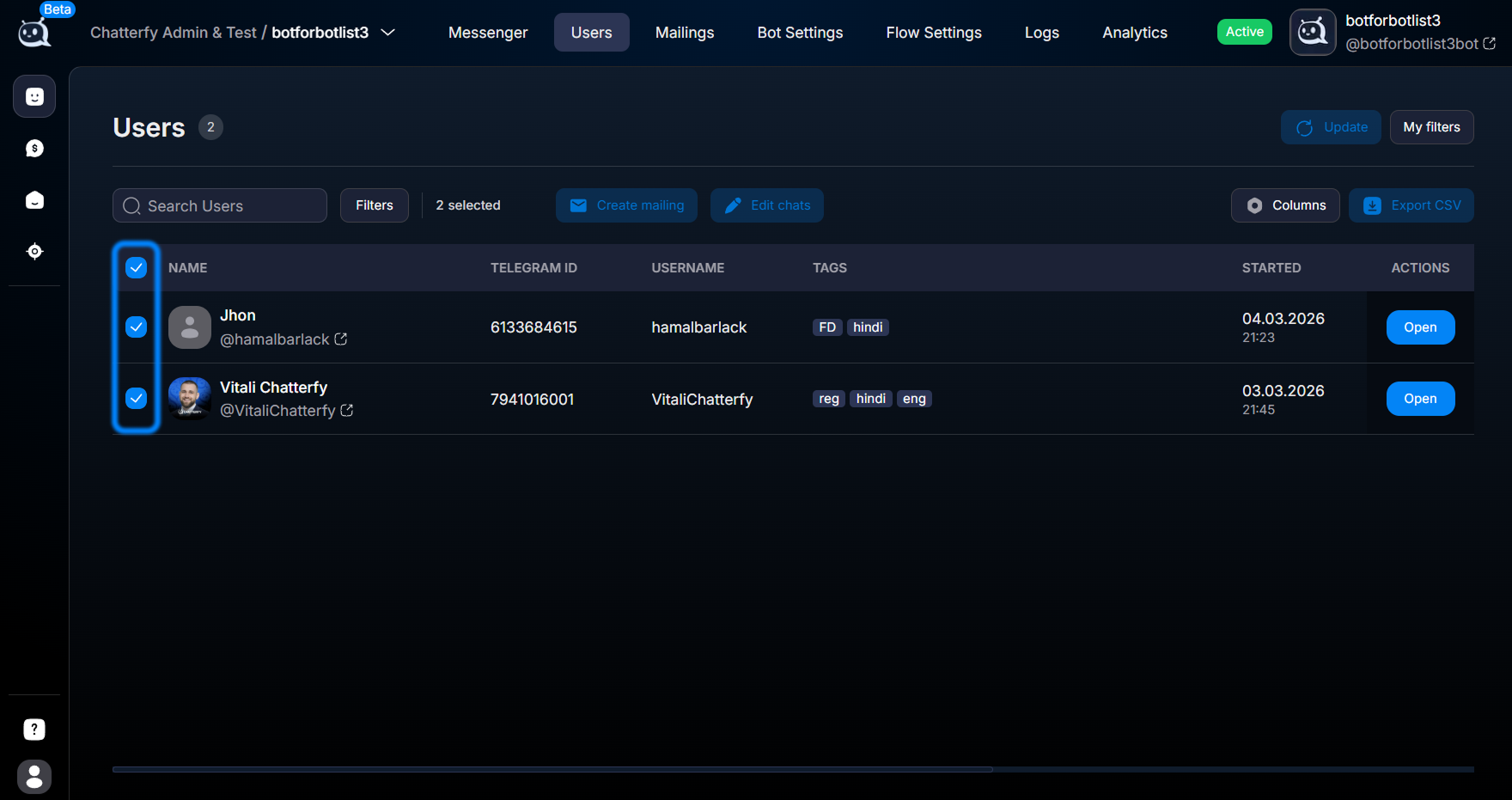
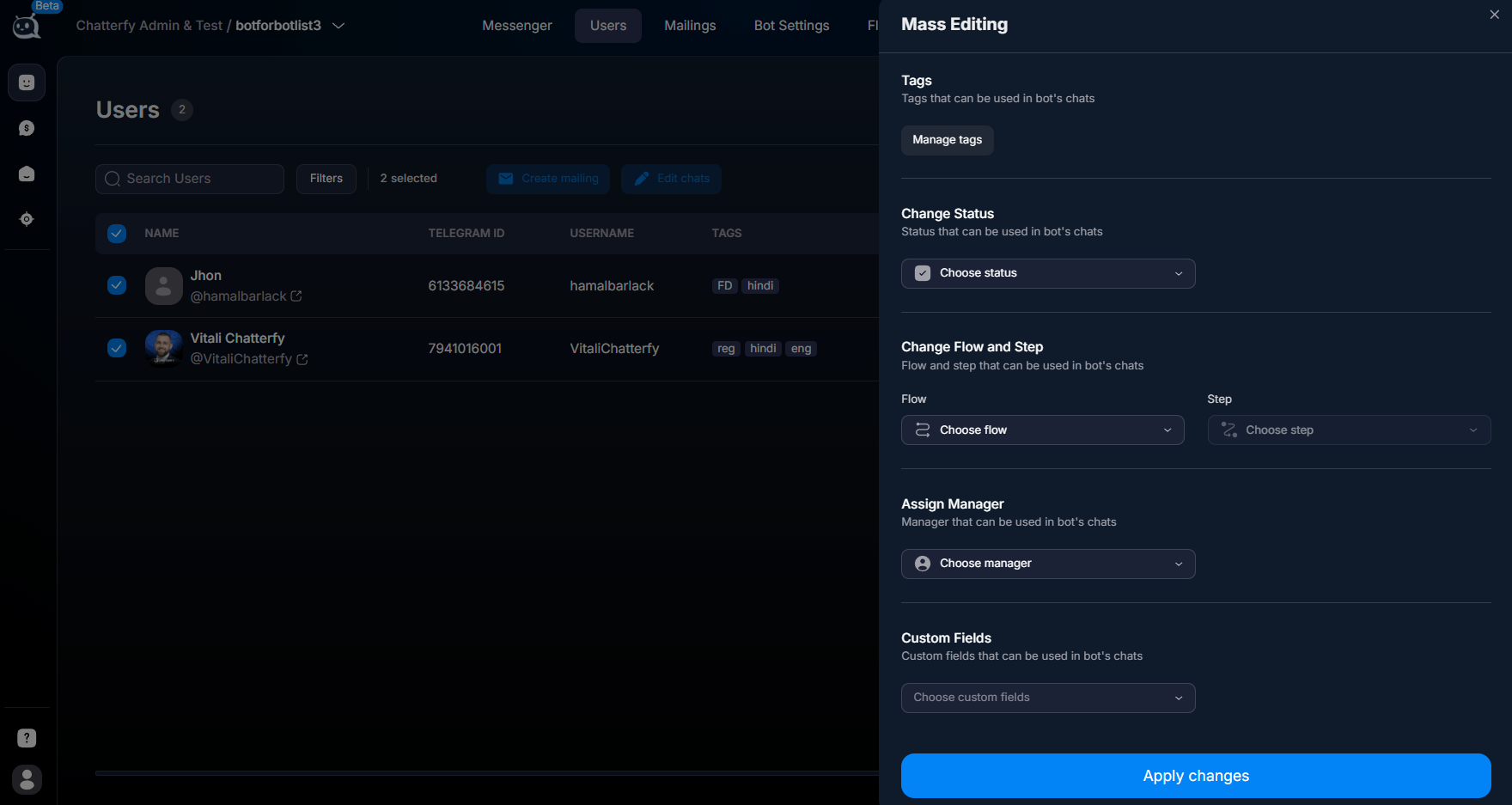
Selecting chats with checkboxes; the Edit Chats button appeared
Steps to complete
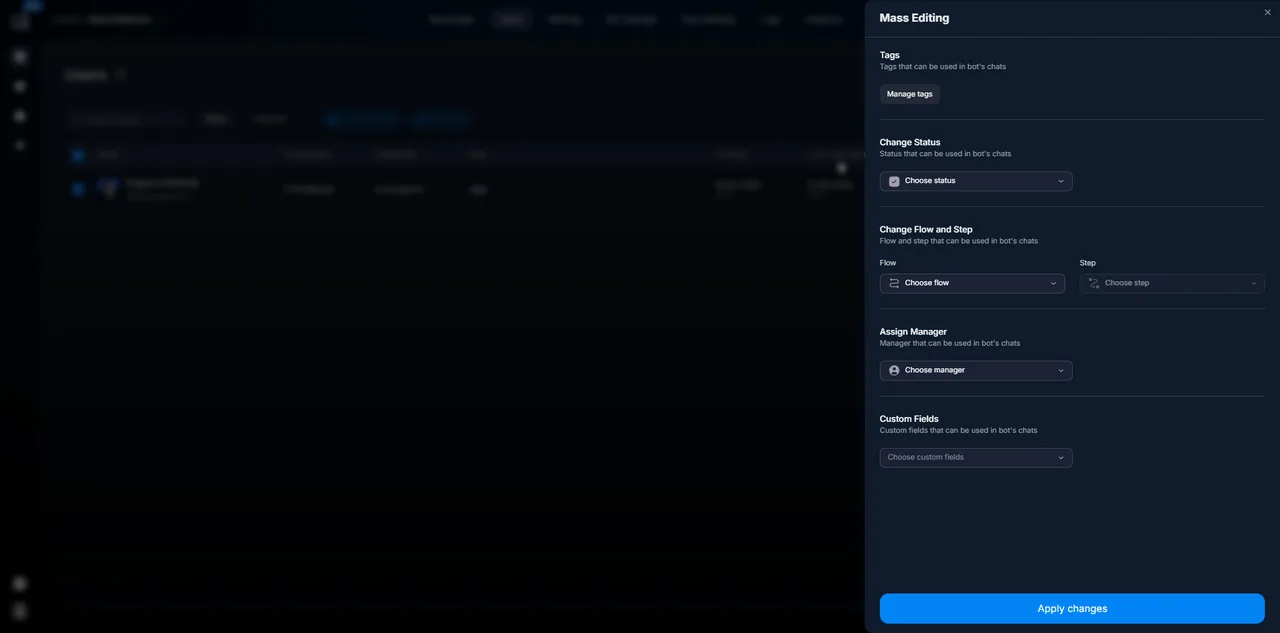
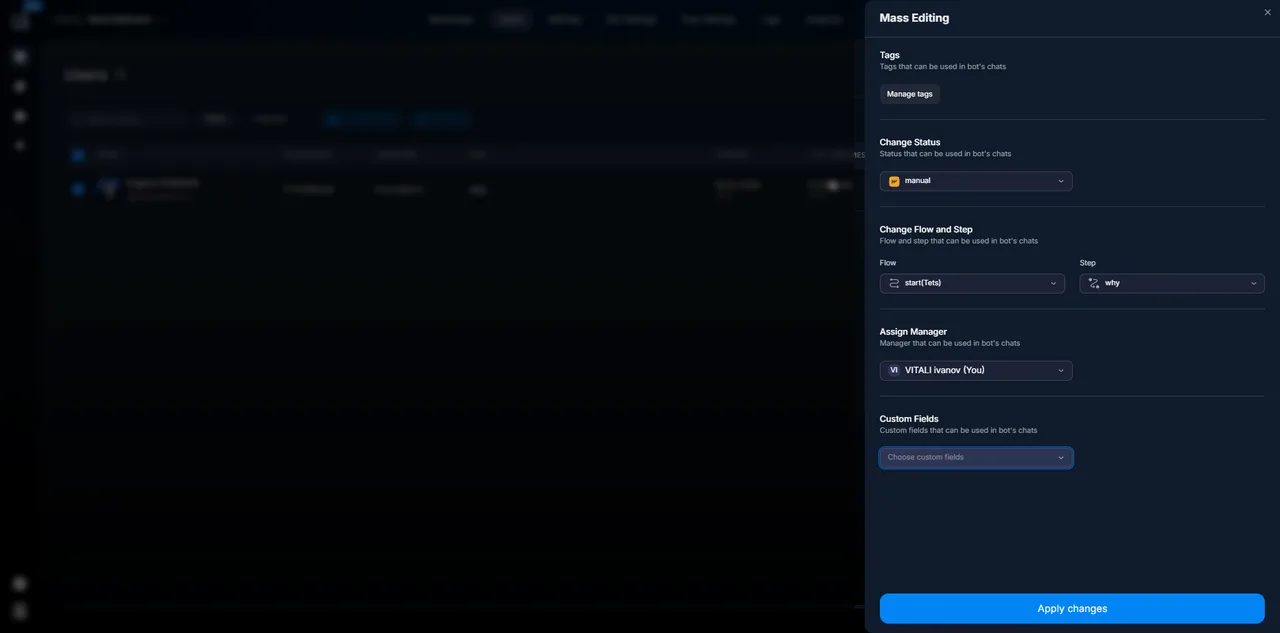
Edit Chats — bulk change form
1
Open Users and filter the segment
Before making bulk changes, use User filtering — 11 parameters to filter the required segment. Without a filter, you may accidentally select “everyone” and do something to thousands of leads.
2
Select chats with checkboxes
The checkbox is to the left of each row. You can select everyone on the page using the checkbox in the header.
3
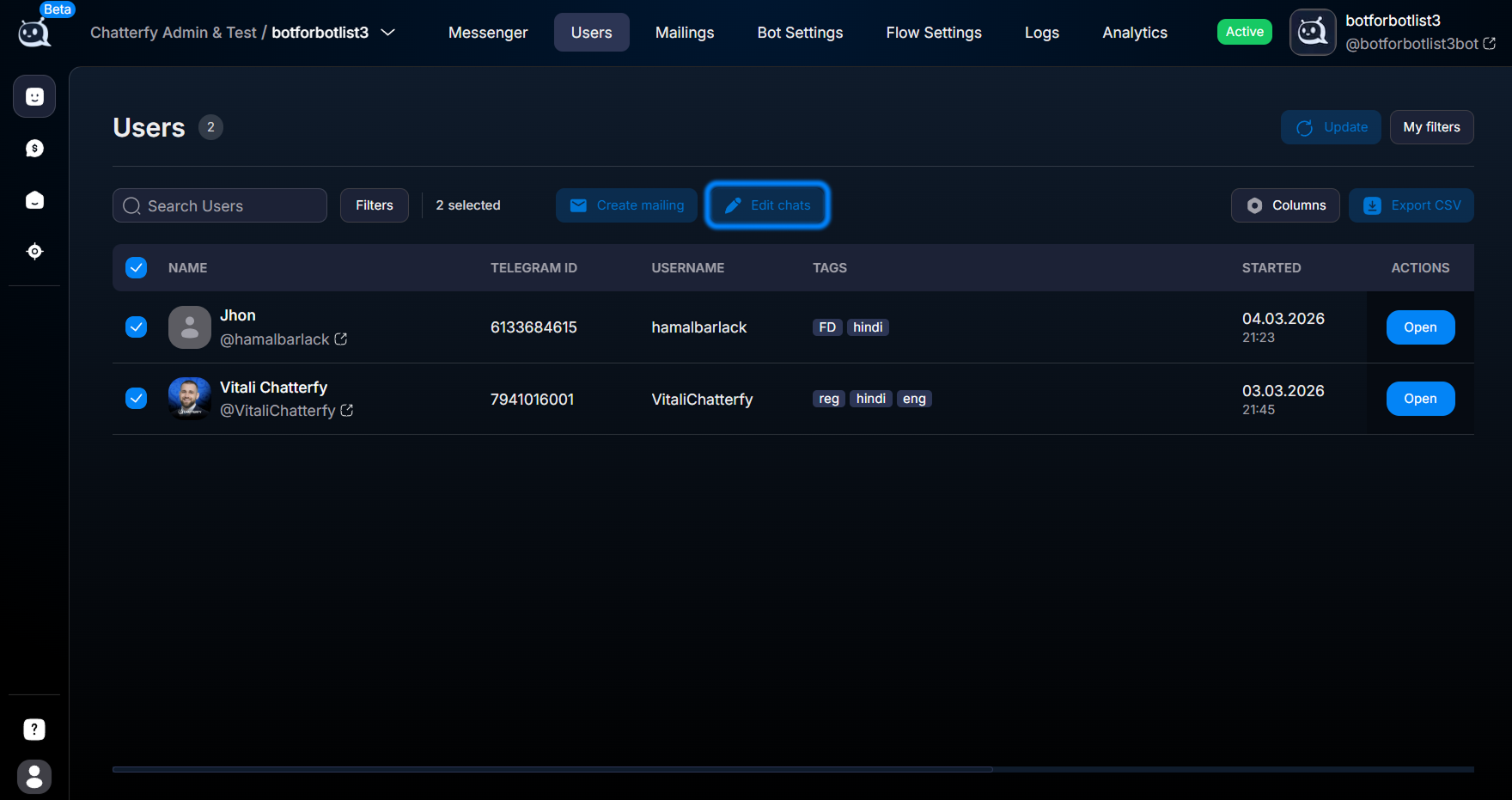
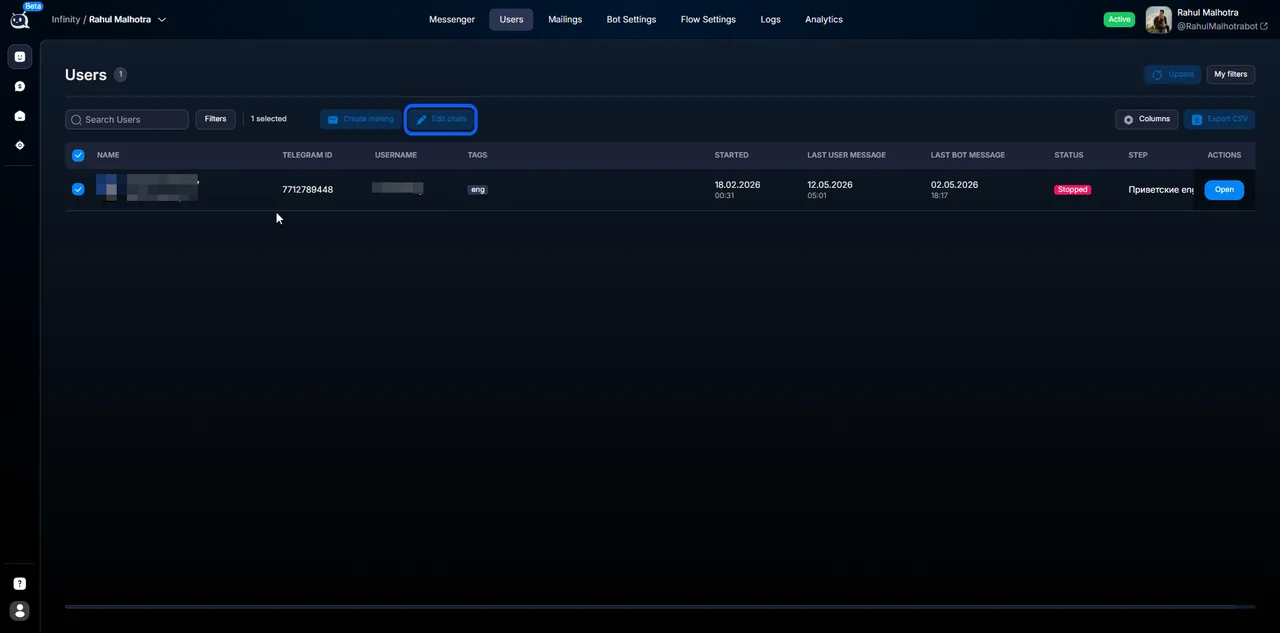
Click Edit Chats
The button appeared above the table.
4
Select an action
From the list: add/remove tags, change status, change flow, change step, assign/remove a manager.
5
Apply / Save
Applied to ALL selected chats at once. There is no undo.
Applies to all selected
Bulk action is an irreversible bulk operation. Before clicking Apply, check: is the filter correct? Should all these leads receive the change? Did you accidentally select more from page 5? If something goes wrong, you will have to manually revert them one by one.
Available actions
Actions in Edit Chats
Action
What it changes
When to use
Add tags
Adds the specified tags to all selected items
Segmentation by work outcome
Remove tags
Removes the specified tags
Reset old segmentation
Change status
Status → new value
Bulk transition to Manual / Finished
Change flow
Leads move to the specified flow
Switching to a new funnel version
Change step
Leads land on the specified step
Return to “start” / move to a specific step
Assign a manager
Assign Manager
Distribution among operators
Remove manager
Clear Assign
Return leads to the shared pool
Usage examples
Sales: distribute “unassigned” leads
Monday morning. The Sales Lead opens Users:
Filter: Status = Auto + Manager is empty + Created At > 1 hour ago.
Gets 47 leads.
Selects the first 15 → Edit Chats → Manager: Ivan → Apply.
Next 15 → Manager: Maria → Apply.
Remaining 17 → Manager: Alexey → Apply.
5 minutes — 47 leads distributed among 3 operators.
Support: bulk ticket closure
After resolving a common issue (there was a payment system outage, now it’s fixed):
Filter: Tag has “payment_issue” + Status = Manual.
Gets 80 chats.
Selects all → Edit Chats → Status: Finished + Tag remove “payment_issue” + Tag add “issue_resolved”.
Apply → 80 tickets closed with a note in a single operation.
Arbitrage: switching to a new Flow
The team updated the funnel — it’s now Flow “Main v2”. You want to move existing active leads to it:
Filter: Status not Finished + Status not Stopped + Tag not “v2_done”.
Edit Chats → Flow: Main v2, Step: “start” → Apply.
All active leads now go through the new funnel.
Comparison with single-editing
Scenario
What to choose
1-3 leads, targeted correction
Manual in the customer card
5-100 leads, same action
Bulk actions
Hundreds of leads under complex conditions
First Custom Filter, then Bulk actions
Systematic automatic action
Flow steps (Change tag / Change status)
What to keep in mind
Impact on flow
If you bulk-change the Flow or Step, leads will move to the new steps immediately. If the new flow has AI Reply, it will immediately try to generate a reply. If there are 100 leads, that means 100 requests to AI. AI costs may increase. It is better to make the transition gradually or enable it on a small test segment first.
Selection limits
Selecting “all on the page” selects only the items visible on the current page (usually 50–100). For a larger segment, use pagination or export CSV for analysis. If you really need to apply an action to all thousands of leads, contact support.
FAQ
Technically, selection works only for the visible rows on the page (usually 50–100). For large operations, process page by page or use this scenario: filter → select all on the page → action → next page.
Operator and above usually have full access. Hide Operator / Controller / Viewer usually do not. It depends on the Space settings; see Managing Users and Roles within a Space.
Yes. If you bulk-change Status to Manual, pushes will stop. If you change Flow / Step, the lead will immediately follow the new scenario (if Status allows it). If you change Manager, the chat will disappear from the old manager’s My Chats and appear for the new one.
There is no undo. If you make a mistake, you will have to revert it manually using the same Bulk actions, but in the opposite direction. If you do not have “before” tags, this is difficult. So check everything before clicking Apply.
You cannot do this through Bulk actions right now — Custom Field is not included in the list of actions. Only tags / status / flow / step / manager. For bulk cleanup of Custom Field, contact support or use a webhook script.
Yes. Every bulk action is recorded in Logs — company activity log with the operator, action, and affected ChatIDs specified.