Notifications — Telegram Notifications for the Team
Notifications (Bot Settings → Notifications) is a section for sending notifications to the team's Telegram groups. Currently, Notifications work for the following event: A chat switches to Manual stat
Updated August 30, 20263 min
Notifications (Bot Settings → Notifications) is a section for sending notifications to the team's Telegram groups.
Currently, Notifications work for the following event:
A chat switches to Manual status
This helps the team quickly notice chats where operator involvement is required, even if Messengerit is not open all the time.
For example:
AI could not handle the conversation
the chat was switched to manual handling
the operator needs to join urgently.
After setup, the notification is automatically sent to the selected Telegram group.
When to enable Notifications
Usually, Notifications are configured right after connecting the bot. This is especially useful when:
you need to avoid missing new manual chats
the team has several operators
it is important to respond to leads quickly
you need to monitor AI and automation
you need to see problematic conversations in real time.
How Notifications work
When a chat switches to Manual status, Chatterfy sends a notification to the selected Telegram group. Notifications can be enabled, disabled, and filtered by conditions.
For example:
send notifications only for specific chats
separate notifications across different groups
send notifications only for specific Flows or tags.
What to prepare
Before setup, prepare:
What you need
Purpose
Telegram group
Where notifications will be sent
Access to Bot Settings
To configure Notifications
Connected bot or Personal
To send notifications
Understanding manual chat logic
To configure filters correctly
Which group to use
You can use:
the team’s general chat
a separate group for operators
a technical chat
the sales team group
a separate group only for manual chats.
If there are many notifications, it is better to create a separate Telegram group specifically for Notifications. Otherwise, important notifications will quickly get lost among regular messages.
How to configure Notifications
Step
What to do
1
Prepare a Telegram group
2
Add a bot or Personal Telegram
3
Open Bot Settings → Notifications
4
Select the Telegram group
5
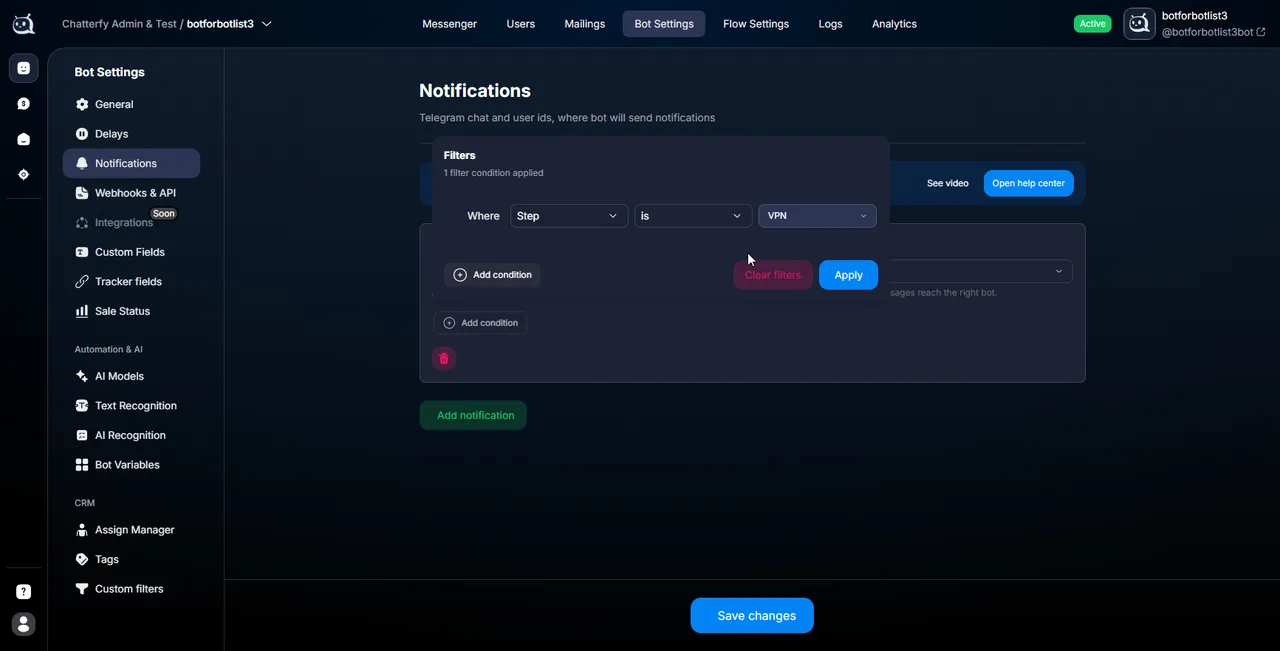
Configure Filters
6
Click Save
1
1. Prepare the Telegram group
Create a new Telegram group or use an existing one. Notifications will be sent to this group.
For example:
Support Team
Manual Chats
Sales Alerts
CRM Notifications.
2
2. Add the bot or Personal Telegram to the group
You must add one of the following to the group: the Telegram bot; or the Personal Telegram account, if Personal is used.
If the bot or account is not a member of the group, Chatterfy will not be able to send notifications there. As a result, the group will not appear in the list of available chats in Notifications.
3
3. Open Bot Settings → Notifications
Go to: CRM → Bot Settings → Notifications. This will open the notification settings section.
4
4. Select the Telegram group
After you add the bot to the Telegram group, it will automatically appear in the list of available chats. Select the group to which notifications should be sent.
5
5. Configure Filters
Use the Filter button to configure the conditions for sending notifications. For example: only for specific chats; only for selected Flow; only for specific tags; only for selected scenarios. This helps prevent unnecessary spam.
6
6. Click Save
After saving, notifications will automatically start being sent to the selected Telegram group.
How to check that everything works
The check takes less than a minute.
How to check:
Message the bot.
Open the chat in the CRM.
Move the chat to Manual status.
Check the Telegram group.
If everything is configured correctly, the notification will appear automatically.
Expected result
After setup:
the team receives notifications in Telegram
Manual chats are not missed
operators join conversations faster
there is control over problematic situations
AI and automation are easier to monitor in real time.
If notifications are not coming through
Notifications (Bot Settings → Notifications) is the section for sending notifications to the team’s Telegram groups.
The group is not displayed in the list
Check:
whether the bot has been added to the Telegram group
whether Personal Telegram has been added
whether the bot has been removed from the group
whether the bot has access to messages.
Notifications are not being sent
Check:
whether the correct group is selected
whether the settings have been saved
whether the chat matches the Filter
whether the chat has actually been moved to Manual status.
Notifications are not coming for all chats
The issue is most likely in the Filter. Check:
filtering conditions
Flow
tags
statuses
other restrictions.
Too many notifications
Narrow down the Filters. For example:
send notifications only for important Flows
split notifications across several Telegram groups
disable unnecessary conditions.
Frequently asked questions
Currently, Notifications support only one event: a chat moving to Manual status.
No. Notifications currently work only via Telegram groups.
Yes. Filters within Notifications are used for this.
Yes. You can configure different Telegram groups for different scenarios and Filters.
Usually, the reason is that: the bot has not been added to the group; Personal Telegram has not been added; Telegram has not had time to update the chat list.
Try:
checking that the bot is a member of the group
refresh the Notifications page
reopen the list of groups.
All members of the Telegram group where Notifications are sent.
Yes. Notifications work independently of AI.
Yes. If Personal Telegram is used, notifications can also be sent to Telegram groups.