

Tracker Data — traffic source data
The Tracker Data block in → the Chat data tab — read-only data about how the lead entered the system: which ad campaign, which source (Facebook / Google / Telegram / Custom), which domain, landing pag
The Tracker Data block in Customer Card→ the Chat data tab — read-only data about how the lead entered the system: which ad campaign, which source (Facebook / Google / Telegram / Custom), which domain, landing page, and which tracker parameters were passed on entry.
This block appears and is populated only if the bot is connected to Tracker — Overviewand the user came through a campaign tracking link. Tracker Data is populated automatically — the operator does not enter anything here manually.
Tracker Data visibility is configured in Bot Settings → Tracker fields. This is where you define which tracker fields are displayed in the customer card and the CRM interface. If the fields are empty, the user most likely arrived organically (without a clickid and tracker parameters).
When to use this section
- You need to quickly understand: “where did this lead come from?”
- Sales adapts the approach to the traffic source — Facebook and Google audiences behave differently
- Support checks which landing page the user saw before registration
- The Buyer analyzes which campaigns generate higher-quality conversations
- You need to check whether the tracker parameters were passed correctly
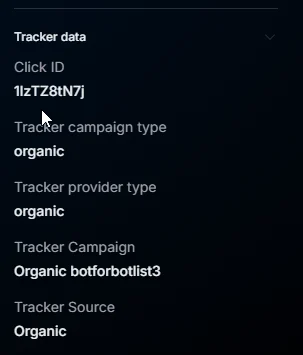
What is displayed
Field | What it shows | Example |
Campaign | Campaign name in Tracker | FB Q1 Forex India |
Source | Traffic source | facebook / google / telegram / custom / organic |
Domain | The domain the lead came from | promo.example.com |
Landing | Landing page or transition page | default-india / custom-may-promo |
Tracker parameters | Additional tracker parameters from the link | sub1, sub2, clickid, utm_campaign |
Additionally, any parameters that were passed through the tracking link and enabled in the Tracker fields settings may be displayed.
Which fields to display is configured separately
The set of fields in Tracker Data is configured in Bot Settings → Tracker fields.
This is where you define:
- which tracker parameters are saved
- which fields to show to operators in CRM
- which values are available inside the customer card
For example:
- one bot shows only Campaign + Source
- another also shows sub1/sub2/clickid/utm_campaign
- affiliate teams often display broker, geo, funnel_type, traffic_type
If the required tracker field is not in Tracker Data, it does not always mean that the parameter was not passed. Its display may simply be disabled in Bot Settings → Tracker fields.
If the fields are empty
Limited Tracker Data usually means one of three things:
The lead did not come from a Tracker campaign (organic traffic).
Tracker parameters were not passed in the link.
The display of the required fields is disabled in Bot Settings → Tracker fields.
Connection with filters
Tracker Data is available as a Tracker Field parameter in:
You can filter chats by:
- Campaign
- Source
- Domain
- Landing
- sub1/sub2
- clickid
- utm_campaign
- any other tracker parameters
Examples:
- “only FB leads for today”
- “all leads with landing = crypto-may”
- “leads from Google without FD”
- “Telegram traffic + Status Manual”
This is especially useful together with saved Custom Filters — saved segments, when the team works with different traffic sources in parallel.
Where else Tracker Data is used
Tracker parameters are available inside the system through variables:
{{tracker.parameter_name}}
For example:
{{tracker.source}}
{{tracker.campaign}}
{{tracker.sub1}}
They can be used:
- in Conditions and flow branching
Use cases
Arbitrage — audience behavior analysis
The Buyer launches two campaigns:
- FB-Forex
- Google-Forex
Opens several chats from both campaigns and compares user behavior. Notices: FB leads ask a lot of questions about registration. Google leads ask about the deposit almost immediately.
After that, changes “AI Reply — smart reply via AI” AI Reply — smart replies via AI — For Facebook, adds more onboarding information. For Google, makes replies shorter and more conversion-focused.
Sales — conversation personalization
The manager sees in Tracker Data: Landing = may-promo.
Understands that the user saw a promo with a bonus on the first deposit. The first message in the chat: “I see you came from the May promo — your first-deposit bonus is still active.” The dialogue becomes more personalized and increases the likelihood of conversion.
Team Lead — budget optimization
The Team Lead opens 20 random leads with the FD tag. Looks at Tracker Data:
- 80% came from FB Q1 India
- 20% — from Google Q1 India
Conclusion: the Facebook campaign provides higher-quality traffic. Google converts worse into FD. After that, they redistribute the budget between sources.
What to keep in mind
Tracker Data is a read-only block. You cannot change these values manually.
If tracker data is displayed incorrectly:
- check the tracker link
- check the Tracker fields settings
- check parameter passing
Frequently Asked Questions
Related


Was this article helpful?