

Manual — Manually Changing Lead Parameters
Manual is a block in → the Chat data tab, where the operator manually manages key lead parameters. Here you will find 6 main fields used in daily work: Sale stage, Status, Flow, Step, Manager, and Tag
Manual is a block in Customer Card→ the Chat data tab, where the operator manually manages key lead parameters.
Here you will find 6 main fields used in daily work: Sale stage, Status, Flow, Step, Manager, and Tags.
This is one of the most frequently used blocks in the customer card — it is usually where work with a chat begins.
When to use
- Change the sale stage after a call — Sale stage
- Switch the chat to manual handling — Status
- Switch the user to another flow — Flow
- Return the user to the required step — Step
- Assign the lead to an operator — Manager
- Mark the user with tags — Tags
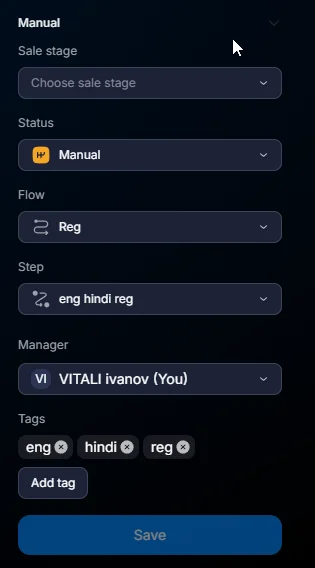
The six Manual fields
Field | What it changes | Example |
Sale stage | Sales funnel stage | Lead → Qualified |
Status | Technical status of the conversation | Auto → Manual |
Flow | Current flow | Main → Returning |
Step | A specific step within the flow | Welcome → Qualify |
Manager | Assigned operator | — → Ivan |
Tags | User tags | +VIP, +hot |
Sale stage
Sale stage is linked to the sales logic:
- Lead
- Qualified
- Deposit
- Sale
- Retention
Status
Status controls chat behavior:
- Auto
- Manual
- Finished
- Pause
- Spam
A single user can simultaneously have:
- Sale stage = Qualified
- Status = Manual
This is a normal situation.
Flow and Step
Flow
Flow defines the scenario the user follows.
Examples:
- Main Flow
- Returning Users
- VIP Flow
- Reactivation
Step
Step is a specific place within the current flow.
Example:
- Welcome
- Qualification
- Deposit Reminder
When changing the Flow, you must select a new Step. Without a specified Step, the user will not be correctly moved to the new scenario.
If the new Step should start running immediately, the chat must be in Auto status.
Manager (Assign)
The Manager field assigns the lead to a specific operator.
After Save:
- the chat appears for the operator in the Inbox Control — Managing Your Chat List(My Chats).
- messages start being sent to the new operator
- the assignee for the conversation changes.
Automatic operator assignment is best configured via: Assign Manager — chat distribution and the step Operator — assigning an operator. The customer card is used for targeted manual changes.
Tags
Tags allow you to assign several tags to a user at the same time.
Examples:
- VIP
- hot
- escalated
- requires_attention
Tags:
- are created in Tags — tags for segmentation.
- are only assigned in Manual.
If the tag you need is not in the list, create it first in Bot Settings → CRM defaults → Tags.
How to change parameters manually
1. Open the chat
The customer card will open automatically on the right.2. Open the Manual block
The Chat data tab is open by default.3. Edit the required fields
Available:Sale stagemulti-selectoperator selectionflow and step selection.4. Click Save
Save is required. Without saving, changes are not applied.
Use cases
Sales — lead qualification
After the call, the manager realizes that the lead is ready to buy.
Changes:
- Sale stage → Qualified
- Tags → ready_to_buy
- Status → Manual
Save.
Support — escalation
The first-line operator cannot handle the issue.
Changes:
- Manager → L2 Expert
- Tags → escalated
- Status → Manual
After you click Save, the chat appears for the new operator.
Return scenario
The user registered but did not make a deposit.
Changes:
- Flow → Returning Lead Flow
- Step → Re-engagement
- Tags → cold
Save.
What to keep in mind
Manual is a tool for targeted changes.
If the same actions are repeated regularly:
- changing Sale stage
- changing Status
- changing Flow
- changing Step
- assigning a Manager
- changing, selecting, and removing Tags
it is better to automate this via a flow.
For automation, use:
- the Change status step — see the step group Changes — data changes.
FAQ
Related


Was this article helpful?