

Chat Status — conversation statuses
Status is the main technical parameter of a conversation. It shows the current state of the chat and determines: who responds to the user — AI or an operator whether Push Messages (Global/Step push) a
Status is the main technical parameter of a conversation. It shows the current state of the chat and determines:
- who responds to the user — AI or an operator
- whether Push Messages (Global/Step push) are working.
- whether the bot can continue the conversation
- whether manual handling is required.
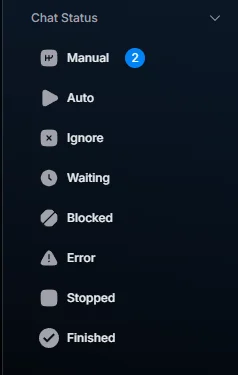
Chatterfy uses 8 fixed statuses. Each one represents a specific communication state between the bot, the operator, and Telegram.
Status can change:
- automatically — through flow steps
- manually — by an operator through Customer Card.
Understanding statuses is the foundation of CRM troubleshooting. Most issues such as:
- “why isn’t AI responding?”
- “why aren’t push messages arriving?”
- “why did the chat disappear?”
- “why isn’t the lead moving forward?”
are usually explained by the chat’s current Status.
When to check Chat Status
- the lead has stopped moving through the scenario
- AI suddenly stopped responding
- the operator is not receiving notifications
- Telegram has stopped delivering messages
- you need to manually stop or end the conversation
- mass AI errors have appeared.
Screenshot: Chat Status panel in Messenger with a list of all 8 statuses and the number of chats (hide real data).
Where Status is displayed
You can see the current chat status in three places:
Where | What it shows |
Bot → Messenger → Inbox Control | The Chat Status panel on the left |
In the customer card (Messenger section) | The status indicator in the chat card |
In the Users section | Status in the users table |
8 dialog statuses
Each status controls: message processing, AI behavior, how Push Messages work, and dialog availability.
Status | What it means |
Auto | AI handles the dialog automatically |
Manual | The dialog is being handled manually |
Waiting | The bot is waiting for the user's reply |
Ignore | A lead sent a message in Manual status and did not receive a reply |
Blocked | The chat is blocked on the CRM side |
Error | A technical AI error during token generation |
Stopped | Conversations that the bot can no longer write to |
Finished | The conversation is fully completed |
Auto — AI is handling the conversation
The main working status for new leads.
In Auto mode:
- messages are processed by AI or a flow
- AI replies automatically
- the conversation continues moving through the scenario.
Manual — an operator replies manually
Manual processing status.
In this status, automation is completely disabled, specifically:
- AI stops replying
- Global/Step pushes do not work
- only the operator handles the conversation
Important
Push Messages do not work in Manual because automation is disabled in this status.
Waiting — the bot is waiting for a reply
Intermediate waiting status.
Used when a flow has stopped and is waiting for user action.
In Waiting:
- AI does not continue the flow on its own
- the system waits for a new message from the user
- Push Messages continue to work.
Ignore — user wrote after Manual
Intermediate technical status.
Appears automatically if:
- the chat was in Manual
- the user sent a message that did not receive a reply from you.
Ignore is needed so the operator can see the new message.
Push Messages are disabled in Ignore.
Blocked — chat is blocked
Full chat blocking status on the CRM side.
Can be set:
- manually by an operator
- automatically via a flow.
Critical
The user can still write to the bot in Telegram, but these messages will not get into CRM, will not be processed by AI, and will not appear for operators.
Error — technical AI error in token generation
Technical error status.
Appears if:
- AI could not process the message
- the AI model returned an error.
Such chats require review.
If Error appears in bulk:
- check whether an AI model is specified
- contact technical support.
Stopped — conversations the bot can no longer write to
The status appears when Telegram does not allow messages to be sent to the user.
Reasons:
- the user blocked the bot
- the user deleted their account
- Telegram temporarily restricted message delivery.
Important
Stopped applies only to a specific chat. This does not mean that the entire bot has been stopped.
Finished — dialog completed
The final chat status.
Used when the deal is closed. Communication is over. No further work is needed.
In Finished:
- AI does not reply
- Push Messages are disabled
- the flow no longer continues.
How to change Status
There are three ways:
Method | Where it is used |
Manually | Through the customer card |
Automatically | Using Finish Status in the step |
In bulk | Through the Users section. Select the chats and click the Edit Chats button. |
Use cases
Sales — VIP is moved to Manual
A VIP lead requires individual handling.
The operator:
- moves the chat to Manual
- connects a handler
- handles the negotiations manually.
Support — AI could not handle it
If the user asks a non-standard question at step AI Reply — smart replies via AI, AI can automatically hand the conversation over to an operator via AI Routings.
Logic:
AI detects a complex or unsuitable request → moves the lead to a separate step → the step changes Status to Manual → then an operator replies.
For example: a lead asks a complex question that AI should not answer on its own.
Critical
This is the main way to safely handle situations where AI should not continue the conversation on its own.
Screenshot: AI Routing with a transition to a step with Finish Status → Manual.
Frequently asked questions
Related


Was this article helpful?