

How to create a campaign
Создание новой кампании в Tracker — пошаговый флоу через все вкладки настройки формы. Result: a working campaign with ready-to-use links for your ad account. This guide takes you from an empty campaig
Создание новой кампании в
Tracker — пошаговый флоу через все вкладки настройки формы.Result: a working campaign with ready-to-use links for your ad account.
This guide takes you from an empty campaign list to a configuration ready to launch. In practice, setup takes about 10–30 minutes, depending on how ready your domain, landing page (if using one), bot or channel, and source profile are.
What to prepare
При необходимости лендинг перехода в
Telegram — Landings — Telegram redirect landing pages (Default или Custom). Для кампании типа Not Organic лендинг можно не указывать. тогда не выполняется этап страницы перехода и не прикрепляются параметры и события, которые задаются на этом этапе.Подключённый
Telegram -бот или канал, через которые пойдут лиды — см. материалы по подключению бота и сценарию «канал + личка» в разделе Tracker / Campaigns.Decide on the route type in advance: Channel (channel → DM-bot) or Bot (directly to the bot).
If you are going to send events to an advertising source (Facebook, Google), prepare your Pixel ID + Access Token or Conversion ID + Labels and data for the profile in Sources.
Где список кампаний:
Tracker → Campaigns.Steps
Open the Campaigns list
Go to Tracker → Campaigns. This is the main screen of the section — all campaigns are displayed here.
Click Create campaign
The button is in the top right corner. A form with seven configuration tabs will open. You need to go through them in order from top to bottom.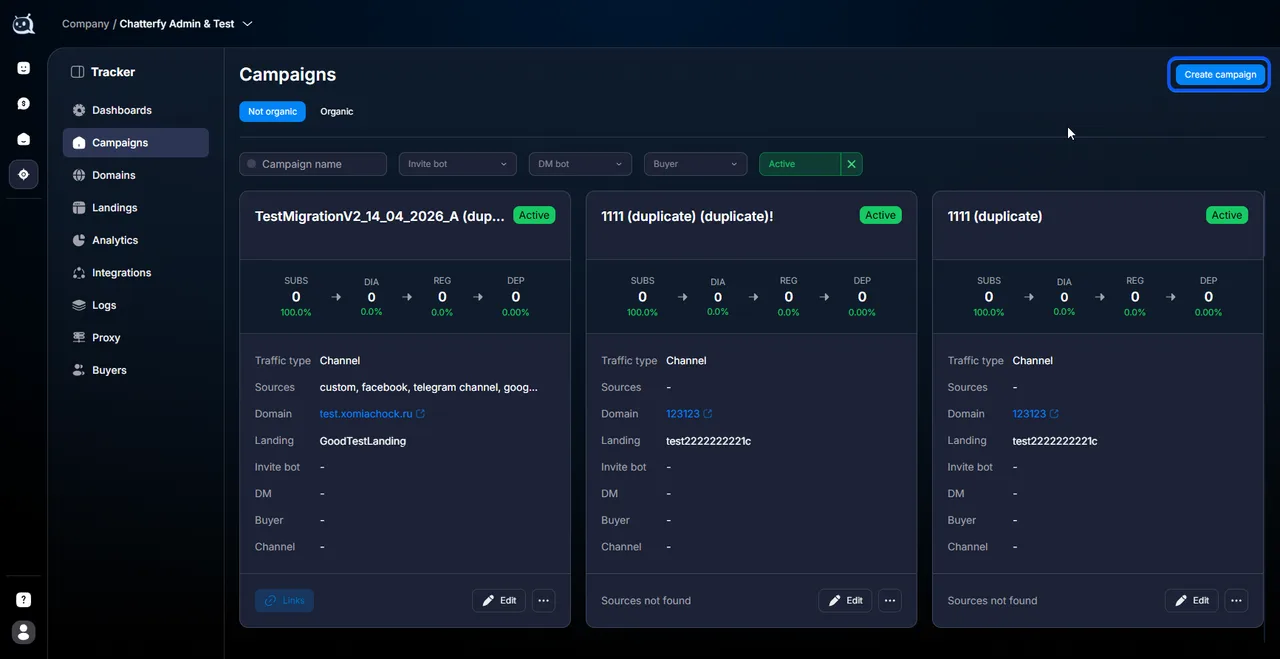
Information — basic identification
Fields: Name, Description, Domain, Landing, Buyer.Information — Basic Campaign IdentificationRecommendation for the name: a format like Source | GEO | Offer | Date — for example, FB | US | Forex | Q4-2026. This makes it easier to search among many campaigns.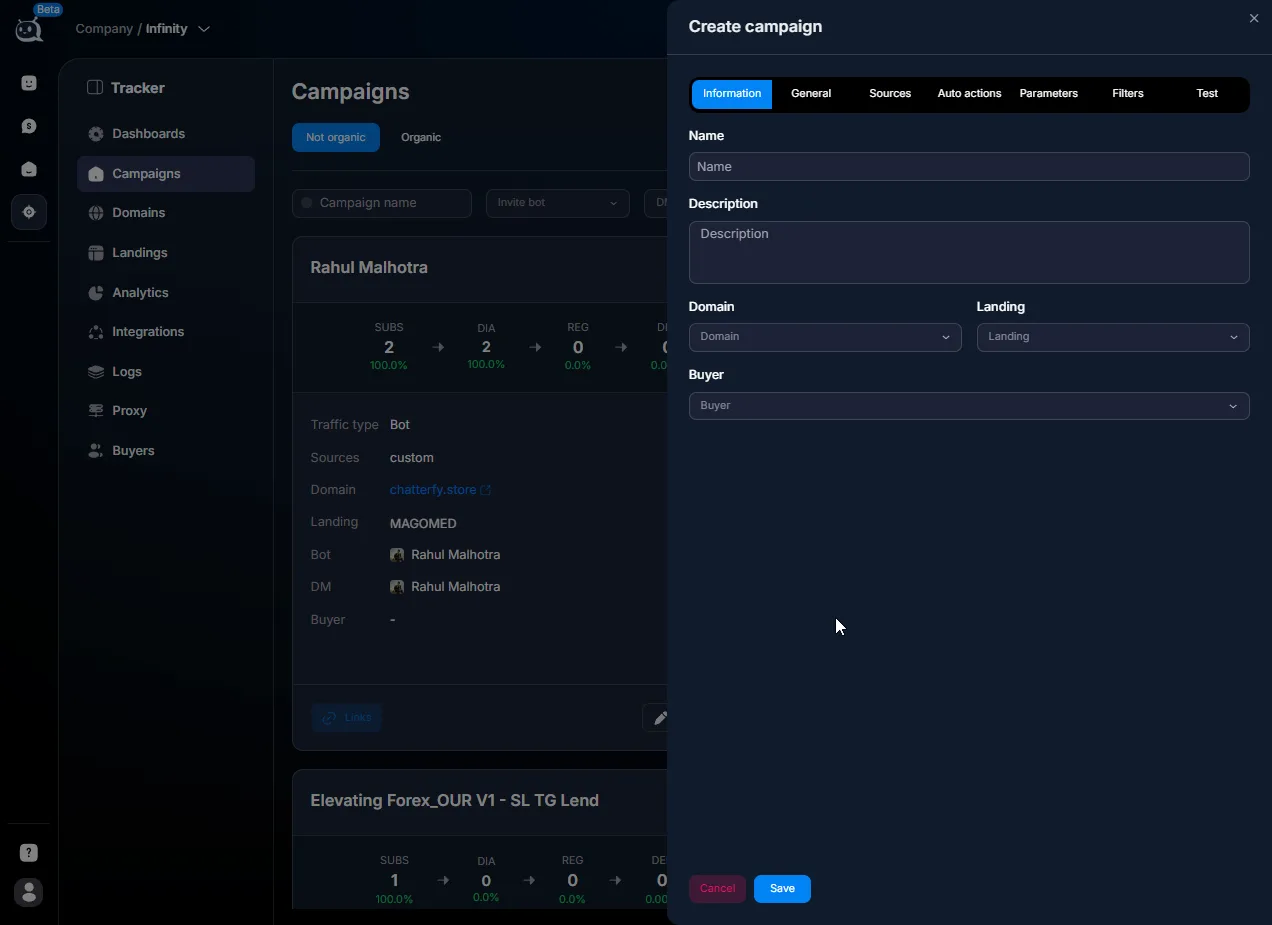
General — user route
Traffic type (Channel / Bot), Invite Bot, channel, Start Flow and Start Step, DM-bot.General — user journeyCommon scenario: Channel + Invite Bot, which accepts applications, + DM-bot for the first message in DM — Campaigns — advertising campaigns.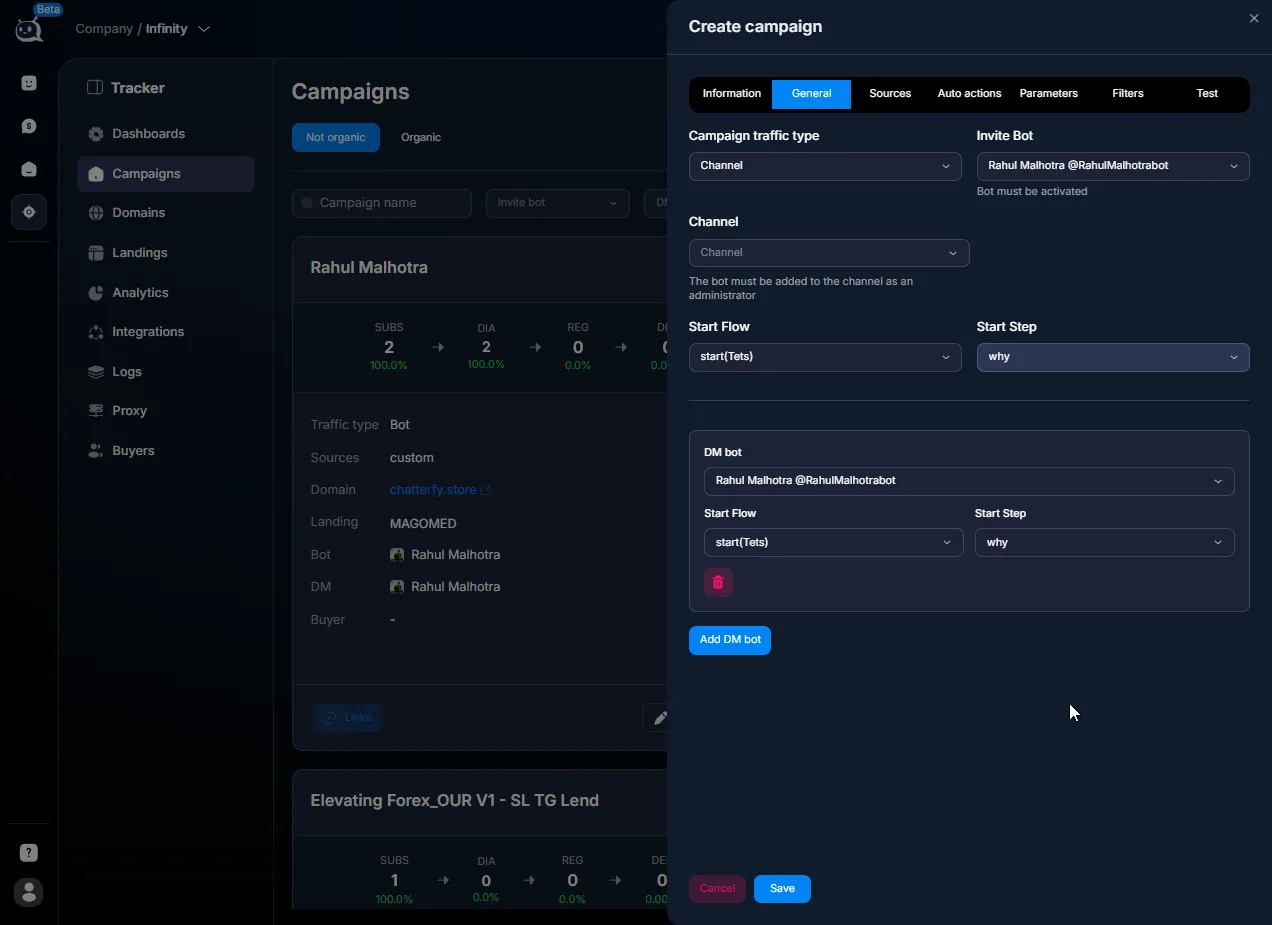
Sources — traffic source
Click Add source and select a Provider: Facebook / Google / Telegram / Custom. The set of fields depends on the provider.Sources — Traffic Sources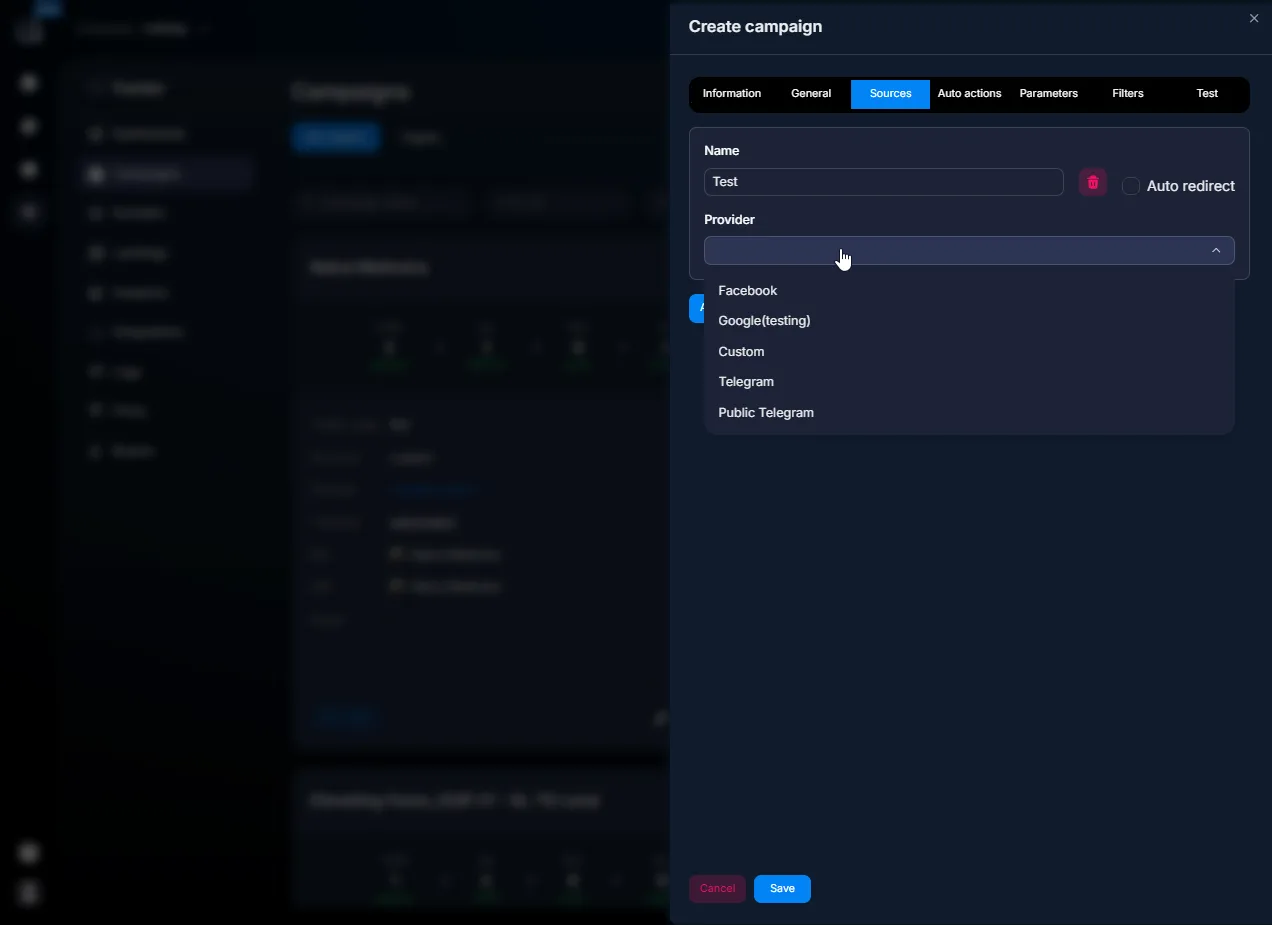
Parameters — link parameters
What to pass in the advertising link URL (sub1, ad_name, buyer, etc.). Details —. Values are then available in lead data in the CRM and used in reports — Parameters — link parameters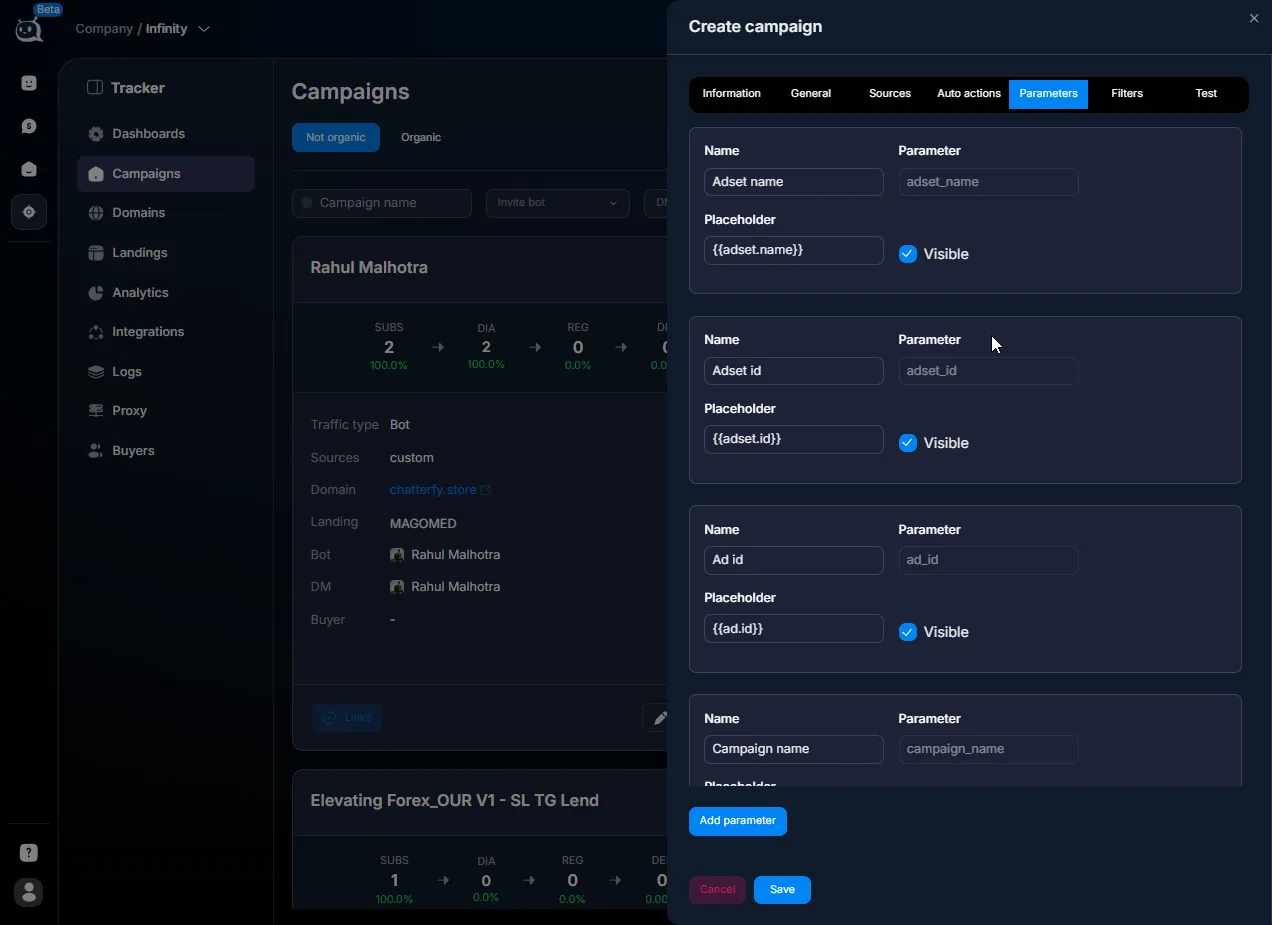
Filters — GEO / OS / device restrictions
Who to show the landing page to (if a landing page exists), who to send to a separate URL. Filters — traffic filters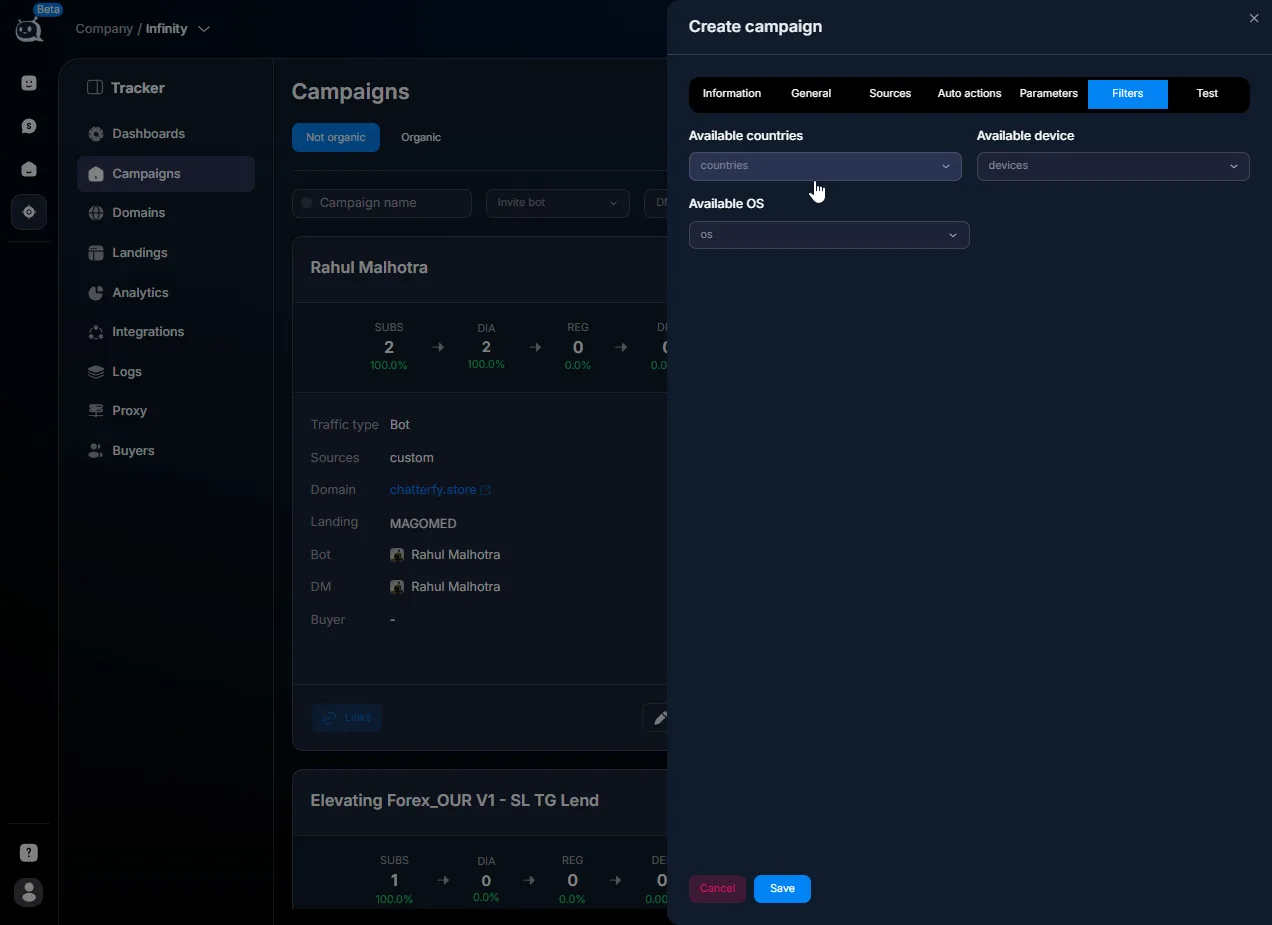
Auto Actions (optional)
Auto-actions based on affiliate events — for example, after a sale, move a lead to a different flow or step. Configuration —. This block can be skipped and filled in later. Auto Actions — auto actions based on postbacksSave the campaign
Use the Save button in the top right corner. The campaign will appear in the list in an active state. The Links button will become available in the card, providing ready-made advertising links for connected sources.Test via Test
Before running real traffic, be sure to complete: check domain availability, filters (if enabled), correct channel/bot entry, and flow initiation. If a landing page is present — the chain through the transition page.Test — checking a campaign before launch

How to know if the campaign is ready
After clicking Save, the campaign is visible in the list. In the card, ensure the domain, landing page (if needed), source profile, route (Invite Bot / bot, channel if Channel), and Buyer are consistent.
The Links button provides a working link: for a full scenario with a landing page — the landing page opens → transition to
Telegram → DM-bot sends the first message → lead entry event is recorded in Tracker. Without a landing page, check the link transition directly into Telegram and the correctness of the tagging without waiting for landing page stage events.After a successful Test, you can launch traffic in the ad account.
If it is not working
Symptom | Where to look |
The required domain is missing in the Domain selector | |
The required bot is missing in the bot selector | Bot settings in Telegram and connection to the product. Access rights |
Save returns a validation error | Which field is highlighted — check mandatory fields on the Information, General, and Sources tabs |
Test is OK, but in real traffic, leads are not entering the bot | Match the link from Links, filter parameters, Telegram user blocks |
Affiliate events are not linked to leads | See Connecting Affiliate Programs, postback settings in the campaign, and the Logs — event logs log. |
What's next


Parameters preset for the source
On the
Parameters tab, select a parameter preset for the source: Facebook, Google, TikTok, or Custom. A preset speeds up the initial campaign parameter configuration; for a non-standard source, use Custom.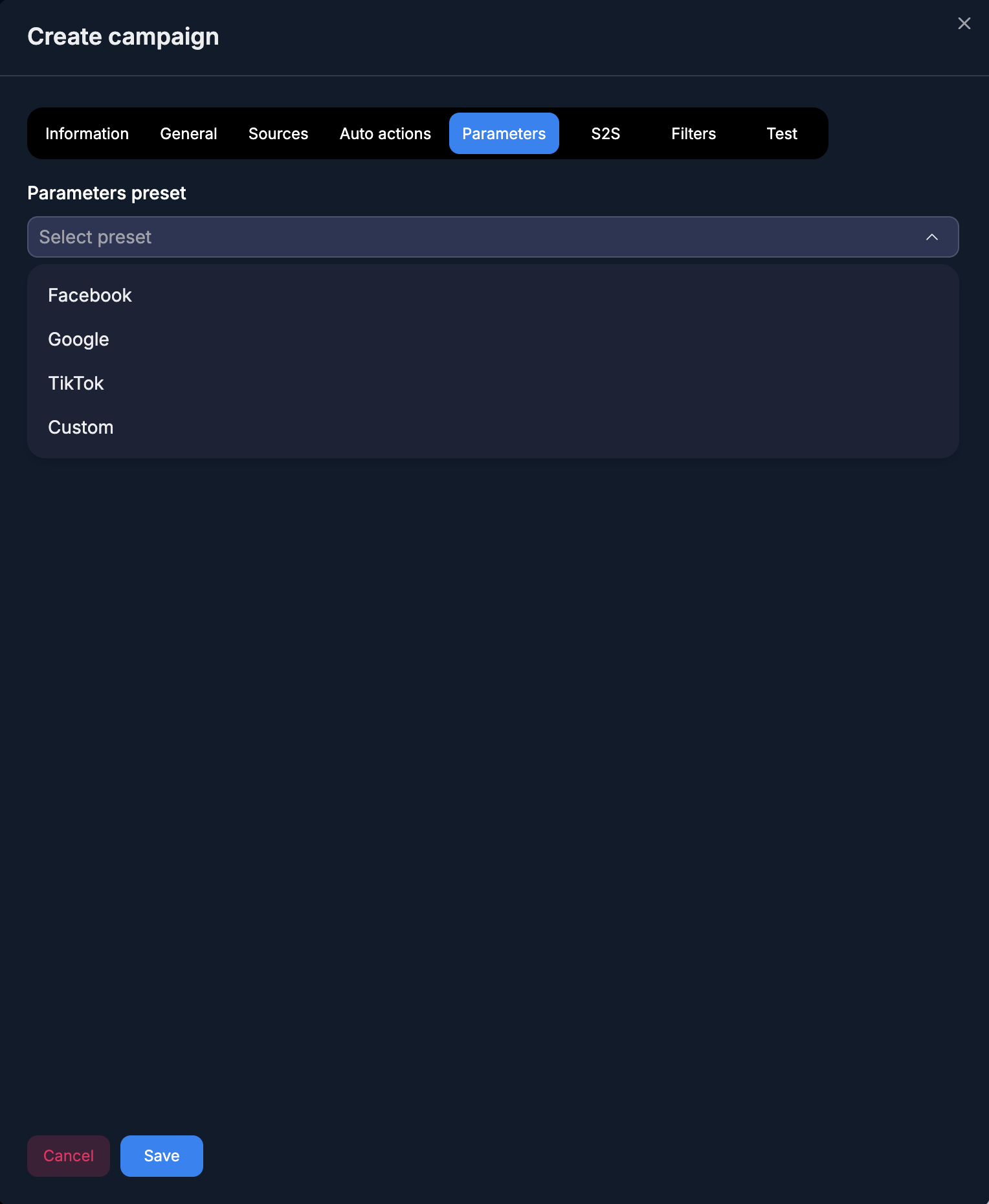
Was this article helpful?