

Auto Actions — auto actions based on postbacks
The Auto Actions tab lets you automatically change a lead’s state in CRM when an affiliate network event occurs. Without operator intervention: a postback arrives — the lead switches to the required F
The Auto Actions tab lets you automatically change a lead’s state in
CRM when an affiliate network event occurs. Without operator intervention: a postback arrives — the lead switches to the required Flow or gets a new status.When to use Auto
ActionsYou want to move a lead to a special “post-deposit” Flow with repeat deposit offers. After registration (but before the deposit), switch them to a warm-up Flow so AI or an operator can bring them to payment. When a withdraw event arrives, tag the lead as “withdrew funds, be careful” and set Status to
Manual for an operator. After a resale event (repeat deposit), put them into the “already ours, run repeat sales” Flow. Any situation where “event → action” can be automated.How it works
When the affiliate network sends a postback with an event (registration, sale, resale, withdraw, any custom event),
Tracker:- Finds the lead by clickid.
- Logs the event in the lead card (Events section).
- Checks the Auto Actions rules for the campaign the lead came through.
- If there is a rule matching the event, applies it: switches Flow / Step and/or changes Status.
Without Auto
Actions, the event is simply written to the log, and the operator decides what to do. Auto Actions is an event “handler” that works without operator involvement.
Rule setup steps
Open the campaign
Tracker→Campaigns→ select a campaign → Edit.
Go to the Auto
ActionstabYou will see a list of existing rules and the Add action button.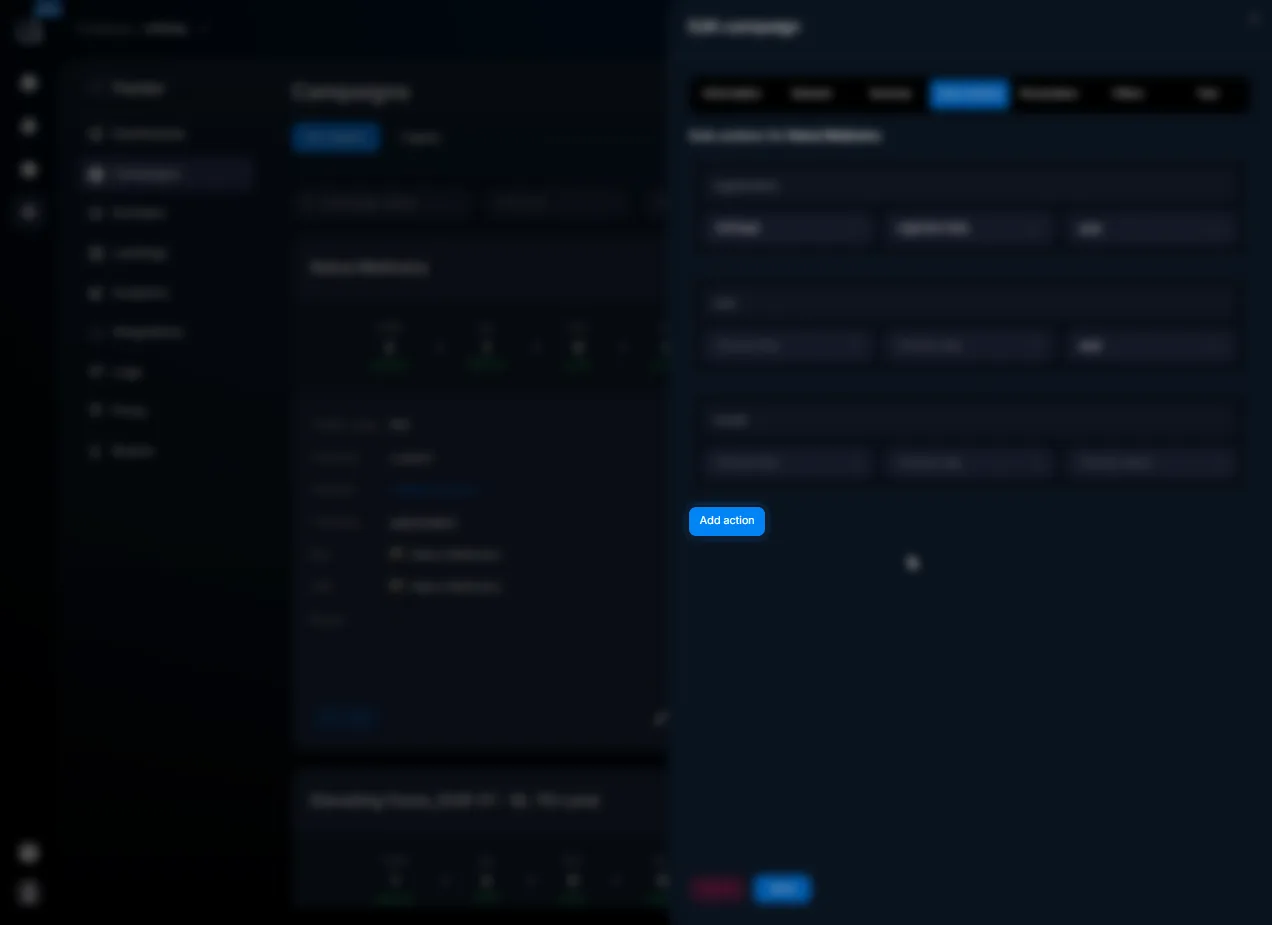
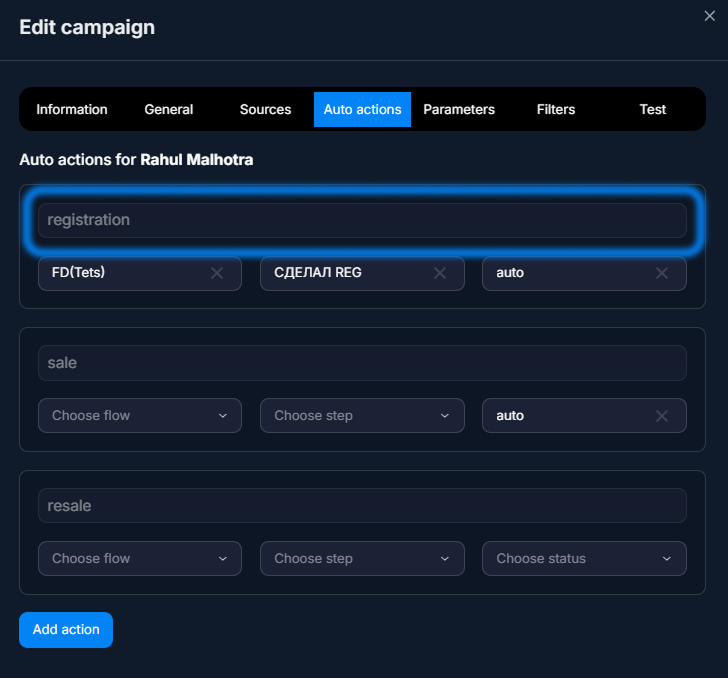
Add action button Select an event (Event)
For example,sale(first deposit) orregistration. The list depends on the events configured in Integrations — Partner Programs.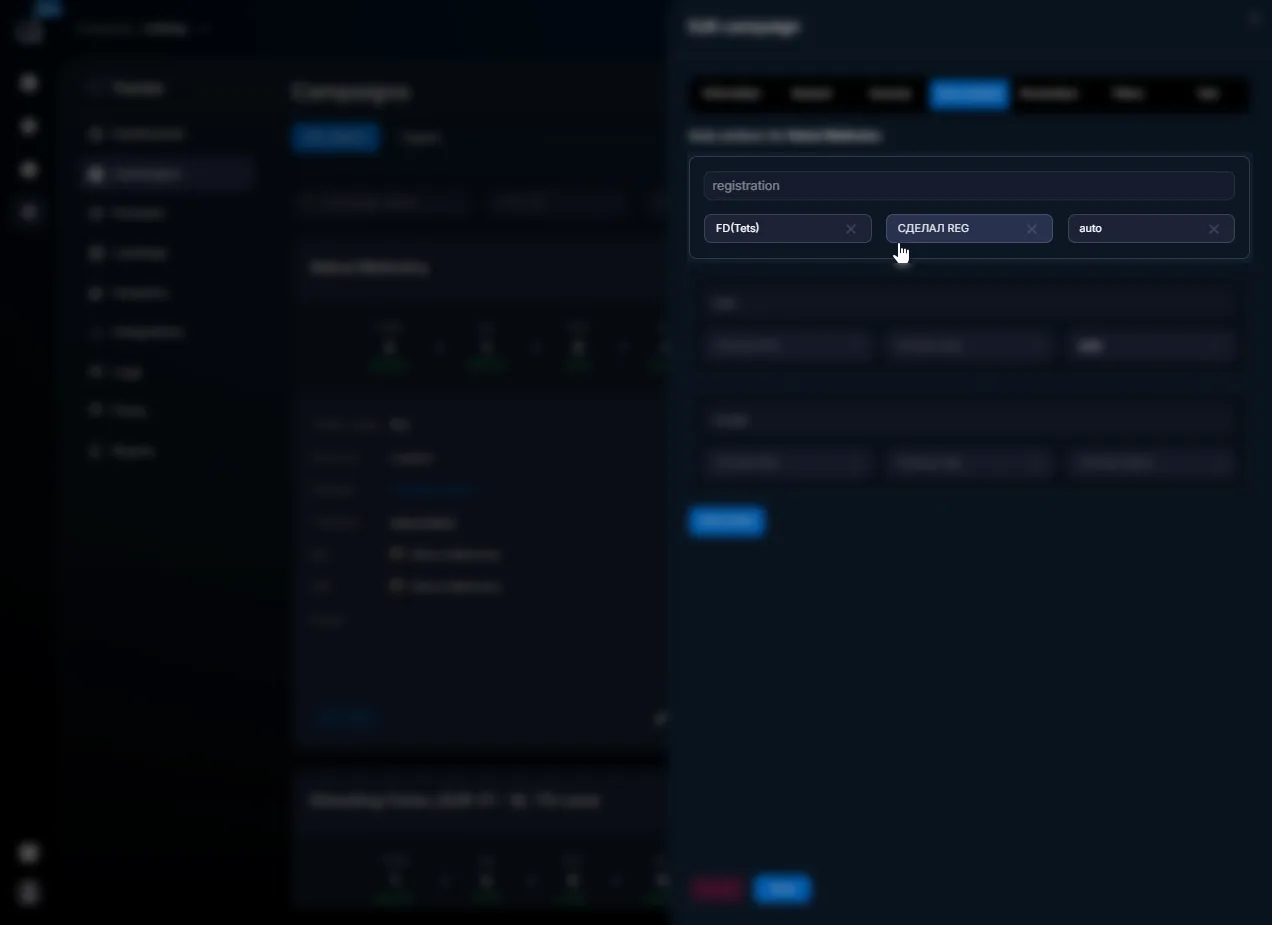
Fill in the action
Specify Flow, Step, and Status. All three are optional: you can set only Status, or only Flow + Step, or everything at once.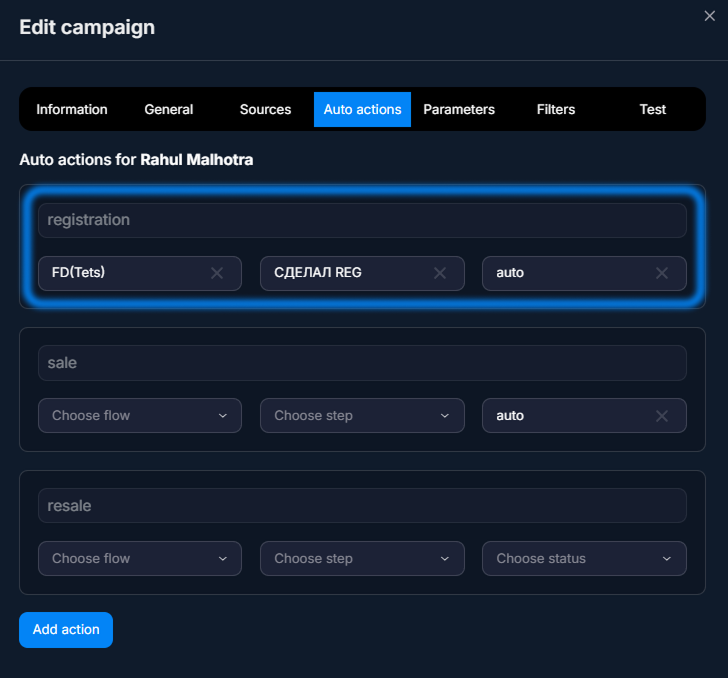
Flow / Step / Status fields Save
Save button. The rule applies to new events. Existing leads are not changed — AutoActionsdoes not “catch up” retroactively.
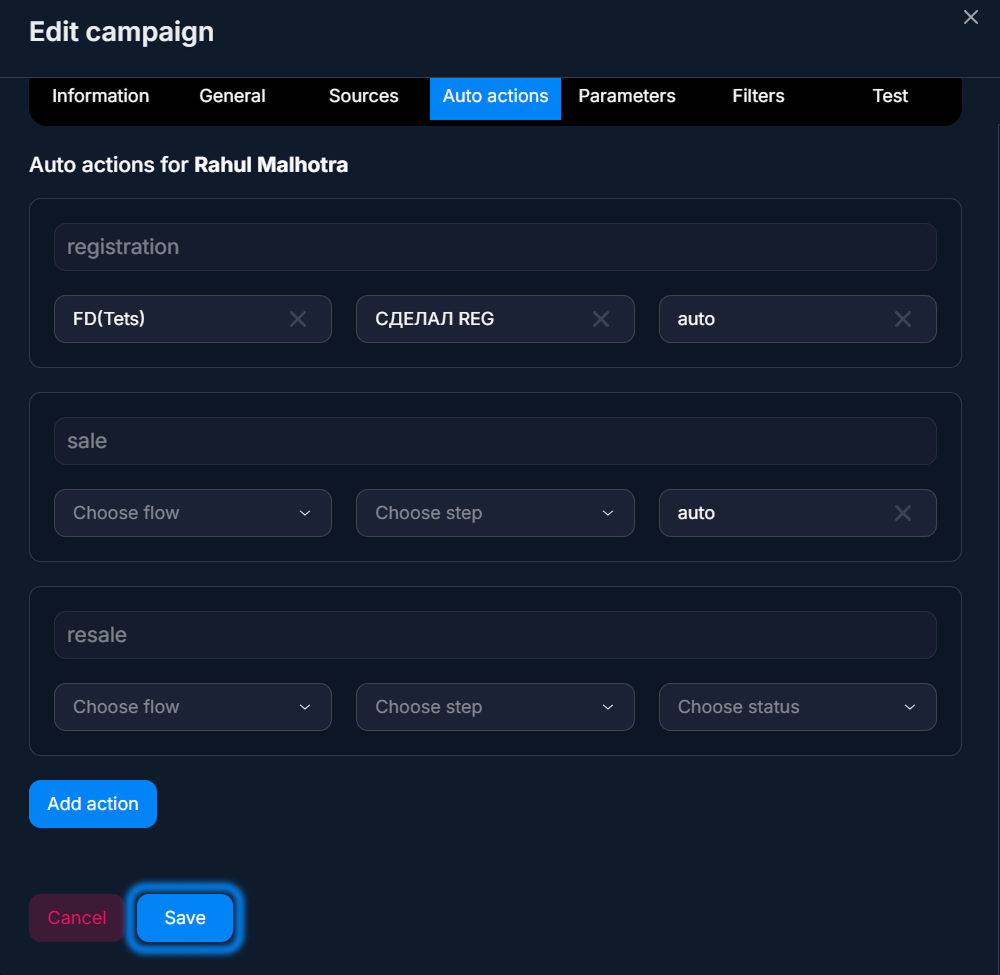
Save button
Rule parameters
Field | What it defines | Type / example |
|---|---|---|
Event | Event type from the postback. The rule is triggered when this event comes from the affiliate program. | sale/registration |
Flow | Which Flow to move the lead to. Optional — if not specified, the Flow remains unchanged. | Hot Lead Flow |
Step | The specific Step within the Flow where the lead will go. Optional, but usually specified. | After Deposit |
Status | Which dialog status to set. Auto / Manual/Stopped/Finished. Optional. | Manual |
Usage examples
After registration — warm-up — media buying
The Buyer wants a lead who registered in the affiliate program but did not make a deposit to receive a series of push notifications with reminders. Rule: Event =
registration, Flow =Warm-Up, Step =Day 1 Reminder. Inside the Warm-Up Flow — Статьяwith a schedule for 1, 3, and 7 days.After the first deposit — repeat sales — media buying
The lead made an FD — it is time to offer a repeat deposit and more advanced affiliate products. Rule: Event =
sale, Flow =Hot Lead, Status =Manual(so an operator can step in). Optionally, Auto Action adds the tag depositor.After withdrawal — operator flag — arbitration
Withdraw — the lead has withdrawn money. Rule: Event =
withdraw, Flow =Recovery, Status =Manual — the operator steps in and tries to retain the lead, or at least find out the reason for the withdrawal for analytics.Universal scenario — sales
The sales team uses the custom event
purchase from the payment system. Rule: Event =purchase, Flow =Customer Onboarding — after payment, the customer automatically moves to the onboarding Flow; the bot explains the product, schedule, and support contacts.What to keep in mind
Auto Action is triggered once per event — if the lead made a sale, the rule was triggered. A repeated sale without resale will not start it. Without a valid
clickidTracker, it will not be able to find the lead and the rule will not be applied — check in Logs — журналы событий. Auto. Auto Actions work only for events received via postbacks Integrations — Partner Programs— Subscribe / Click / Contact events come from Chatterfy itself and are not configured here. You can create several rules for one event — all of them will be applied sequentially (but this is usually unnecessary; one rule is better).Frequently asked questions
Related


Was this article helpful?