Skip to content
ChatterfyHelp Center
HomeGeneralCRMAI ManagerTrackerPlatformsFAQUpdate log
Main
Bot Settings
Automation & AI
CRM defaults
Flow Settings
AI Settings
Steps
Communication
Changes
Terms
Tracking
Additional
Messenger
Client card
Chat data
Chat data — main card tab
Manual — Manually Changing Lead Parameters
Custom Data — manually filling in custom fields
User Information — basic lead data
Tracker Data — traffic source data
Show Chat Events — displaying service events
Actions — exporting and clearing a conversation
Events
Users
Mailings
Analytics
  1. CRM
  2. Chat data
  3. Custom Data — manually filling in custom fields

Custom Data — manually filling in custom fields

The Custom Data block in → Chat data tab — manually filling in the bot's custom fields. These are all fields from , available to operators for editing. A field can be: empty — a new lead, no data yet

Updated August 30, 20263 min
The Custom Data block in Customer Card→ Chat data tab — manually filling in the bot's custom fields. These are all fields from Custom Fields — custom fields, available to operators for editing.
A field can be:
  1. empty — a new lead, no data yet
  1. fully filled in.
With Custom Data, the operator manually adds, corrects, or updates lead data.


When to use it

  1. The lead provided trader_id in the chat; you need to enter it manually.
  1. You learned the lead's GEO — fill in the country field.
  1. Add a note for the team — “asked for a 30% discount”, “will come back in a week”.
  1. Correct a recognition error — for example, AI entered “Ivan” instead of “Ivanov”.
  1. Add data from an external source — CRM, spreadsheets, support, or a third-party server.
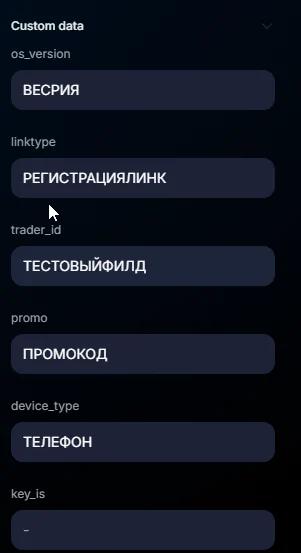


Which fields are displayed

The list of fields is defined in Custom Fields — custom fields. Each bot has its own set.
Typical examples:
Field
What it stores
trader_id
User ID in the partner program
country
User GEO code
phone_number
Phone number
budget
Budget or deposit amount
manager_note
Internal team note
Each field is displayed as a separate input.
Supported types:
  1. Text
  1. Long Text
  1. Link
  1. Number
  1. Date
  1. Select
  1. Multiselect
The type is set when creating the field in Custom Fields — custom fieldsand cannot be changed after creation.


Sources for populating Custom Fields

Custom Fields can be populated in five different ways:
Source
When used
Where configured
AI Recognition
AI extracts data from media
AI Recognition — media processing
Text Recognition
AI extracts data from message text
Bot Settings → Text Recognition
Webhook
An external system passes data via API
Webhooks & API — receiving data from external sources
Postback
An external system sends a postback event
Tracker → Integration
Manually
The operator fills in the fields manually
Customer card
All five sources write data to the same fields. A manual change takes priority when saved — the operator can overwrite a value that was previously written by AI or webhook.
But automated systems can also change the field later:
  1. AI Recognition
  1. Text Recognition
  1. webhook
  1. postback.
If the automated logic runs again, it can overwrite the manually entered value.


Saving changes

After filling in or changing the fields, click Save at the bottom of the block.
Without Save:
  1. changes will not be saved
  1. when you switch to another chat, the data will be lost.


Where Custom Data values are used

Filled-in Custom Fields are available in several places in the system.

Custom Filters

In Custom Filters — saved segmentsyou can filter leads by field values.
Example:
  1. country = IN
  1. budget > 1000


Bot Variables

In “Bot Variables — reusable values” Bot Variables — reusable values —
{{fields.ключ_поля}}
can be used inside the variable value.


Webhook (outgoing)

In the “Webhook — sending data externally” step Webhook — Sending Data Out —
{ключ_поля}
you can send data to external systems.


Users

Fields can be displayed:
  1. in table columns Users.
  1. in the CSV export of leads.
Column display settings are in Column settings — what is shown in the table.


Usage examples

Sales — details from the conversation

The manager communicates with a lead in the chat.
The lead provides:
  1. email
  1. budget
  1. contact phone number.
AI did not automatically extract this data.
The operator manually fills in: email → ivan@mail.com. budget → 5000.
Clicks Save.
After that:
  1. the data is saved for the lead
  1. becomes available in filters


What to keep in mind

Custom Data is not included in Tracker analytics. Custom Fields values: are not displayed in Tracker. do not affect campaign statistics. are not included in traffic analytics.


Frequently asked questions

Through Custom Fields — custom fields.
Custom Data only displays and fills in existing fields.
If the required field does not exist:
  1. create it in Bot Settings
  1. after that, it will appear in the card of all leads for this bot.

Custom Field
Used to store values:
ID
amounts
dates
GEO
text
notes.
Tag
Used as a label:
VIP
cold
hot-lead
asked-refund
If the value:
can be inserted into a template
calculated
compared —
use Custom Field. If it is simply a segmentation attribute — Tag.

There is no automatic undo.
If you need to restore the old value:
  1. enter it manually
  1. click Save.

No.
Tracker does not display values from Custom Data and does not use them in analytics.

Yes.
If:
AI Recognition
Text Recognition
webhook
postback
write data to this field again, the value may change automatically.


Related

Customer Card
The client card is the right-hand panel in , which opens when you click a chat. It contains 3 tabs : Chat data (current lead parameters + actions), Events (event feed), Media (all files from the conve
Custom Fields — custom fields
Custom Fields (Bot Settings → Custom Fields) — a section for creating additional fields in the customer card. Standard fields already exist in Chatterfy: name, username, status, and Telegram ID. But o
Manual — Manually Changing Lead Parameters
Manual is a block in → the Chat data tab, where the operator manually manages key lead parameters. Here you will find 6 main fields used in daily work: Sale stage, Status, Flow, Step, Manager, and Tag
AI Recognition — media processing
AI Recognition — media processing with AI AI Recognition is a feature inside Automation & AI that allows AI to process the user's media files. AI can work with: voice messages; photos; video note; ima
AI Reply — smart replies via AI
The AI Reply step is the main step for communicating via AI. In this step, the bot generates a response using a neural network, taking into account the lead’s message, the conversation context, flow-l
Webhooks & API — receiving data from external sources
With a webhook, an external service can update user data, change the chat status, switch Flow steps, write values to Custom Fields, add or remove tags, and manage the conversation from an external sys
Custom Filters — saved segments
The Bot Settings → Custom Filters section is where saved filters for lead segmentation are created. These are pre-built combinations of conditions that select the required audience from the entire dat
Column settings — what is shown in the table
The Columns button at the top of the table allows you to configure which data is displayed in the user list. By default, only standard fields are shown, but if needed, you can add: Custom fields — cus

Was this article helpful?

BackManual — ручное изменение параметров лидаNextUser Information — basic lead data

On this page

  • When to use it
  • Which fields are displayed
  • Sources for populating Custom Fields
  • Saving changes
  • Where Custom Data values are used
  • Custom Filters
  • Bot Variables
  • Webhook (outgoing)
  • Users
  • Usage examples
  • Sales — details from the conversation
  • What to keep in mind
  • Frequently asked questions
  • Related