

Send message — sending a prepared message
The Send message step is the most basic flow step. It sends predefined content: text, an image, a document, a voice message, a video note, buttons. Unlike AI Reply, there is no AI here and no generati
The Send message step is the most basic flow step. It sends predefined content: text, an image, a document, a voice message, a video note, buttons.
Unlike AI Reply, there is no AI here and no generation. It simply sends what you wrote in the step. This is useful for greetings, instructions, links, and answers to guaranteed questions.
When to use it
Lead greeting (“Hi! Thanks for subscribing”). Instructions with specific steps (no AI improvisation needed). Sending a link to an offer with variables (for example, a registration link). Inline buttons for quick replies (“Yes / No / Not sure”). Pinning a message in the chat (Pin). Any content that must be the same for all leads.

What you can send
Type | What it is | When |
|---|---|---|
Text | Ready-made text | Greeting, instruction, FAQ answer |
Prompt | Text based on an AI prompt at this step | When minimal variation is needed |
Media | Photos, videos, screenshots | Product demo, confirmation screenshot |
Document | Files and documents | PDF guide, price list |
Video Note | Video note | Personal message from a manager |
Voice | Voice message | Simulates personal communication |
Settings — general parameters
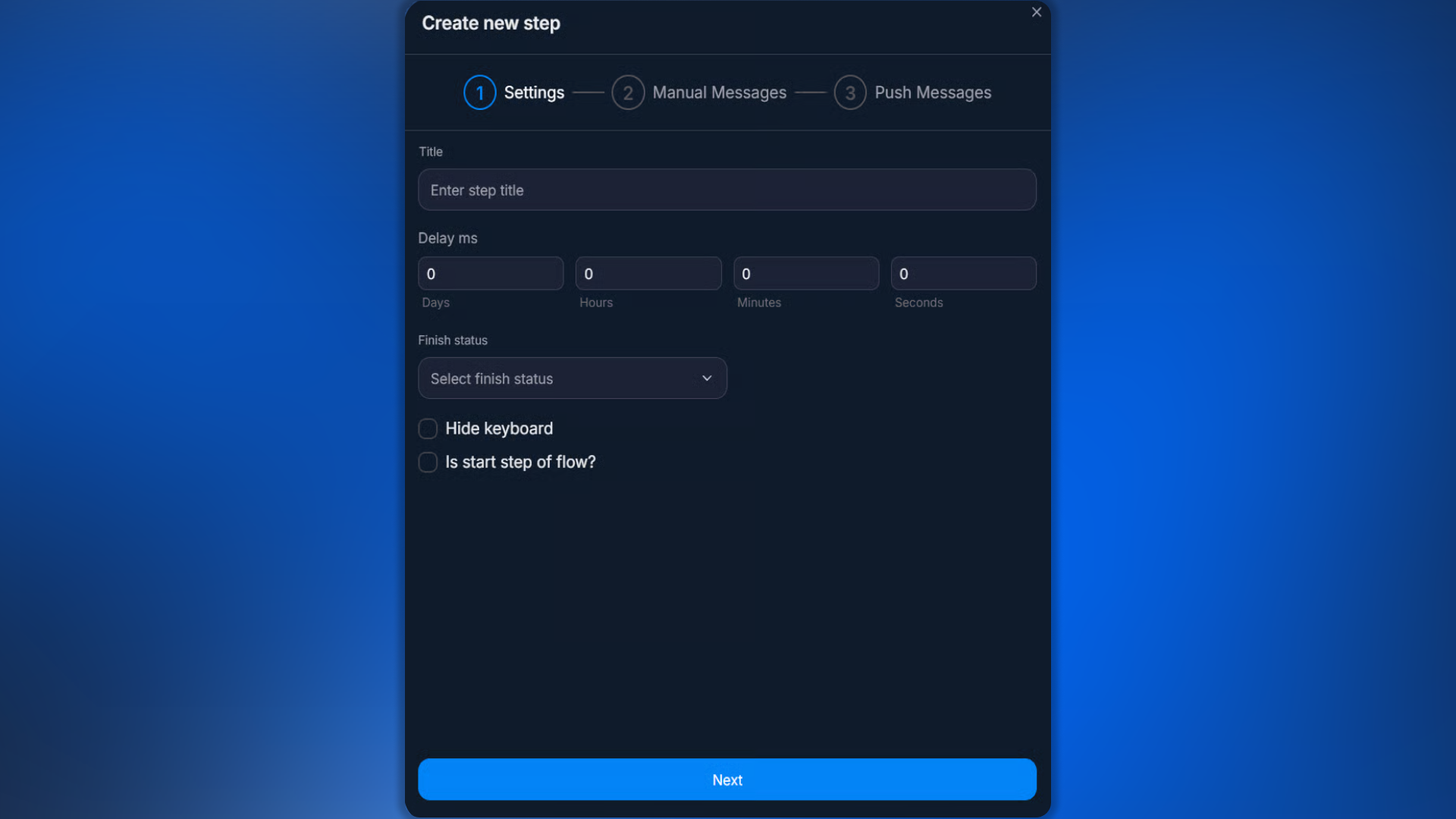
Parameter | What it defines |
|---|---|
Title | Step name for navigation in the flow |
Delay | Delay from the previous step until sending |
Finish Status | Dialog status after execution (auto/waiting/manual/blocked/finished) |
Skip the transition to next step | Do not transition automatically — stay on this step |
Hide keyboard | Remove the keyboard from the previous step |
Is start step of flow | Make the step the start step (where a new chat begins) |
Manual Messages — text and buttons
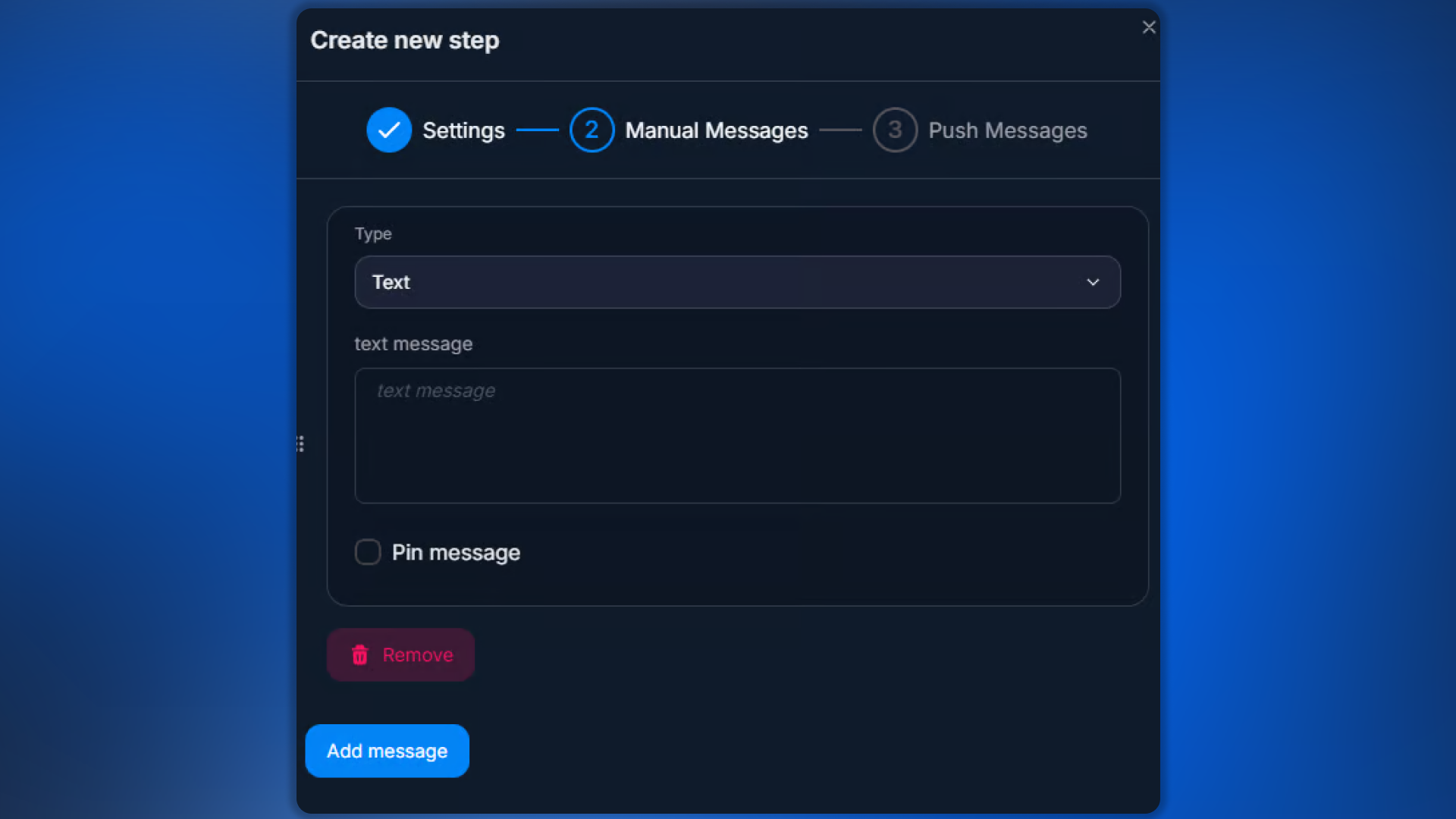
Within a single step, you can configure:
Several messages in a row — sent one after another.
Inline Buttons — are attached to the message. The lead clicks and goes to the next step.
Keyboard — is displayed below the input field (full-screen).
Pin message — pin a message in the conversation.
Combining — text + Inline buttons + Keyboard in one step.
Push Messages — nurturing
For the Send message step, you can enable push messages — delayed messages for leads who do not respond:
Global push messages — are taken from the bot's global settings.
Step push messages — are configured individually inside this step.
Each subsequent push message is sent after the previous one with the specified delay. If the lead replies, the sequence stops. See Push Messages — Re-engaging Silent Users.
Waiting + push messages
If you use Finish Status = waiting and enable push messages, be sure to enable Skip the transition to next step. Otherwise, push messages will not work — the flow will move to the next step immediately.
Using variables
You can use variables in the step text:
{{name}} — the lead's name.{{username}} — Telegram username.{{tracker.имя_параметра}} — parameter from Tracker.Usage examples
Welcome message
Title: “Welcome”. Set Is start step of flow = true. Text:
plaintext
Привет, {{name}}! Я — {{variables.botName}}. Помогу тебе пройти регистрацию.

Готов начать?
+ Inline Buttons: “Yes, let's start” / “Tell me more”.
Sending a registration link
Once the lead is ready:
plaintext
Отлично! Регистрируйся по ссылке: {{variables.regLink}}

После регистрации напиши мне «готово».
Finish Status = waiting (waiting for the lead’s response).
Quick reply for a standard question
After the Condition “lead asked about the price” — Send message with ready-made text about the price + inline button “Order”.
Frequently asked questions
Related


Was this article helpful?