

Webhooks & API — receiving data from external sources
With a webhook, an external service can update user data, change the chat status, switch Flow steps, write values to Custom Fields, add or remove tags, and manage the conversation from an external sys
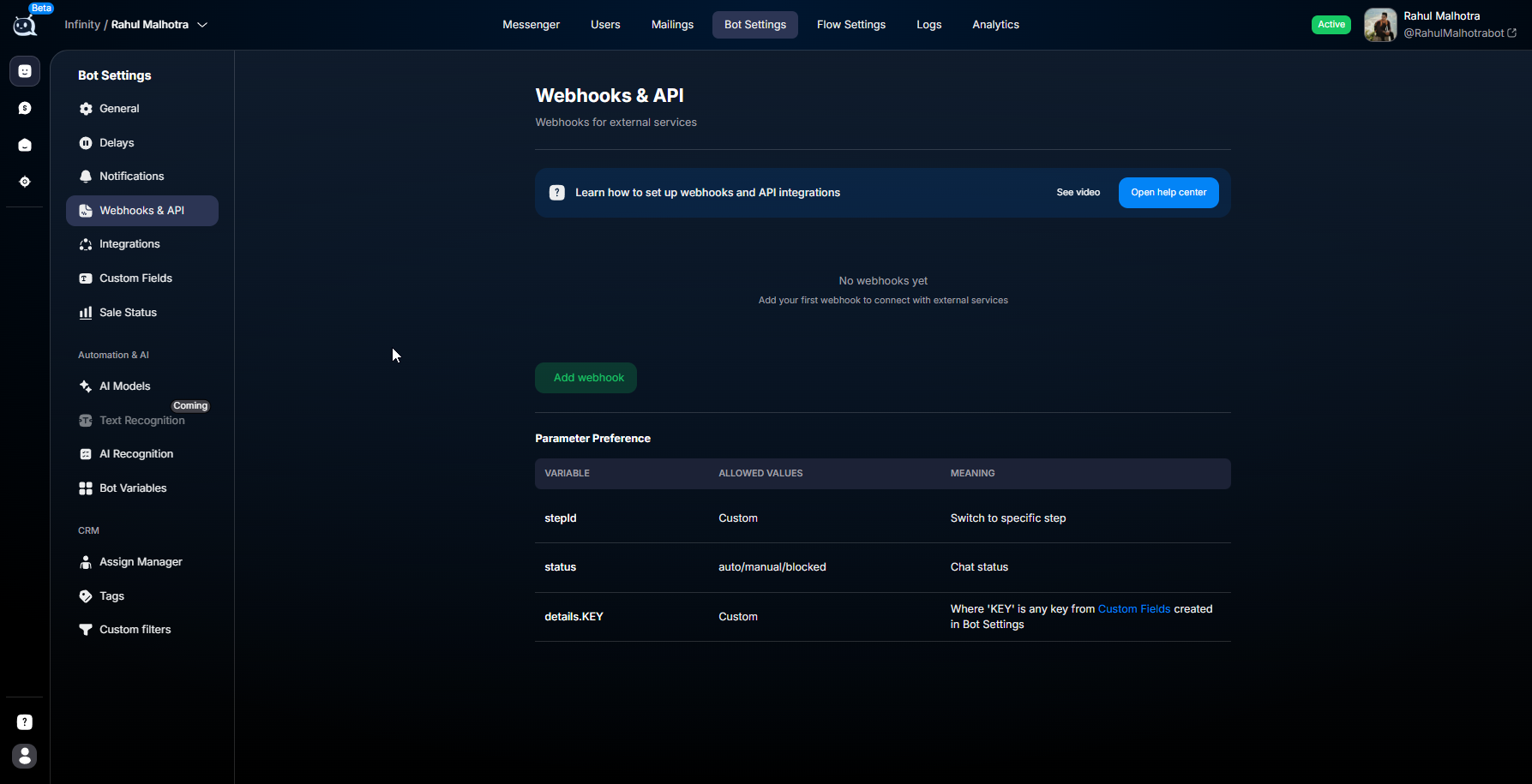
With a webhook, an external service can update user data, change the chat status, switch Flow steps, write values to Custom Fields, add or remove tags, and manage the conversation from an external system.
Simply put
an external service sends data to Chatterfy, rather than the bot sending data out.
This is the opposite of the step: Webhook — Sending Data Out In that case, the bot itself sends requests to external systems.
When to use Webhooks & API
Webhooks & API are needed when an external service must update data inside Chatterfy.
For example:
- a payment system reports a payment
- an external service verifies a user
- you need to switch the user to another Flow step
- you need to write data to the customer profile
- you need to automatically assign a tag or transfer the chat to an operator
What you can do via webhook
Capability | What it does |
|---|---|
User update | Updates chat data |
Status change | Moves the chat to auto, manual, or blocked |
Step switching | Moves the user to the required step_id |
Custom Fields update | Writes data to user fields |
Adding tags | Assigns tags |
Removing tags | Removes tags |
Adding data before the first message | Allows you to pass the required values in advance |
Using data in Flow and AI | The values you pass can be used in messages, conditions, and AI |
How it works
The logic is simple:
Step | What happens |
|---|---|
1 | You create a webhook link |
2 | An external service sends an HTTP GET request |
3 | Chatterfy receives the parameters |
4 | The system processes the webhook |
5 | The data is updated in the CRM |
All requests work via:
HTTP GET + query stringgicon:TriangleAlert
POST and JSON body are not currently supported.
Important information about variables
In Chatterfy, variables are used in double curly braces format:
{{variable}}This format is used in messages, links, AI instructions, and webhook settings.
Examples:
{{name}} · {{chatId}} · {{username}} · {{fields.refId}} · {{tracker.clickid}} · {{variables.reglink}}gicon:TriangleAlert
Use double curly braces {{ }} exactly. Single braces { } are not used for Chatterfy variables.
Creating a webhook link
Open:
Bot Settings → Webhooks & API
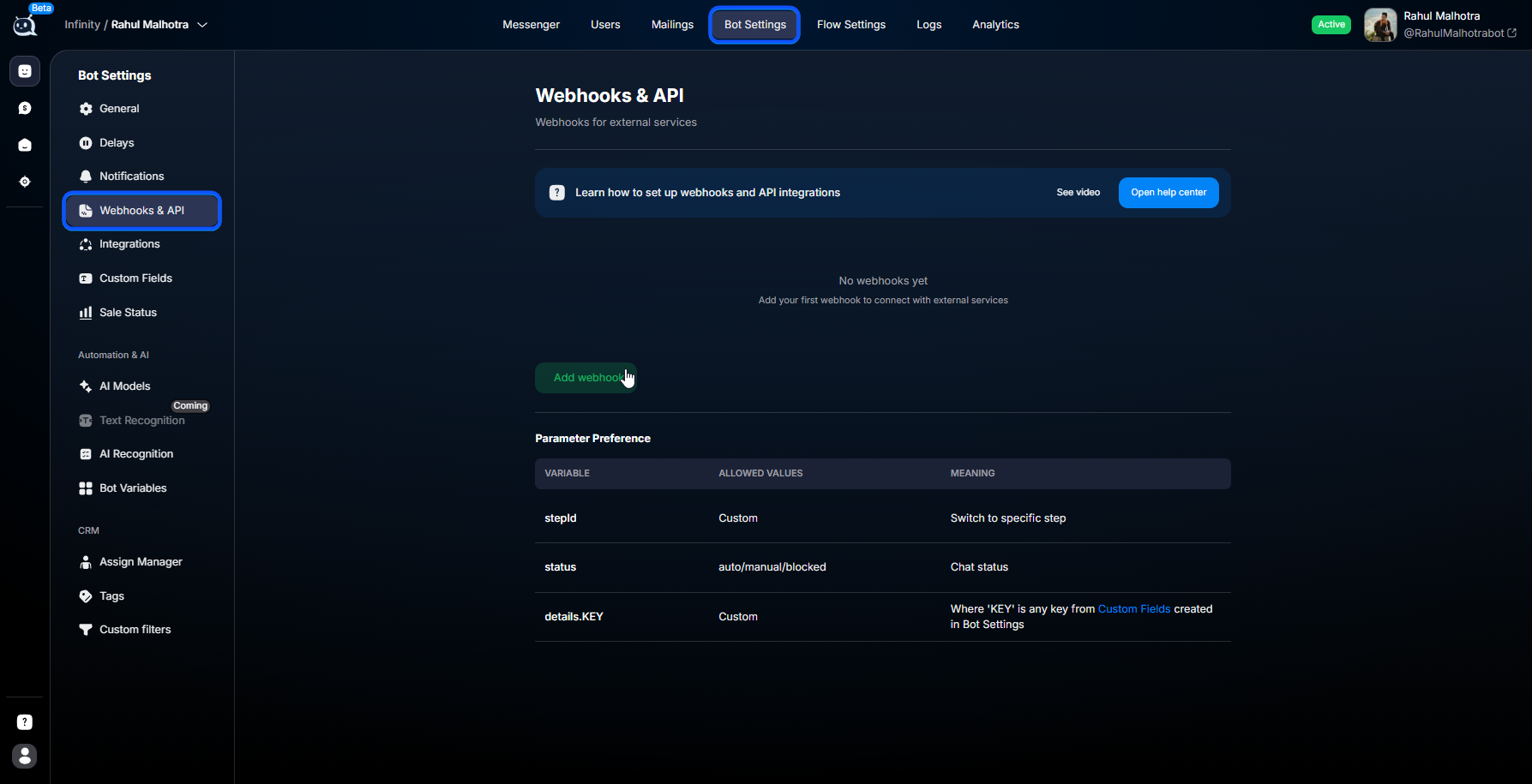
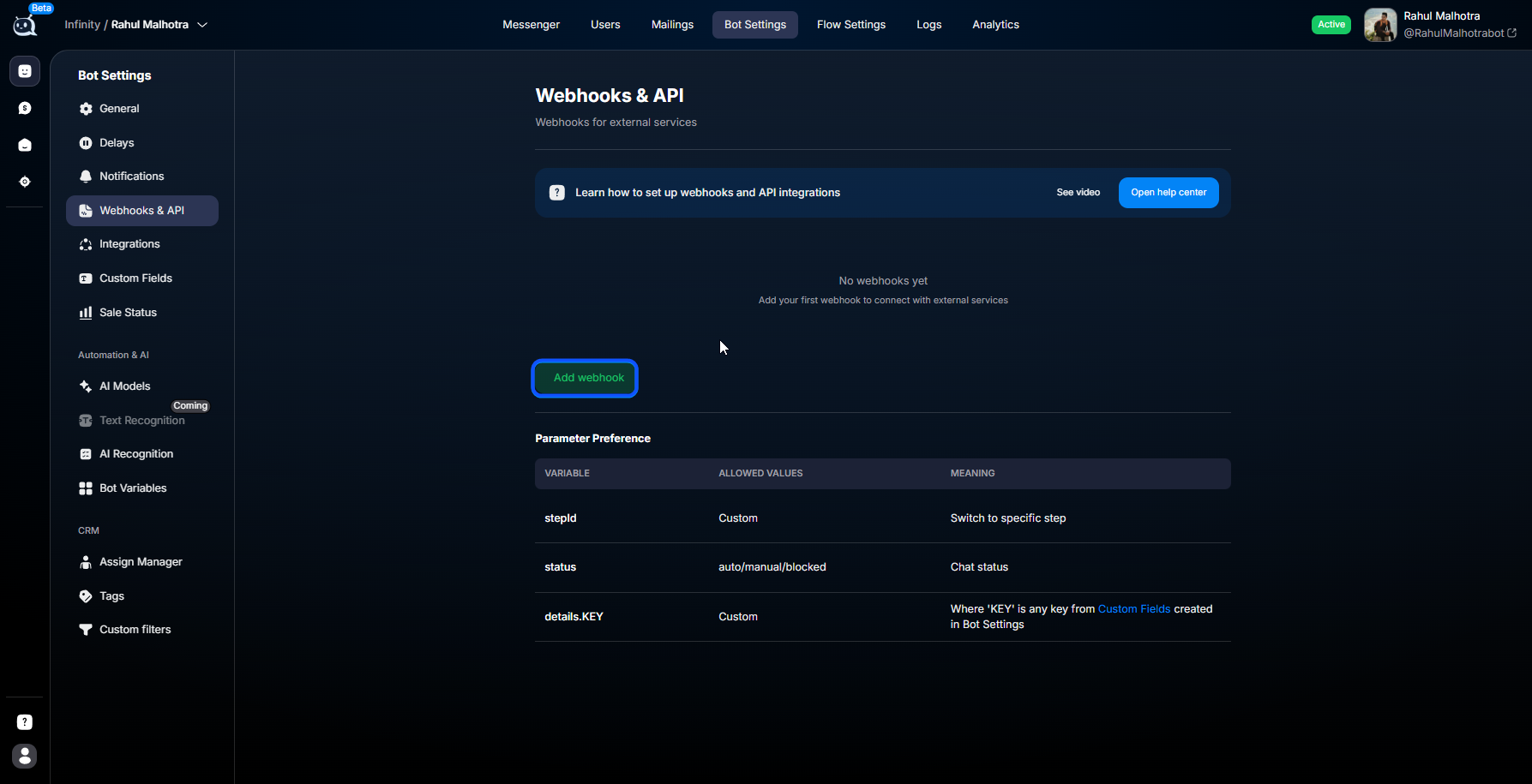
Next:
- Click Add Webhook
- Click Save
Select the parameters.
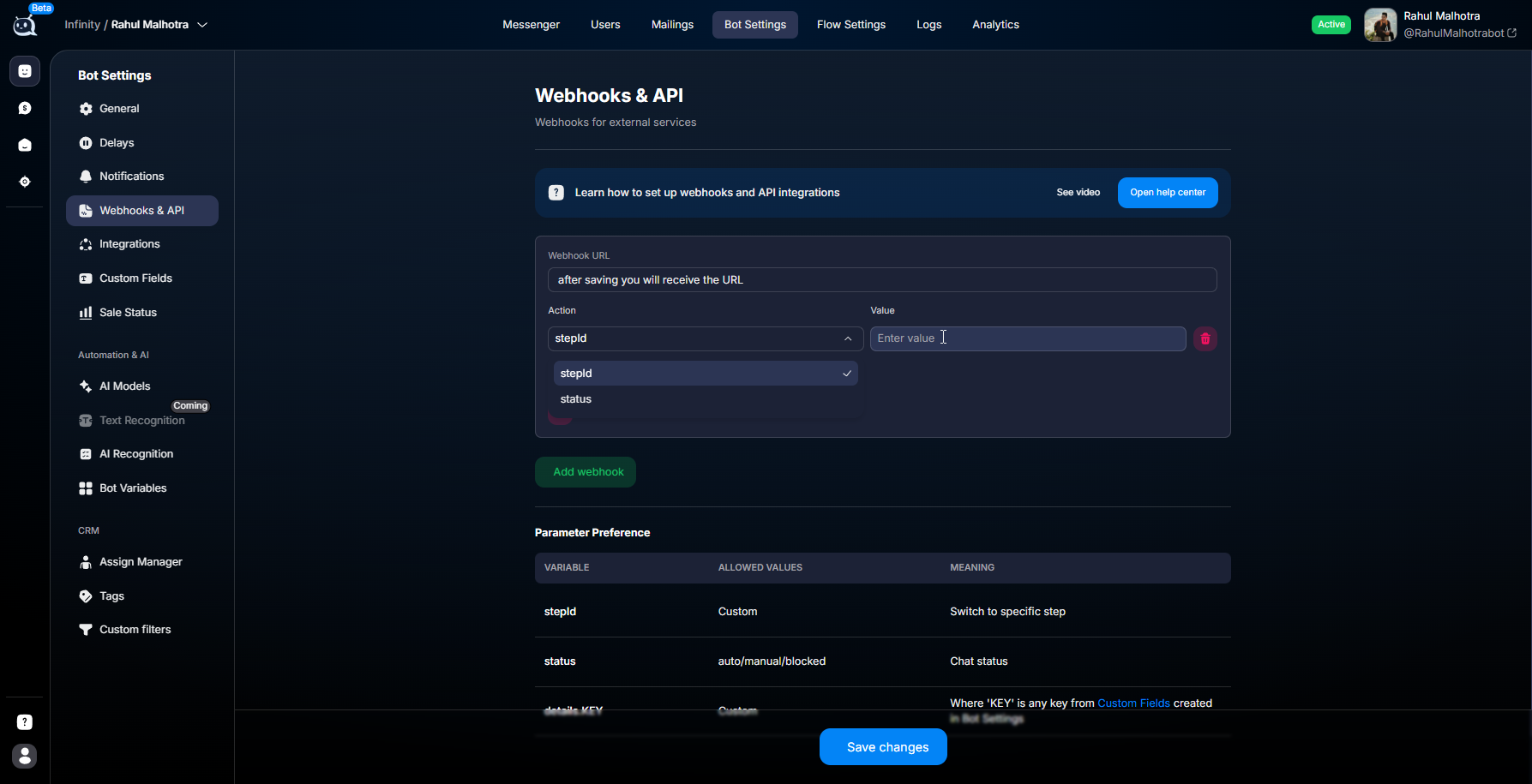
After saving, a unique webhook link is created.
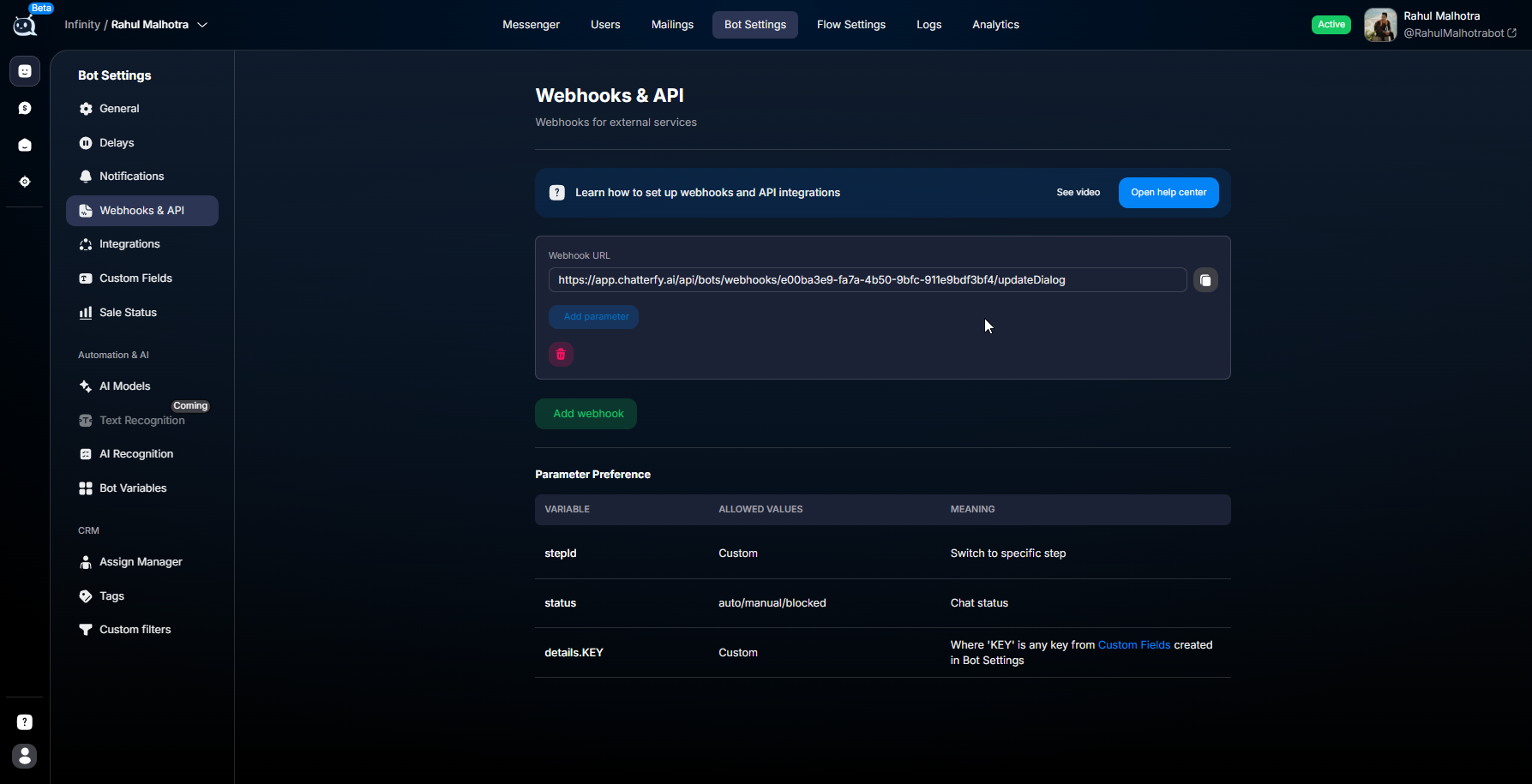
Example:
https://api.chatterfy.ai/api/postbacks/{POSTBACK_ID}/bot-postbackPOSTBACK_ID
POSTBACK_ID is a unique webhook identifier.
Example:
https://api.chatterfy.ai/api/postbacks/019df6e7-54fe-7bc6-9024-88bebc27fc78/bot-postbackEach webhook has its own unique ID.
gicon:Lightbulb
You can create multiple webhooks for one bot.
For example: a separate webhook for CRM, a separate webhook for the affiliate program, and a separate webhook for the payment system. This makes it easier to manage integration scenarios.
Webhook parameters
Parameters are passed after the ? character.
Example:
?status=auto&step_id=019decee-8444-76ff-b068-357c8418c23eFull example:
https://api.chatterfy.ai/api/postbacks/019df6e7-54fe-7bc6-9024-88bebc27fc78/bot-postback?status=auto&step_id=019decee-8444-76ff-b068-357c8418c23egicon:TriangleAlert
The set of parameters depends on your scenario.
chat_id
Many webhook scenarios use the following parameter:
chat_idExample:
?chat_id=1227280chat_id lets Chatterfy determine which user needs to be updated.
How to get chat_id:
- from CRM
- from an external service
- through previous webhook scenarios
gicon:TriangleAlert
In some scenarios, the webhook is already linked to a specific user, so the set of required parameters may differ.
Managing a Flow step
step_id
The step_id parameter is used to switch the user to another Flow step.
Example:
?step_id=019decee-8444-76ff-b068-357c8418c23eor:
?chat_id=1227280&step_id=019decee-8444-76ff-b068-357c8418c23eWhere to find step_id
Open:
Flow Settings
Select the required step and copy its ID.
Changing the chat status
The status parameter changes the conversation status.
Value | What it does |
|---|---|
auto | The chat is handled by the bot |
manual | The chat is transferred to an operator |
blocked | The chat is blocked |
Example:
?status=manualor:
?chat_id=1227280&status=manualWorking with tags via webhook
You can use a webhook to automatically assign and remove tags.
assign_tags
Adds a tag to the user.
Example:
?assign_tags=VIPor:
?assign_tags=VIP,FDremove_tags
Removes a tag from the user.
Example:
?remove_tags=Coldor:
?remove_tags=Old,Testgicon:TriangleAlert
Tags must be created in advance in: Tags — tags for segmentation Webhook does not create tags automatically.
Custom Fields via webhook
Use this format:
fields.ключ=значениеExample:
?fields.refId=12345or:
?fields.userBalance=5000What will happen:
- fields.refId will store 12345
- fields.userBalance will store 5000
gicon:TriangleAlert
The Custom Field must be created in advance in the Custom Fields section. Webhook does not create fields automatically.
Using variables
All data can be used inside messages, AI, URL, Flow, and Conditions.
Format:
{{переменная}}System variables
Variable | What it inserts |
|---|---|
{{chatId}} | Telegram ID |
{{username}} | username |
{{name}} | User name |
{{createdAt}} | Chat creation date |
Custom Fields in messages
Custom Fields are used as follows:
{{fields.ключ}}Example:
{{fields.refId}}Tracker variables
If the user came through Tracker, the following are available:
Variable | What it inserts |
|---|---|
{{tracker.clickid}} | user clickid |
{{tracker.sub1}} | Value of sub1 |
{{tracker.ad_name}} | Ad name |
Other tracker parameters are also available.
Example link:
https://partner.com/signup?sub1={{tracker.clickid}}After substitution:
https://partner.com/signup?sub1=test123gicon:TriangleAlert
Tracker variables work only for users from Tracker campaigns. For organic traffic, many variables will be empty.
Usage examples
An external system reports a deposit
The system sends a webhook:
?chat_id=1227280&status=manual&assign_tags=FDAfter that:
- the chat is transferred to an operator
- the FD tag is assigned to the user
Passing clickid
The user receives a link:
https://partner.com/?clickid={{tracker.clickid}}The affiliate network then returns the same clickid back to Chatterfy.
Message personalization
Message:
Привет, {{name}}!The user will see their name.
External user verification
Scenario:
- the bot sends a request to an external service
- the external service verifies the user
- the service sends a webhook back to Chatterfy
- the user switches to the required step
What to keep in mind
gicon:CircleAlert
A webhook link grants access to chat management.
Do not publish it publicly, in public chats, or in third-party services unless necessary.
Webhooks work only via GET
Currently, Webhooks & API work only via:
HTTP GETPOST and JSON-body are not supported.
Tracker variables may be empty
If the user did not come through a Tracker campaign, many variables like:
{{tracker.ключ}}may be missing.
How to test a webhook
The easiest way is to open the link in a browser.
Example:
https://api.chatterfy.ai/api/postbacks/{POSTBACK_ID}/bot-postback?chat_id=1227280status=manual&assign_tags=VIPAfter opening the request:
- status will change
- tags will be updated
The following are also suitable for testing:
- Postman
- Insomnia
- curl
- any HTTP clients
Expected result
After setting up Webhooks & API, external services will be able to manage conversations, the CRM will be able to update user data, data will automatically be sent to Flow and AI, and two-way integration with external systems will become available.
If something is not working
Webhook doesn't change anything
Check:
- whether the POSTBACK_ID is correct
- whether the webhook has been saved
- whether the parameters are written correctly
- whether the user exists
- whether there is an error in the URL
Custom Field is not updating
Check:
- whether the field was created in advance
- whether the field key matches
- whether there is an error in fields.*
Tags are not being assigned
Check:
- whether the tags were created in advance
- whether the tag name is written correctly
- whether there is an error in assign_tags or remove_tags
step_id is not working
Check:
- whether the step ID is correct
- whether the step exists
Tracker variables are empty
Most likely, the user did not come via a campaign link.
Frequently asked questions
Related articles


Was this article helpful?