Skip to content
ChatterfyHelp Center
HomeGeneralCRMAI ManagerTrackerPlatformsFAQUpdate log
Main
Bot Settings
Automation & AI
CRM defaults
Flow Settings
AI Settings
Steps
Communication
Changes
Terms
Tracking
Tracking — sending events externally
Send event — sending an event to Tracker
Webhook — Sending Data Out
Additional
Messenger
Client card
Chat data
Events
Users
Mailings
Analytics
  1. CRM
  2. Tracking
  3. Webhook — Sending Data Out

Webhook — Sending Data Out

The Webhook step sends an HTTP request to an external URL with lead data. This is an outgoing webhook, unlike , which describes receiving data from external systems. It is used for integrations with t

Updated August 30, 20263 min
The Webhook step sends an HTTP request to an external URL with lead data. This is an outgoing webhook, unlike Webhooks & API — receiving data from external sources, which describes receiving data from external systems.
It is used for integrations with the outside world: affiliate networks, CRM systems, databases, your own backend. The bot initiates the request itself at the right moment in the funnel.
Single braces {var}
This step uses its own template engine with single curly braces {var}. Do not confuse it with {{var}} (double braces) in Bot Settings → Webhooks & API and in message texts. These are DIFFERENT syntaxes for two different APIs. The Webhook step accepts only {var}.
When to use it
Send {tracker.clickid} to an affiliate network. Notify your CRM about a new qualified lead. Save data to your own database for analysis. Trigger an SMS service on a specific event. Any situation where “the bot must send data to an external system”.


Video


How it works

The step is used for:
Sending data to external systems.
Integration with databases and services.
Automating lead processing outside Chatterfy.
Passing client parameters to partners.
The step sends data outward. If you need to receive data back, use Webhooks & API — receiving data from external sources.


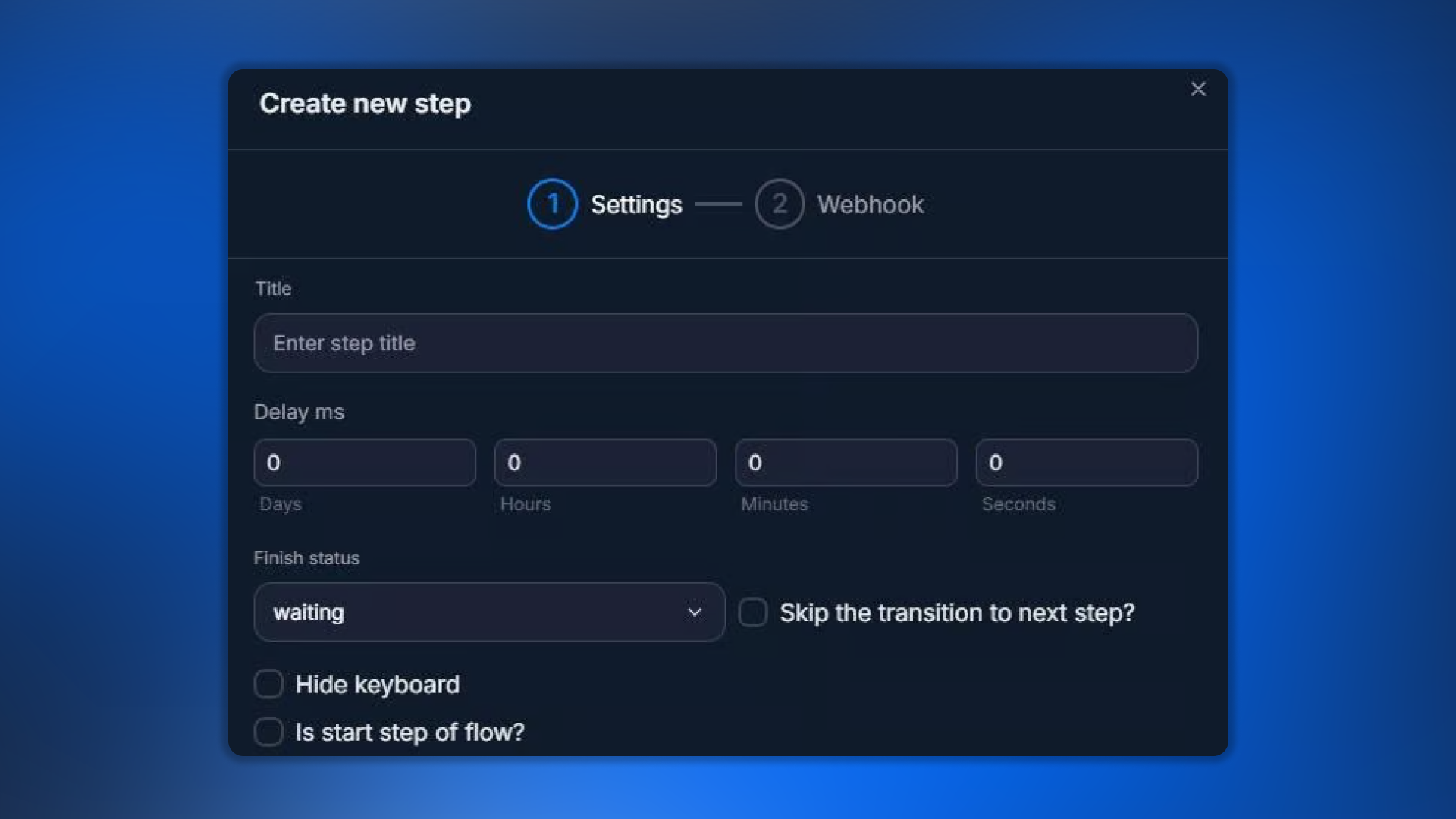
Settings

Settings
Step settings

Parameter
What it defines
Title
Step name
Delay
Delay before sending
Finish Status
Dialog status
Hide keyboard
Hide keyboard
Is start step of flow
Make starting step
Skip the transition
Do not transition automatically (with waiting)


Webhook — request parameters

Webhook parameters
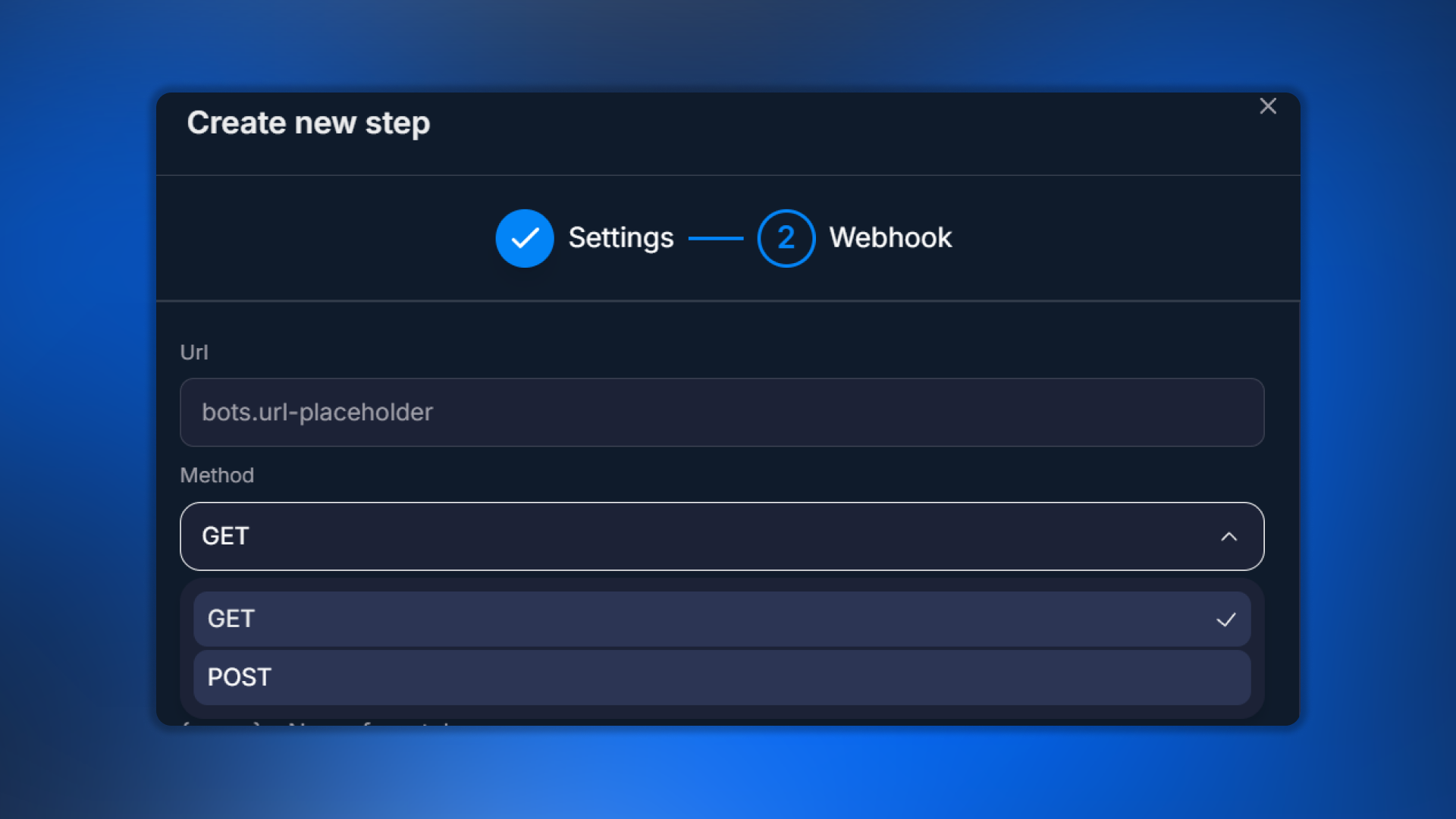
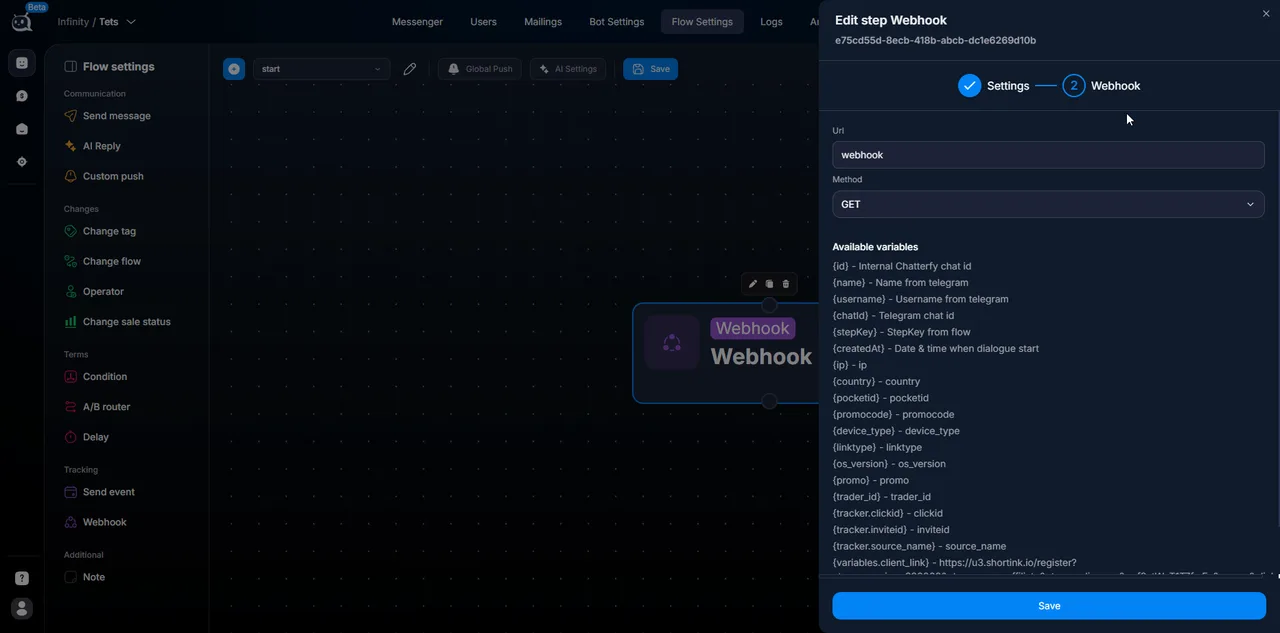
URL and Method

Parameter
What it defines
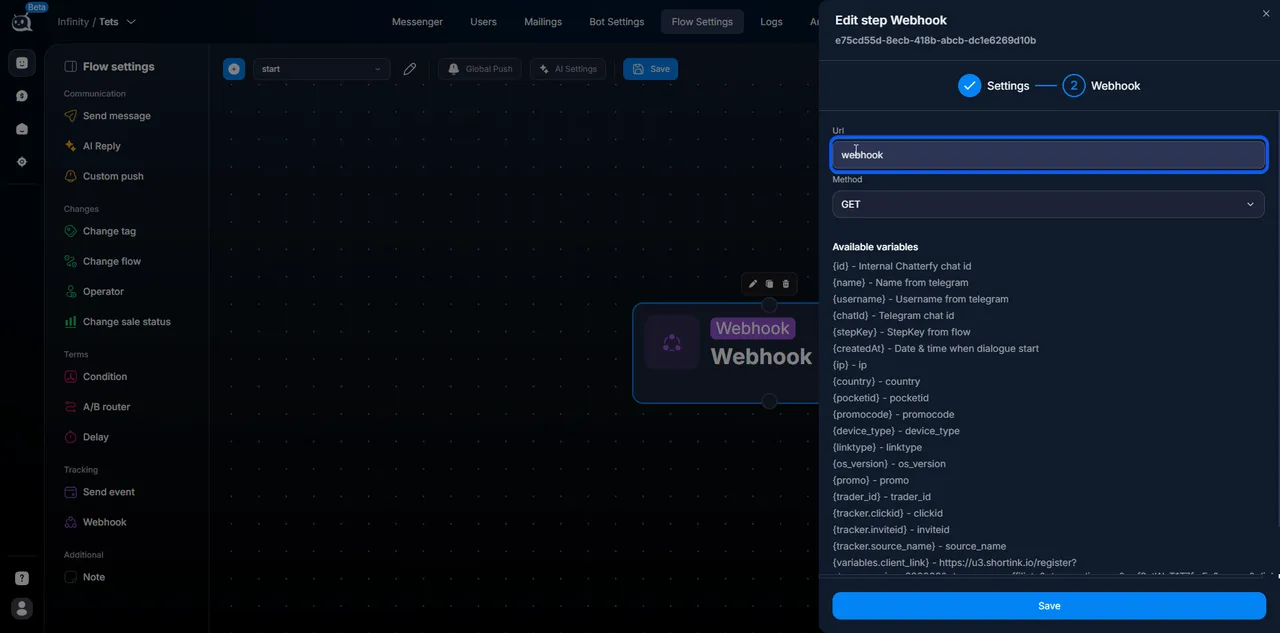
URL
Where to send the request
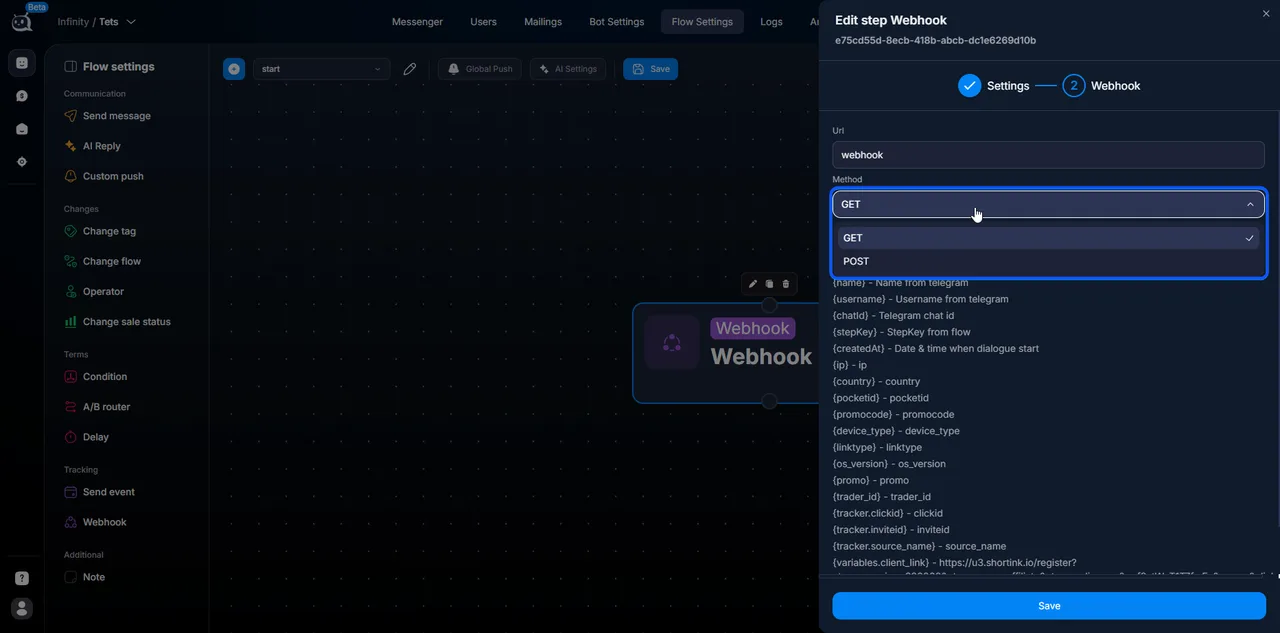
Method
GET (via URL) or POST (request body)


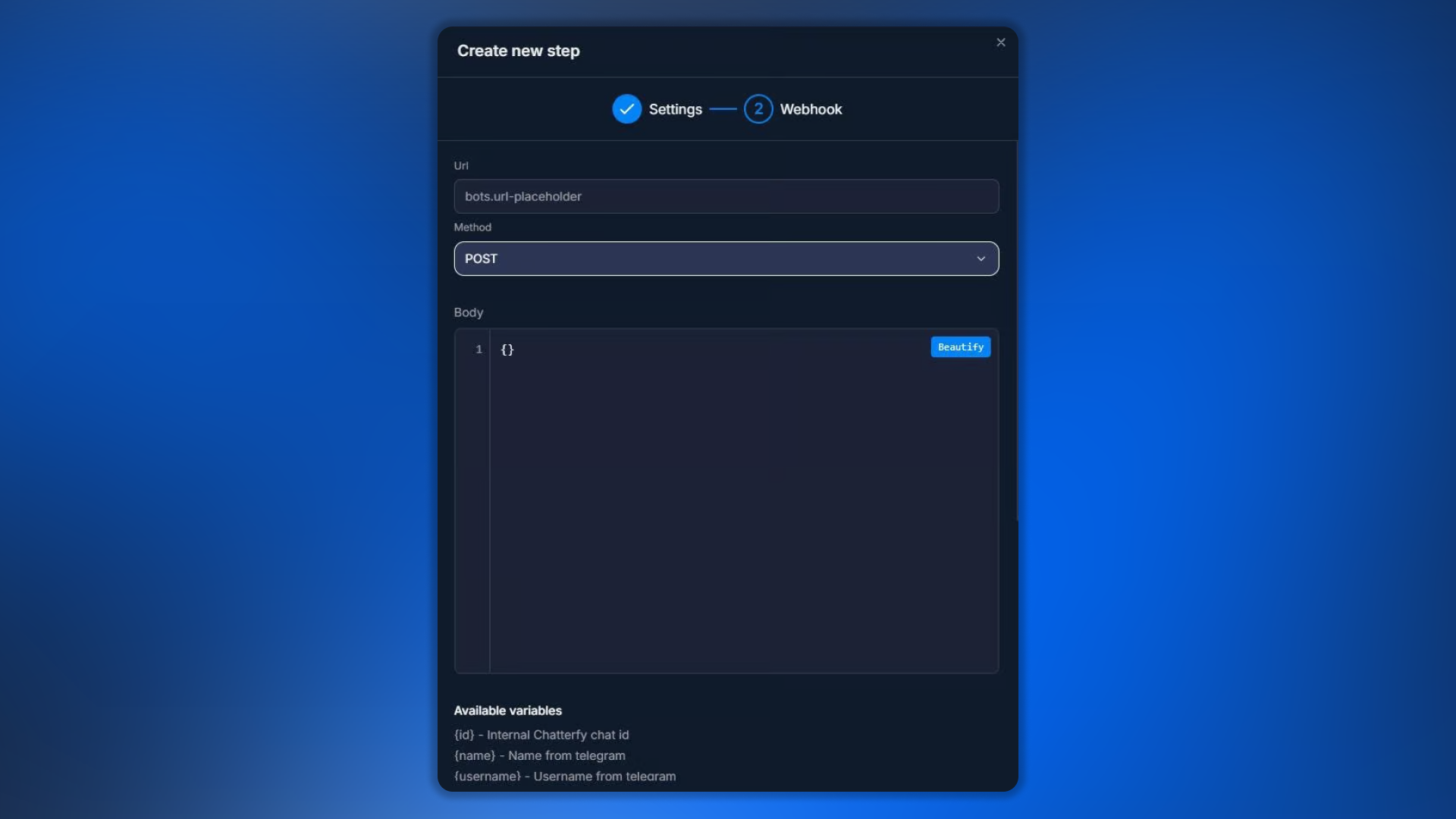
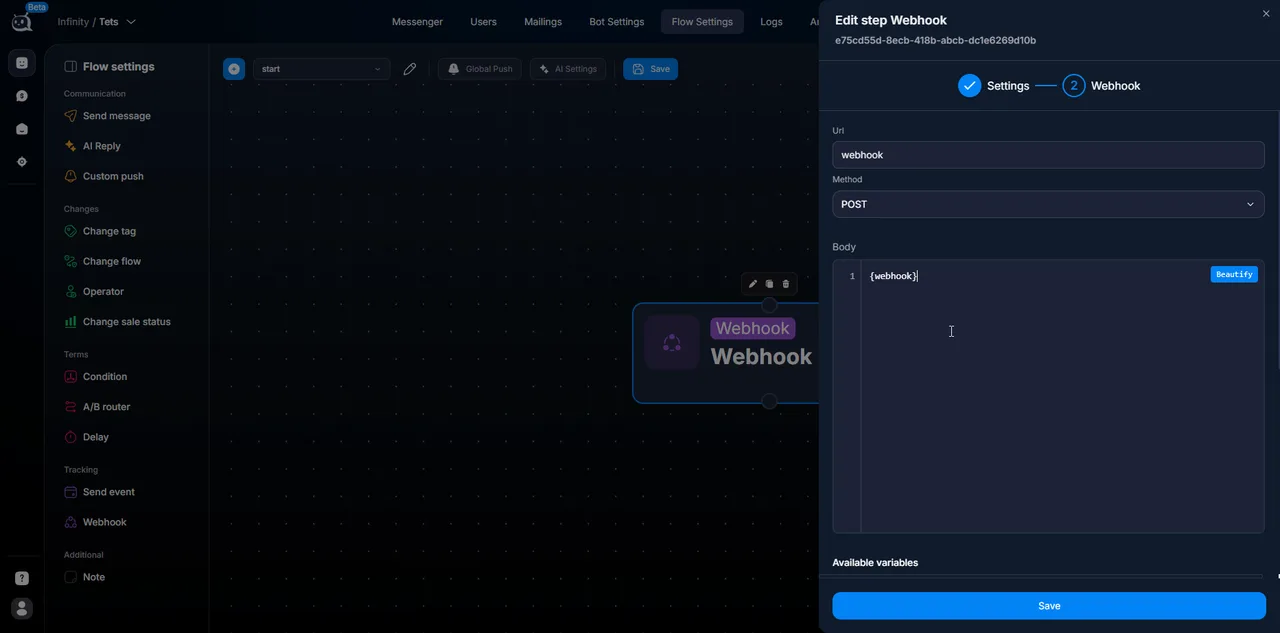
Body — for POST requests

Body
Request body for POST

Used only for POST. In Body, specify a JSON structure with variable substitution:
json
{"username": "{username}", "chat_id": "{chatId}", "clickid": "{tracker.clickid}"}


Available variables — variables

You can use variables in URL and Body. All use single curly braces:

System

Variable
What it returns
{username}
Telegram username
{chatId}
Telegram Chat ID
{stepKey}
Current step key
{createdAt}
Conversation start time (ISO 8601)

Custom fields and tracker

{KEYCUSTOMFIELD} — value of the custom field by key. For example, {partner_id} — the partner_id field.
{tracker. KEYTRACKERFIELD} — value of the tracker parameter. For example, {tracker.clickid}, {tracker.utm_source}.


Setup steps

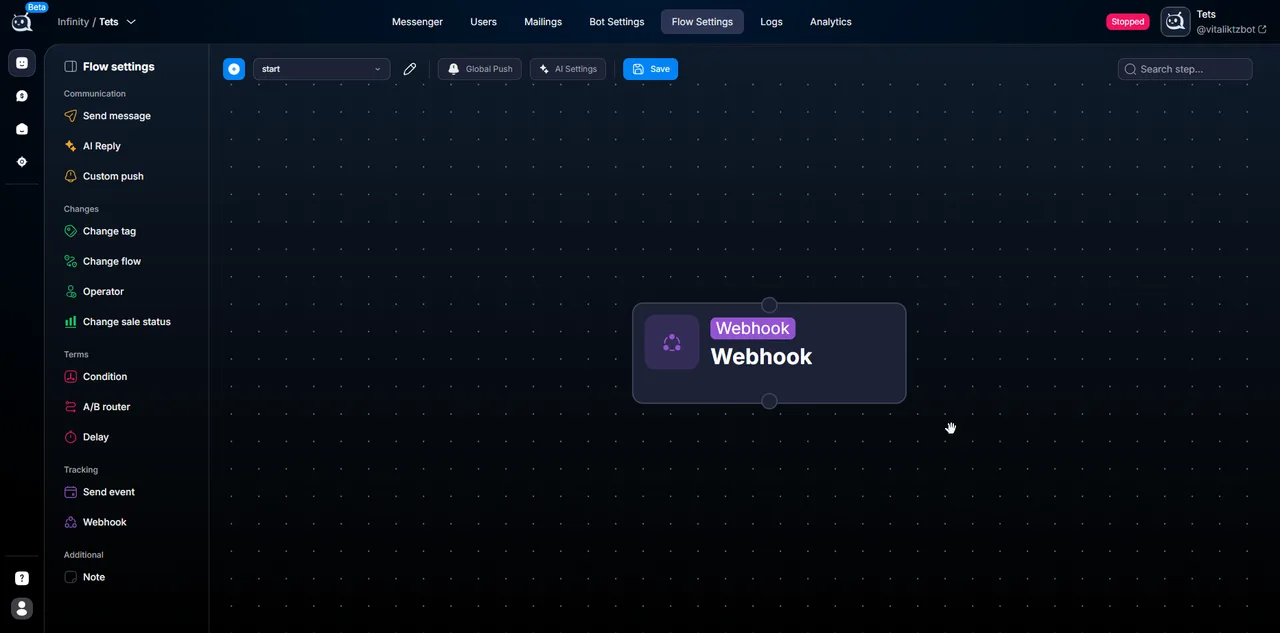
  1. 1

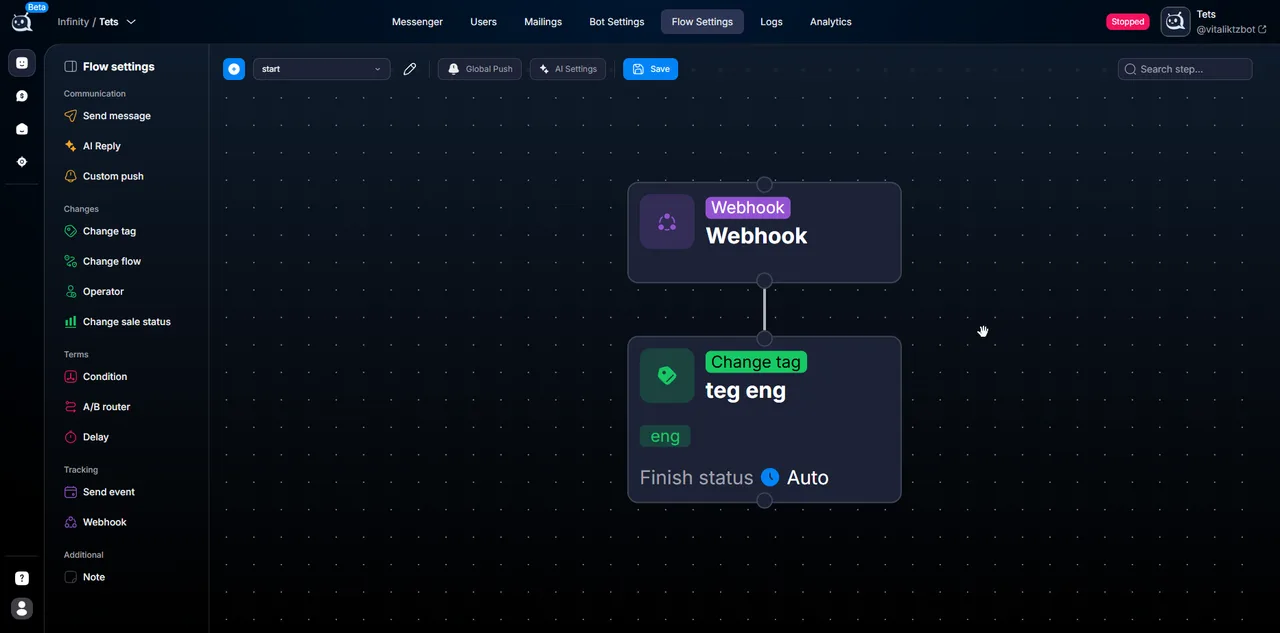
    Add a Webhook step to the flow

    
  2. 2

    Open the Webhook block

    
  3. 3

    Specify the URL for sending the request

    
  4. 4

    Select Method — GET or POST

    
  5. 5

    If POST — fill in Body

    
  6. 6

    Insert the required variables using {var}

  7. 7

    Connect the next step


Usage examples

GET — sending to Keitaro tracker

plaintext
https://keitaro.yoursite.com/25123a/postback?subid={tracker.clickid}&username={username}&chatid={chatId}&startdialogue={createdAt}
Inserted:
subid={tracker.clickid} — lead clickid.
username={username} — Telegram username.
chatid={chatId} — Telegram ID.
startdialogue={createdAt} — dialogue start time.

POST — sending to your own database

json
{
  "username": "{username}",
  "chat_id": "{chatId}",
  "partner_id": "{partner_id}",
  "registered_at": "{createdAt}"
}
URL: https://yourapi.com/leads. Method: POST.


What to keep in mind

Before launching, check the receiving side
The request is sent automatically — if the URL is incorrect or the server is not ready to receive it, the data will be lost. Make sure that: the URL is correct, the server accepts the specified method (GET/POST), and the data format matches expectations. You can check correctness in the bot’s Logs → Webhooks.
What is available through variables
Available through {var}: system variables ({username}, {chatId}, {stepKey}, {createdAt}), custom fields by key ({partner_id}, etc), tracker parameters ({tracker.clickid}, {tracker.utm_source}). Bot Variables are NOT inserted through the Webhook step — this is a limitation of the current template engine.


Frequently asked questions

In the Logs → Webhooks section of a specific bot, you can see all outgoing requests with their statuses (200 / 4xx / 5xx). If the status is 200, the receiving side accepted it. If it is 4xx/5xx, the error is on their side.

GET — for simple integrations (affiliate programs, trackers). Parameters are in the URL and are easy to test. POST — when there is a lot of data or a structured body. The receiving side usually requires a specific method — check their documentation.

Currently, the Webhook step has no header settings. If authorization is required, pass the token in the URL (GET) or in the Body (POST). For critical integrations, contact support; they may add it.

The step waits for a response from the external service. Usually this takes a few seconds. If the service is very slow, configure a timeout; otherwise, the flow may “hang.” Long processing should be handled on the external service side (asynchronously).

The step logs the error and proceeds to the next step of the flow. The lead does not get “stuck.” But there is no retry attempt either. If guaranteed delivery is required, implement it on the receiving system side (queue with retries).

These are two different directions:
The Webhook step (this article) — an outgoing webhook. The bot sends data outward. Its own template with {var}.
Webhooks & API — receiving data from external sources — an incoming webhook. An external system sends data to Chatterfy. Its own syntax with {{var}} for using the received values.


Related

Tracking — sending events externally
The Tracking category is steps that send data outward . They do not communicate with the lead or change the lead’s data inside Chatterfy — they send events and parameters to external systems. Tracking
Webhooks & API — receiving data from external sources
With a webhook, an external service can update user data, change the chat status, switch Flow steps, write values to Custom Fields, add or remove tags, and manage the conversation from an external sys
Custom Fields — custom fields
Custom Fields (Bot Settings → Custom Fields) — a section for creating additional fields in the customer card. Standard fields already exist in Chatterfy: name, username, status, and Telegram ID. But o
Custom Postback — custom integration
Custom integration is for cases where your affiliate program is not in the list of ready-made integrations. It works universally for any affiliate program that supports postbacks. Spend 15–30 minutes

Was this article helpful?

BackSend event — sending an event to Tracker

On this page

  • Video
  • How it works
  • Settings
  • Webhook — request parameters
  • Body — for POST requests
  • Available variables — variables
  • System
  • Custom fields and tracker
  • Setup steps
  • Usage examples
  • GET — sending to Keitaro tracker
  • POST — sending to your own database
  • What to keep in mind
  • Frequently asked questions
  • Related