

Operator — assigning an operator
The Bot Settings → Flow Settings → Operator section is responsible for distributing chats among operators and for which conversations each employee sees in the CRM. This is one of the most important s
The Bot Settings → Flow Settings → Operator section is responsible for distributing chats among operators and for which conversations each employee sees in the CRM.
This is one of the most important settings for teamwork.
If everything is configured correctly:
- managers do not interfere with each other
- everyone is responsible only for their own chats
- the lead does not receive chaotic messages from different people
- the workload is distributed automatically.

What the Operator step is for
- several operators open the same chat at the same time
- reply one after another
- argue inside the conversation
- duplicate messages
- break communication with the lead.
As a result:
- the team loses control
- the lead has a strange experience
- conversion drops.
Operator solves this problem. Each chat is assigned to a specific operator.
Other employees:
- either do not see this chat at all
- or see it only with certain settings.
When to configure the Operator step
This setting is especially important if:
There are more than 2–3 operators on the team
Clear responsibility for leads is needed.
You need to redistribute the workload quickly
For example:
- an employee went on vacation
- got sick
- resigned.
How the Operator step works
Each chat can have:
- an assigned operator
- or the unassigned status (no operator).
This determines who will see the chat and who can work with it.
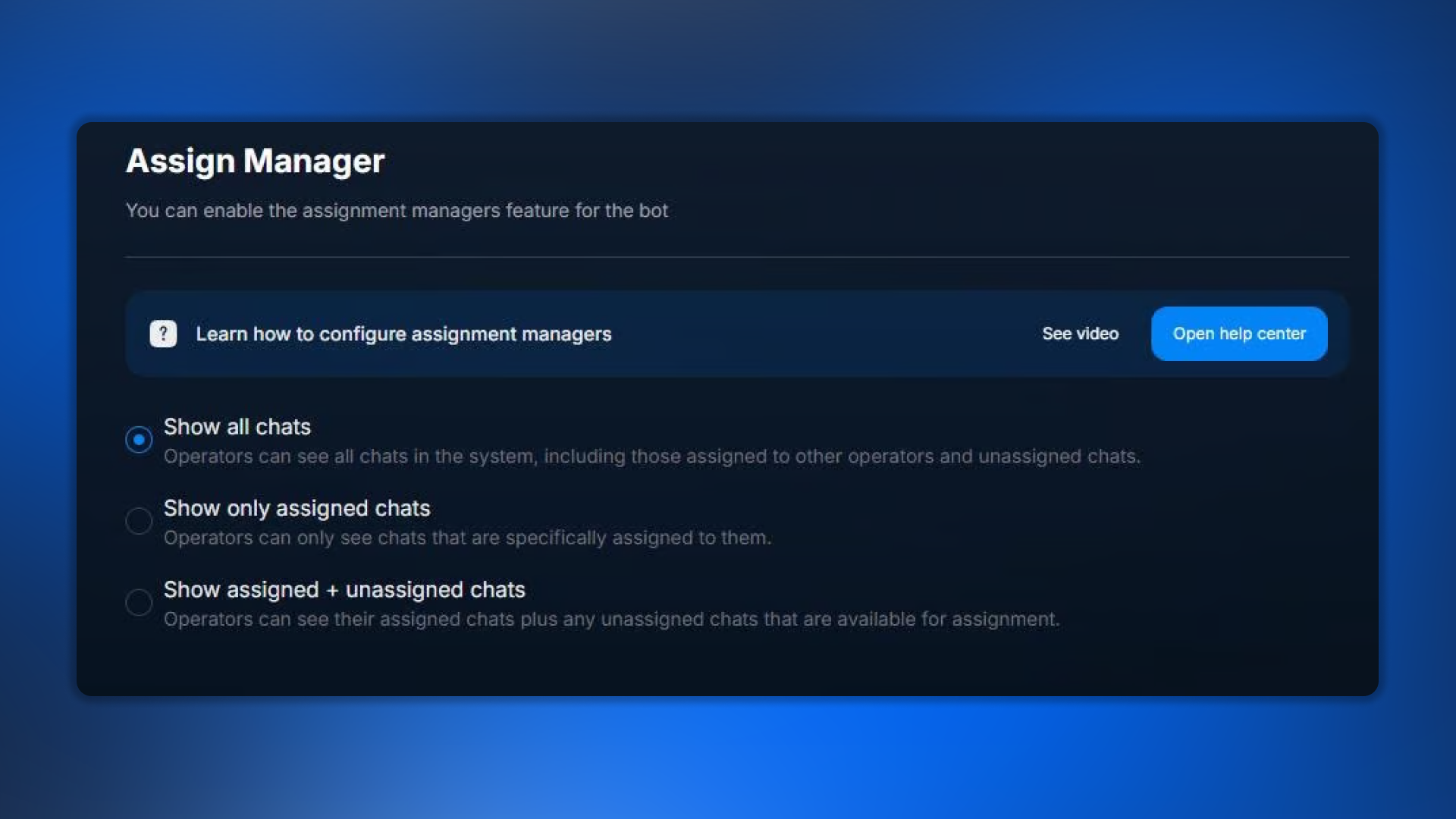
Three display modes
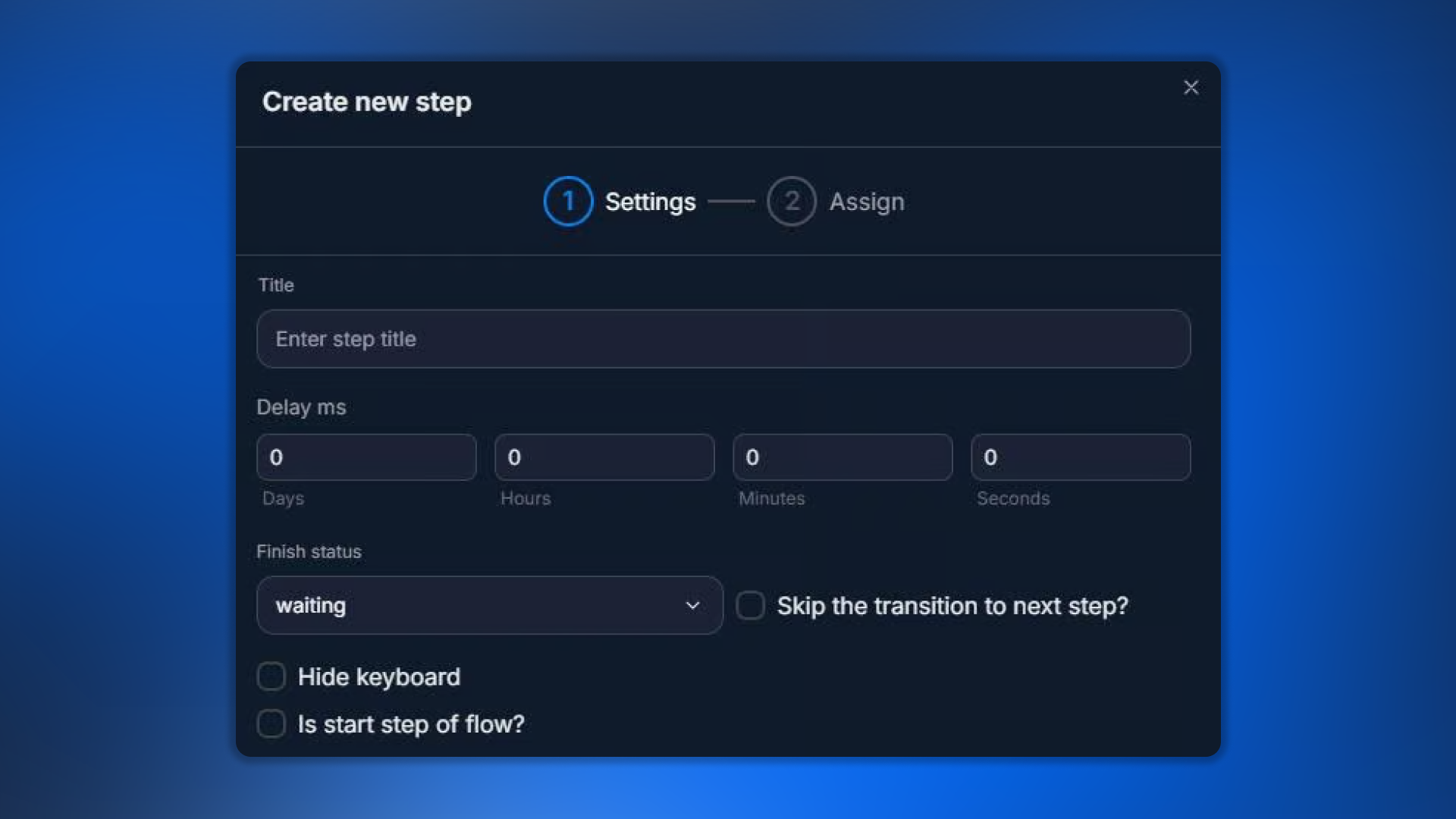
1. Show all chats
The operator sees:
- their own chats
- other operators’ chats
- unassigned chats.
That is, all bot conversations.
When to use
Suitable for:
- small teams
- 1–2 operators
- projects without strict separation.
Pros
- as simple as possible
- no one misses anything
- anyone can pick up the chat.
Cons
In large teams, things become chaotic. A typical situation:
- two managers reply to the same lead
- managers conflict with each other
- responsibility breaks down.
Recommendation
Use Show all chats only if the team is small and everyone fully trusts each other.
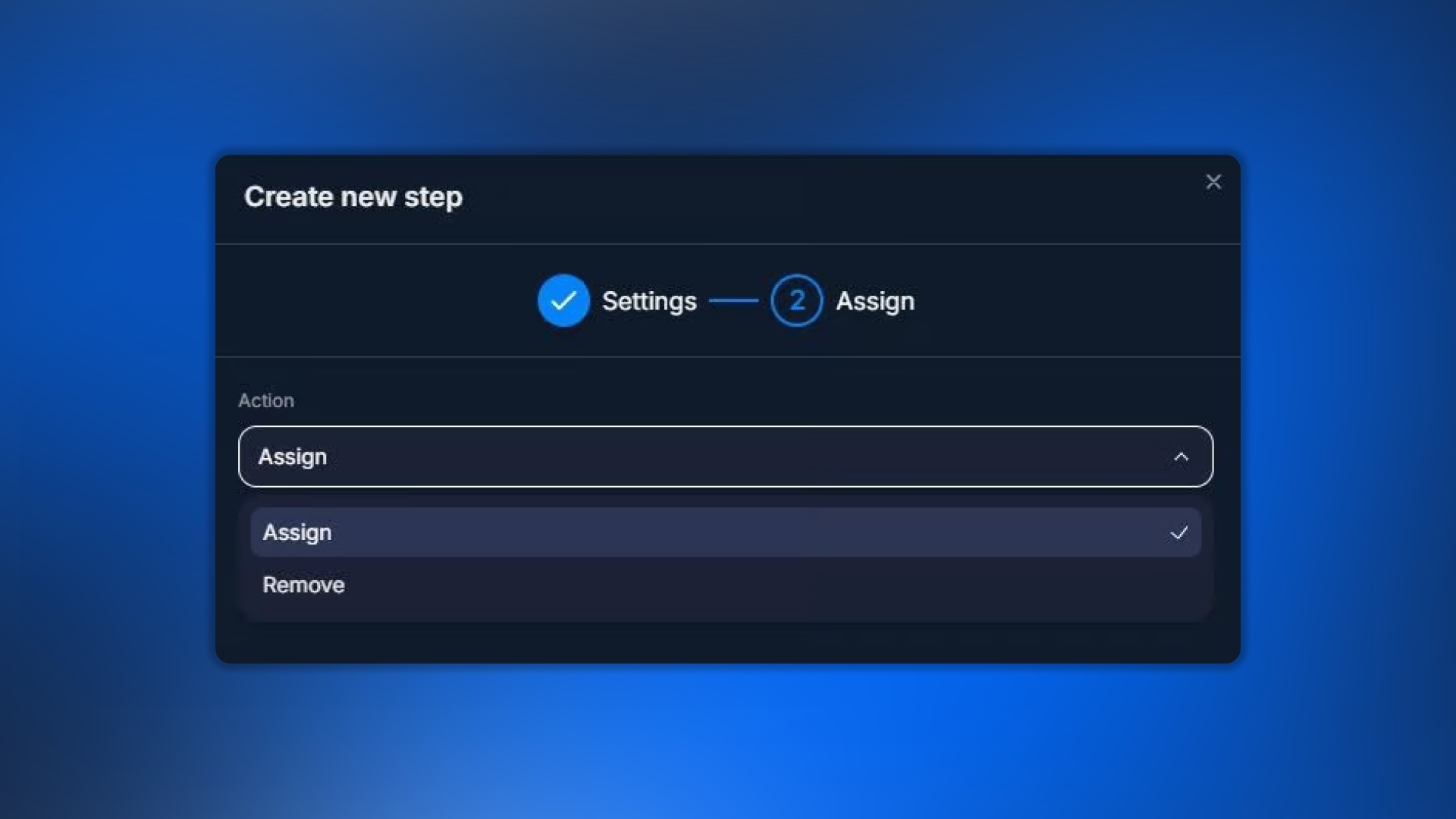
2. Show only assigned chats
The strictest mode. An operator sees only their own chats. Other people's conversations are completely hidden.
How unassigned chats work
If a chat is not assigned to anyone:
regular operators will not see it. it is visible only to Owner, Admin, and Manager.
When to use it
Suitable for:
- sales departments
- large teams
- strict accountability.
What it gives you
Everyone is responsible only for their own lead pool. No one interferes, takes over clients, or disrupts communication.
3. Show assigned + unassigned chats
The most popular mode. The operator sees:
- their chats
- all unassigned chats.
When to use
Ideal for:
- support
- customer support
- sales teams
- large lead flows.
How to assign operators
There are 3 ways.
1. Manually via the customer card
Manager field — select yourself or another operator.
When convenient
- VIP leads
- manual transfer
- escalation
- non-standard situations.
2. In bulk via Users
Next:
Select the required leads
Click Edit Chats
Select Assign manager
Apply the changes.
When useful
Very convenient if an employee has left, you need to redistribute the workload, or the team structure changes.
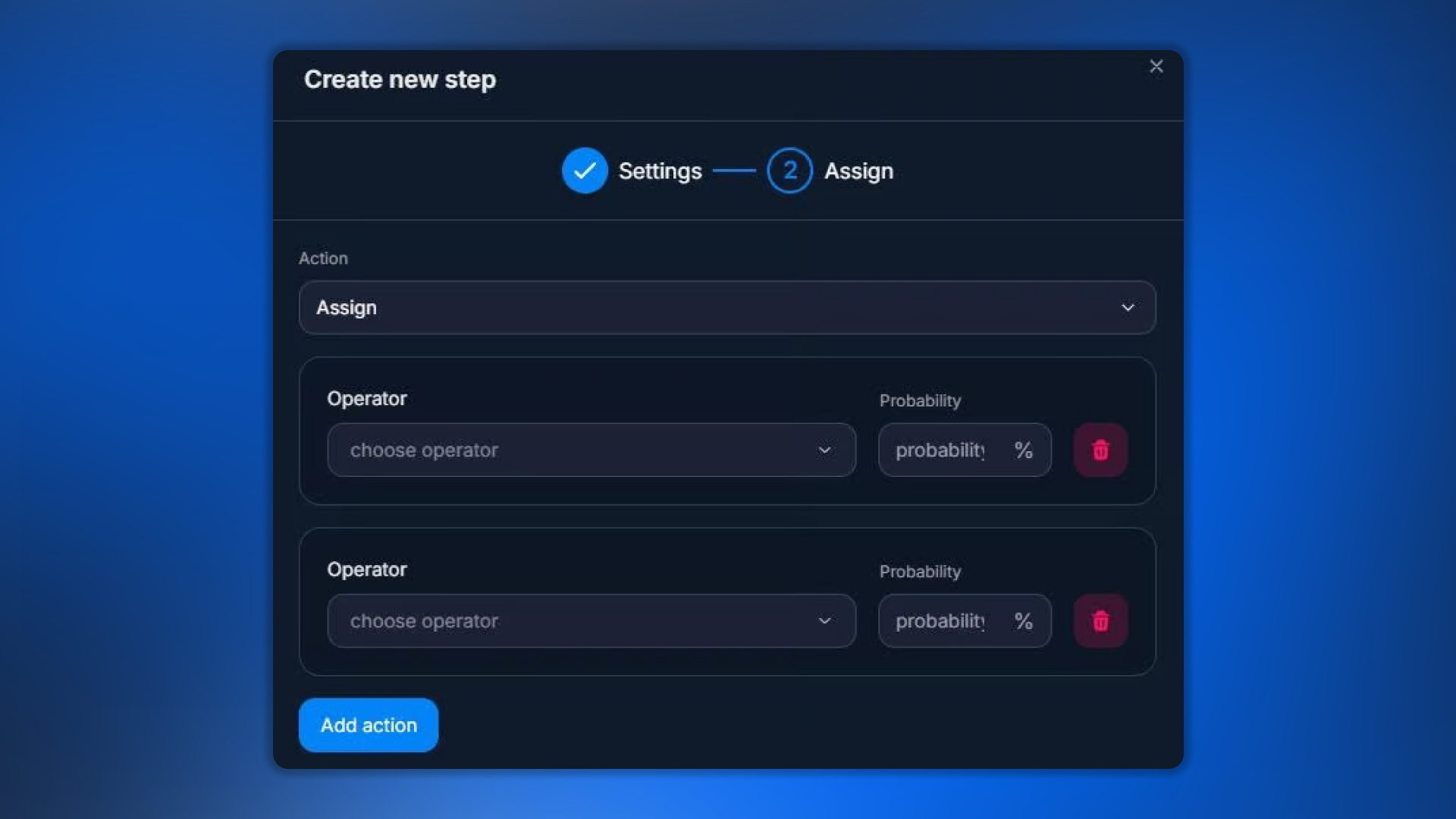
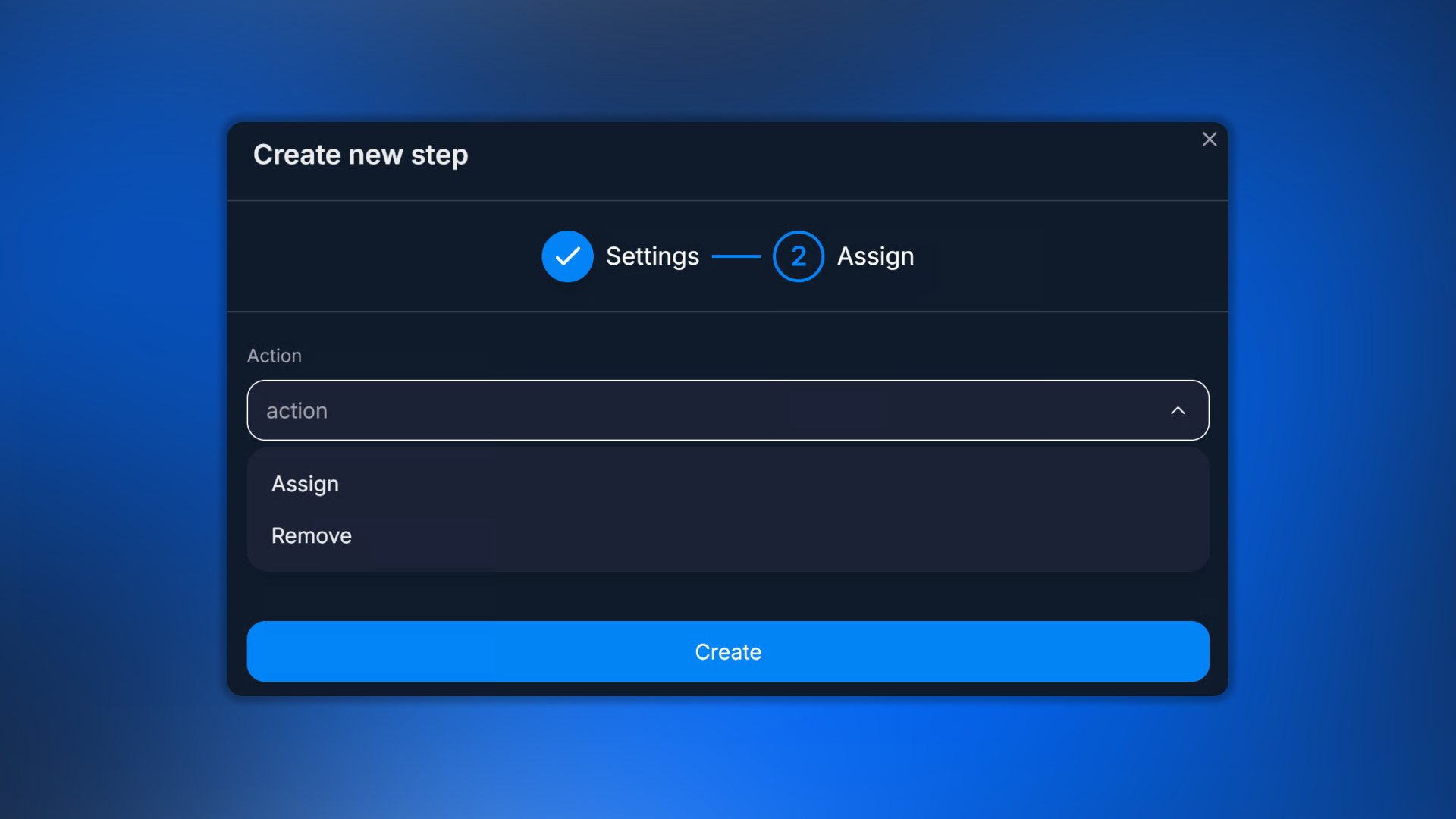
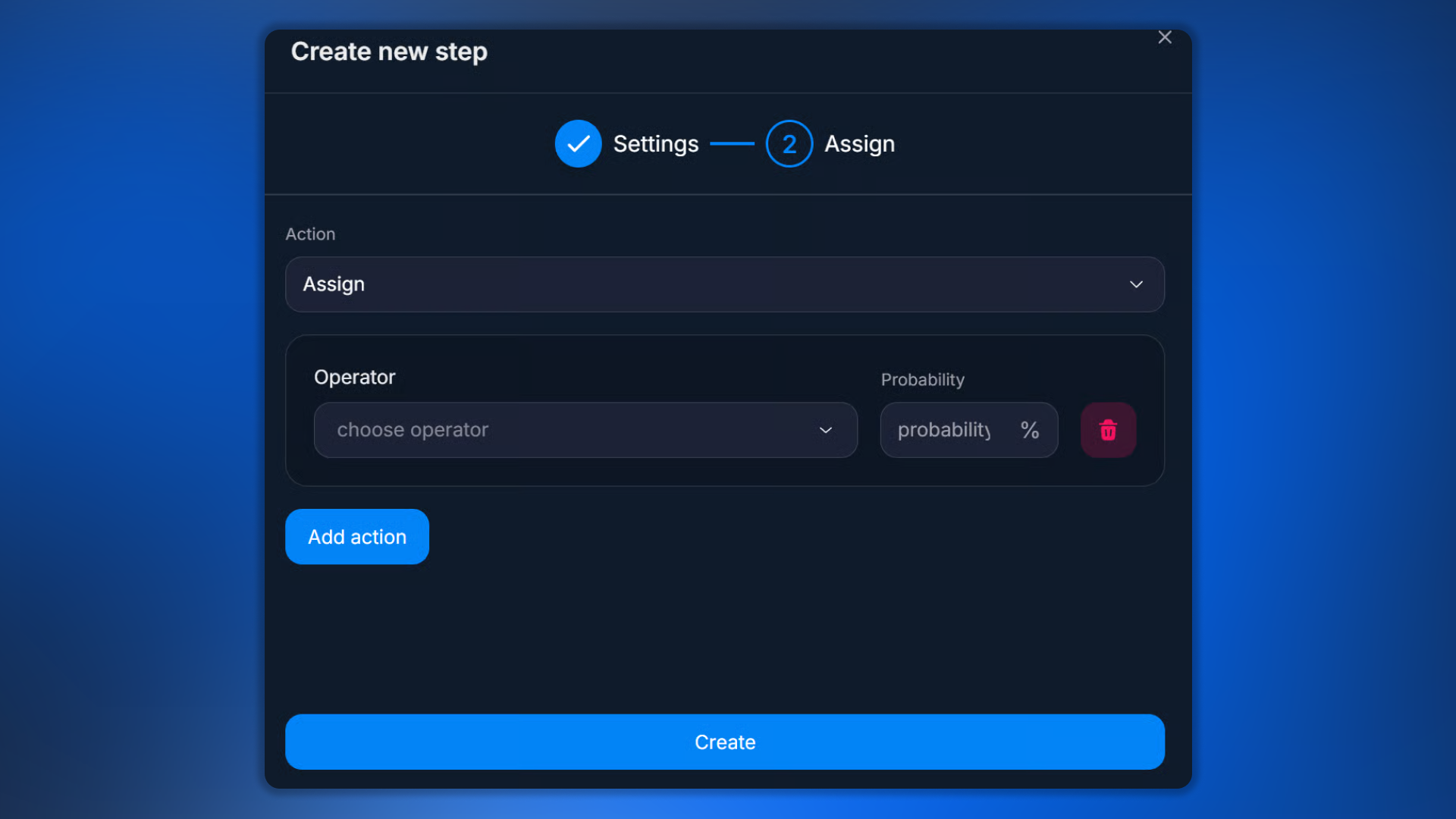
3. Automatically via the Operator step
In Flow Settingsthe Operator step is used — see also the "Changes" section in Changes — data changes.
It automatically assigns managers, distributes the flow, and works according to the specified percentage ratio.
Probability example
Operator | Probability |
Manager 1 | 20% |
Manager 2 | 20% |
Manager 3 | 20% |
Manager 4 | 20% |
Manager 5 | 20% |
The flow will be distributed evenly.
gicon:Lightbulb
Recommended setup
The best option for most teams: automatic distribution via Operator; manual adjustments via the customer card; bulk changes via Users.
Use cases
Sales team of 5 managers
Goal: distribute leads evenly.
Setup: Show only assigned chats mode. In the flow, use the Operator step with probability 20% for each manager.
Result: each manager receives only their own leads.
Small store
Goal: simply answer customers.
Setup: Show all chats.
Result: all chats are visible to operators, with minimal setup.
Important things to know
Owner and Admin
Owner and Admin always see all chats — this cannot be disabled. Assign Manager only affects the Operator and Hide Operator modes.
What happens when an operator is dismissed
Chats are not deleted and remain assigned. But the employee loses access to the Space and no longer sees the CRM.
Frequently asked questions
Which mode to choose
Situation | Mode |
1–2 operators | Show all chats |
Large sales team | Show only assigned chats |
Support / queue | Show assigned + unassigned chats |
Related


Was this article helpful?