The Bot Settings → Tags section is for tags used to label leads. They are similar in concept to , but much more flexible: a single lead can have multiple tags at the same time. Use tags for everything
Updated August 30, 20263 min
The Bot Settings → Tags section is for tags used to label leads. They are similar in concept to Sale Status — sales funnel stages, but much more flexible: a single lead can have multiple tags at the same time.
Use tags for everything: country, traffic source, interests, problems, behavior patterns, internal team notes.
Tags help you quickly segment the database and see the lead context without opening the card.
Tags vs Sale Status
Tool
Purpose
How many values a lead can have
Tags
Labeling and segmentation
Multiple tags
Sale Status
Sales funnel stage
One stage
When you need tags
Tags are especially useful when you need to:
highlight VIP leads
segment the audience by GEO
mark the traffic source
separate “dormant” leads from active ones
label user behavior
store internal team notes.
Typical examples:
VIP
Cold
From-FB
Spanish
Need-follow-up
Difficult
Refund-issued
How to Create a Tag
1
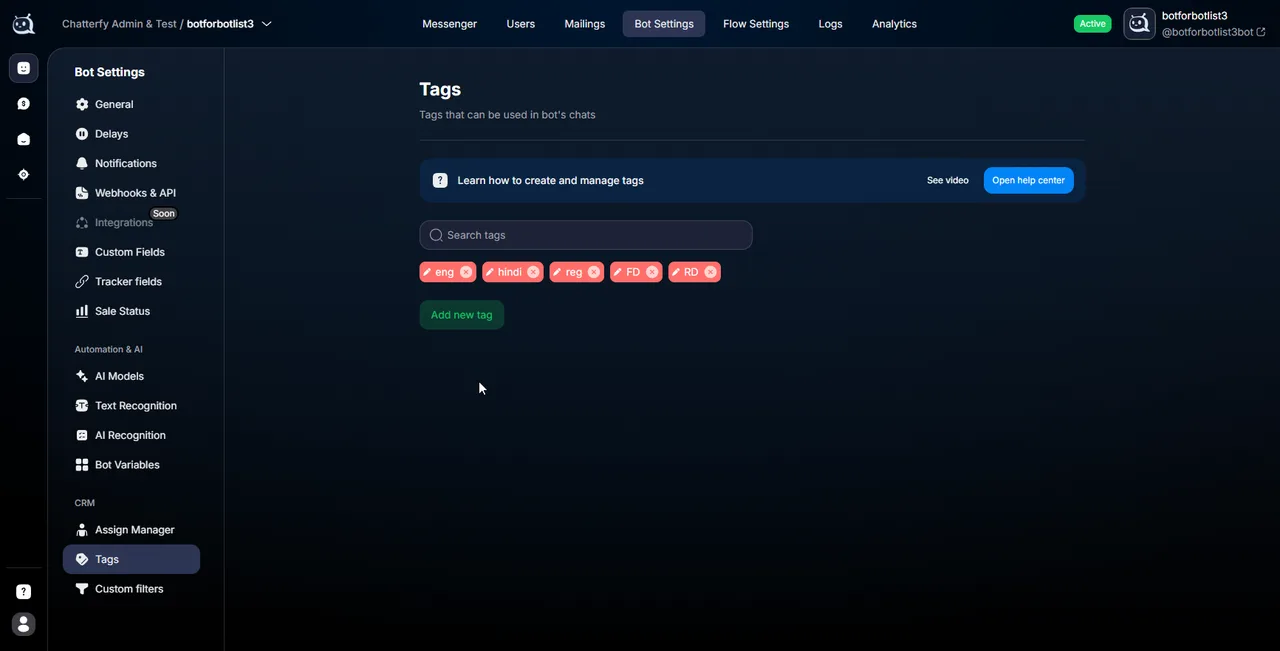
1. Go to Bot Settings → Tags
Open the list of the bot’s current tags. If the bot is new, the list will be empty.
2
2. Click Add New Tag
The tag creation form will open.
3
3. Fill in Tag Name and choose a color
Tag Name is a short, clear name. Ideally 1–2 words.
Color helps you quickly distinguish tag types in the chat list and in the customer card.
gicon:Lightbulb
Tip
A tag color is a speed tool, not decoration. A convenient system: red for critical segments (Hot, Refund-issued). green for successful ones (VIP, Has-deposit). gray for service tags (Test-account). yellow for items requiring attention (Need-follow-up). This lets the operator read the context literally in a second.
4
4. Save
Click Save. The tag will immediately appear in the list and become available for use in CRM and Flow Settings.
Where Tags Are Assigned
Manually — through the customer card
The operator opens the chat → Customer Card→ the Tags field.
Suitable for individual cases, VIP leads, manual team notes, and non-standard situations.
Suitable for re-tagging an old database, segmentation, and bulk tag cleanup.
gicon:Lightbulb
Practical strategy
Automation through Change tag, manual adjustments through the customer card, and bulk changes through Users — this way, the system requires almost no manual maintenance.
Where tags are used
Messenger
In Messengeryou can filter chats by tags: VIP only, Cold only, Spanish only.
Custom Filters
In Custom Filters — saved segmentstags are used for advanced saved segments. Example: VIP + Spanish + no activity for 7 days.
Condition
In Condition — conditional branchingyou can build branching based on tags: if the VIP tag is present — a separate sales-flow; if Cold is present — a reactivation branch.
Tag examples
Customer segment
VIP
New-lead
Warm
Cold
Traffic source
From-FB
From-Google
Referral
Geography
Italy
India
Spain
Tier-3
Behavior
Has-deposit
Asked-refund
Sleeping
Active
Internal notes
Need-follow-up
Difficult
Test-account
Waiting-dep
What to keep in mind
Critical
Create tags before building the flow. The Change tag step works only with tags that already exist in Bot Settings → Tags. The system does not create a tag automatically while you configure the flow.
Note
Do not turn Tags into a replacement for the entire CRM structure. If there are too many tags (50–100+), the team stops understanding which ones are current, which are used in the flow, and which are no longer needed. Tags should help with segmentation, not duplicate every user action.
FAQ
There is no hard limit. However, a clear, structured tag system is recommended; otherwise, filtering and CRM maintenance become more complicated.
Yes. After deletion, the tag is no longer available for new assignments and disappears from the bot interface.
Yes. Tag Name supports Cyrillic, Latin characters, and emoji.
No. The color is only for display in Messenger, the customer card, and filters. It does not affect the flow logic or Conditions.


 gicon:LightbulbTipA tag color is a speed tool, not decoration. A convenient system: red for critical segments (Hot, Refund-issued). green for successful ones (VIP, Has-deposit). gray for service tags (Test-account). yellow for items requiring attention (Need-follow-up). This lets the operator read the context literally in a second.


