

Change tag — add or remove a tag
The Change tag step automatically assigns or removes tags. It is used as part of flow logic: “after registration — Registered tag,” “if a lead is routed to the “objection” Routing — HasObjection tag.”
The Change tag step automatically assigns or removes tags. It is used as part of flow logic: “after registration — Registered tag,” “if a lead is routed to the “objection” Routing — HasObjection tag.”
Without the Change tag step, all tagging would have to be done manually from the customer card. With it, tags are applied automatically at the right moments, and the team sees up-to-date segmentation without any involvement.
When to use it
After registration in the affiliate program — Registered tag. After a large deposit — VIP tag. After three days of silence (via Delay) — Cold tag. After a specific AI Routing — the corresponding tag (HasObjection, AskedPrice). When entering a special re-engagement branch — Reactivation tag.

How it works
Settings
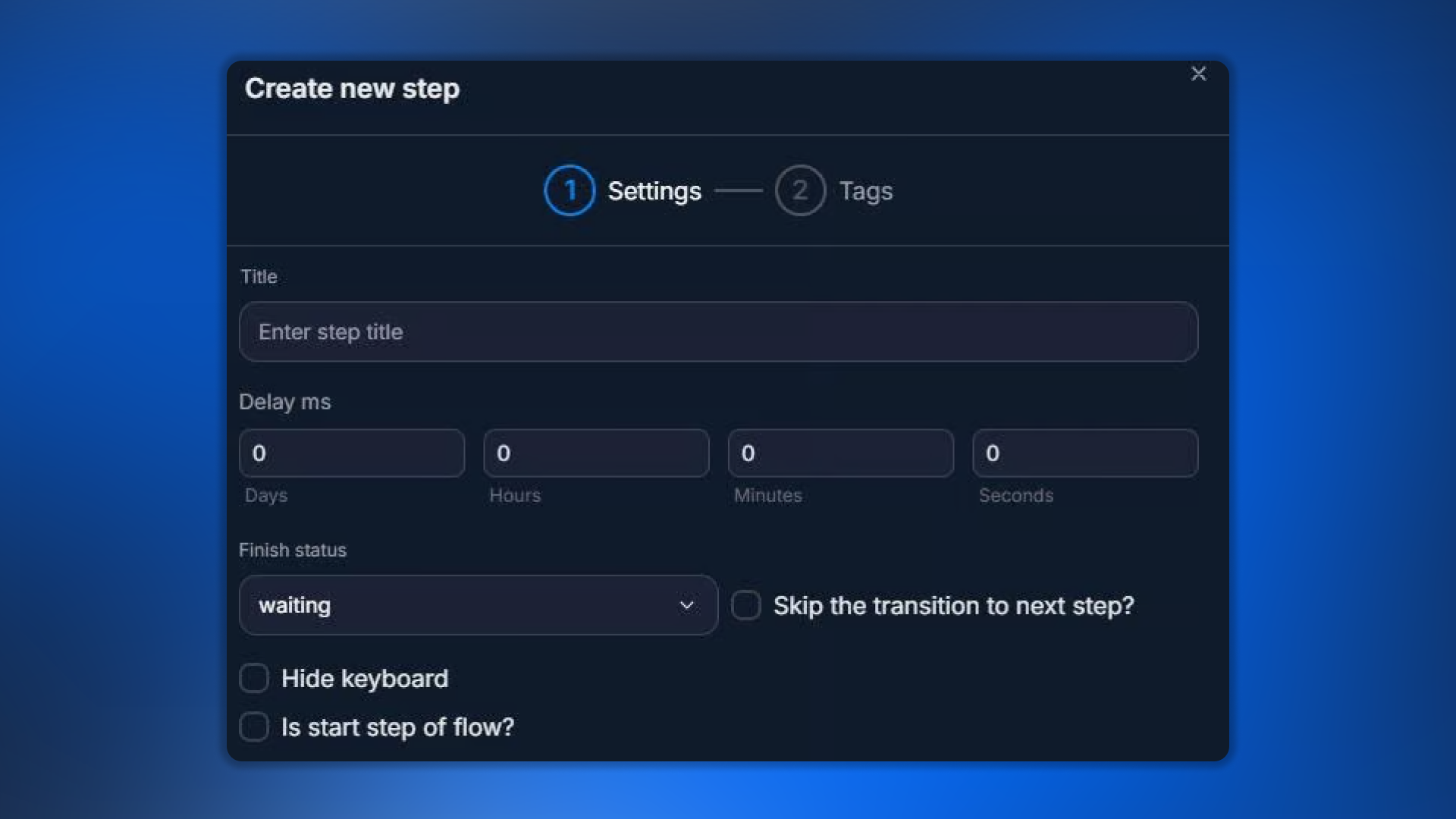
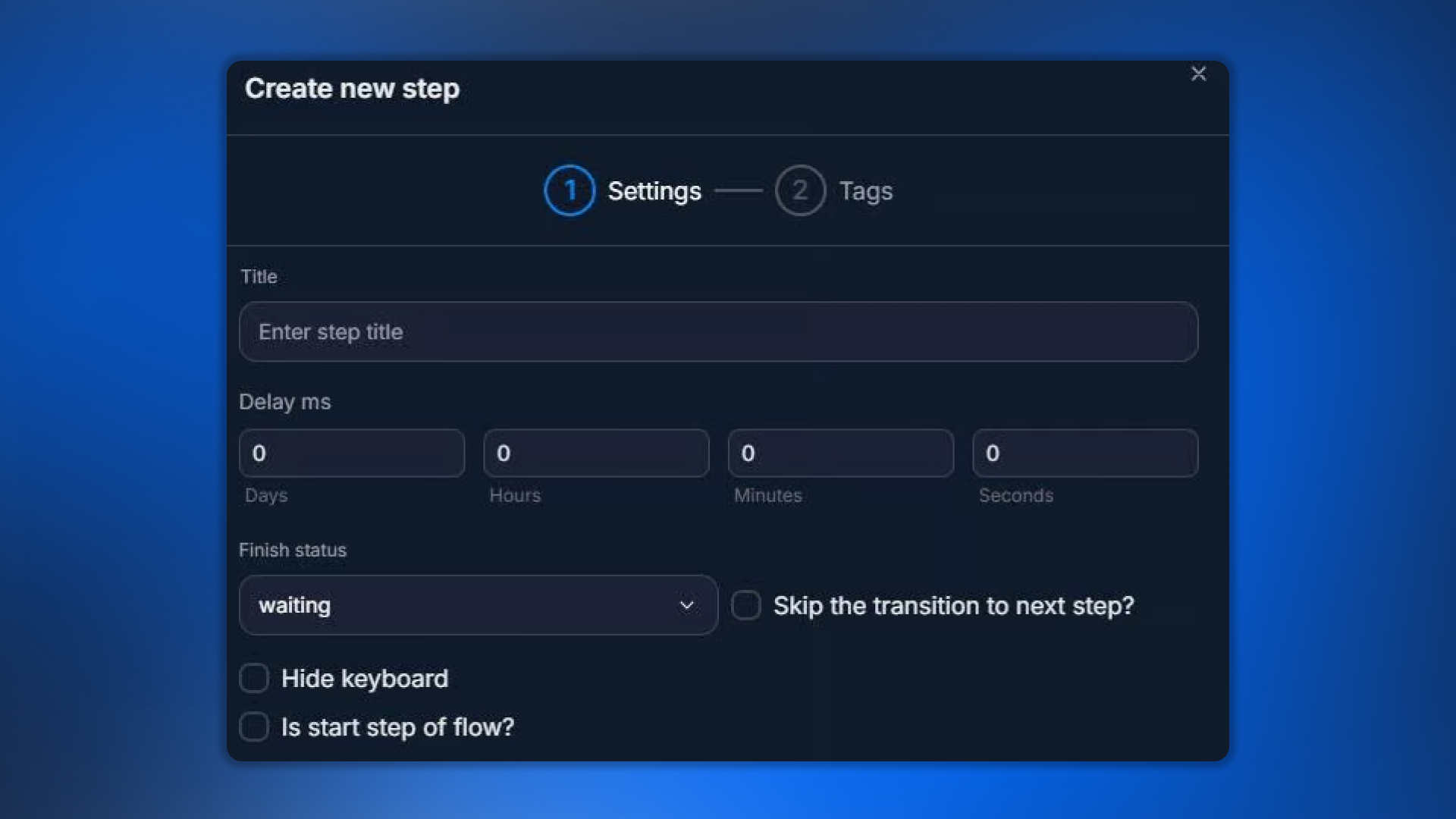
Parameter | What it defines |
|---|---|
Title | Step name in the flow |
Delay | Delay before applying |
Finish Status | Dialog status after execution |
Hide keyboard | Remove the previous step’s keyboard |
Is start step of flow | Make it the start step |
Skip the transition to next step | Do not transition automatically |
Tags — what the step does
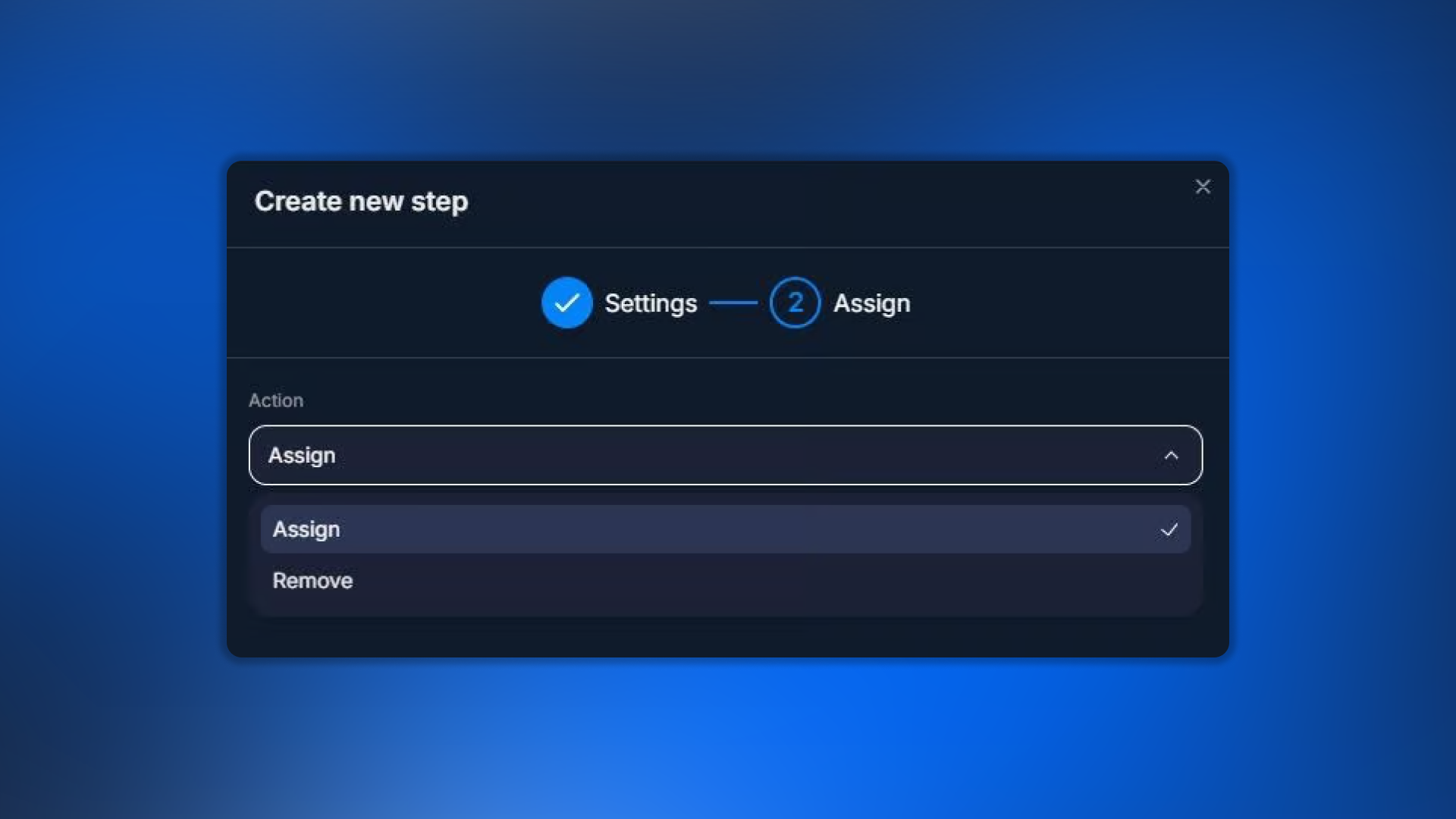
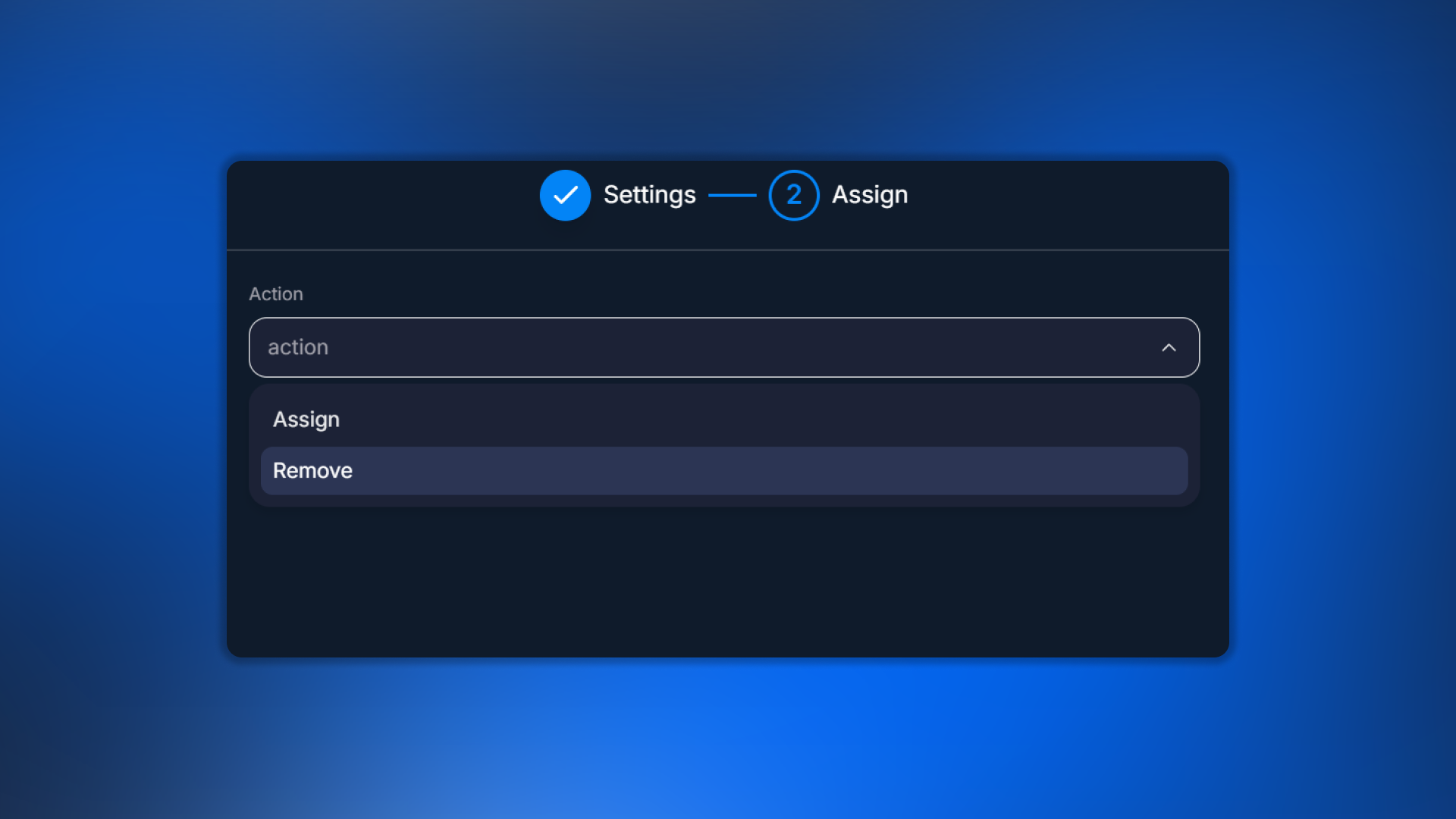
Action — what to do
Assign — add a tag to the lead. If it already exists, no changes.
Remove — remove a tag from the lead. If it was not there, no changes.
Choose tag
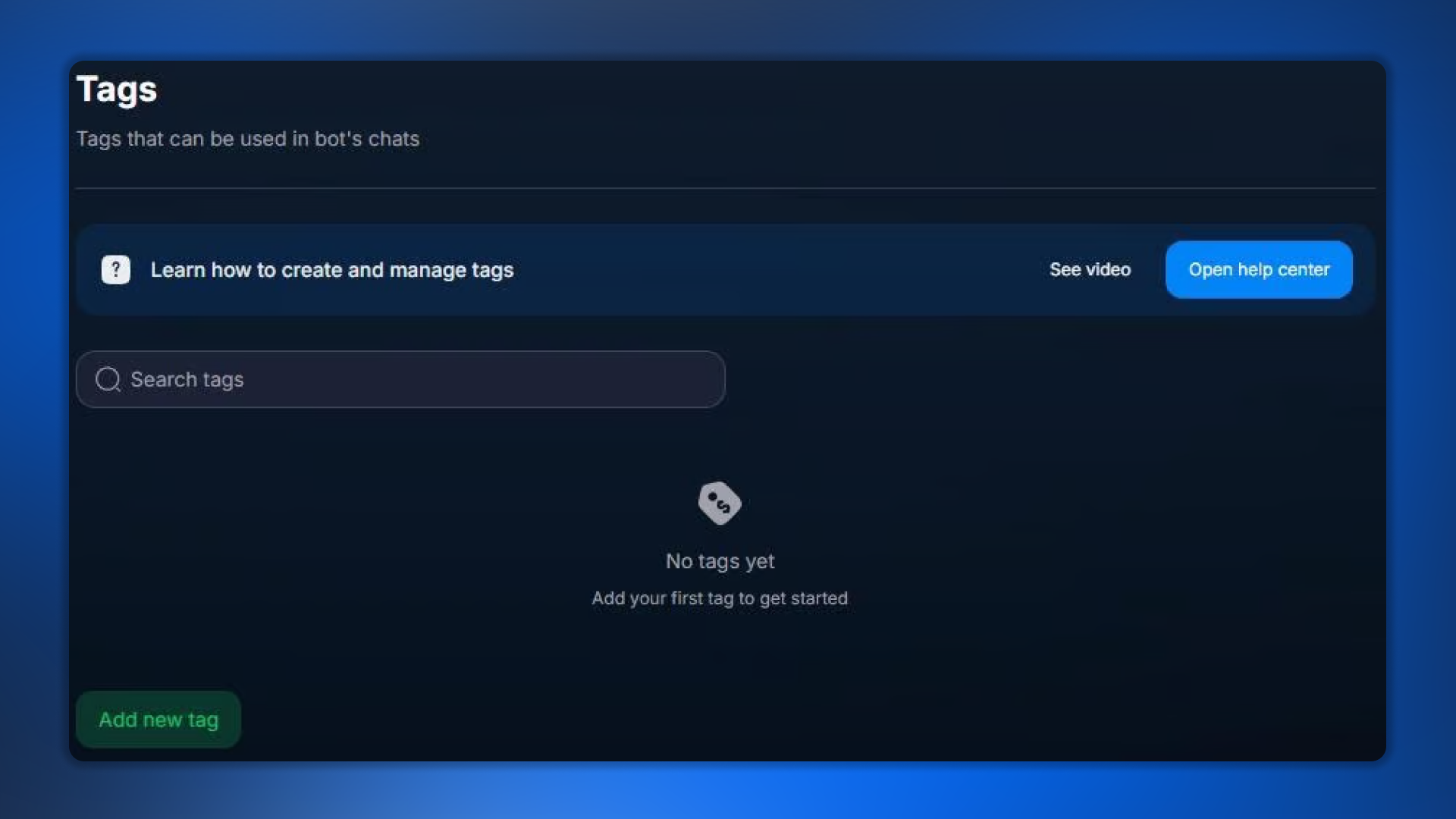
Select from the list of tags created in Tags — tags for segmentation. If the required tag has not been created yet, create it first, then come back here.
Add tag — multiple actions in one step
The Add tag button adds another action. You can perform several operations in a single step:
Assign “Registered” + Remove “New”
Assign “VIP” + Remove “Cold”
Assign “HasObjection” + Assign “NeedFollow-up”
Assign vs Remove — visual difference
Create tags in advance
If the tag selected in the step has NOT been created in Bot Settings → Tags, the system will not create it automatically. Before saving the step, make sure the tag exists. See /crm/bot-settings/crm-defaults/tags.
Use cases
Tagging after registration
After the Send event “Registration” step, add Change tag → Assign “Registered” + Remove “Subscribed”. The lead moves from “subscribed” to “registered”.
VIP after a large deposit
After Condition “Total Deposit > $500” — Change tag → Assign “VIP”. The subsequent funnel steps can check this tag.
Tagging based on AI Routing
AI Reply asks a question about the country. After Routing “Germany” — Change tag → Assign “Germany”. After Routing “France” — Change tag → Assign “France”. Then the team filters leads by country.
What to keep in mind
Tags are used in Condition
The purpose of tagging is not just labeling for the team, but also the logic of the next steps. With a tag-based Condition, you can build branching: “if VIP — high-tier sales script, otherwise — standard one”. See /crm/flow-settings/steps/terms/condition.
Frequently asked questions
Related


Was this article helpful?