

Change flow — transfer to another flow
The Change flow step moves a lead from the current flow to another flow of the same bot. You can specify the exact step in the new flow where the dialog should continue. It is used to split the bot lo
The Change flow step moves a lead from the current flow to another flow of the same bot. You can specify the exact step in the new flow where the dialog should continue.
It is used to split the bot logic into several scenarios. For example, the main flow is an arbitrage funnel. If the lead has made a deposit, move them to a VIP flow with special messaging. If the lead has been silent for 30 days, move them to a Reactivation flow.
When to use
The bot has several different funnels (main, VIP, reactivation, support) and you need to switch between them. After a sale event → move to a post-sale funnel. After a specific Routing → move to a specialized flow. On a schedule (via Delay + Change flow) — for example, every Monday move to a weekly mailing flow.

How it works
The lead reaches the Change flow step.
The step takes the flow selected in the settings.
Moves the lead to the specified step within that flow.
Continues the dialog in the new scenario.
The current flow for this lead stops — the next steps of the old flow are not executed. All tags, fields, and chat history are preserved.
Settings
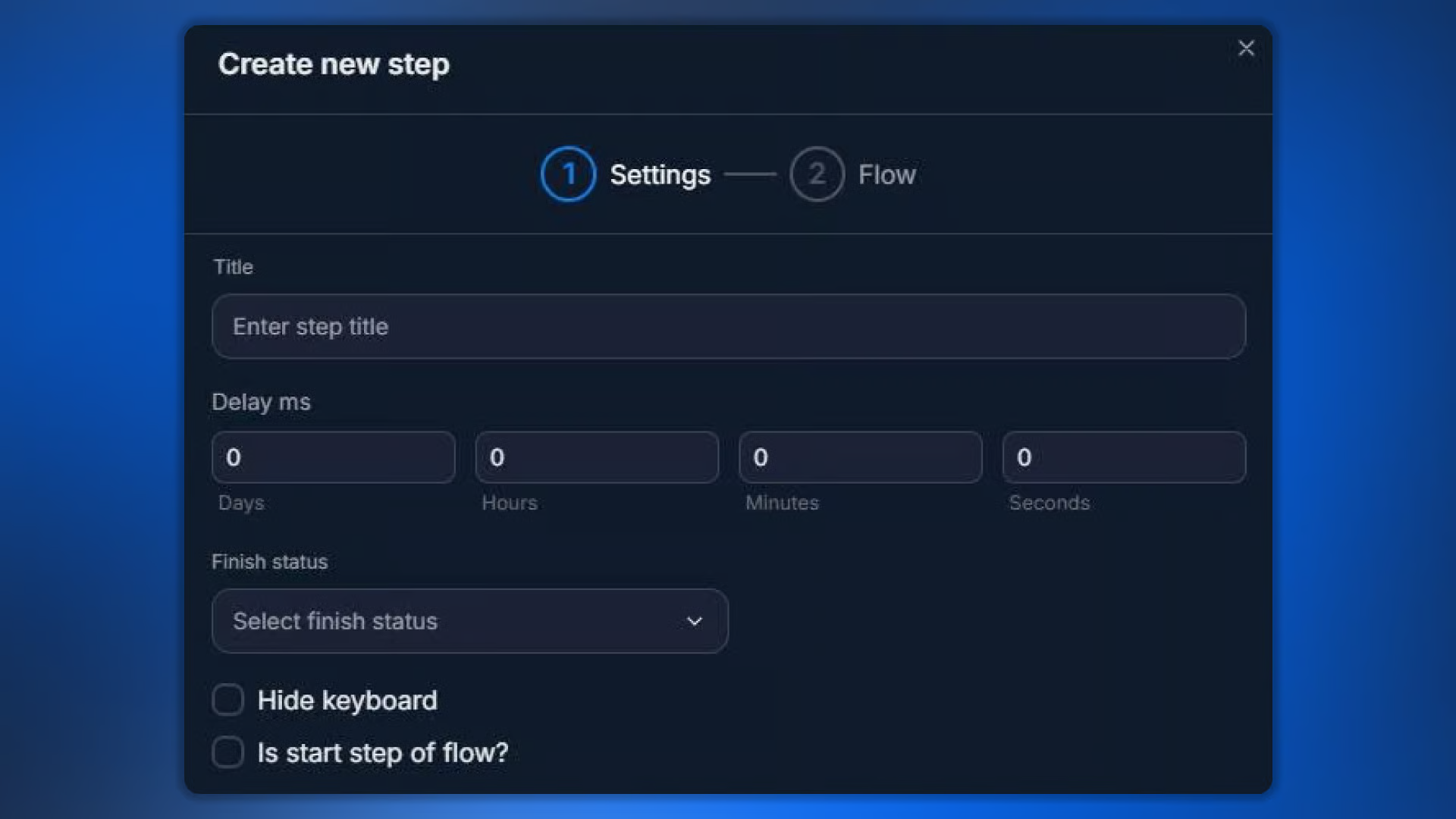
Parameter | What it defines |
|---|---|
Title | Step name |
Delay | Delay before the transition |
Finish Status | Dialog status after switching |
Skip the transition | Applicable in rare cases |
Flow — selecting the target scenario
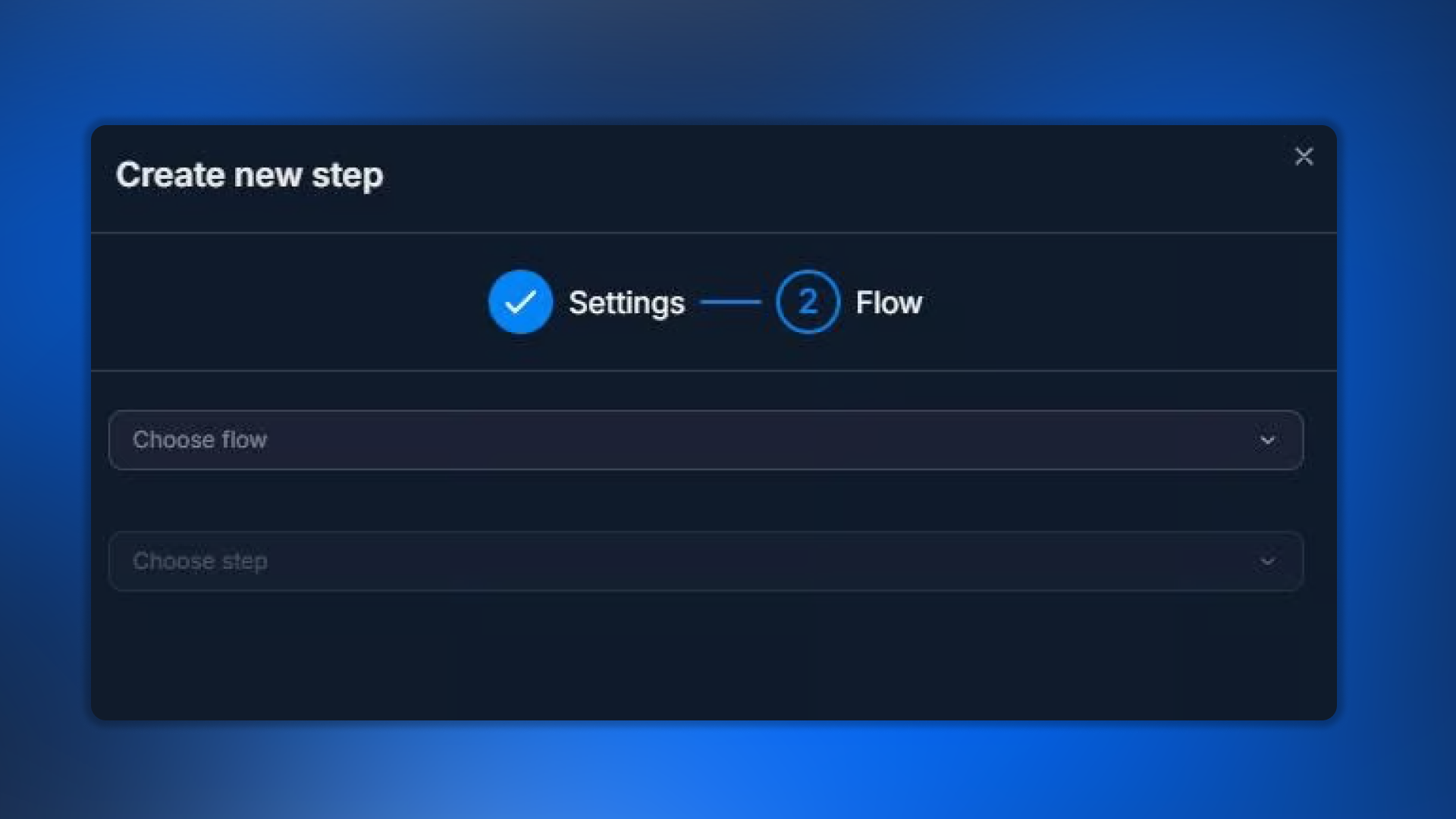
Choose flow — select the target flow from the list of existing flows in this bot.
Choose step — select the specific step inside the flow where the conversation will continue.
If you want to start a new flow from the very beginning, choose the start step (the one with Is start step of flow enabled).
Usage examples
Switching to the VIP flow after a large deposit:
Main flow — Send event “sale” → Condition “Total Deposit > $500”.
If yes — Change flow → VIP flow → “VIP Welcome” step.
The VIP flow runs the conversation with a special approach and a manager.
Reactivation after a month of silence:
After registration — Change tag “Registered”.
After Delay = 30 days (if there is no activity, the bot waits).
If the lead is still silent — Change flow → Reactivation flow → “Wake up message”.
What to keep in mind
The current flow stops
After Change flow, the old flow stops running for this lead. If it contained pushes, AI Reply, or a wait, they are canceled. Choose the transition moment carefully — you cannot automatically “go back”.
The target step must be in the correct flow
If you select a flow but do not select a step, the lead will get “stuck.” Always specify the destination step. If you want to “start from the beginning,” choose the start step of the target flow.
FAQ
Related


Was this article helpful?