

AI Recognition — media processing
AI Recognition — media processing with AI AI Recognition is a feature inside Automation & AI that allows AI to process the user's media files. AI can work with: voice messages; photos; video note; ima
AI Recognition — media processing with AI
AI Recognition is a feature inside Automation & AI that allows AI to process the user's media files.
AI can work with:
- voice messages;
- photos;
- video note;
- images;
- screenshot content.
After recognition, AI can:
- understand media content;
- reply to the user;
- extract data;
- write information to Custom Fields;
- use the data inside CRM.
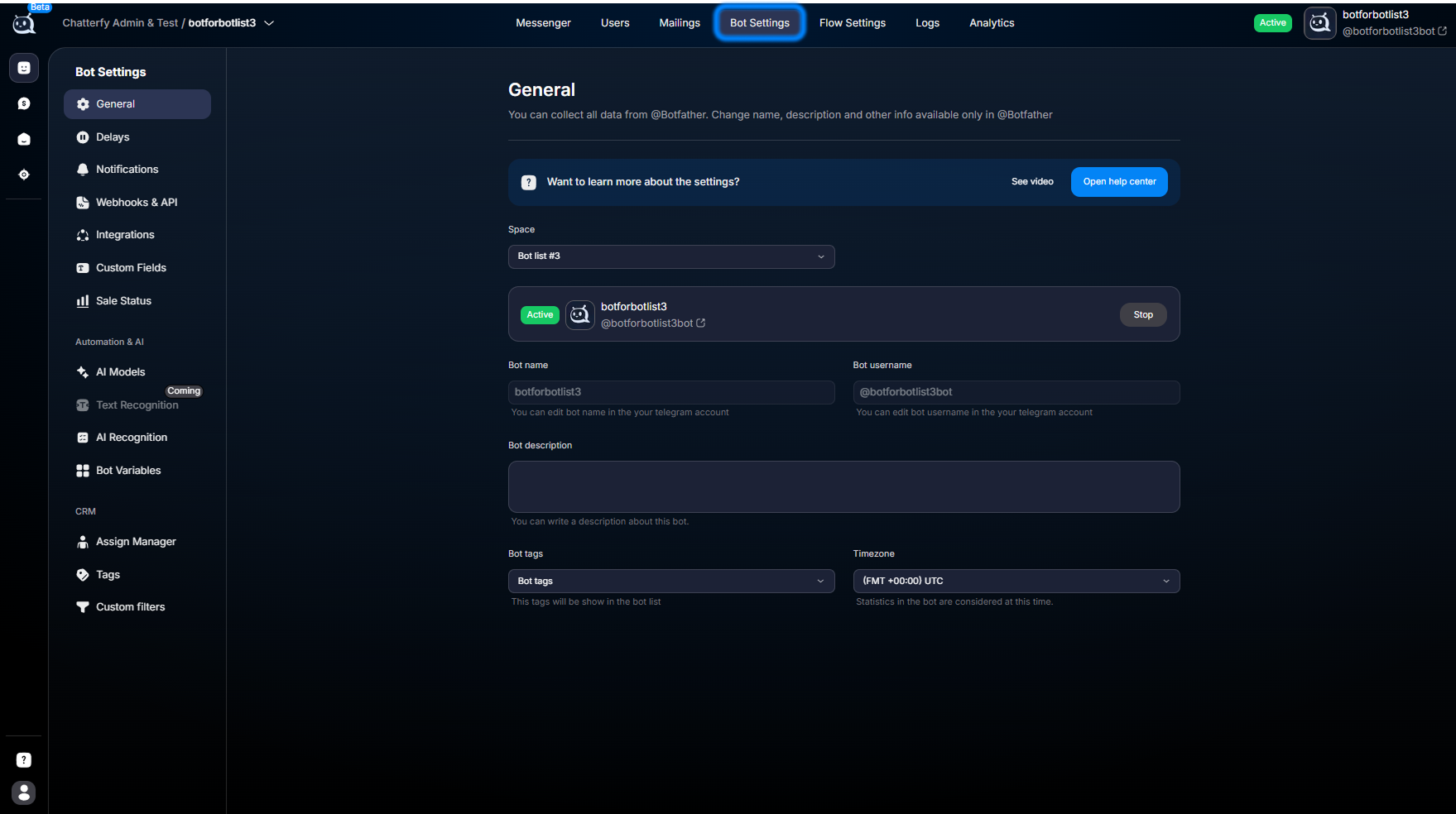
Why you need AI Recognition
Without AI Recognition:
- AI only sees that there is an attachment;
- but does not understand the contents of the file or image.
For example:
- the user sent a screenshot;
- AI only sees photo;
- but does not understand the text, ID, or data in the image.
AI Recognition converts media into:
- text context;
- description;
- structured data.
After that, AI works with them as with a regular user message.
Which media types are supported
Media type | Available modes |
Photo | Recognition / Manual / Skip |
Voice | Recognition / Manual / Skip |
Video Note | Recognition / Manual / Skip |
Video | Manual / Skip |
Document | Manual / Skip |
Three AI Recognition modes
You can choose one mode for each media type.
Mode | What happens |
Recognition | AI automatically processes the media |
Manual | The conversation is switched to manual for handling by an operator |
Skip | The attachment is not used by AI when generating a response |
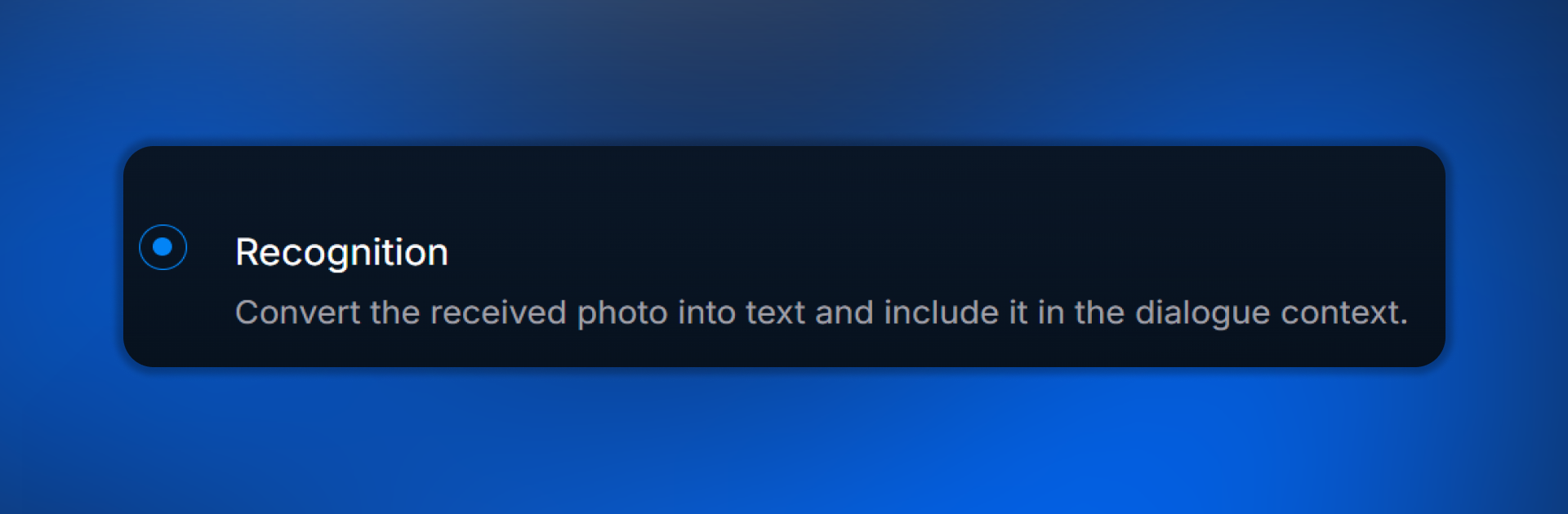
Recognition
Recognition includes automatic media processing via AI.
AI:
- converts media into text context;
- analyzes the contents of an image, voice message, or video circle;
- uses the result within the dialog and flow.
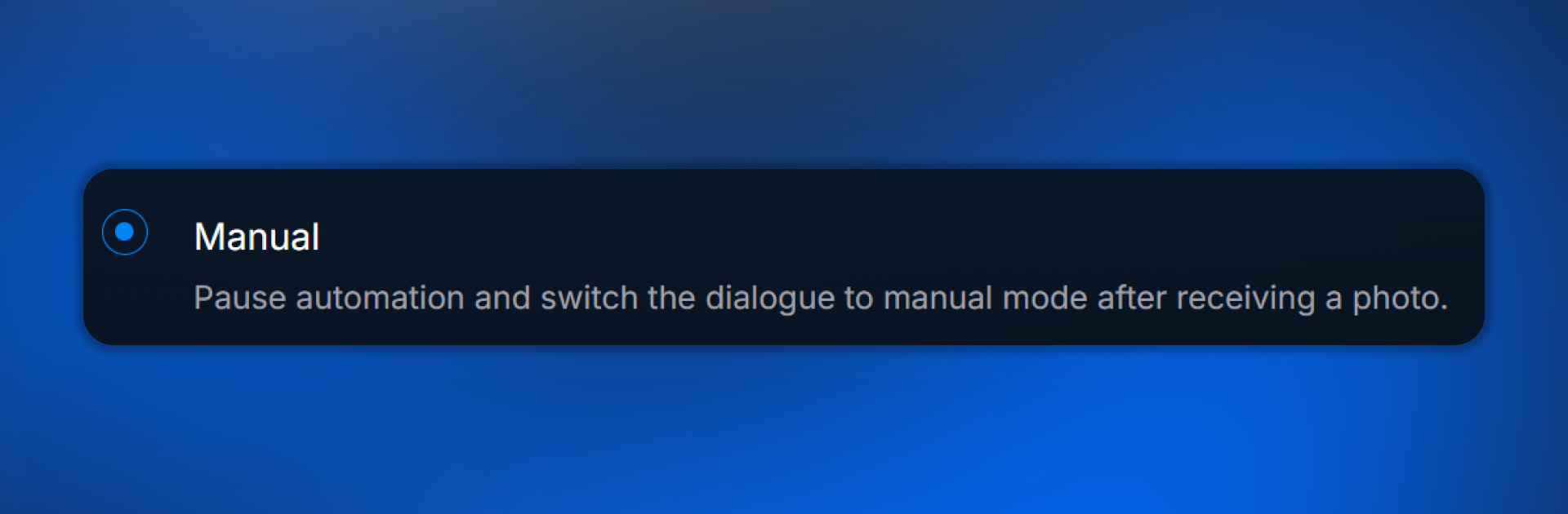
Manual
Manual is used if:
- the media must be reviewed by an operator;
- manual actions are required;
- the data is too sensitive;
- AI must not automatically process the attachment.
After receiving the media, the dialog is moved to manual status.
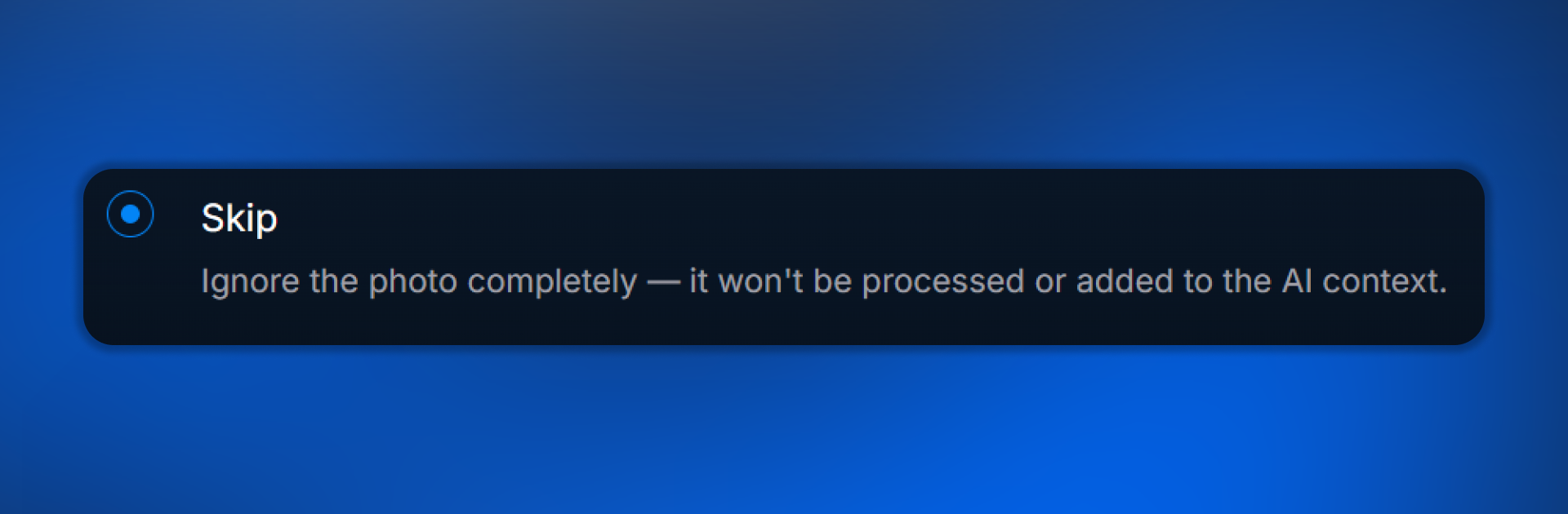
Skip
Skip completely disables media processing.
AI:
- does not analyze the file;
- does not extract data;
- does not use the attachment when generating a response.
How Voice Recognition works
With Voice Recognition:
- the user sends a
voice message;
- AI converts the voice message into text;
- the text is added to the conversation context;
- AI uses this text when generating a response.
After that, AI works with the voice message as regular text.
What affects recognition quality
Recognition quality is affected by:
- noise;
- microphone quality;
- language;
- accent;
- speech rate.
How Photo Recognition works
Photo Recognition allows AI to:
- read text in an image;
- analyze screenshots;
- understand interfaces;
- extract data;
- use the found information within the flow.
What Tasks are
Tasks are assignments for AI: what exactly needs to be found in the image.
Tasks work only for Photo Recognition.
Without Tasks, AI usually just describes the image. With Tasks, AI starts looking for specific data.
Examples of Tasks
Find user ID from Exnova
Find transaction amount
Find payment status
Find country on screenshot
How to write Tasks correctly
A good Task:
- short;
- specific;
- describes one task.
Bad example:
Analyze screenshot
Good example:
Find user ID from PocketOption screenshot
Functions — writing data to CRM
Post-processing Functions are available only for Photo Recognition.
Functions let you:
- record found data;
- save values in Custom Fields;
- use them inside a flow.
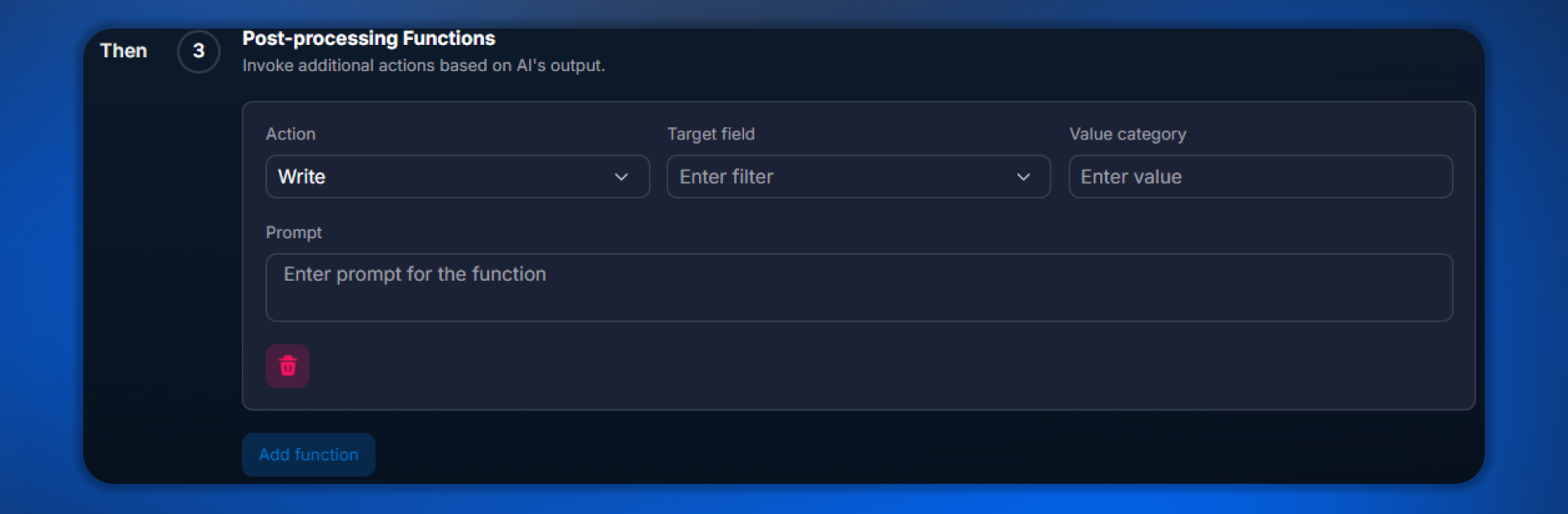
How Functions work
AI:
- finds data in the image;
- extracts the value;
- if Functions are configured, writes it to the CRM field.
What you can save
Using Functions, you can save:
- ID;
- country;
- amount;
- date;
- status;
- text;
- number;
- any custom data.
Functions example
Field | Value |
Action | Write |
Field | trader_id |
Value | ID |
Prompt | User ID from registration screenshot |
Complete setup example
Tasks
Find user ID from Exnova
Find user's country
Functions
Field | Value |
Action | Write |
Field | exnova_id |
Value | ID |
Prompt | User ID from screenshot |
Write | country |
Country | User country from screenshot |
Where data is used after Recognition
After being written to Custom Fields, the data can be used:
- in Conditions;
- inside AI Reply;
- in Filters;
- in regular messages;
- in AI Routings.
How AI Recognition works with AI
After recognition:
- AI Reply can respond based on the content of an image, voice message, or video circle;
- AI Routings can use the data after Recognition to route the user within the flow;
- Conditions can check the data found.
Use cases
Arbitrage
The user sends:
- a registration screenshot.
AI:
- extracts the ID;
- with Functions configured, writes the ID to CRM;
- the flow continues automatically.
Support
The user sends:
- an error screenshot.
AI:
- finds the error message;
- the required support scenario is launched.
Sales
The user sends:
- a payment receipt.
AI:
- finds the amount and currency;
- CRM confirms the payment.
What you need to know
⚠️ Important:
Recognition slightly increases AI usage.
Photos and Voice messages usually take longer to process than text.
The better the Tasks, the more accurate the result.
A single media type can work in only one mode.
For Video, only Manual and Skip modes are available.
For Document, only Manual and Skip modes are available.
AI Recognition limitations
AI Recognition:
- does not guarantee 100% accuracy;
- may make mistakes on poor-quality images;
- depends on media quality;
- depends on the correctness of Tasks.
Common issues
AI does not see the data in the photo
Check:
- image quality;
- the correctness of Tasks;
- whether Recognition is enabled.
Voice is not recognized
Check:
- Voice = Recognition;
- audio quality;
- language.
Functions do not write data
Check:
- whether the Custom Field exists;
- whether the correct Field is selected;
- whether the Prompt is correct.
Frequently asked questions
Expected result
After configuring AI Recognition:
- AI starts to understand media;
- voice messages are converted into text;
- images are analyzed;
- data is automatically saved to Custom Fields via Functions;
- the flow can work based on media content.
Related


Was this article helpful?