

Custom Postback — custom integration
Custom integration is for cases where your affiliate network is not in the list of ready-made ones. It is universal for any affiliate program that supports postbacks. Spend 15–30 minutes on setup and
Custom integration is for cases where your affiliate network is not in the list of ready-made ones. It is universal for any affiliate program that supports postbacks. Spend 15–30 minutes on setup and get full control over the set of events and parameters.
What to prepare
An active affiliate account with an affiliate network that supports postbacks (if not, contact their support). The affiliate network's documentation — what its event names are and what parameters it transmits. An understanding of the clickid + postback mechanics — How event forwarding works. Configured campaigns and flows in the bot that send the registration link to leads.
How it works
- 1. A lead clicked on the ad — Tracker created a clickid.
- 2. The lead received a registration link with {{tracker.clickid}} and registered with the partner.
- 3. Upon the occurrence of an event (registration, deposit), the partner sends a postback to your Postback URL.
- 4. Tracker finds the lead by clickid and records the event.
The difference is that for a Custom integration, you need to manually:
- — Specify the name of the parameter in which the affiliate network transmits the clickid.
- — Create each event that you will process.
- — Get Postback URLs for each event.
- — Specify additional parameters (cost, currency, fields).
Steps
Open Integrations and create a Custom integration
Tracker → Integrations →Create Custom integration. The creation form will open.
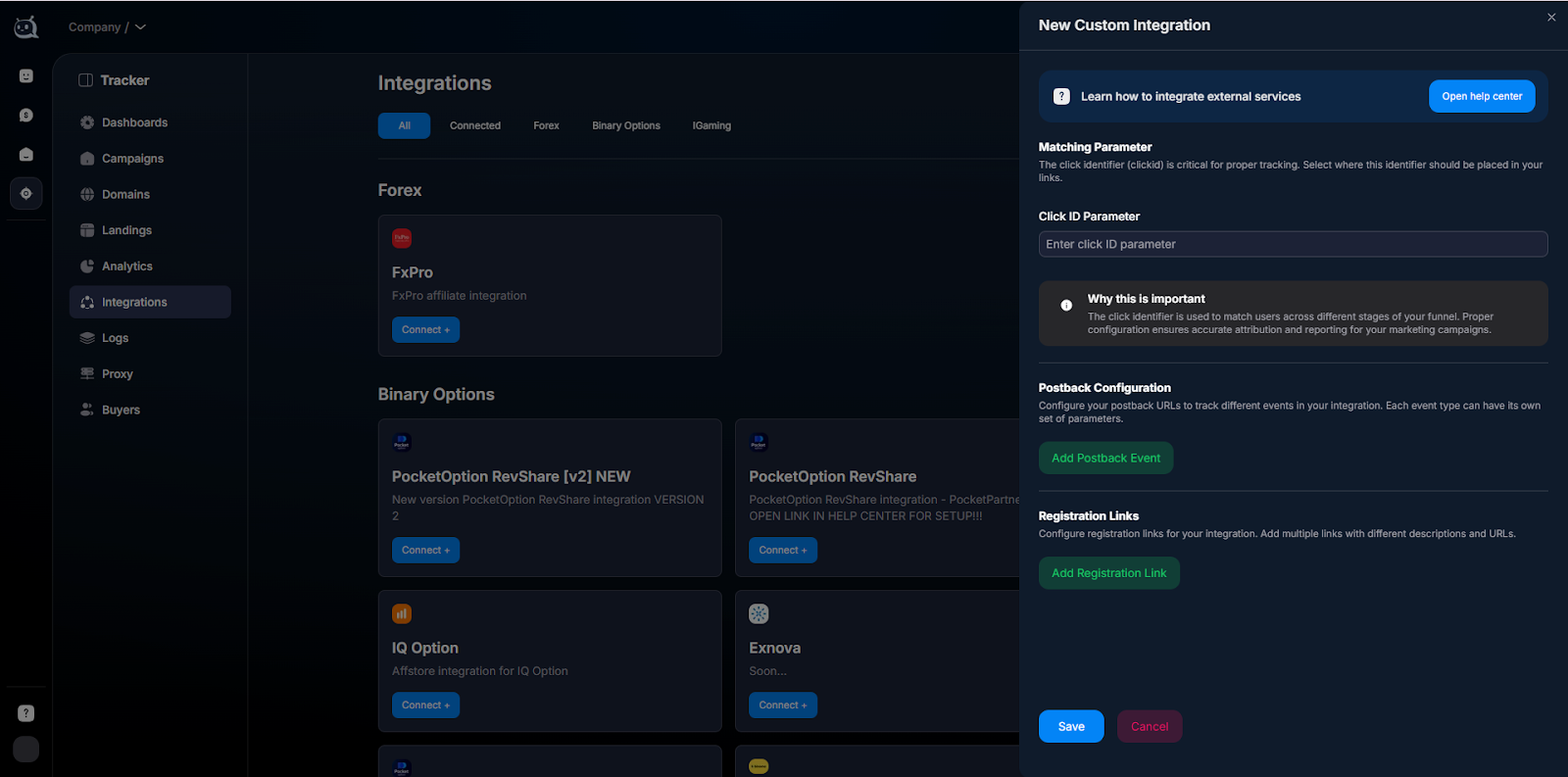
Creating a custom integration Specify the Click ID Parameter
This is the most important field. The name of the parameter under which the affiliate network transmits the click identifier. It depends on the affiliate network. Typical options:—clickid— standard.—sub1/sub4— widely used.—pbclick— some affiliate networks.Check with the affiliate network's documentation. The name specified here must match what the affiliate network actually sends in the postback.
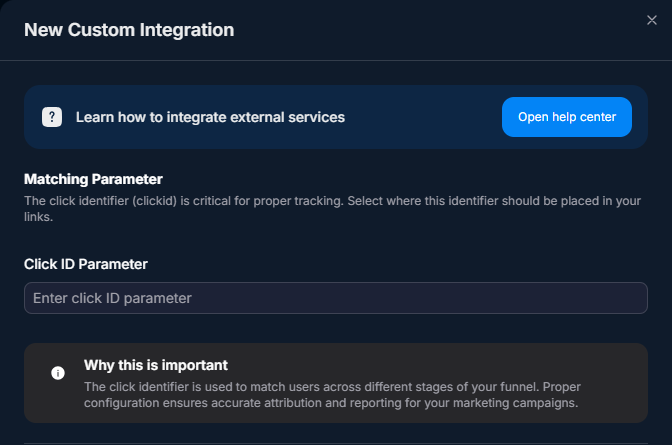
Click ID Parameter field Add postback events
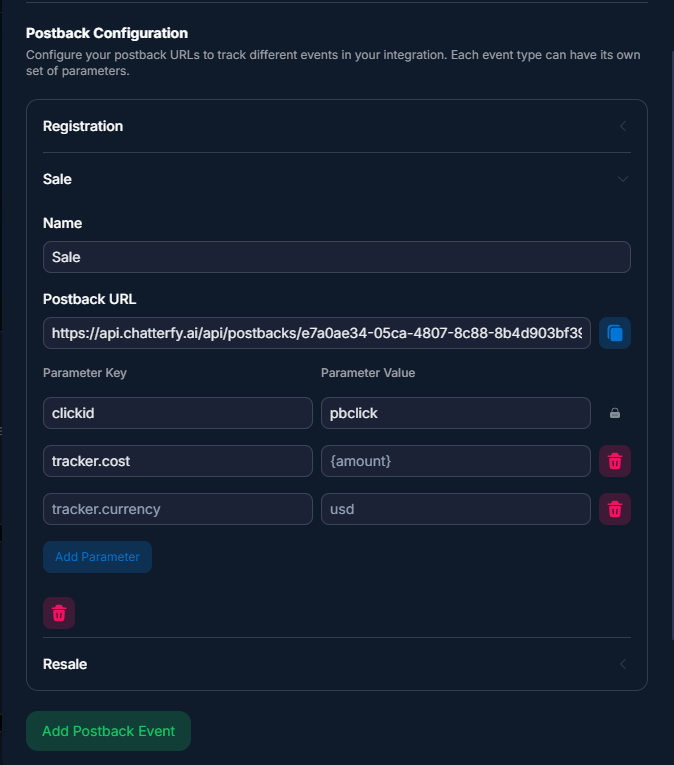
TheAdd Postback Eventbutton. Create a separate event for each required action, specifying the name and the generated Postback URL.Standard names:—registration— registration.—sale— first deposit (FD).—resale— repeat deposit (RD).— Any custom ones (emailconf,kyc_verified,refund). The main thing is that the name in the Tracker must match the one used by the affiliate network.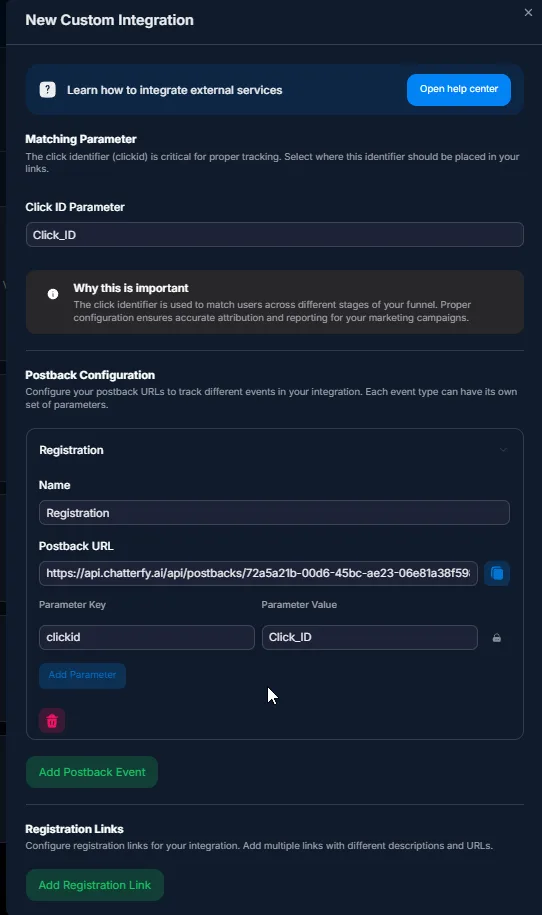
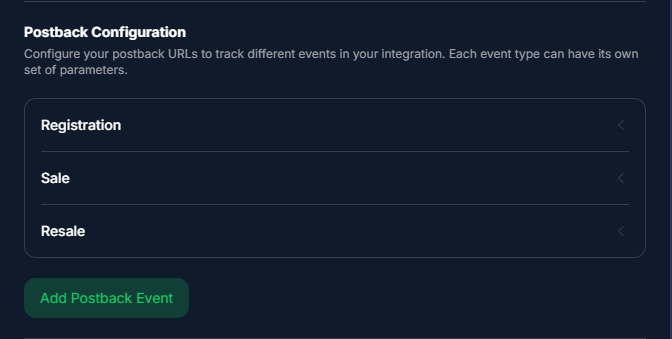
Three main events: registration, sale, resale Configure postback parameters (optional)
When setting up each event, you can transmit additional parameters:—tracker.cost={amount}— deposit amount.—tracker.currency=usd— currency.—tracker.tid={event_id}— unique event ID (for deduplication of repeat postbacks).The names in curly braces are affiliate network macros; the network will replace them with actual values.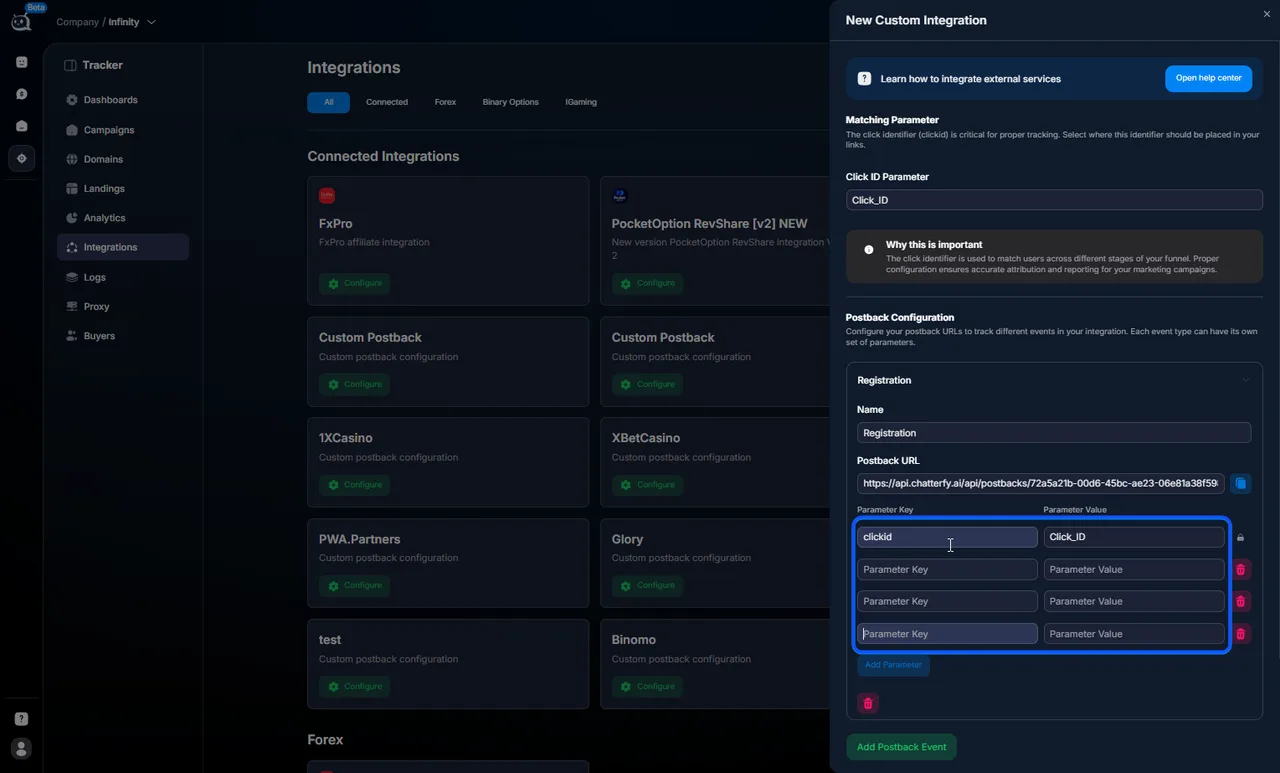
Additional parameters Copy the Postback URLs
The Tracker will generate a unique URL for each event. They look like this:This is a template — the affiliate network must fill in the values. Once received, the Tracker will parse and process them.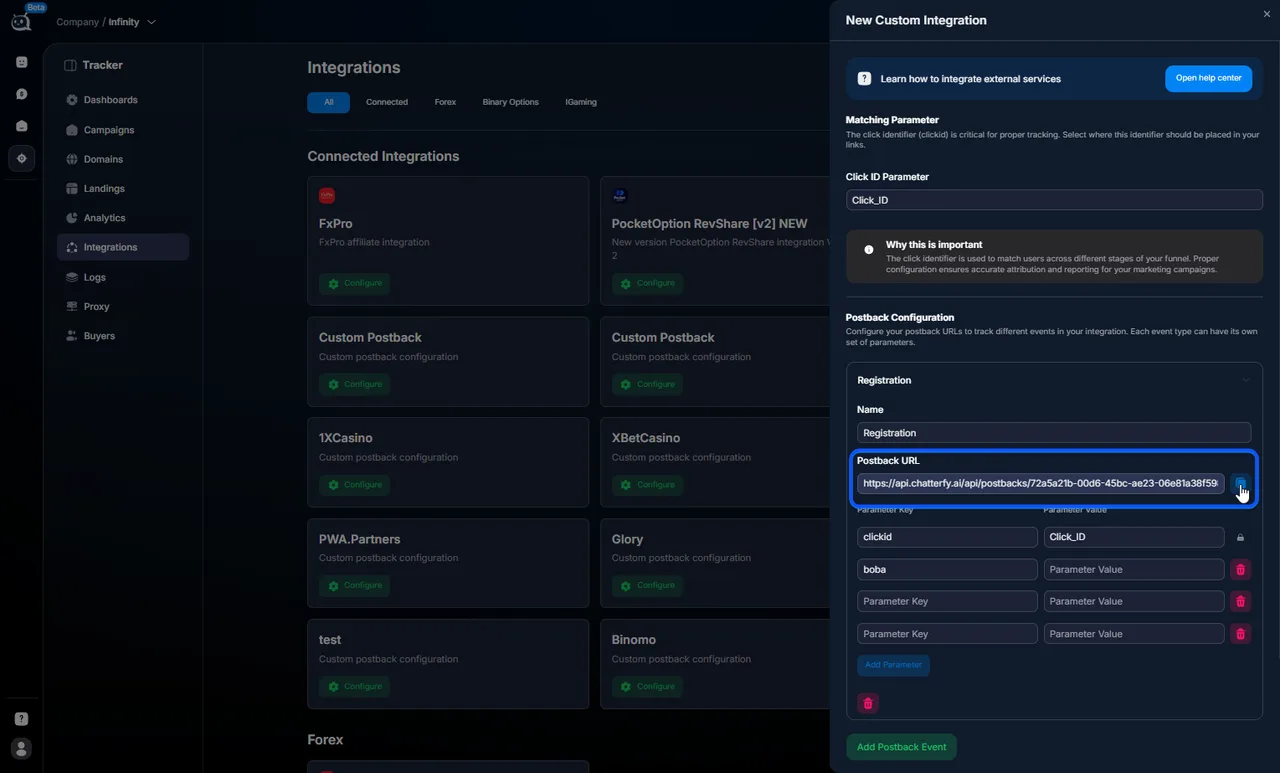
Configure postbacks in the affiliate network dashboard
In your affiliate network dashboard, open the Postbacks / Webhooks / Events section. For each event, paste the corresponding Postback URL from the Tracker. The affiliate network usually uses its own macros for values ({click_id},{amount},{currency}, etc.) — specify them in the URL instead of the placeholders.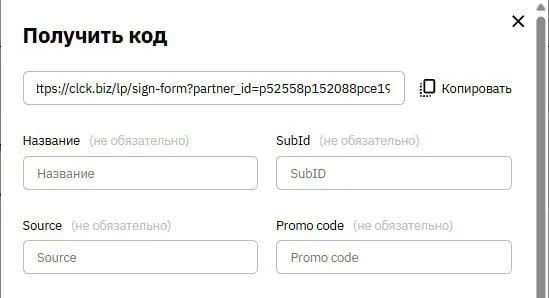
Add a registration link
In Tracker under Custom integration, there is anAdd Registration Linksection:— Link name — internal name for the link (for the team).— Base URL — the affiliate registration link from your account.Tracker will automatically generate aFinal URL with Parameters— this is the final link with the{{tracker.clickid}}macro inserted. Example:Final URLplaintexthttps://partner.com/signup?pbclick={{tracker.clickid}}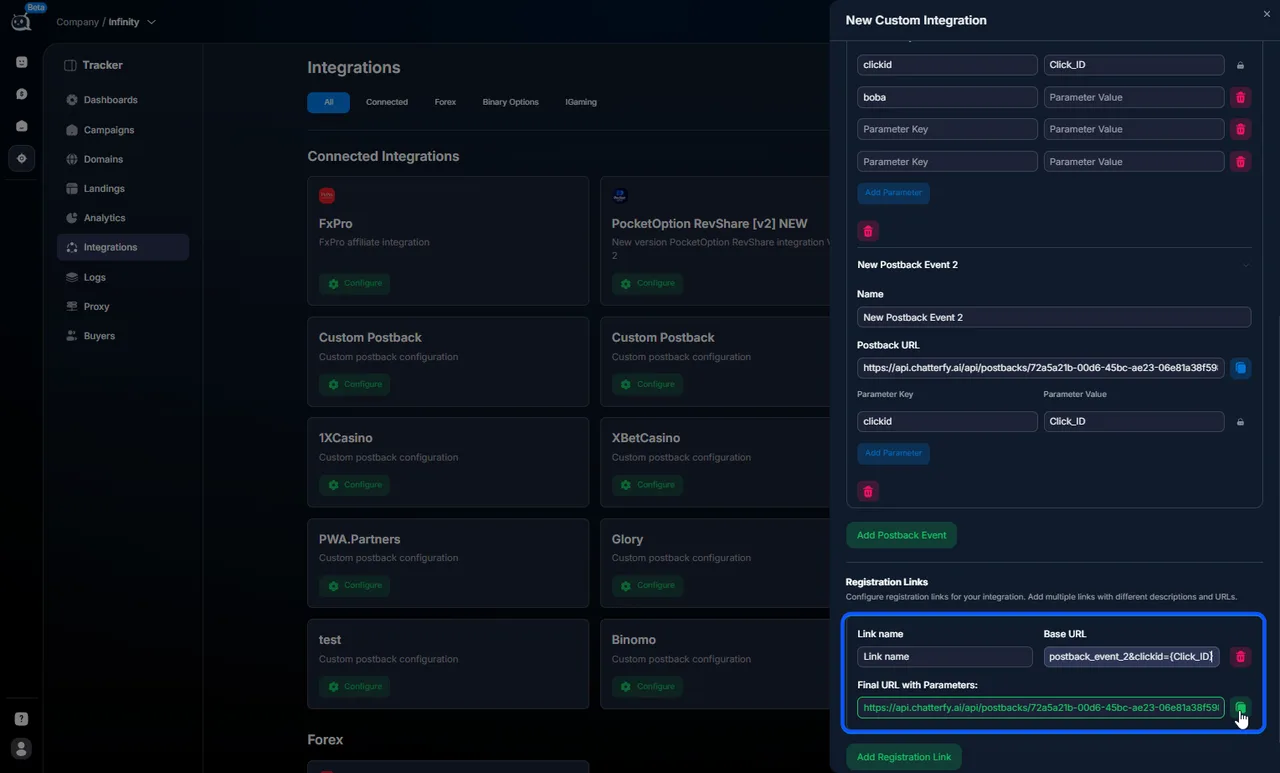 Use this link in the bot Flow — send it to the lead.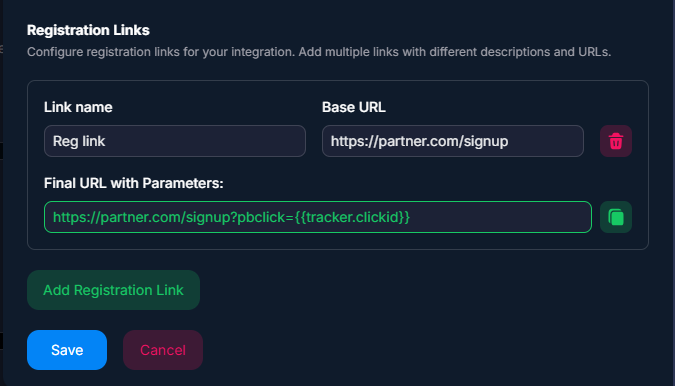
Adding a registration link Perform a test registration
Take the Final URL with Parameters, replace{{tracker.clickid}}with a test value or use a real clickid from a lead. Complete the registration with the partner.Check Tracker logs
Open Logs — event logs → Postback logs. A record with the status OK should appear for the registration event. If the status is Error, the details will show what the problem is.


Signs of a working custom integration
After a test registration in Logs — event logs→ Postback logs, a record appeared with status OK, the correct clickid, and the registration event. In the test lead card in Статьяyou can see the event in the Events section. If there are custom parameters, they are displayed in the Custom Fields of the lead card.
Standard event names
Use these names so that Tracker displays events correctly in Dashboards — Summary Analytics and Analytics — detailed table.
- —registration— registration. The main top-of-funnel event.
- —sale— first deposit (FD).
- —resale— recurring deposit (RD).
If you name it differently (“fd”, “firstdeposit”, “recurring_payment”) — Tracker will still register the event, but it will only be available as a custom event (via filter). It will not be included in standard Dashboards / Analytics metrics.
Custom Fields via fields.<key>
Самая мощная фишка кастомной интеграции. В постбеке передавайте параметры с префиксом
fields. — Tracker автоматически создаёт Custom Field в CRM с этим именем и записывает значение в карточку лида.Postback example:
Постбек с кастомными полямиplaintext
?clickid=abc123&tracker.event=sale&tracker.cost=200&fields.trader_id=99887&fields.promo=DEC2026&fields.product=BTCAfter receipt, the following will appear in the lead card:
- —trader_id= 99887
- —promo= DEC2026
- —product= BTC
The operator in Messenger sees the lead context: which trader_id is associated with the partner program (for support requests), which promo was used, and which product was purchased. Custom Fields are available for filtering in Custom Filters — saved segments and in Custom Fields — custom fields.
Use cases
Forex partner program with a non-standard name — arbitrage
Buyer работает с TradingHub Pro, у которой Click ID Parameter =
pbclick. Создаёт Custom integration: Click ID Parameter = pbclick. События registration / sale / resale. В каждом — tracker.cost={amount}, tracker.currency={currency}. В регистрационной ссылке: https://thp.com/signup?pbclick={{tracker.clickid}}. Через час первый постбек.Crypto partner program with a focus on trader_id — performance
Buyer льёт оффер crypto, важно знать ID игрока для запросов в саппорт. Custom integration с событиями registration / sale / resale. В постбеке для каждого:
fields.trader_id={user_id}. Оператор в CRM видит «trader_id = 12345» при открытии чата — может быстро написать саппорту партнёрки.Casino partner program with extended events — arbitrage
Crystal Casino отдаёт нестандартные события:
registration, email_confirm, kyc_passed, first_deposit, redeposit, big_deposit_500plus. Buyer создаёт Custom integration с этими 6 событиями. Tracker фиксирует каждое. В Auto Actions настраивает: послеbig_deposit_500plus автоматически переключать в VIP Flow с push-уведомлением менеджеру.B2B partner program for performance marketing
Sales-агентство ведёт b2b-клиента в SaaS-компанию. У клиента партнёрская программа:
signup, trial_started, paid, churn. Создают Custom integration. В каждом постбеке передают fields.plan_name и fields.mrr. Аналитика по plan_name даёт разрез: какие планы лучше продаются.Что важно учесть
Параметр
clickid—обязательный. Без него партнёрка не сможет связать постбек с лидом, события будут «orphan». Имена событий в Tracker должны точно совпадать с тем, что отправляет партнёрка (с учётом регистра). Если партнёрка отправляетSale, а в Tracker заданоsale— несовпадение, событие не запишется. Черезfields.<key>создаются Custom Fields автоматически — не нужно их предсоздавать в Статья. Test each event separately after setup. A partner program might silently disable postbacks if your URL returns errors — monitor logs regularly.FAQ
Connection to other sections
Custom is the most flexible option. If the affiliate network is already in the catalog of ready-made integrations, see Setting Up a Ready-Made Integration (usually easier and faster). Before configuring, see How event forwarding works. For debugging, see Logs — event logs. Custom Fields via fields.<key> — see Custom Fields — custom fields. Auto Actions for events — see Auto Actions — auto actions based on postbacks.
Related


Custom integration name
When creating or editing a Custom integration, fill in the
Integration name field. This name is used within Chatterfy to quickly distinguish between multiple integrations and find the necessary configuration in the list.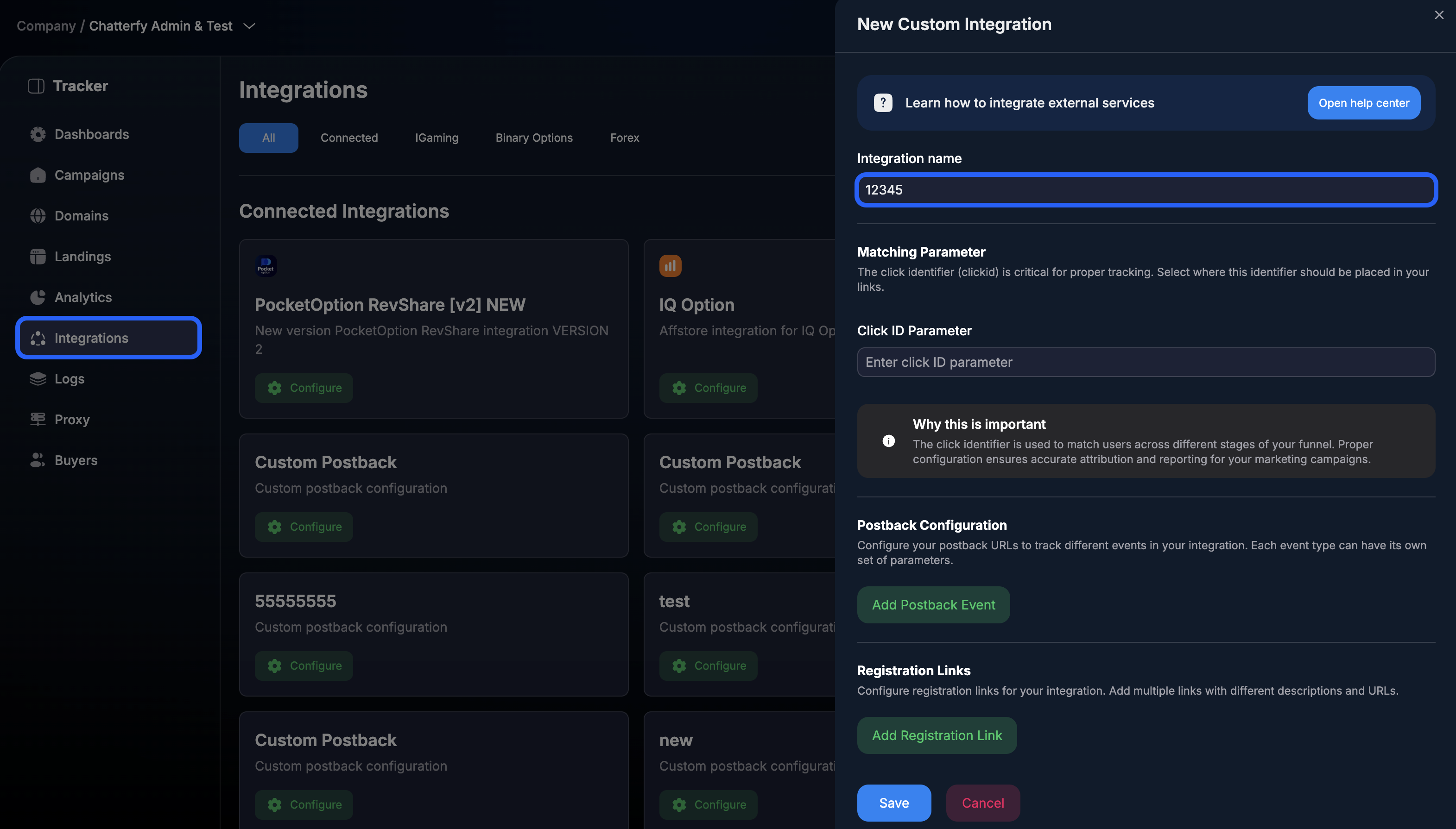
Was this article helpful?