

Setting Up a Ready-Made Integration
A prebuilt integration is the fastest way to connect a popular affiliate program. Tracker already knows which events it has and which parameters are included in the postback. You only need to activate
A prebuilt integration is the fastest way to connect a popular affiliate program. Tracker already knows which events it has and which parameters are included in the postback. You only need to activate it, copy the Postback URLs, and paste them into the affiliate program's dashboard.
This guide walks you through the entire process using PocketOption RevShare [v2] NEW as an example — one of the most popular Forex/binary affiliate programs. For other prebuilt integrations (IQOption, Quotex, and others), the principle is the same.
What to prepare
An active affiliate account with the affiliate program (PocketPartners for PocketOption). Configured campaigns in Tracker through which leads get into Telegram. An understanding of how How event forwarding works (clickid + postback) works. A ready-made Flow in the bot that sends the affiliate program's registration link with the
{{tracker.clickid}} macro.Setup steps
Open Tracker → Integrations
Find the required affiliate program in the list. If you are looking for PocketOption, there will be several options:PocketOption RevShare [v2] NEW,PocketOption CPA, and so on. Choose the one that matches your agreement with the partner.Click Connect +
The button is next to the integration in the list. A setup window will open.
Integration connection window Specify the Click ID Parameter
This is the name of the parameter that the affiliate program will use in the postback for the click identifier. For PocketOption, it is usuallyclick_id— Tracker will suggest the default value.
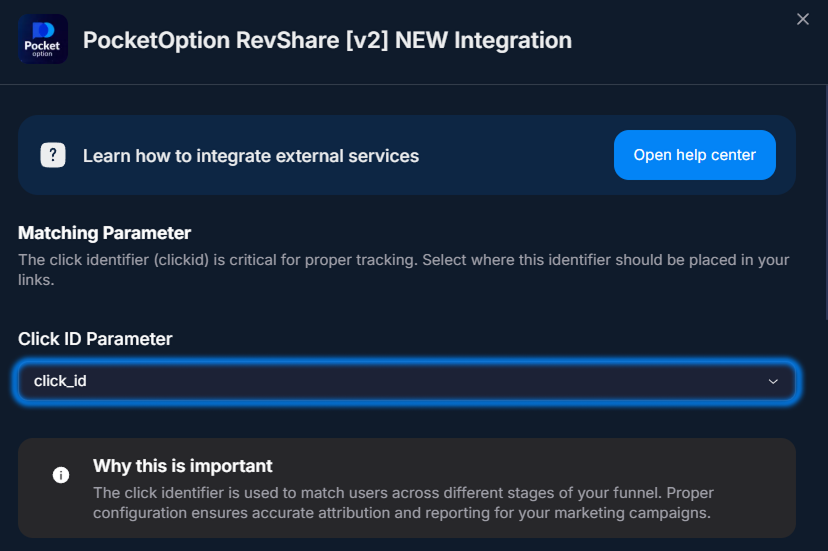
Click ID Parameter field Check the event configurations
After you select the Click ID Parameter, Tracker automatically creates event configurations: each event (registration, sale, resale, withdraw, and others) gets its own Postback URL.
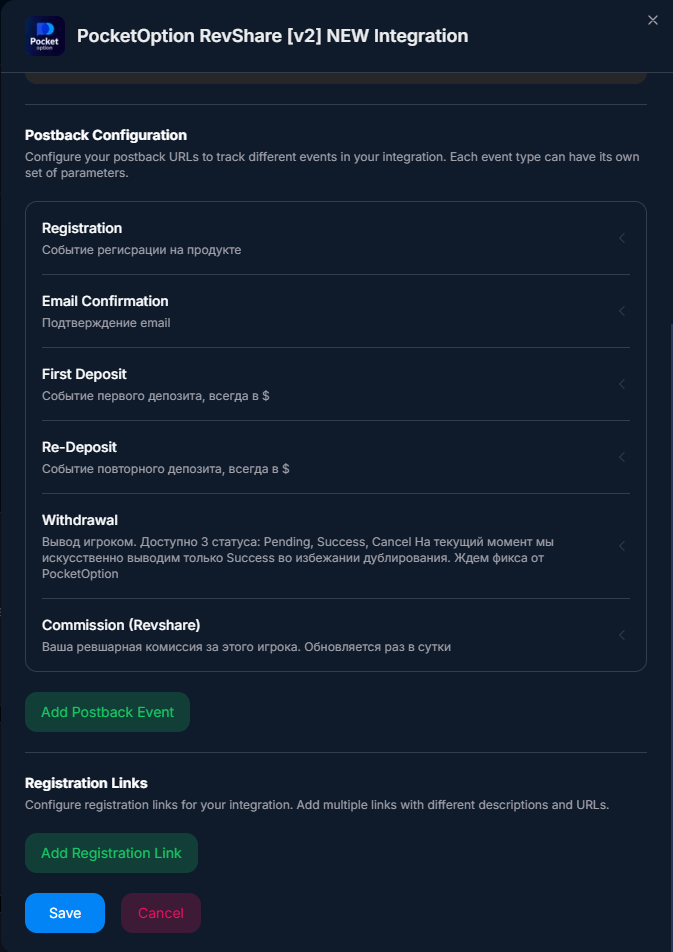
Generated event configurations Copy the Postback URL for each event
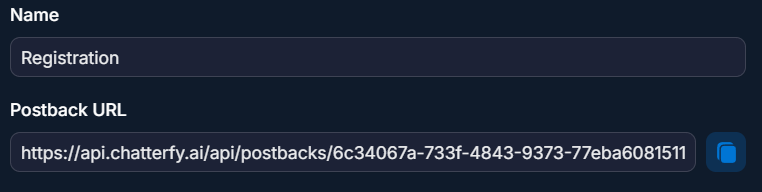
Each event has its own URL. You need to paste them into the PocketPartners dashboard — one URL per event.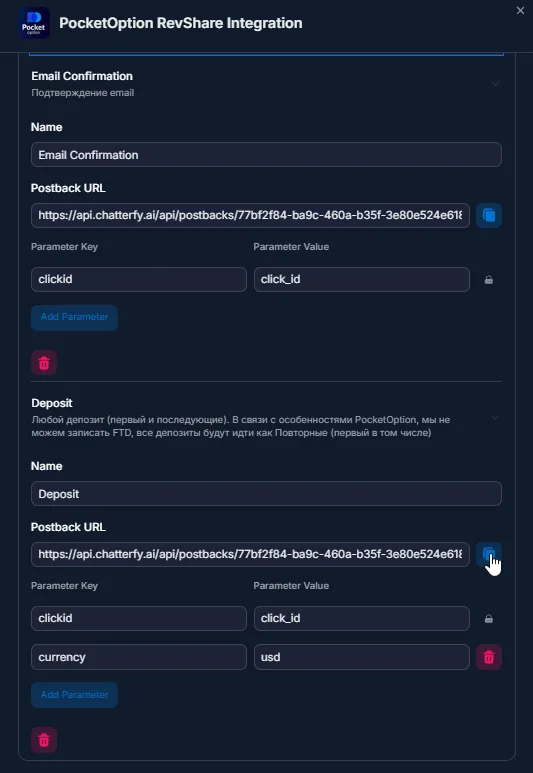
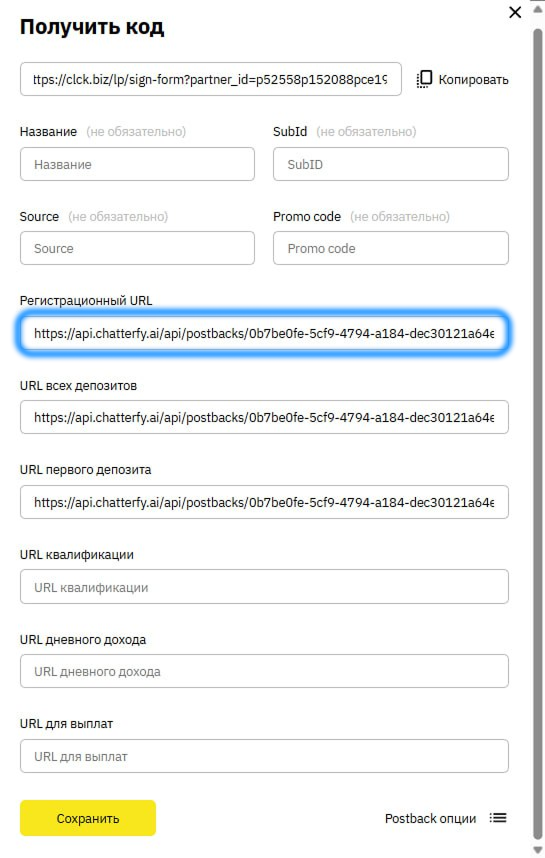
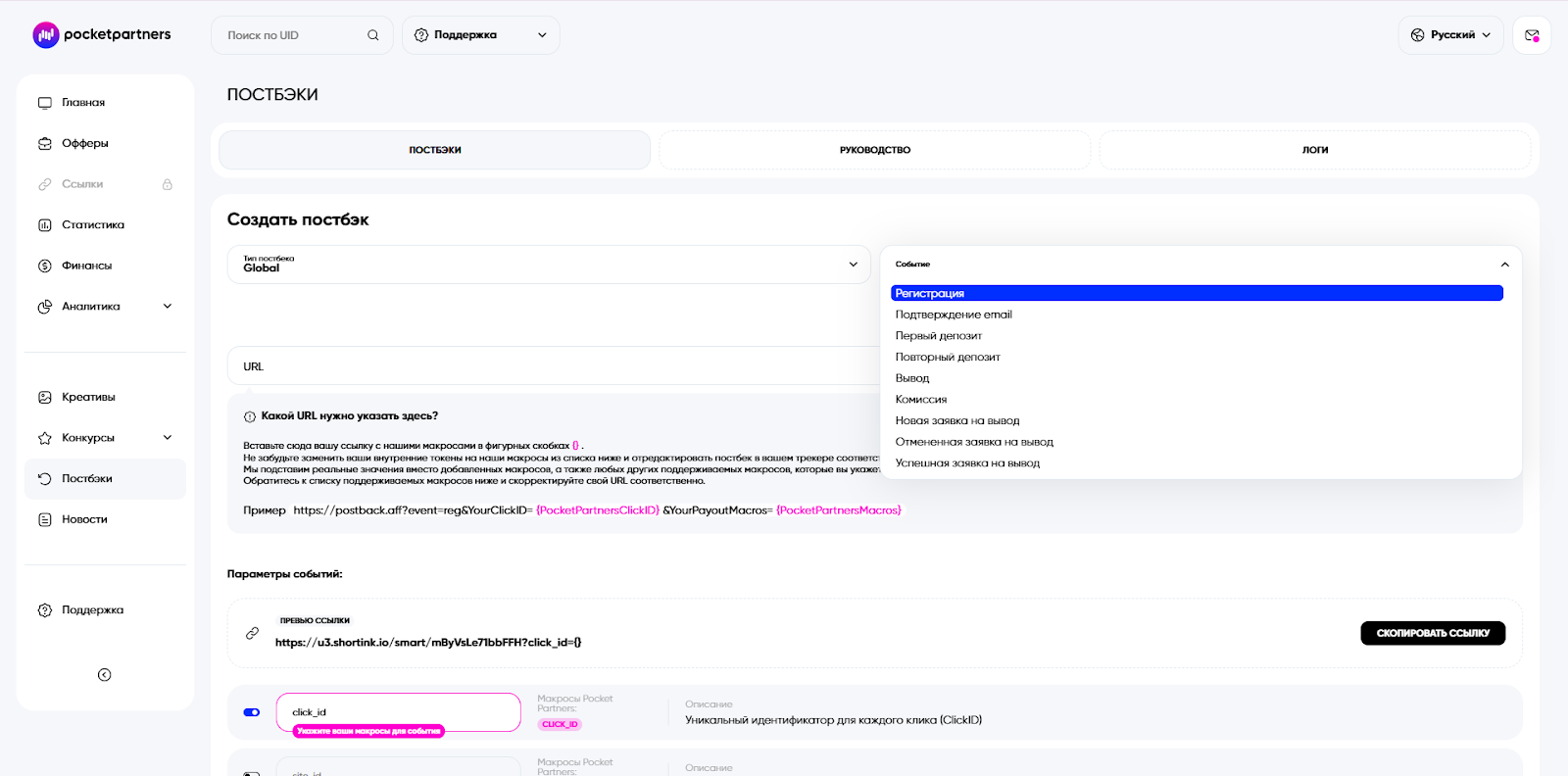
Postback settings window in PocketPartners Set up postbacks in PocketPartners
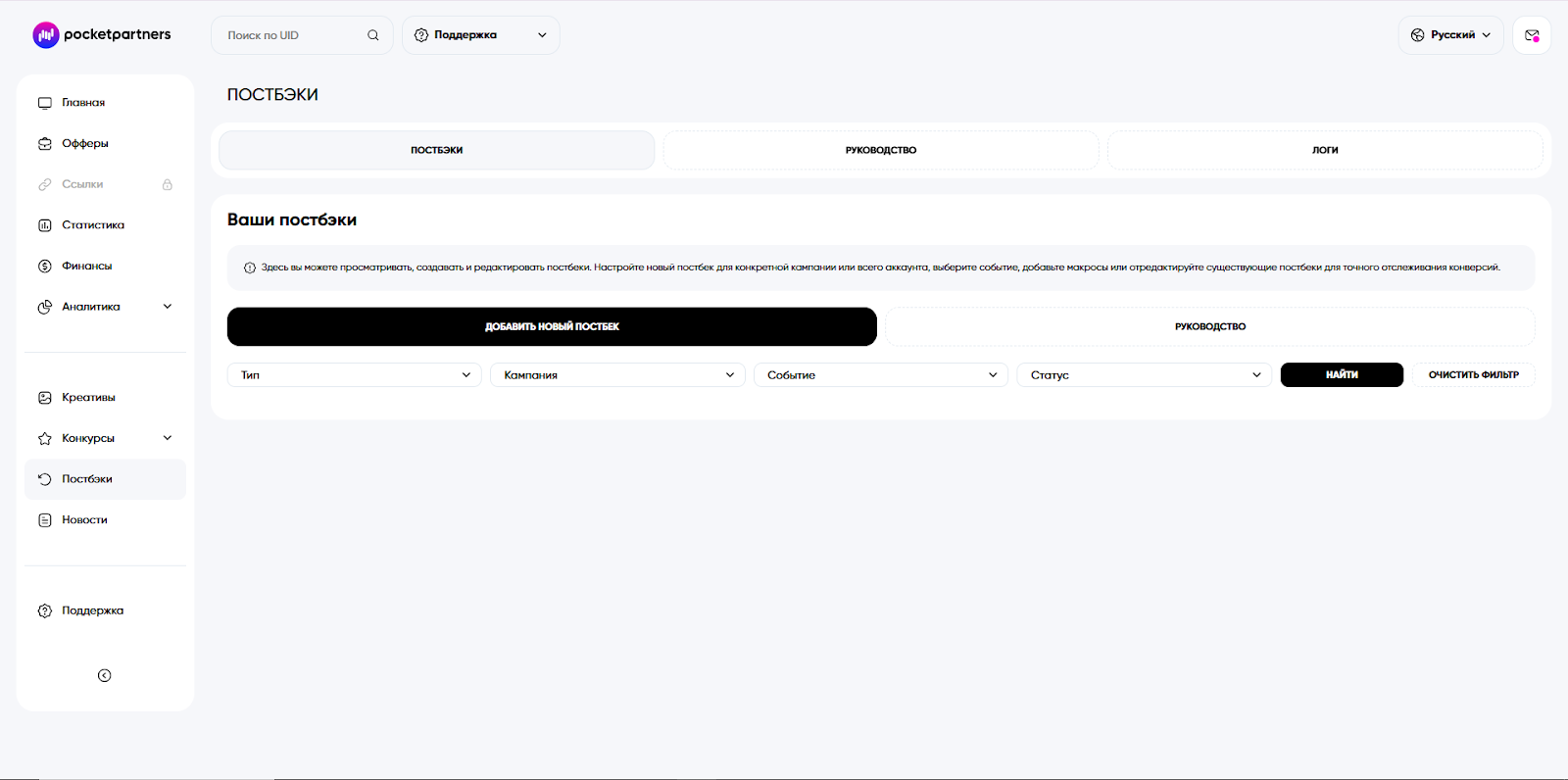
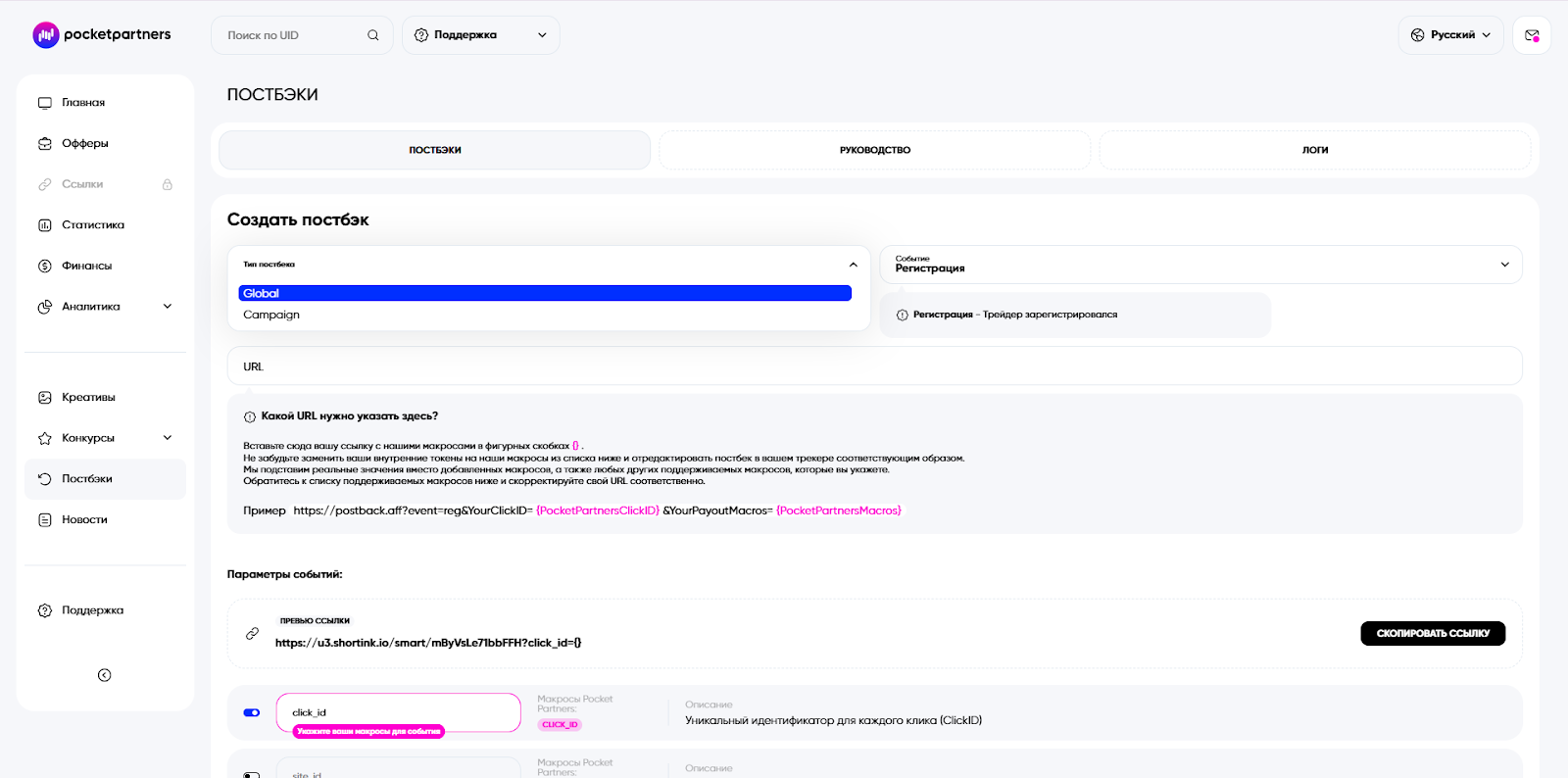
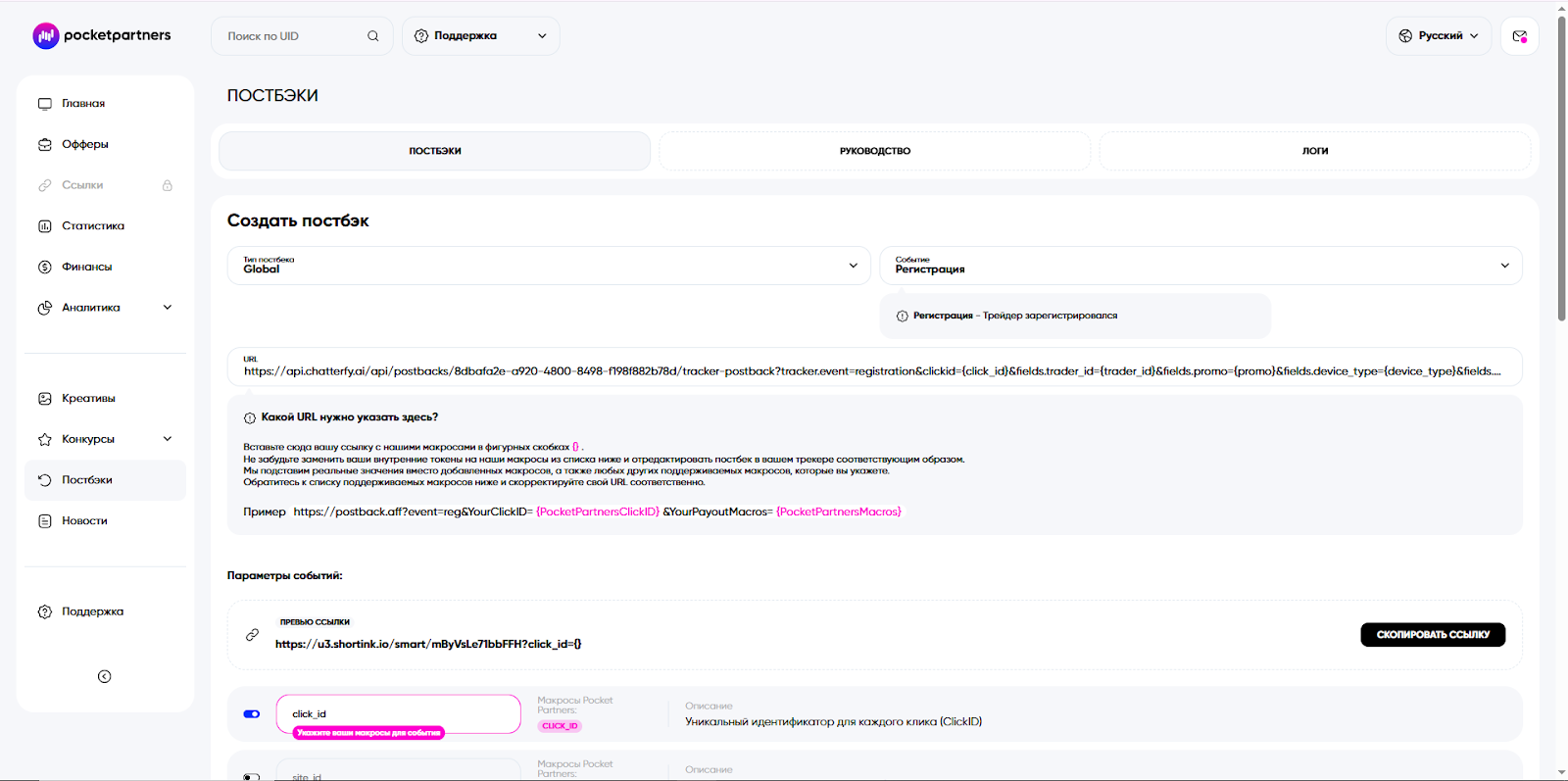
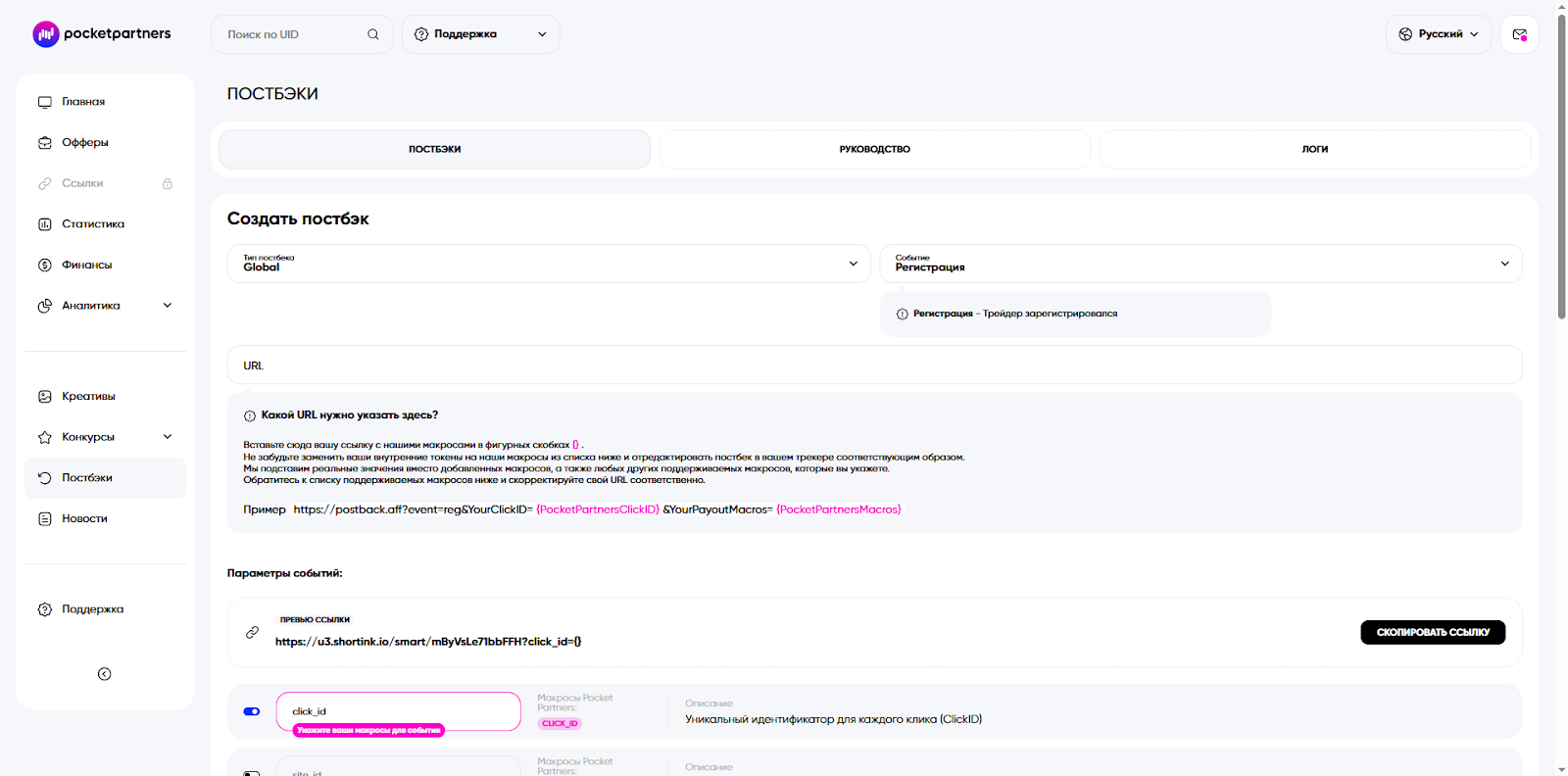
In the affiliate dashboard, open the Postbacks section. For each event:- — Postback type: Global or Campaign (depending on whether it is global or for a specific campaign).
- — Event: registration / sale / resale / withdraw.
- — Postback URL: paste the corresponding URL from Tracker.
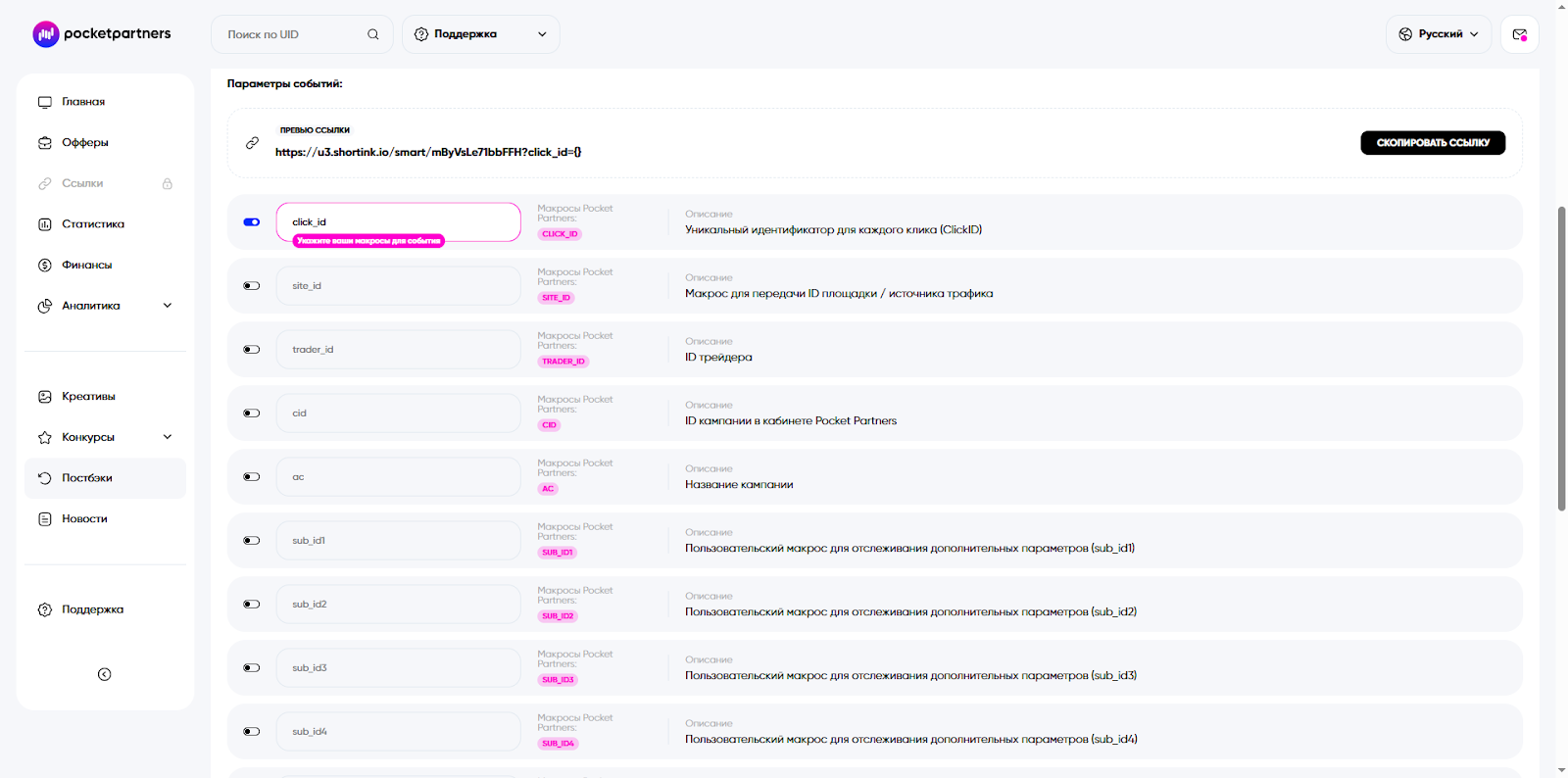
— Map the event parameters:clickid → CLICK_ID(this is the macro name in PocketPartners).
Add a registration link
In Tracker, in the integration's Registration Links section, add a link. Fields:— Link name — the internal name of the link.— Base URL — the affiliate link from your PocketPartners account.Tracker will automatically generate the Final URL with Parameters with the inserted{{tracker.clickid}}macro. Example:https://u3.shortink.io/smart/mByVsLe71bbFFH?click_id={{tracker.clickid}}.

Complete a test registration
Take the Final URL with Parameters, replace{{tracker.clickid}}with a test value (or use a real clickid from a lead), and complete registration in PocketOption.Check the logs
After registration, open Logs — event logs → Postback logs. A record should appear with status OK, the registration event, and a matching clickid. If the status is Error, check the details (see the FAQ below).

Signs of a working integration
Postbacks from the affiliate program arrive in “Logs — event log” Logs — event logs — Postback logs with status OK. Click ID is not empty. The event appears in the lead card in Статья (Events section). Statistics increase in Dashboards — Summary Analytics (Registration → FD → RD).
Available events (PocketOption)
- — Registration (registration) — user registration.
- — Email Confirmation (emailconf) — email confirmation.
- — First Deposit (sale) — first deposit. The main target event.
- — Re-Deposit (resale) — repeat deposit.
- — Withdrawal (withdraw) — withdrawal of funds.
- — Commission (Revshare) — revshare commission.
Each event in Tracker has its own Postback URL. PocketOption will send a request to the appropriate URL depending on which event occurred.
Custom Fields from the postback
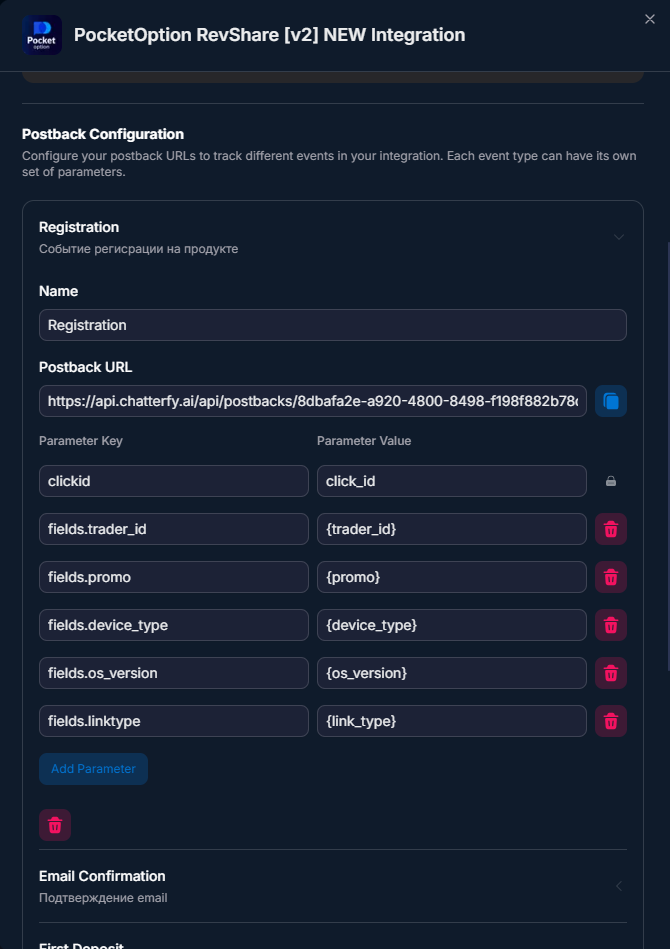
The prebuilt integration passes additional parameters via
fields.<key>:For example:
Постбек от PocketOptionplaintext
?clickid=abc123&tracker.event=sale&tracker.cost=200&tracker.currency=usd&fields.trader_id=99887After receiving the postback, Tracker:
- — Creates the trader_id Custom Field (if it did not exist).
- — Writes the value 99887 to the lead card.
- — The operator sees “trader_id = 99887” when opening the chat.
Additional PocketOption parameters (depends on the affiliate program settings):
- site_id
- trader_id
- cid, ac, country
- sub_id1 ... sub_id5
- promo, device_type, os_version, browser
- link_type, date_time, sumdep, wdr_sum, status
Include only the ones you need — extra Custom Fields clutter the lead card in the CRM.
Postbacks in PocketPartners — screenshots
Full path for setting up postbacks in the PocketPartners account:
If it does not work
What’s next


Was this article helpful?