

Basic setup after connection
After connecting the bot via we recommend completing the basic setup right away. This is not a full bot setup, but a minimum set of actions that helps: avoid common errors launch the funnel correctly
After connecting the bot via Connecting a bot or personal accountwe recommend completing the basic setup right away.
This is not a full bot setup, but a minimum set of actions that helps:
- avoid common errors
- launch the funnel correctly
- configure timing and delays correctly
- prepare the bot to work with real leads.
Basic setup usually takes 5–10 minutes.
After that, you can move on to:
- Flow Settings — Flow Settings
- AI Settings — AI Settings — Bot Personality
- Delays — Delays — bot delays
- Notifications — Notifications — Telegram Notifications for the Team
- more in-depth CRM and AI configuration.
What to prepare
What to prepare | What it is needed for |
Timezone | So messages and Delays work according to the audience’s time zone |
Space | So the bot is placed in the right workspace |
Delays logic | So you can correctly configure the pace of communication |
Timezone
You need to understand which GEO the bot is targeting.
The timezone is set based on the audience, not the team's location.
Examples:
- India → Asia/Kolkata
- Moscow → Europe/Moscow
- Thailand → Asia/Bangkok
Space
You need to understand which Space the bot will work in. If the company has multiple projects or teams, a separate Space is usually used for each one.
Response delays
It is best to understand in advance what communication style is needed:
- fast support
- “live” sales
- traffic-arbitrage AI funnel
- premium communication.
The Delays settings depend on this.
What basic setup includes
Minimum checklist:
Step | What needs to be done |
1 | Check the bot status |
2 | Set up the timezone |
3 | Fill in the description |
4 | Check Space |
5 | Configure basic Delays |
6 | Check that the bot works |
After that, the bot is ready to launch traffic and create a Flow.
Step-by-step setup in General
1. Open Bot Settings → General
After connection, the bot appears in CRM. Open: CRM → Bot Settings → General.
This section contains the main bot settings:
- status
- timezone
- description
- Space
- name
- tags.
2. Check the bot status
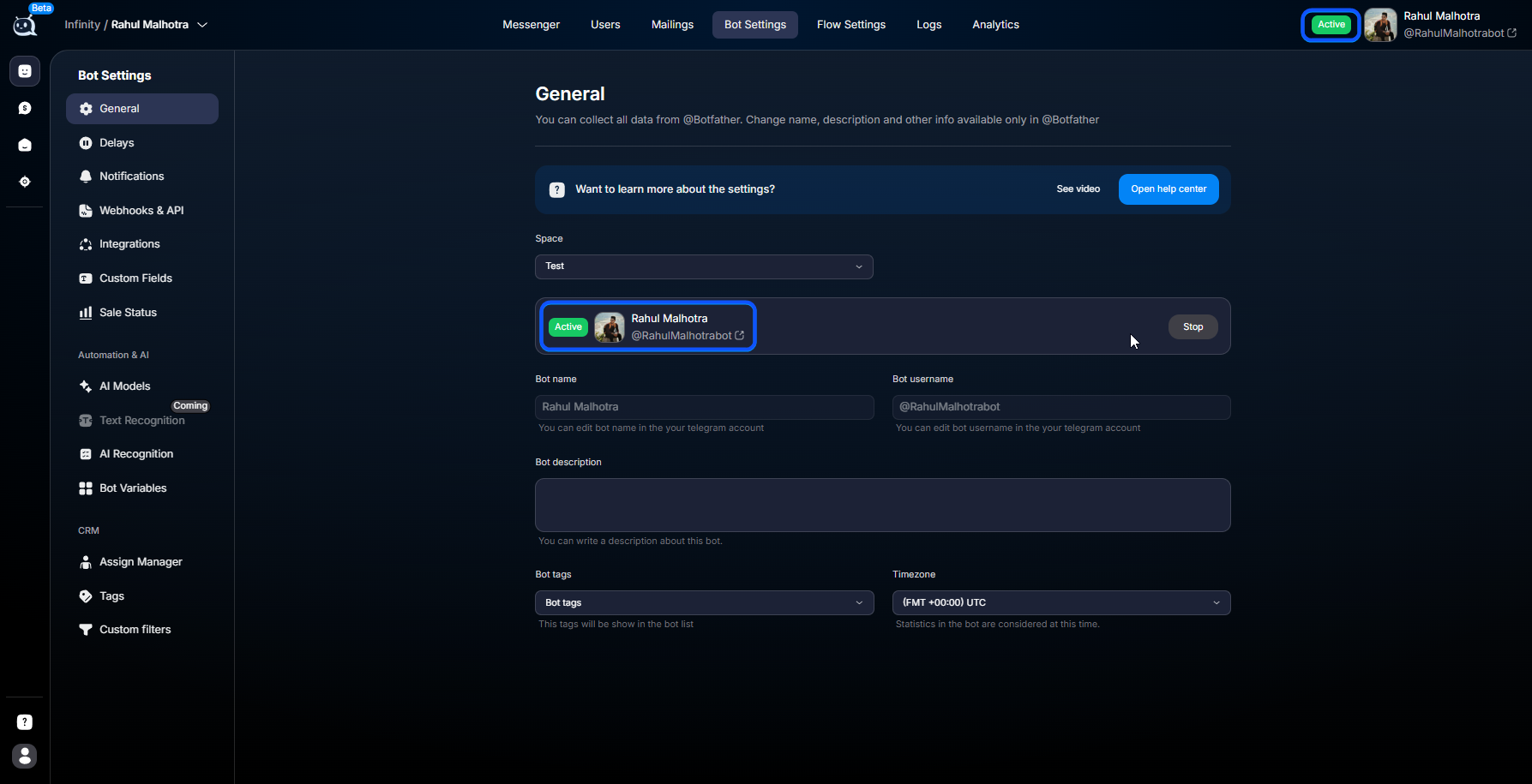
The bot must have status: Active.
If the bot is in Stop or Archive, it will not respond to users. If necessary, click: Activate.
The Stop status is usually used when a project is temporarily paused and lead processing is not required.
For example:
- stopping an advertising Campaign
- project completion
- a pause between launches
- seasonal traffic pause
- maintenance.
While the status is Stop, the bot:
- does not accept new messages
- does not reply to users
- does not execute the Flow
- does not consume resources.
At the same time, the chat history and bot settings are preserved.
3. Set the timezone
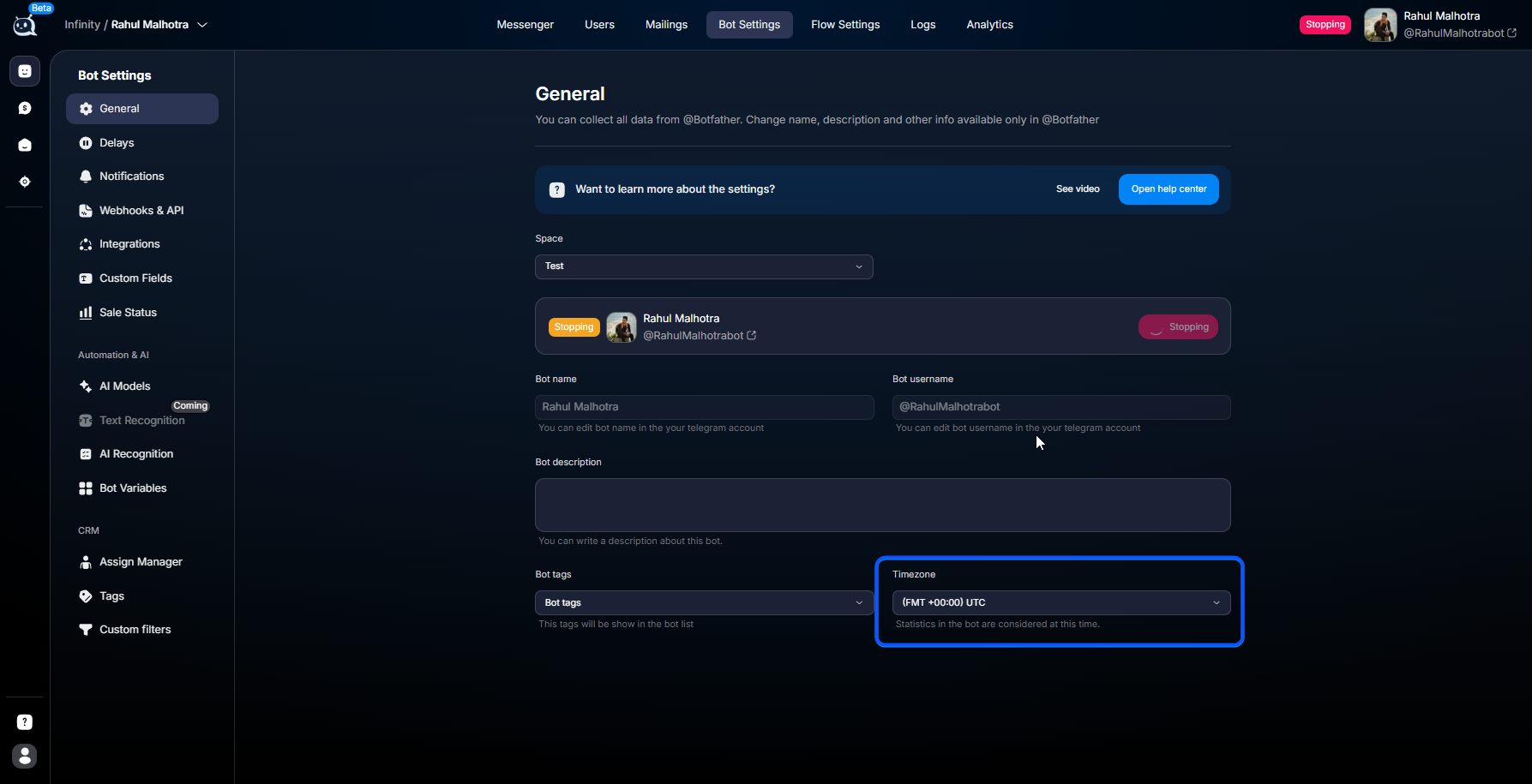
Timezone is one of the most important parameters. It affects:
- Delay
- Current time
- scheduled messages
- time logic inside the Flow.
Always set the timezone according to the audience, not the team.
Examples:
- leads from India → Asia/Kolkata
- leads from Moscow → Europe/Moscow
- leads from Thailand → Asia/Bangkok
If there are several GEOs, the main one is usually selected.
4. Fill in the description
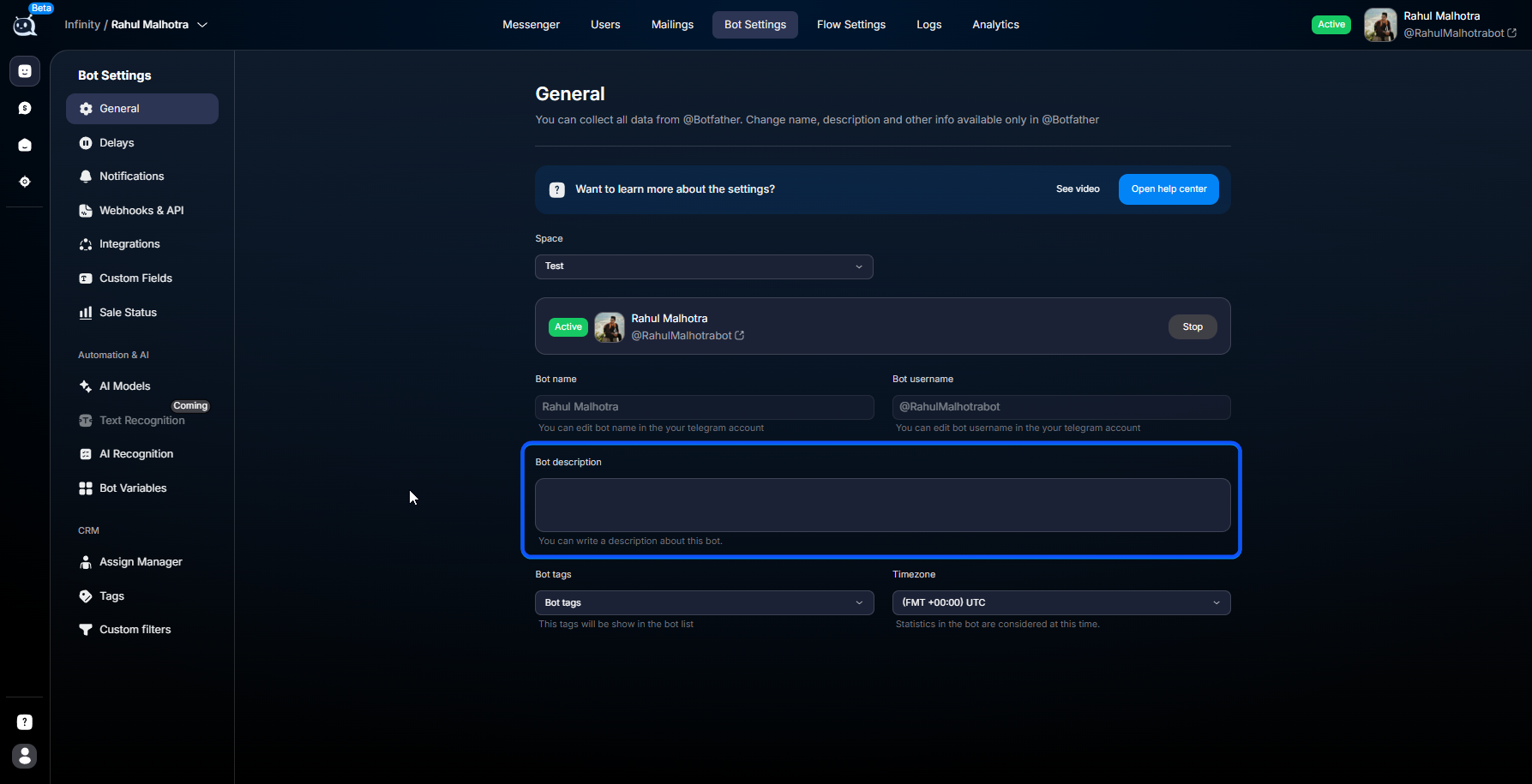
Description is an internal bot description for the team. The Telegram user does not see it. Description helps you: find the right bot faster. avoid confusing projects. understand the GEO and purpose of the bot. distinguish test and production projects.
A good description:
Bot for the 1Win offer, GEO — IN, Spring 2026 campaign
A bad description:
Test bot
5. Check the Space
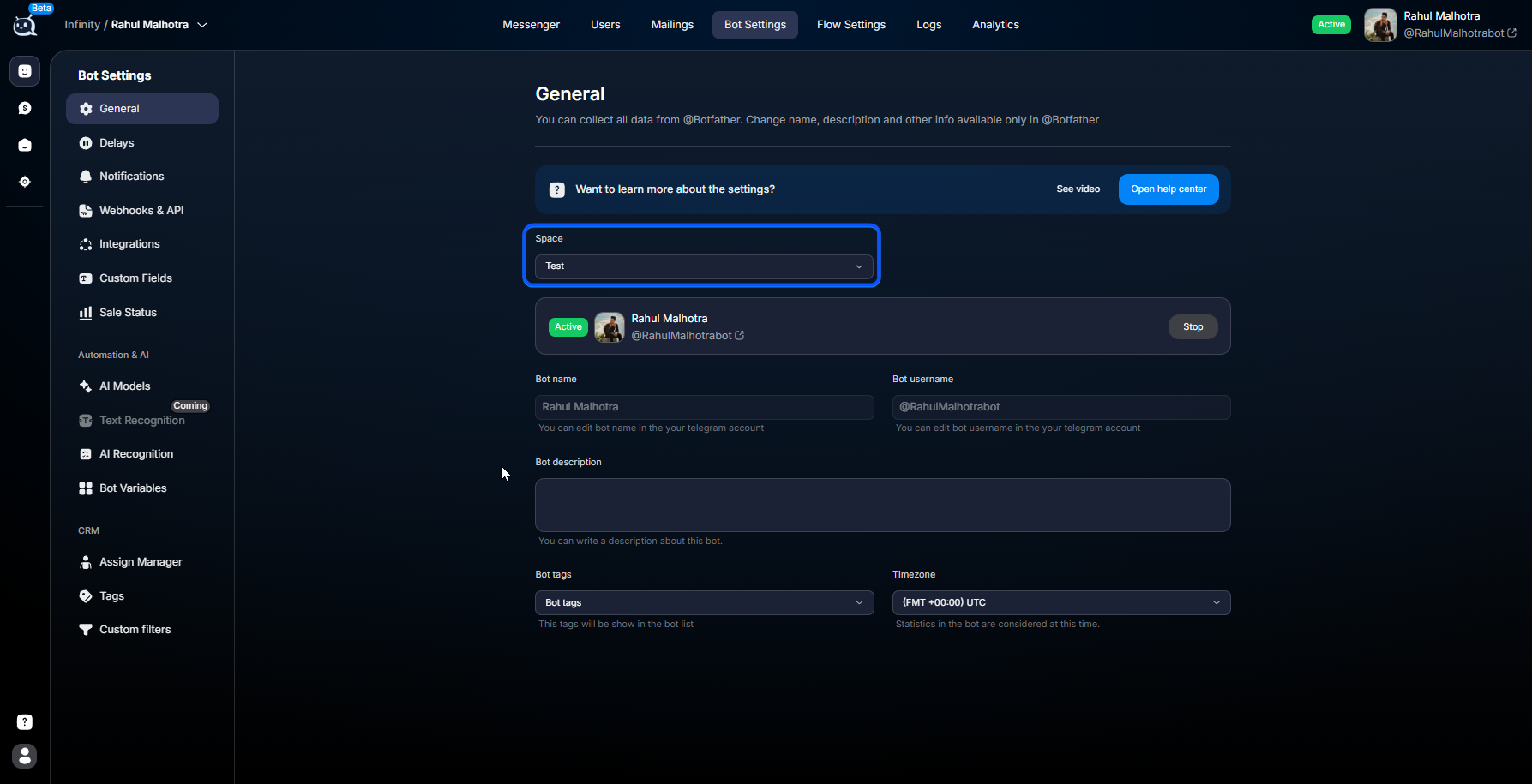
Make sure the bot is in the correct Space. This is especially important if:
- the company has several teams
- there are several GEOs
- test and production projects are separated.
If necessary, you can transfer the bot to another Space.
After the transfer, the old team will lose access to the bot. Before transferring, make sure that: the new team has the required roles and the correct access permissions have been granted.
Additionally — configure Delays
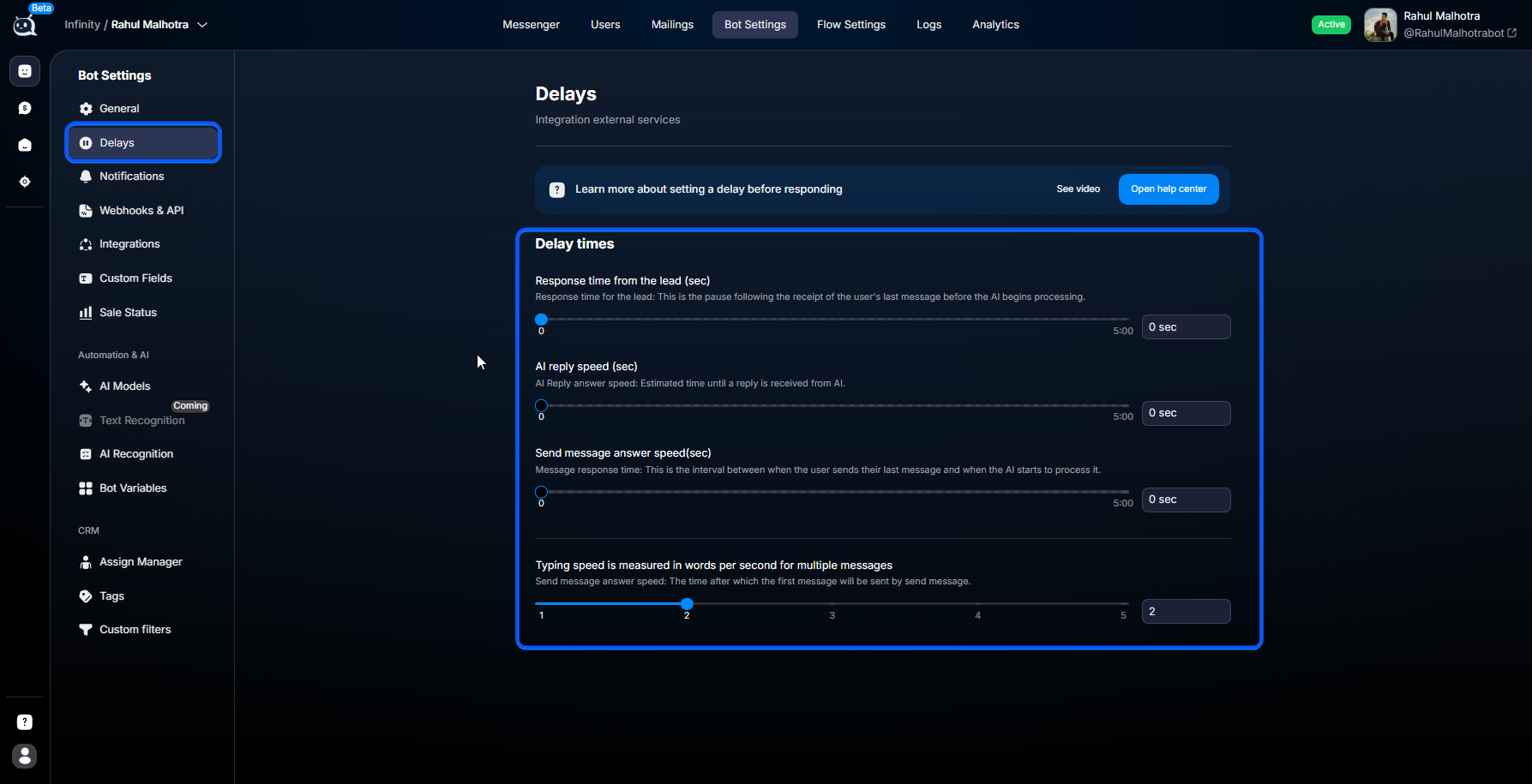
Even basic Delays configuration has a strong impact on communication quality. If you leave the delays at zero:
- the bot replies instantly
- the dialogue looks unnatural
- the user realizes more quickly that they are interacting with automation.
Arbitrage
Medium delays are suitable.
Parameter | Value |
Response time | 60 |
AI reply speed | 120 |
Send message answer speed | 60 |
Support
Fast replies are suitable.
Parameter | Value |
Response time | 10 |
AI reply speed | 30 |
Send message answer speed | 10 |
Sales / VIP
Long “human-like” pauses are suitable.
Parameter | Value |
Response time | 120 |
AI reply speed | 300 |
Send message answer speed | 120 |
How to check that everything works
After the basic setup:
Open Telegram.
Message the bot with /start.
Check CRM → Messenger.
Make sure the chat has appeared.
Check whether the bot responds.
If the chat has appeared and the bot responds, the basic setup has been completed correctly.
What the result should be
After basic setup:
- the bot is in status Active
- the correct timezone is set
- description is filled in
- the correct Space is selected
- basic Delays are configured
- the bot responds to users
- Messenger receives new chats.
After that, you can proceed to creating the Flow.
What to keep in mind
The bot will not work without a positive company balance.If the balance is 0 or negative, the system will not allow you to activate the bot. Before launch, top up the balance via: How to top up a company.
If something does not work
The bot is Active but does not respond
First, check whether the bot token is being used simultaneously in other services or CRM.
Telegram sends messages to only one recipient, so a parallel connection may block the bot from working in Chatterfy.
Also check:
- whether Start is connected to other steps in Flow Settings
- whether Delays are set too high
- whether there are any blocking conditions inside the Flow.
Cannot select the required timezone
Chatterfy uses the standard IANA Timezone format. Examples:
- Asia/Kolkata
- Europe/Moscow
- Asia/Bangkok
If the city you need is not listed, choose the nearest one with the same UTC offset.
The bot replies too quickly
Configure Delays. Most likely: Response time is too short. AI reply speed is too low. Typing speed is disabled.
The bot does not reply according to the audience’s time
Check the timezone. Most often, the problem is that the team’s timezone is set instead of the users’ GEO.
Can Description be skipped?
Yes. Description does not affect how the bot works. But when you have many bots, the description makes navigation much easier for the team.
Frequently asked questions
What’s next


Related


Was this article helpful?