

General — basic bot settings
General — This is where you configure: the bot name and description for the team. tags for navigation. the bot's operating status. timezone. The Space where the bot is located. This is the first secti
General — This is where you configure: the bot name and description for the team. tags for navigation. the bot's operating status. timezone. The Space where the bot is located. This is the first section we recommend checking immediately after connecting the bot.
General setup usually takes no more than a minute.

When to use General
Go to the General section when you need to:
- activate a new bot
- temporarily stop the bot
- archive an old bot
- change the timezone
- move the bot to another Space
- add a description and tags for the team.
How General settings work
All changes are applied after you click the Save button. No additional publishing is required. When settings are changed:
- current conversations are not deleted
- active chats continue to work
- message history is preserved.
If the bot was stopped using Stop, it will continue working with the saved history after being activated again.
Main parameters
Parameter | Description | Example |
Name | Telegram bot name | Lily Trader Helper |
Username | Telegram bot username | @lily_helper_bot |
Description | Internal description for the team | Bot for GEO IN |
Tags | Tags for filtering | support, india |
Status | Bot status | Active |
Timezone | Bot timezone | Europe/Moscow |
Space | Workspace | Default |
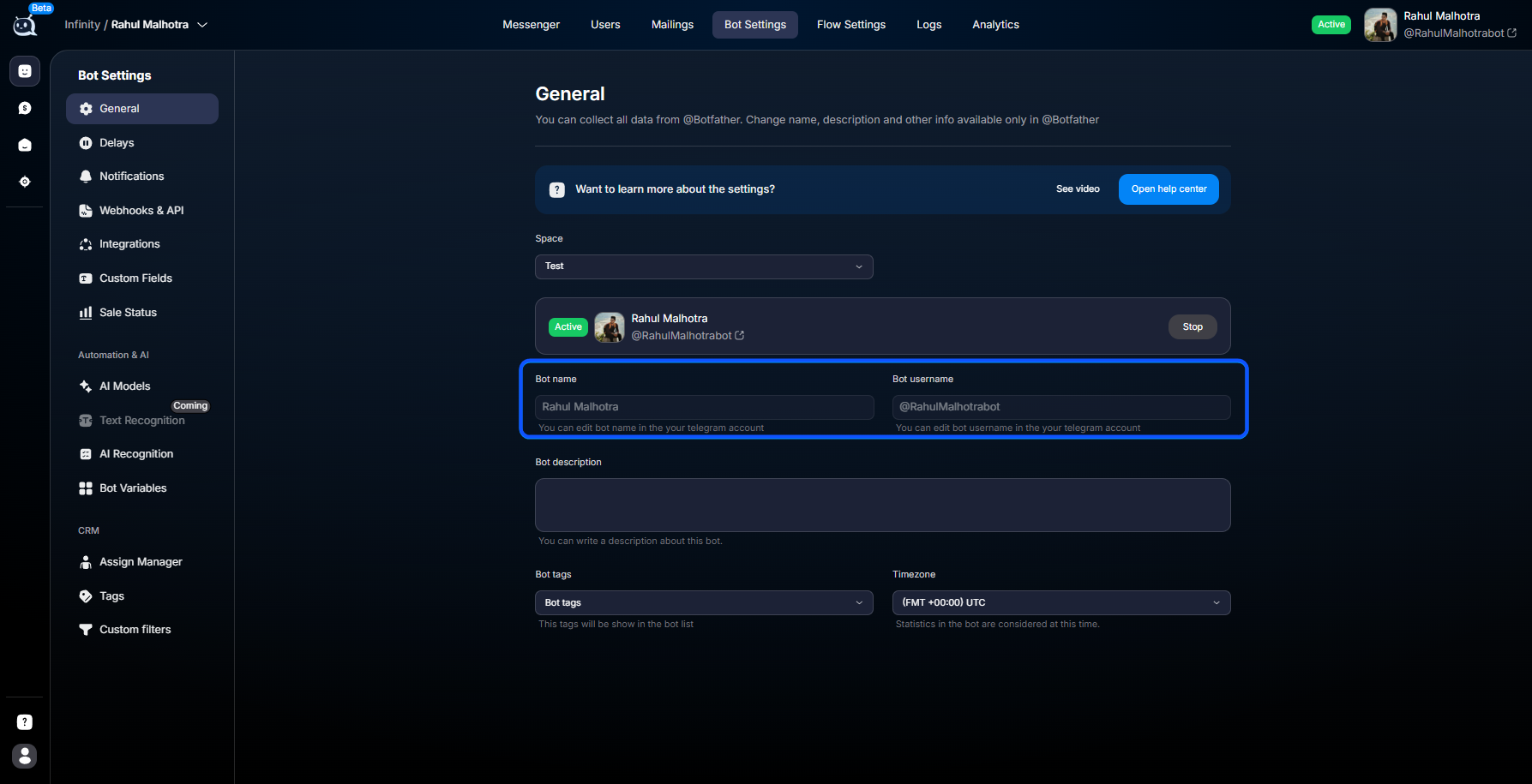
Name
Name is pulled from Telegram automatically. You cannot change it inside Chatterfy. If you need a different name:
- Go to @botfather
- Enter the /mybots command
- Select the required bot
- Click the
edit botbutton
- Select the
edit namefunction
- Send the bot a new name, and it will change it
Username
The username is pulled from Telegram automatically. You cannot change it inside Chatterfy. If you need a different username:
- create a new bot via @BotFather
- connect it again in Chatterfy.
The username is assigned to the bot on the Telegram side.
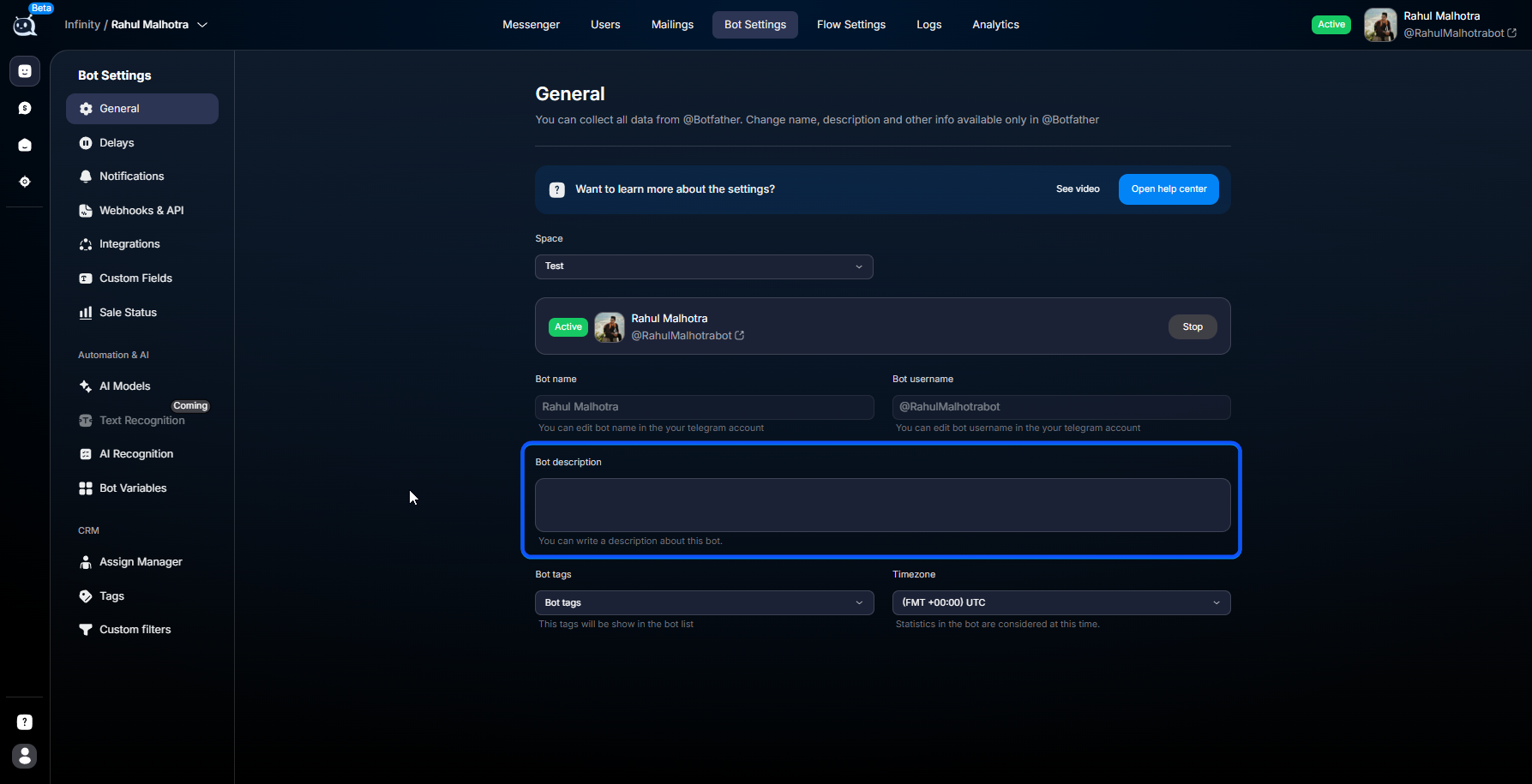
Description
Description is an internal description for the team. Telegram users do not see it. The description helps you find the right bot faster, understand the bot's purpose, and separate projects within the team.
Examples:
- Bot for the 1Win offer, GEO — IN
- Support bot for an e-commerce project
- Test AI funnel EU.
Use clear descriptions. In a few months, finding “Bot No. 3” will be difficult, while “Crypto Funnel EU — Test AI” will be easy.
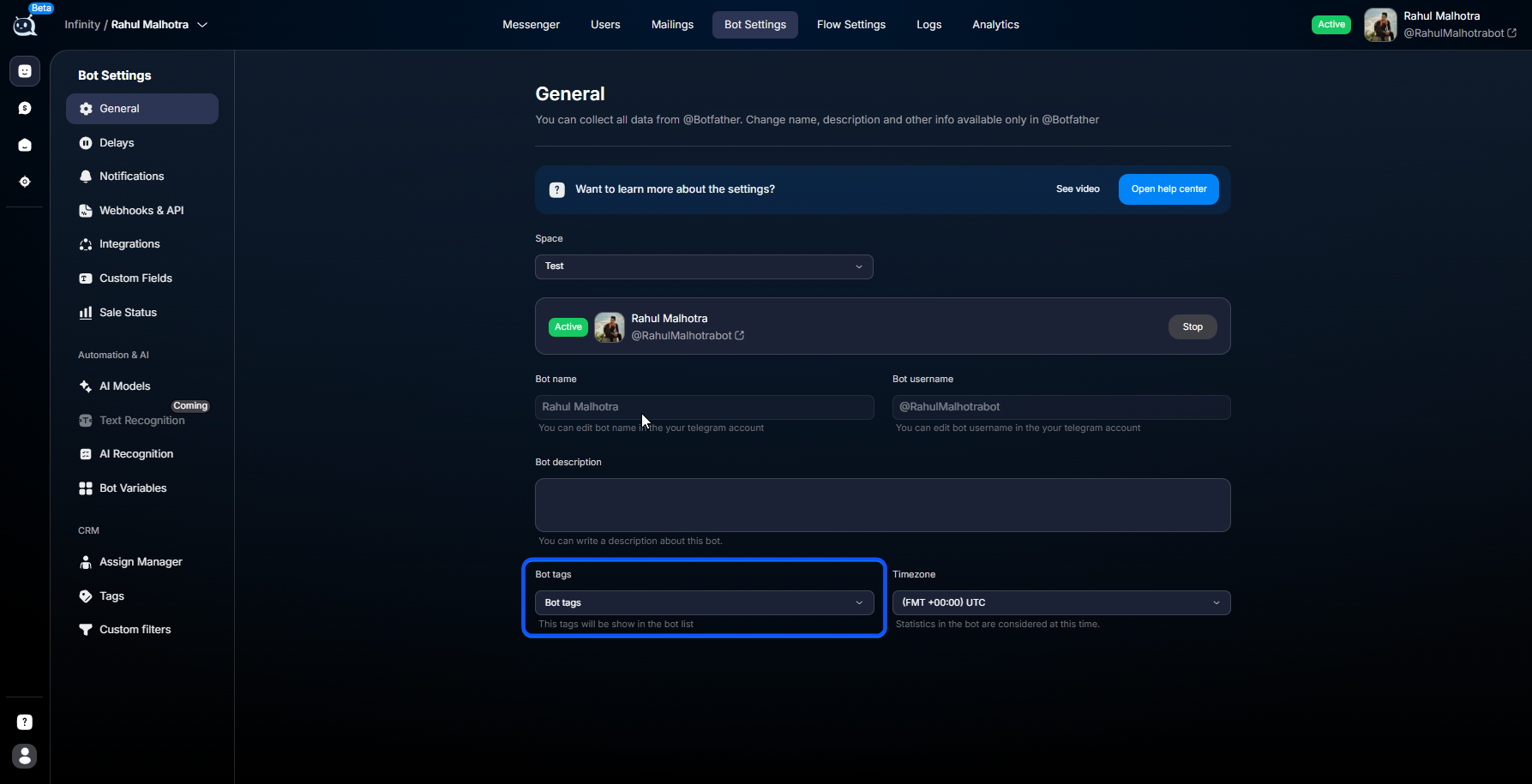
Tags
Tags are tags for filtering and navigation. They let you group bots, quickly find projects, separate GEOs, and distinguish test bots from production bots.
Examples:
- crypto
- support
- test
- india
- ecom.
Status — bot operating status
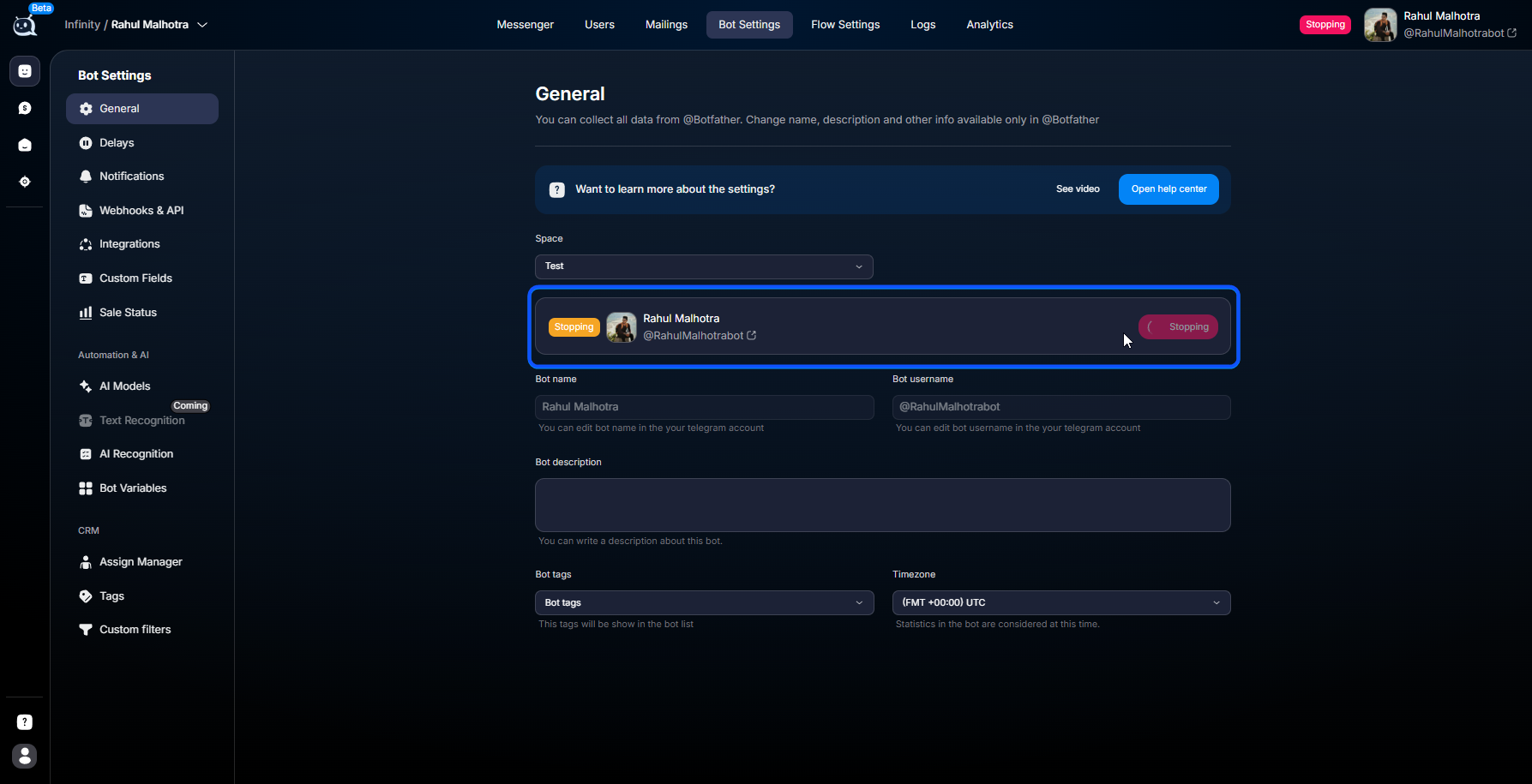
A bot has 3 statuses:
Status | What it means |
Active | The bot is running |
Stop | Bot temporarily stopped |
Archive | Bot archived |
Active
Active is the main operating mode. In this status, the bot:
- receives messages
- sends messages
- runs Flow
- works with AI
- is displayed in CRM.
Used for active projects.
Stop
Stop is a temporary bot shutdown. With the Stop status:
- the bot stops receiving messages
- AI stops replying
- broadcasts are not sent
- new messages are not processed.
At the same time, chat history is saved. CRM remains available. The bot can be quickly returned to Active.
Stop is used:
- during holidays
- when advertising is paused
- during maintenance
- when a Campaign is stopped.
Archive
Archive — complete archiving of a bot. After archiving: the bot is removed from the active list. operation stops. history is preserved.
Archive is used for: completed projects. old offers. unused bots.
Before archiving, make sure that:
- broadcasts are stopped
- active Campaign are completed
- the bot is no longer used in Tracker.
Before archiving, complete active processes: archiving may stop dialogs, broadcasts, and related campaigns in Tracker.
Timezone — bot timezone
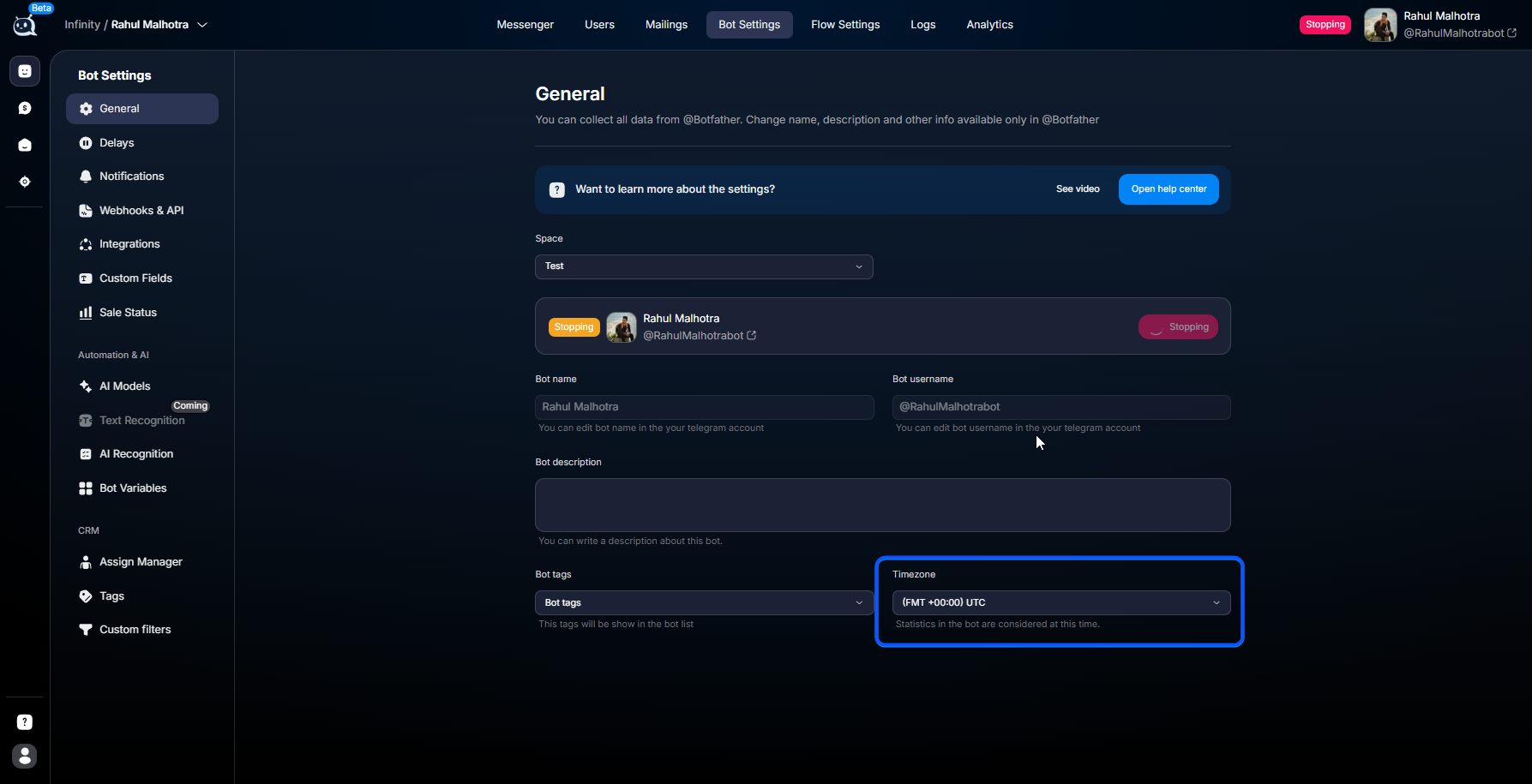
Timezone affects all time-related logic inside the bot. It determines:
- Delay
- Push Messages
- time-based conditions
- AI logic with time restrictions
- message schedules.
Why this matters
If the bot works for an audience in India, but the timezone is set to Europe/Moscow, communication errors may occur. For example:
- morning messages may arrive at night
- Delay will trigger at the wrong time
- time-based analytics will become incorrect.
Set the timezone based on the audience, not the team's location.
Example
The team is located in Thailand, but works with Moscow. The correct timezone is:
Europe/MoscowThen: messages will be sent according to Moscow time. Delay and Push Messages will work correctly for users.
Space
Space is a workspace that contains the bot. Different Spaces are usually used for: different clients. different projects. different teams. separating tests and production.
Transferring a bot between Spaces
A bot can be transferred to another Space. After the transfer: the new team will get access. the old team will lose access. settings and chats will be preserved.
Transfer is used when: a project is handed over to another team. the company structure changes. projects need to be separated.
Before transferring, make sure that: the required employees are in the new Space. the correct roles and access permissions have been granted.
Use cases
Pausing advertising
The team does not work during the holidays. To prevent the bot from replying automatically:
- switch the bot to Stop
- after the holidays, set it back to Active.
Project handover
The agency hands the client over to another team. To do this:
- a new Space is created
- the bot is transferred via General → Space
- the new team gets access.
Working with another GEO
The team is in Europe, but traffic is directed to India. In General, set:
Asia/KolkataThen Delay, Push Messages, and time conditions will work correctly for the Indian audience.
FAQ
What's next


Was this article helpful?