

Connecting a bot or personal account
Connection is performed in the CRM section using the Create New Bot button. Usually the whole process takes 5–10 minutes. The bot must already be created — if not, start with . After connecting, go to
Connection is performed in the CRM section using the Create New Bot button. Usually the whole process takes 5–10 minutes. The bot must already be created — if not, start with How to create a bot in Telegram. After connecting, go to General — basic bot settings for fine-tuning.
During connection, the wizard will guide you through these steps:
- select the connection type
- specify the Space
- paste the token or connect an account
- configure the basic settings
- connect AI if needed
After connection, the bot appears in CRM and is ready to use.
Before you start
The Telegram bot must already be created. If the bot does not exist yet, first go to the article “How to create a bot in Telegram”.
What to prepare
Before connecting, prepare the data depending on the connection type.
Connection type | What you will need |
Standard | Telegram bot token from @BotFather |
Invite | Telegram bot token from @BotFather |
Personal | Telegram account phone number or QR code |
Business | Telegram account, Telegram Premium, Telegram Business API, and bot token |
The token looks something like this:
123456789:AAH-XXXX_xxxxxxxxxxxxxxxxxxxxxxxxxxxx
Insert the token in full, with no spaces at the beginning or end.
Space
A Space is a workspace within a company. It is used to separate projects, teams, clients, business areas, and GEOs.
If the required Space has already been created, select it when connecting.
How the connection works
The connection wizard guides you through several steps:
Step | What happens |
1 | Platform selection |
2 | Connection type selection |
3 | Space selection |
4 | Connecting a token or account |
5 | Import settings or Manual setup |
6 | Configuring basic settings |
7 | AI setup |
8 | Saving the bot |
The entire process usually takes 5–10 minutes.
Steps
Open CRM and click Create New Bot
Go to the CRM section. In the upper-right corner, click Create New Bot — the connection wizard will open.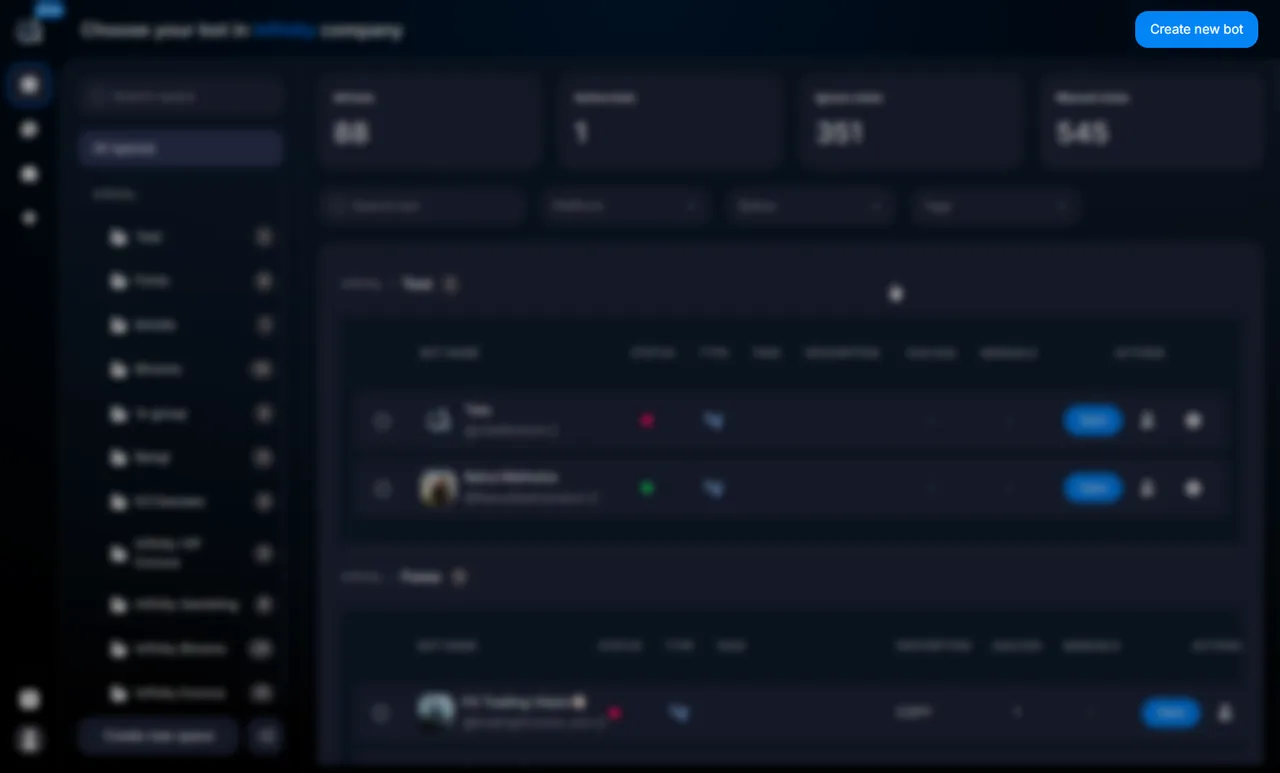
Select a platform
Currently, Telegram is available in the wizard.Planned:WhatsAppInstagramFacebook Messengerweb-widgetSelect Telegram.Select a connection type
At this step, you need to select a connection type.TypeWhen to useStandardMain bot for CRM, AI, sales, support, and most scenariosInviteAccepting requests for Telegram channels and welcome messagesPersonalCommunication on behalf of a regular Telegram accountBusinessTelegram Business API for high message volumes and premium use casesTipIf you're not sure, choose Standard. This is the main and most universal connection type.Specify the Space, topic, and description
Space — the workspace where the bot will operate. If you have several projects, teams, or areas of work, a separate Space is usually created for each project.Topic — helps organize bots within the CRM. Examples: Support, Sales, Crypto, Education, E-commerce.Description — an internal bot description for the team. Telegram users do not see this description.Enter a token or connect an account
The next steps depend on the selected connection type.TypeWhat to doStandardPaste the token from @BotFatherInvitePaste the token from @BotFatherBusinessPaste the token and complete the connection via Telegram Business APIPersonalConnect a Telegram account using a phone number or QR codeToken example:123456789:AAH-XXXX...Do not add extra spaces before or after the token.Choose the next action
After connecting, Chatterfy will offer two options:OptionWhen to useImport settingsIf you need to transfer settings from a similar botManual setupIf the project is being set up from scratchImport settings can transfer:FlowAI SettingsCustom Fieldssome bot settingsManual setup is used for new projects.Configure the basic settings
At this stage, you can quickly configure the main settings.ParameterWhat it is used forResponse TimeBot response delayCustom FieldsFields for storing user dataResponse Time helps make the conversation more natural: the bot does not reply instantly, but with a short delay.Custom Fields are used to store user data (country, source, clickid, language, etc.).You can do this laterYou can skip this step and configure it later in Bot Settings.Configure AI Summary and AI Reply
If you plan to use AI, select the AI models at this step.ModelWhat it is used forAI Summary / RouterBot logic, routing, context analysis, and determining the next stepAI ReplyGenerating replies to the userYou can skip AI and connect it later.Save and finish
At the final step, click Save.After saving:the bot will appear in CRMthe connection will become activethe bot will be ready to useAfter saving:the bot will appear in CRMthe connection will become activethe bot will be ready to use

How to check that everything works
After connecting, open Telegram and send the bot
/start. Then open CRM → Messenger — if a new chat appeared in CRM, the connection is working correctly. Usually, the chat appears within a few seconds.If the chat did not appear, see the “If something is not working” section below.
Expected result
After connecting, check:
What should work | Where to check |
The bot is displayed in CRM | CRM |
The bot is in Active status | Bot list / Bot Settings |
Messages arrive in Messenger | CRM → Messenger |
CRM receives new chats | Messenger |
AI, Flow, and automation are available | Bot Settings / Flow Settings |
After this, you can move on to configuring Flow and AI.
If something is not working
Below are quick checklists. Expand only the scenario that matches your situation — this keeps the page shorter and makes sure the information you need stays easy to find.
Frequently asked questions
What's next


Was this article helpful?