

Custom — your own ZIP archive
Custom is a landing page mode in which you upload your ZIP archive with a ready-made HTML page to Tracker. Tracker uses the archive contents as the basis for the page. Layout, design, logic, animation
Custom is a landing page mode in which you upload your ZIP archive with a ready-made HTML page to Tracker. Tracker uses the archive contents as the basis for the page. Layout, design, logic, animations — everything is on your side. Tracker simply hosts the page and replaces the Telegram link on click.
When to use Custom
You need a branded design with your own font, colors, and animations. A complex page with interactive elements — a quiz, calculator, video player, or form. B2B segment or premium product — Default looks “too standard”. Full control over analytics — multiple counters, your own CDP integration. Migrating an existing landing page from another tracker or site — you already have a ready-made page and do not want to rebuild it.
How it works
For the Telegram transition button to work, the element that should redirect users must have the
tracker attribute set. For example:Кнопка переходаhtml
<button tracker class="cta">Открыть Telegram</button>

<a tracker class="link">Подписаться</a>
Tracker automatically replaces
href / click — the user goes to Telegram via an invite link that Tracker builds dynamically (depends on the campaign Source). Clicks on such elements are counted as the Click event. You can set the tracker attribute on multiple elements — they will all lead to Telegram, and each click is counted.Setup steps
Prepare the ZIP archive
Build the page. The archive root must containindex.html. All styles, scripts, and images must be inside the archive (using relative paths). For details, see the “Archive requirements” section below.Create a landing page and switch it to Custom
In the How to create a landing page section, create a landing page. In the card, select the Custom type.Upload the archive
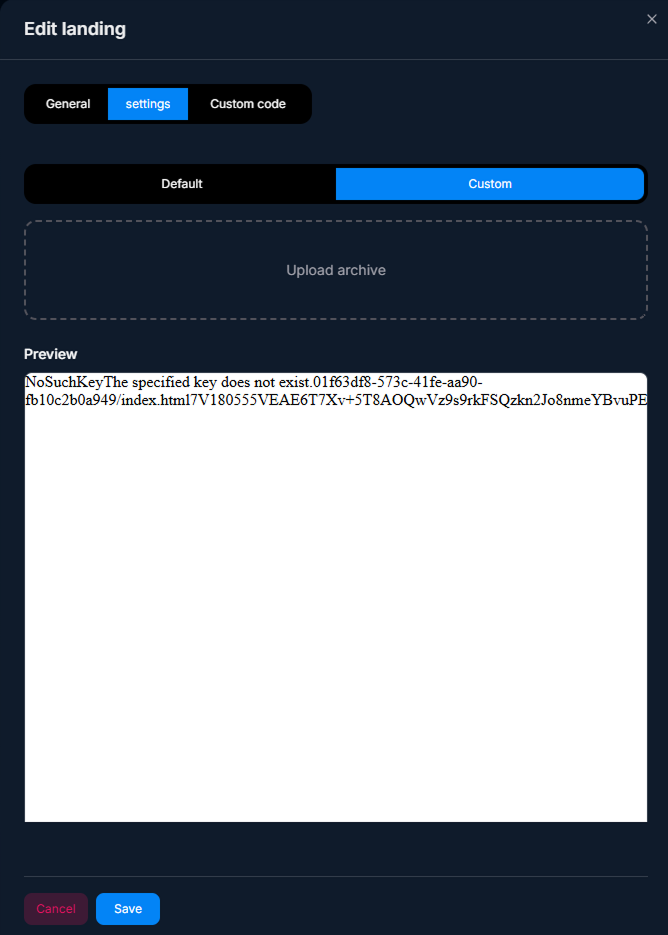
In the Custom section, click the ZIP file upload button. Select your archive and wait for processing to finish.Save and test
After uploading, save the landing page. Connect it to a campaign in Information — Basic Campaign Identification, go through Test — checking a campaign before launch — make sure the page opens and the button works.
Archive requirements
Requirement | What it means | Example |
|---|---|---|
Format | ZIP only. Not RAR, not 7Z, not TAR.GZ. | landing.zip |
Root file | The index.html file is located at the root of the archive (not in a nested folder). | archive.zip / index.html |
Styles | All CSS files are inside the archive. No CDN links (or CDN links to external files are OK). | css/style.css |
Images | All inside the archive. Relative paths from index.html. | img/hero.jpg |
Scripts | All JS files are inside the archive. You can use CDN links (Bootstrap, jQuery) if needed. | js/main.js |
Size | Reasonable — Tracker optimizes it, but huge ZIP files (100+ MB) take a long time to upload. Compress images. | < 20 MB is usually enough |
Archive structure (example)
landing.zipplaintext
landing.zip
├── index.html         ← обязательно в корне
├── css/
│   └── style.css
├── js/
│   └── main.js
├── img/
│   ├── hero.jpg
│   ├── logo.svg
│   └── benefits.png
└── fonts/
    └── custom-font.woff2
The tracker attribute — transition button
To let Tracker know which element is clickable and should lead to Telegram, add the
tracker attribute to the required element.One element
index.htmlhtml
<button tracker class="cta">Открыть Telegram</button>Multiple elements
You can add the attribute to multiple elements. All of them will lead to Telegram, and each click is counted separately:
index.htmlhtml
<header>
  <button tracker class="header-btn">Подписаться</button>
</header>

<main>
  <button tracker class="hero-btn">Перейти в канал</button>
</main>

<footer>
  <a tracker href="#">Open Telegram</a>
</footer>
Tracker automatically:
- — Replaces the href / click behavior with a dynamic invite link.
- — Counts clicks on any element with this attribute as a Click event.
- — Opens Telegram (via the app or web depending on the device).
Do not write href manually
Do not add your own
href="https://t.me/..." to an element with the tracker attribute. Tracker will replace it, but this will create a conflict. Just the tracker attribute is enough. Tracker will generate the transition automatically based on the campaign and Source settings.Usage examples
Branded landing page for a B2B product — performance marketing
CRM provider for salons. A designer creates a page with a brand font, a video in the hero section, animations, and a testimonials section with photos. The archive is 8 MB. Tracker hosts it; the “Book a demo” button has the tracker attribute and leads to a Telegram bot, where contacts are collected for a call.
Quiz landing page — performance marketing
Online education school. The landing page is an interactive quiz (“Which course is right for you?”). 5 questions; at the end, a recommendation and a “Start learning in Telegram” button. The button has the tracker attribute. The quiz logic is in JS inside the archive.
Migration from a previous tracker — arbitrage
A buyer migrates from Voluum to Chatterfy Tracker. He has 5 ready-made landing pages in HTML. He archives each one into a ZIP, replaces the old tracking buttons with
<button tracker>...</button>, and uploads them to Tracker. The landing pages work, and transitions are recorded.Video landing page — arbitrage
Crypto offer with a video message from an “expert”. The landing page is a large HTML5 video with autoplay (muted), with a “Start trading” button below it. The archive includes the video file (several MB); the
<video> tag has the autoplay muted playsinline attributes. The button has the tracker attribute.What to keep in mind
Tracker does not “assemble” the page for you — it is your ZIP, your work. If the layout is broken, it will be broken in production too. Test thoroughly locally before uploading. Do not use absolute paths like
/css/style.css — use only relative paths (./css/style.css or css/style.css). Do not forget responsive layout: 80% of traffic is mobile. Large images slow down loading — optimize them with compression (WebP, Squoosh).FAQ
Related


Was this article helpful?