

Default — standard template
Default is the standard landing page mode in Tracker. It is a ready-made template for a Telegram transition page where you fill in a few fields: title, description, avatar, and button texts. You don’t
Default is the standard landing page mode in Tracker. It is a ready-made template for a Telegram transition page where you fill in a few fields: title, description, avatar, and button texts. You don’t need to touch HTML / CSS / JS. Suitable when you need to quickly launch a campaign setup without spending time on layout.
When to use Default
You are testing a hypothesis — you need an MVP landing page in 5 minutes, and perfect design is not required. You are running an A/B test of several offers on the same audience — Default × 3 with different texts. You don’t have a designer / layout developer and need an “acceptable-looking” landing page. You are sending traffic to an offer where conversion depends on the Telegram funnel, not on the landing page — the landing page is just a transit point. You are growing a Telegram community — you need a “join our channel, there is useful content here” page.
How it works
The main advantage is speed. From “no landing page” to “it works” in 5 minutes. And no risks of broken layout or incompatibility with a mobile browser.
The main drawback is sameness. All Default landing pages are structurally similar. If the niche requires uniqueness (b2b, education, premium segments), Custom is better.
Setup steps
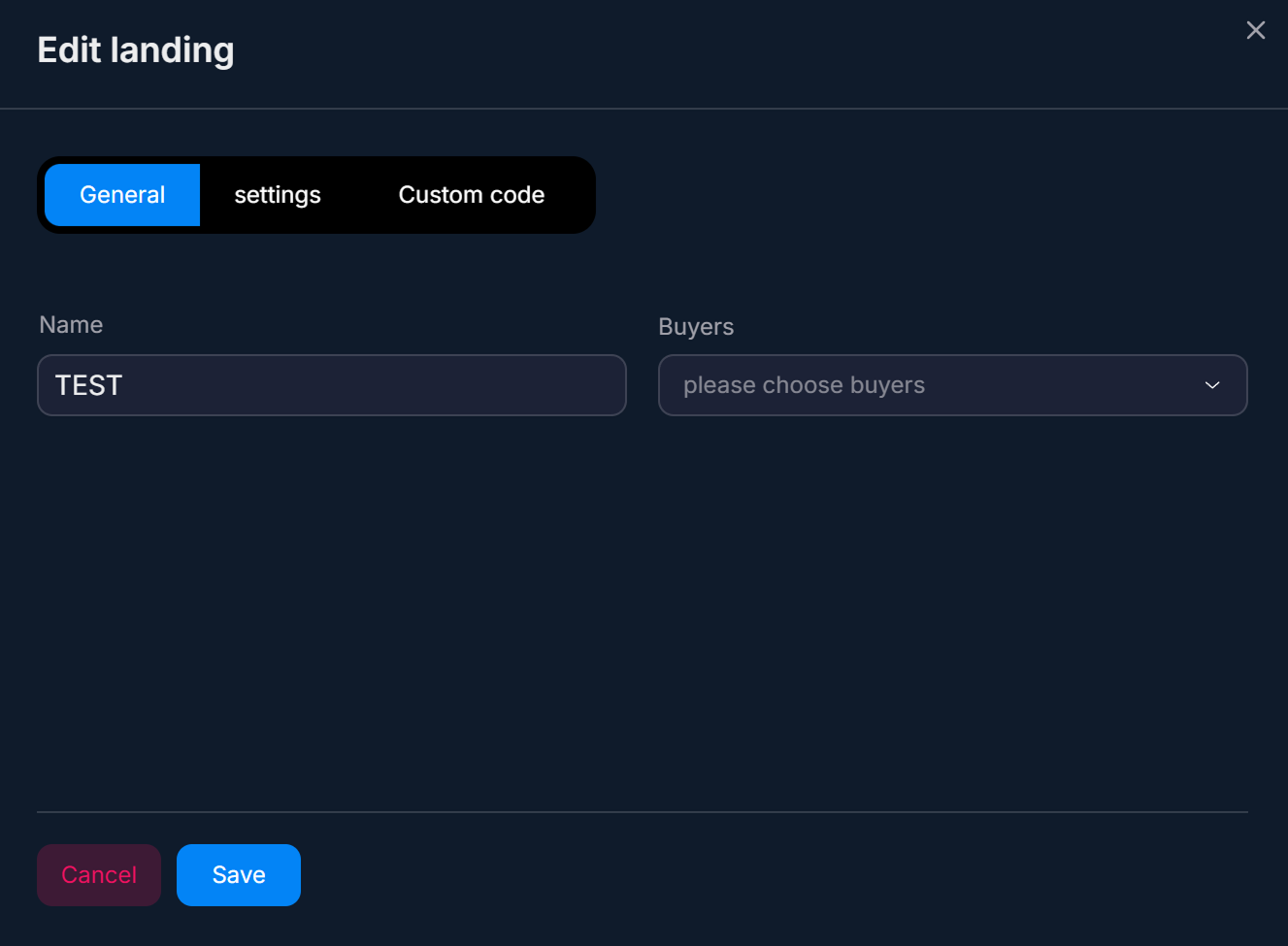
Fill in General
Fields Name (internal name for the team) and Buyers (who has access). See How to create a landing page.Configure Settings
The page appearance section. All fields for text and media are here.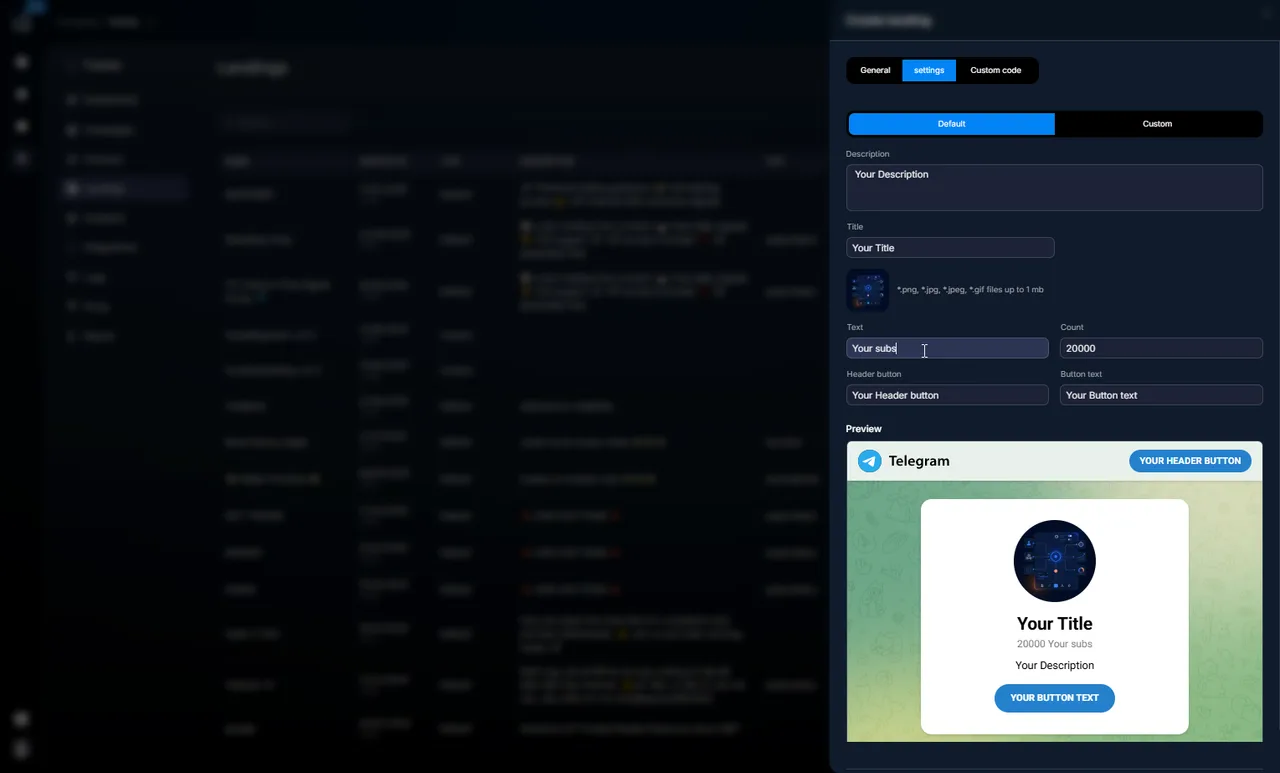
Optional — Custom code
If you need to add a Facebook pixel / Google Analytics / your own styles, the Custom code section lets you insert additional CSS or JS. It is for extending the template, not replacing it.Save and connect to a campaign
Click Save. Open the preview and check how it looks. When you are satisfied, connect the landing page to the campaign in Information — Basic Campaign Identification.

General — basic setup
Field | What it sets | Example |
|---|---|---|
Name | Internal name for the team. Visible in all selectors. Not shown to the user. | Forex US v3 |
Buyers | List of buyers with access. If empty — everyone. If restricted — only these buyers see it. | Ivan, Masha |
Settings — page content
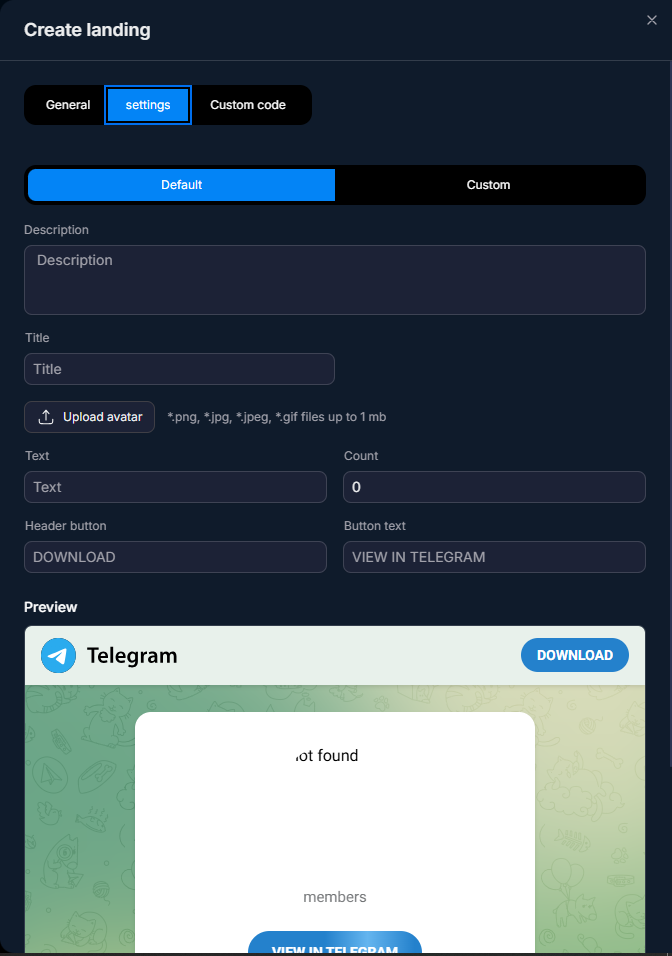
Field | What is shown | Tip |
|---|---|---|
Description | Text at the top — usually a short description (something like “a Forex channel for US traders”). | 1–2 lines, no more. |
Title | Main page heading. Channel / offer / store name. | Emoji + text is OK. |
Avatar | Image on the left/top. Brand logo or channel emblem. | A 256×256 px square is best. |
Text | Additional text under the Title — description of the offer, benefits, social proof. | 3–5 lines. Bullets are OK. |
Count | The number under the title — usually the “number of subscribers”. Social proof. | 5K, 10K, 100K — rounded. |
Header button | Text for the top / small button. | “Learn more”, “Go”. |
Button text | Text for the main button that takes the user to Telegram. The most important one. | “Open Telegram”, “Subscribe”, “Get access”. |
Custom code — extension
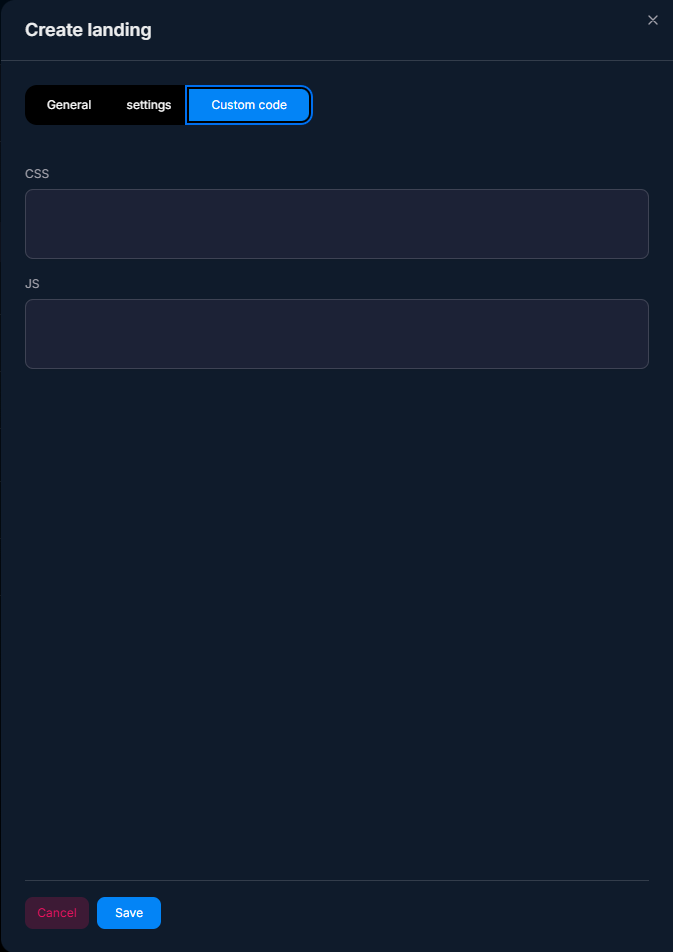
Custom code lets you add:
- — Additional styles (CSS) — change the color, font, or button size.
- — Scripts (JavaScript) — handling user actions, custom analytics.
- — Analytics (Facebook Pixel, Google Analytics, Yandex Metrika) — inserting counter code.
- — Additional markup — small visual elements (for example, a countdown badge until the promotion ends).
Custom code does not replace the template — it is added on top. If you need to completely redesign the layout, that is already Custom — your own ZIP archive.
Usage examples
Forex channel, mobile traffic — arbitrage
A media buyer launches a landing page for a Forex channel. Title = “📈 Forex Signals US”, Description = “Free signals from professional traders”, Avatar = channel logo (square), Count = 12K, Button text = “Subscribe for free”. On mobile, it looks like a “Telegram channel card”; the user instinctively taps the button and lands in Telegram.
A/B testing two promotional angles — performance marketing
A sales agency tests two hypotheses for selling a course:
- — Landing page A: Title = “Python course for beginners”, Text = “In 8 weeks — from zero to a junior developer”, Button = “View the program”.
- — Landing page B: Title = “Become a Python developer”, Text = “5,000 graduates are already working in IT”, Button = “Start learning”.
- Two campaigns are created in Tracker — each with its own landing page. After a week of traffic, compare Reg → FD and keep the winner.
Premium offer with social proof — sales
A performance agency manages a B2B client (a CRM system for salons). Default landing page with Title = “CRM for beauty salons”, Description = “Used by 1,200+ salons in Russia”, Count = 1200, Button = “Free consultation”. Yandex Metrika has been added via Custom code to track behavior. The landing page + Telegram bot generate high-quality leads.
What to keep in mind
If you use a Source with Provider = Facebook ( Facebook — Source with Meta Pixel) — invite links are created automatically by Tracker; you do not need to add them to the landing page manually. If you use a Telegram source with your own invite link, configure it in Telegram — Source Inside the Messenger. The Default landing page is automatically mobile-responsive. It also looks good on desktop. If you want a custom design / structure, Custom — your own ZIP archive. Custom code is a powerful tool, but it does not replace a Custom landing page. It is like an “add-on” on top of the template.
FAQ
Connection with other sections
Default is the easiest way to create a landing page. The alternative is Custom — your own ZIP archive. The landing page is connected to a campaign via Information — Basic Campaign Identification. Custom code lets you add analytics from Facebook — Source with Meta Pixel / Google.
Related


Was this article helpful?