The Condition step branches the flow based on exact values in the lead’s data. Tag exists — left. deposit greater than $100 — right. time from 12 to 18 — third branch. This is the opposite of “AI Rout
Updated June 21, 20264 min
The Condition step branches the flow based on exact values in the lead’s data. Tag exists — left. deposit greater than $100 — right. time from 12 to 18 — third branch.
This is the opposite of “AI Routings — routing by meaning” AI Routings — semantic routing — Condition is exact logic based on stored data, not an AI interpretation of the message’s meaning.
When to use
Differentiate VIPs (tag) from regular leads. Separate leads with a deposit from leads without one. Day vs night logic by timezone. Leads from a specific Tracker campaign. Leads with a filled custom field (for example, partner_id exists = registration completed). Any “structured” value check.
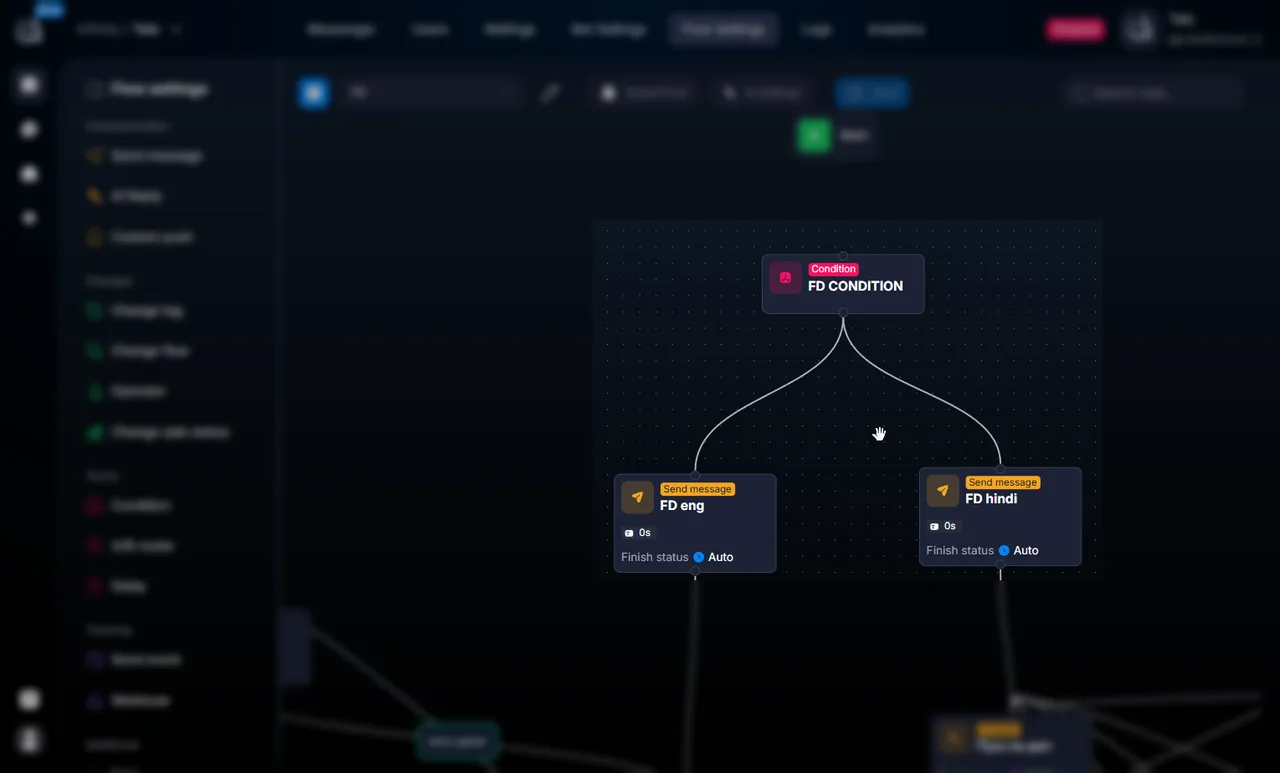
Condition step in the flow
AI Routings vs Condition
Aspect
Condition
AI Routings
What it checks
Field, tag, and status values
The meaning of the lead’s message
Accuracy
Exact (Boolean)
Fuzzy (AI)
Where to use
Anywhere in the flow
Only after AI Reply
Cost
Free
Uses tokens
Settings
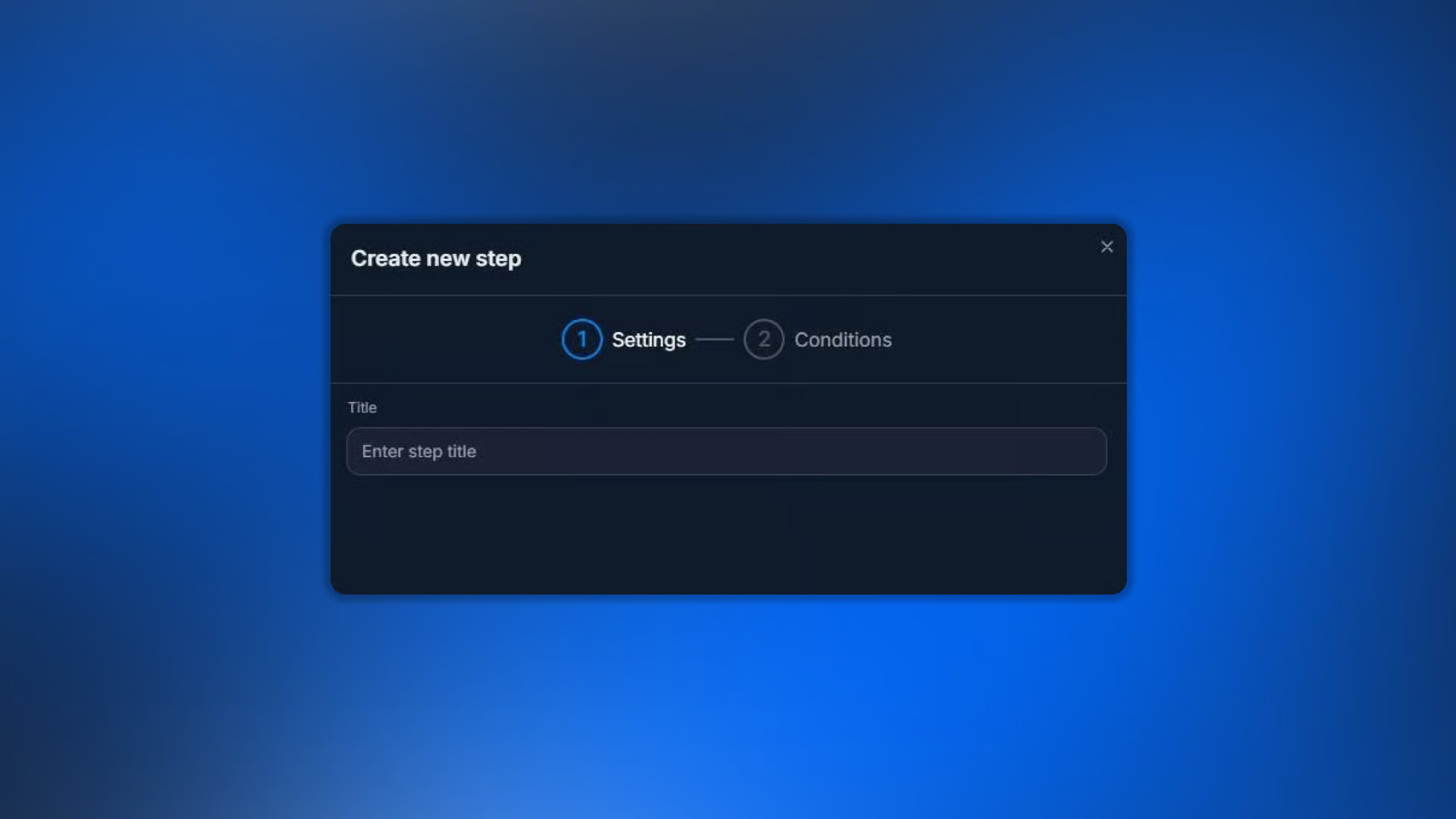
Condition step settings
Title — a short name for easy navigation in the flow.
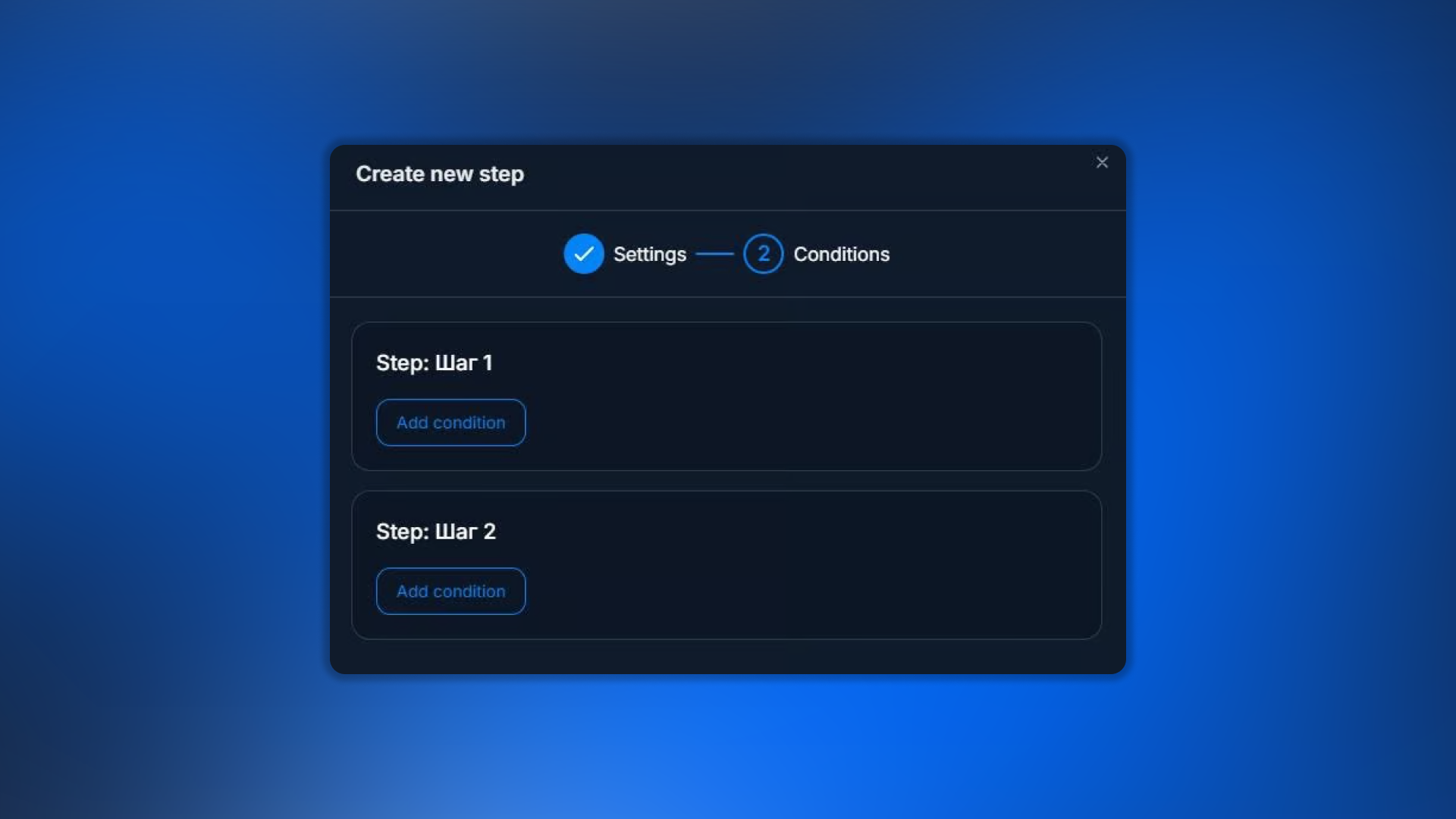
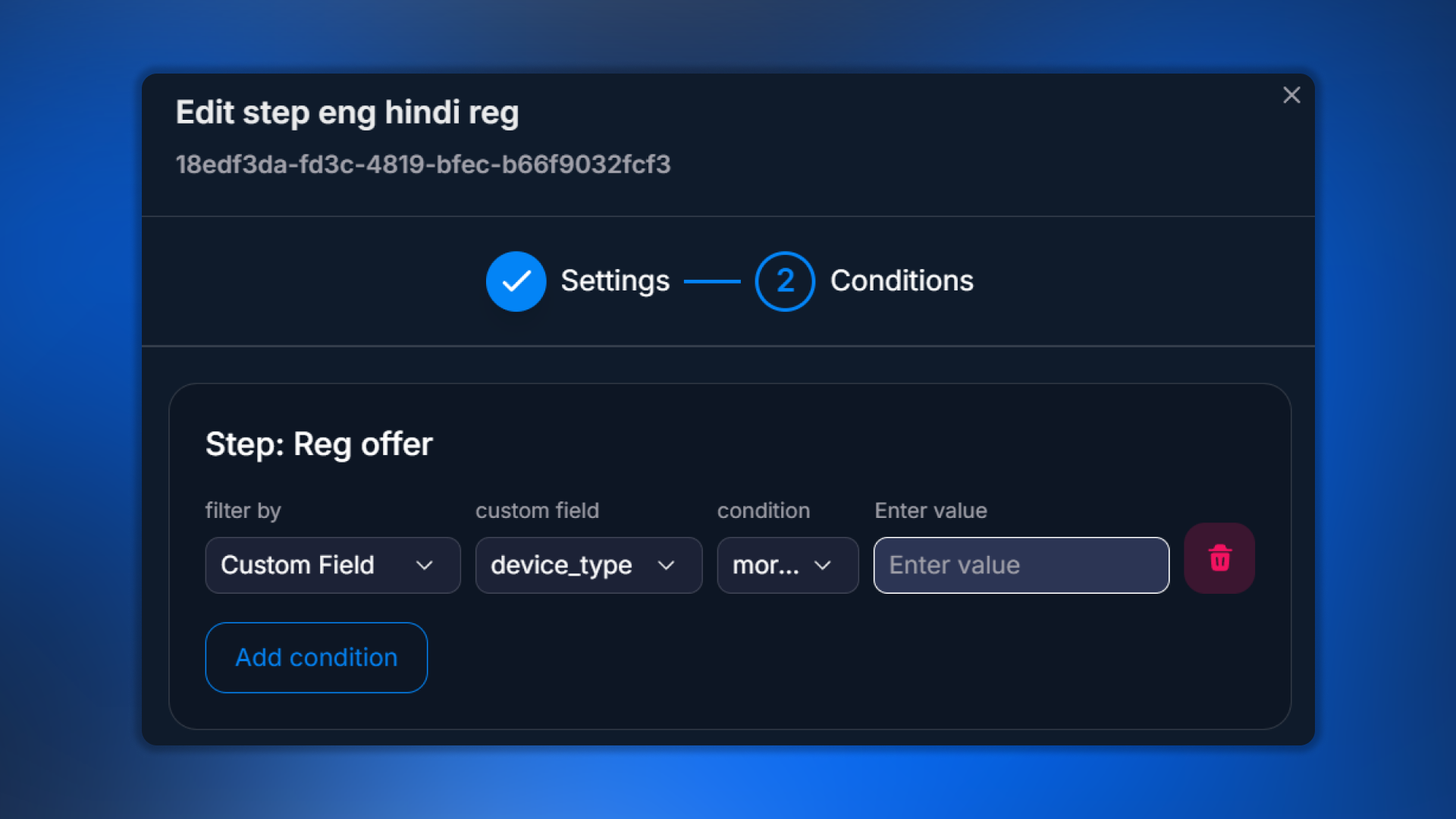
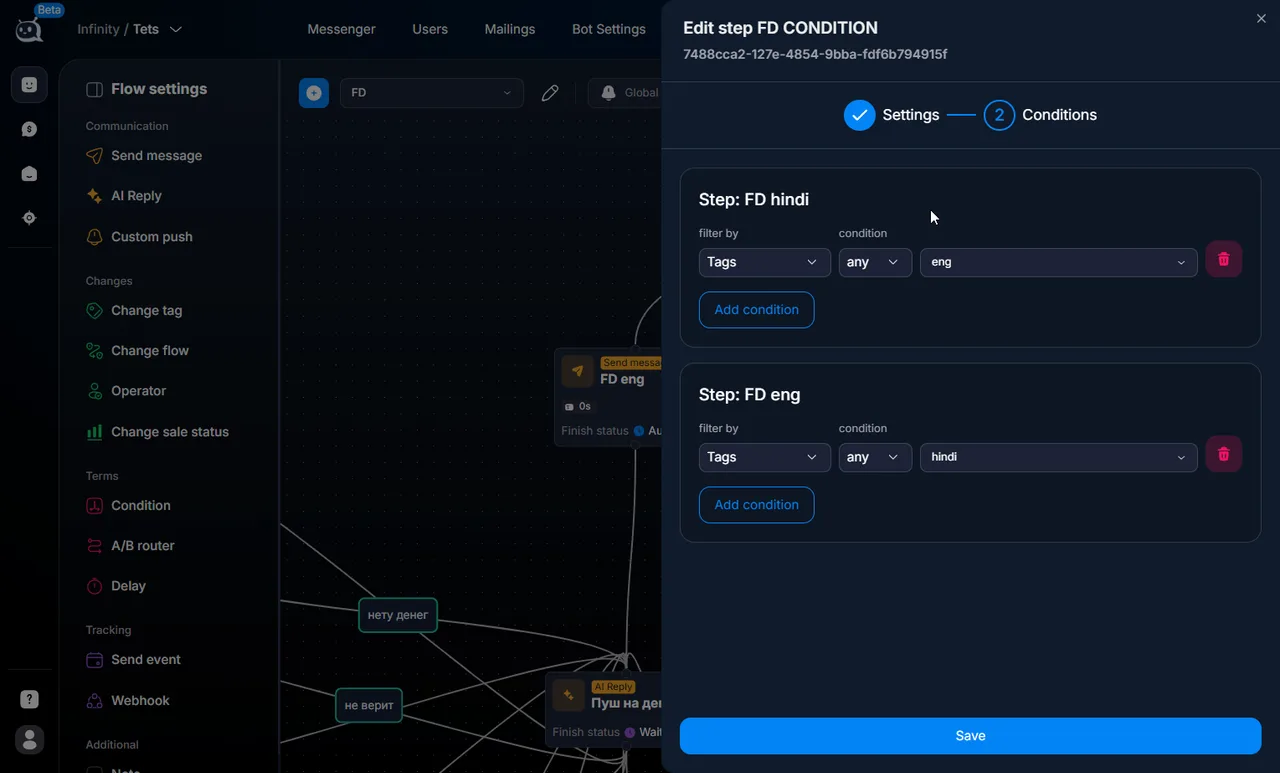
Conditions — configuring conditions
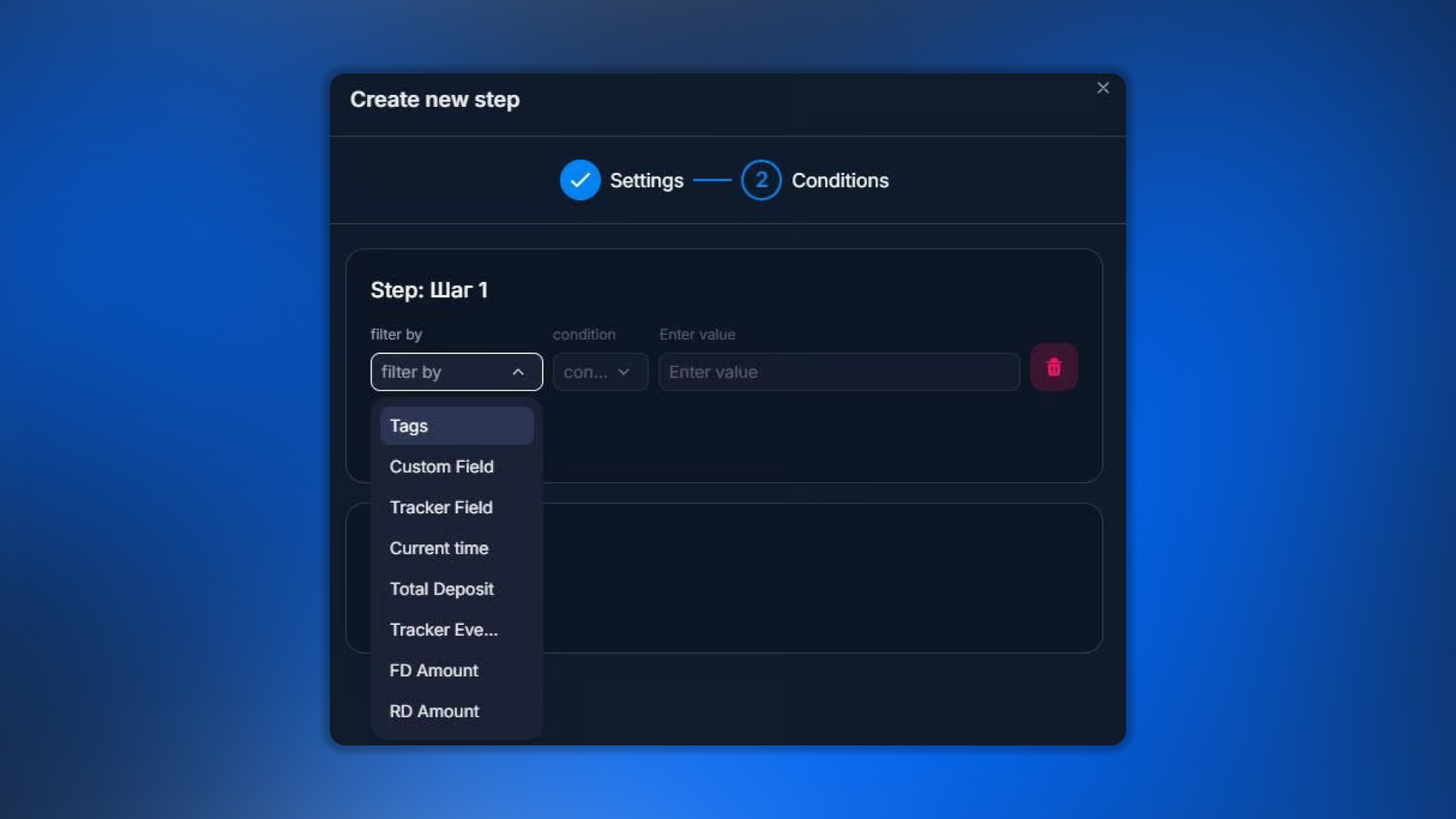
Condition builder
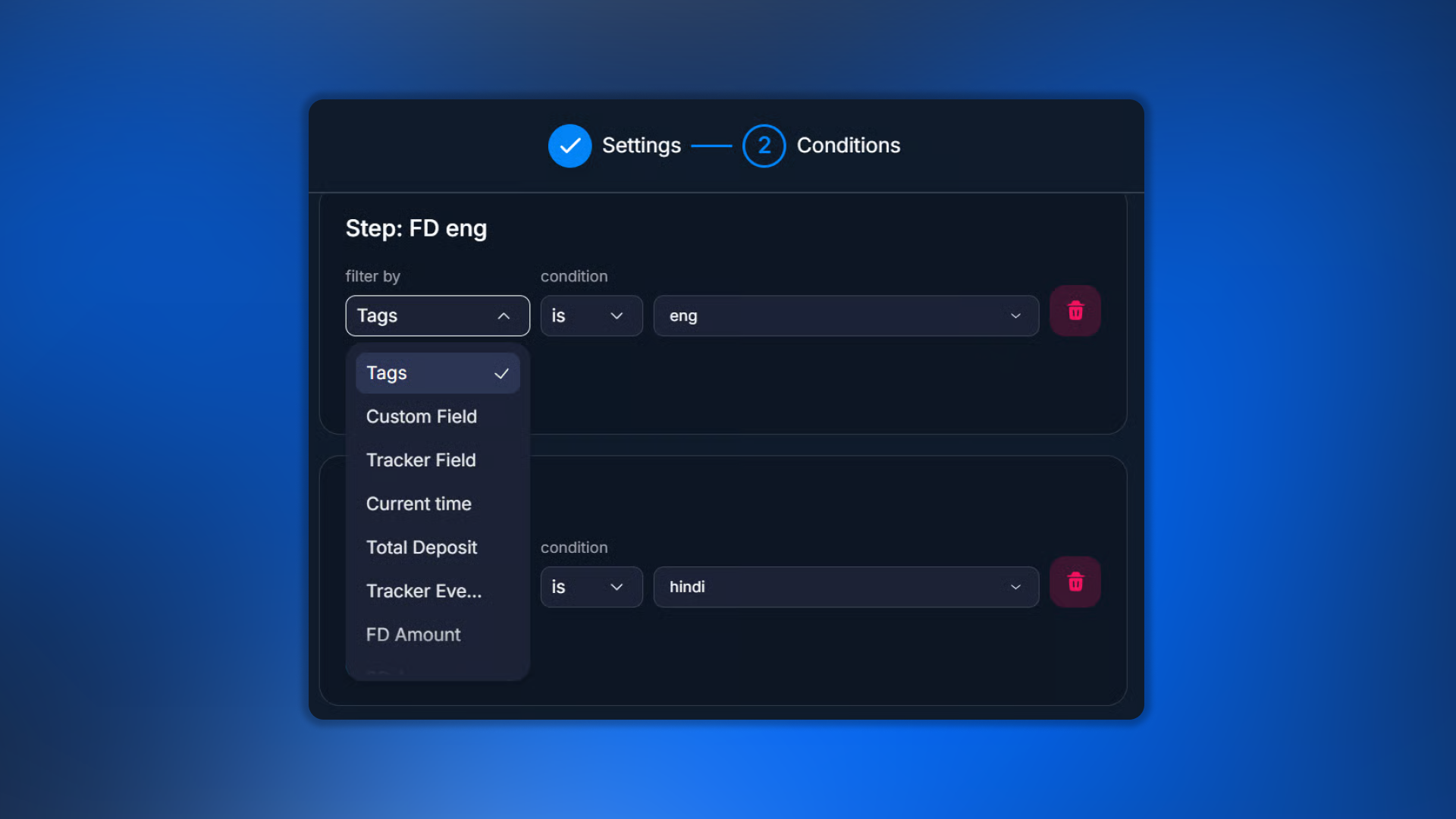
Filter types — what to check
List of filter types
Type
What it filters
Tags
Presence/absence of a tag on the lead
Custom Field
Custom field value
Tracker Field
Parameter from Tracker (utm_source, sub1, etc.)
Current time
Current time in the bot's time zone
Total Deposit
Sum of all the lead's deposits
Tracker Events
Presence/absence of an event (registration, sale, etc.)
FD Amount
First deposit amount
RD Amount
Amount of repeat deposits
Filter by
Filter by — data source selection
After selecting the type, specify which exact field/tag/parameter to check.
Operators
Available operators
Available operators depend on the selected type.
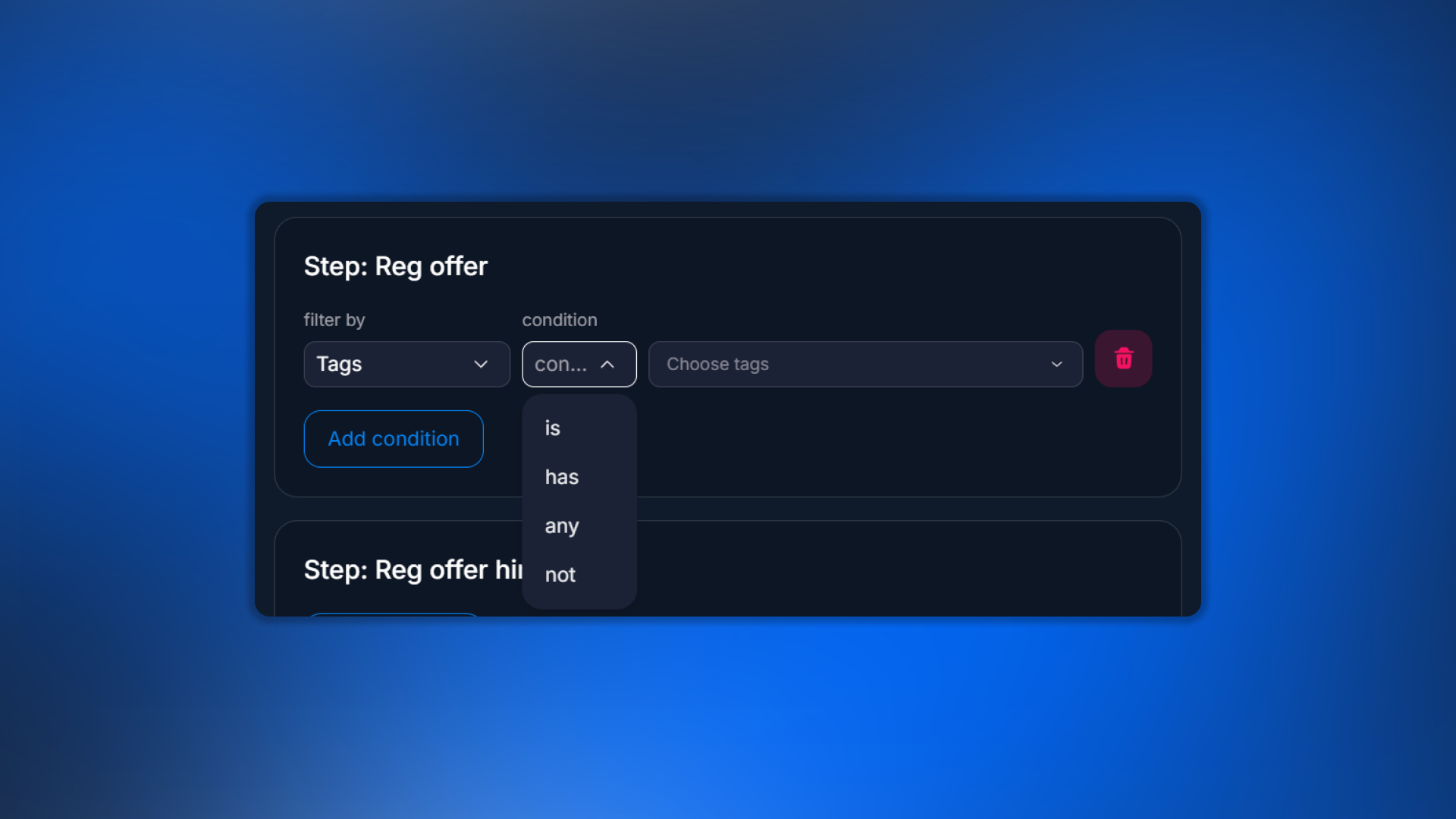
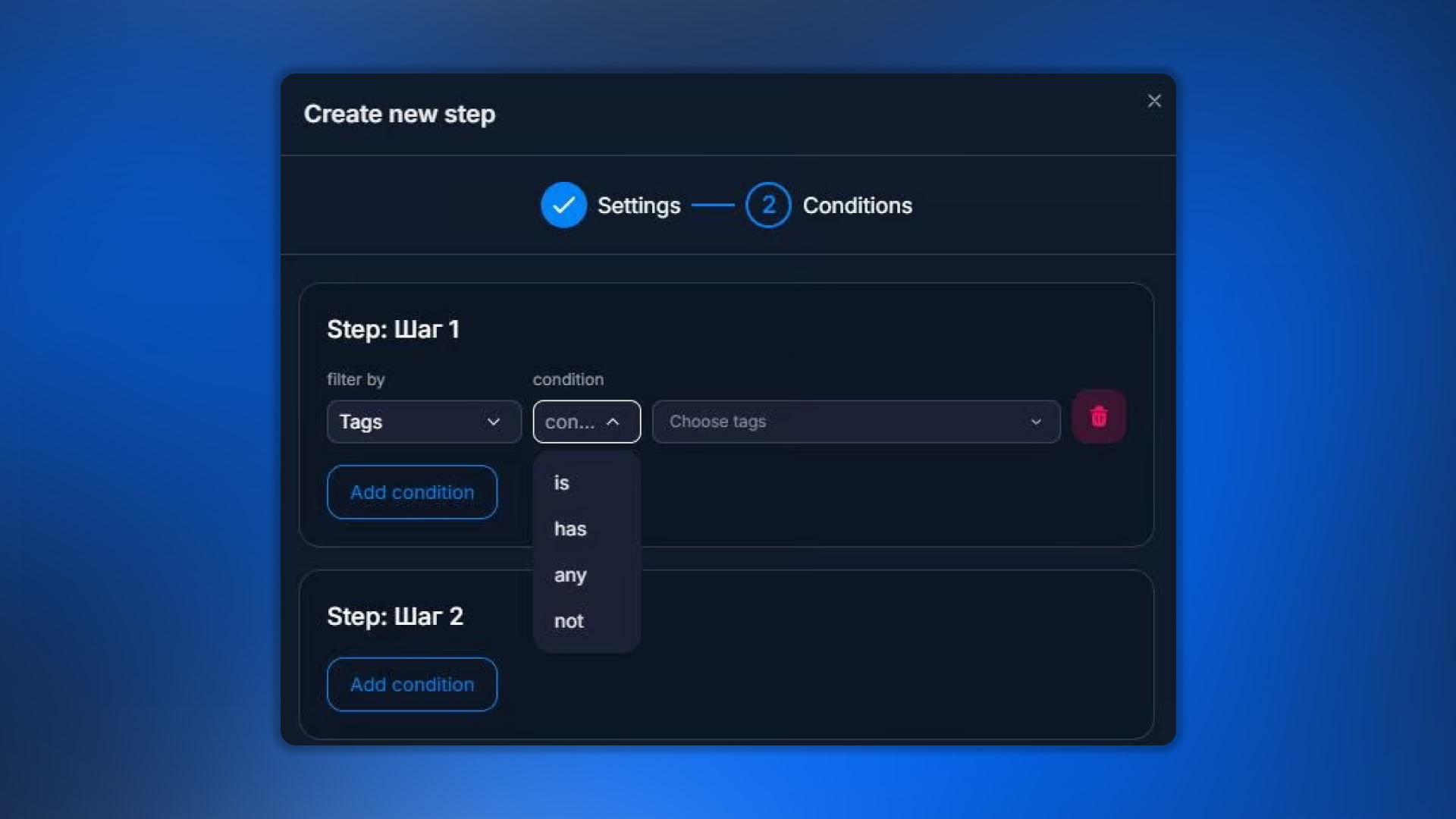
For tags and fields:
Operators for tags and fields
is — exact match
has — contains a value
any — any of the listed values
not — not equal to
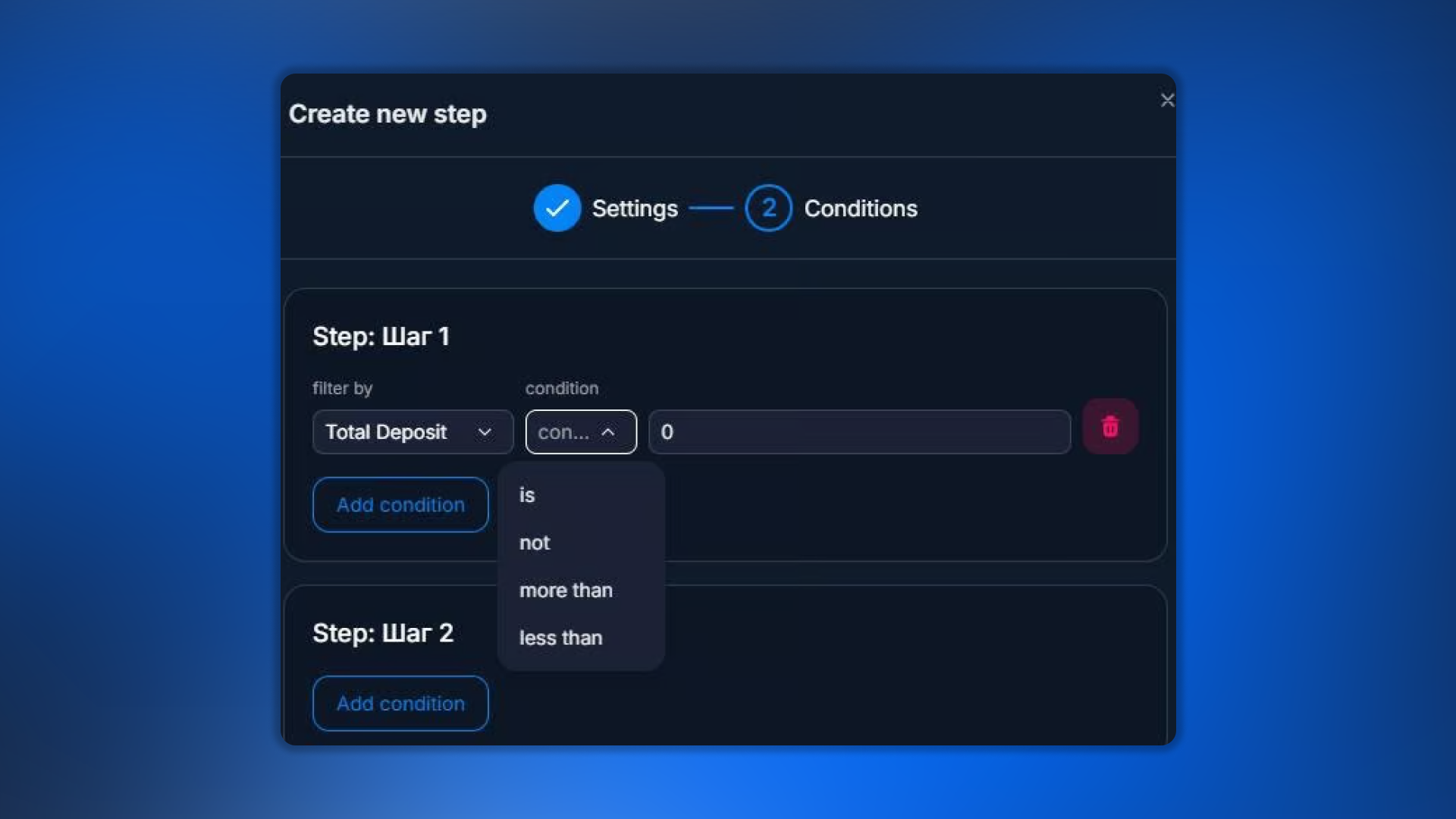
For numeric values:
Operators for numbers
is — equals
not — not equal to
more than — greater than
less than — less than
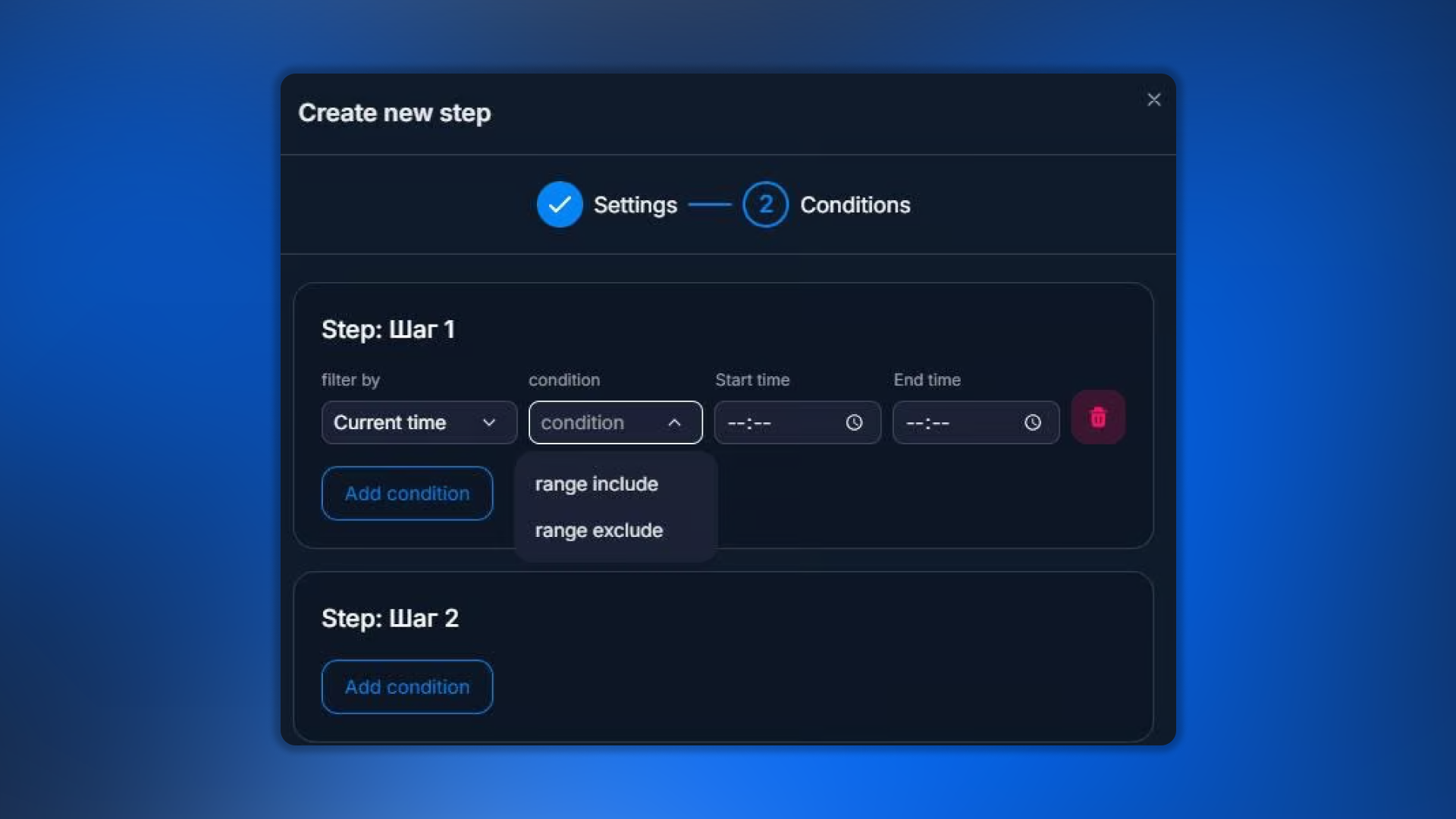
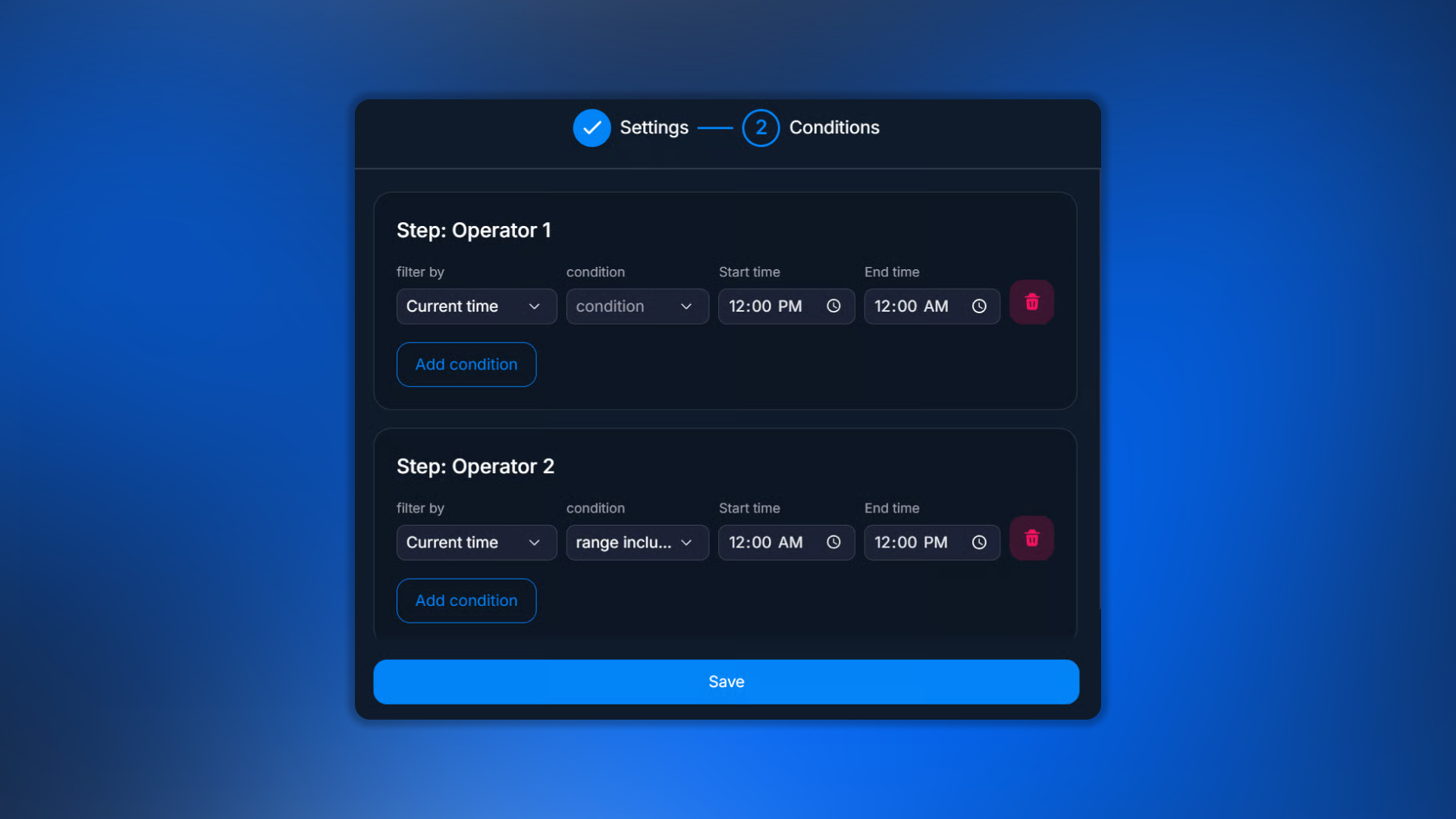
For time:
Operators for time
range include — is within the range
range exclude — is outside the range
Enter value
Field for entering a value
For Custom Field and Tracker Field — the field for the value to compare against.
Add condition — multiple conditions in a branch
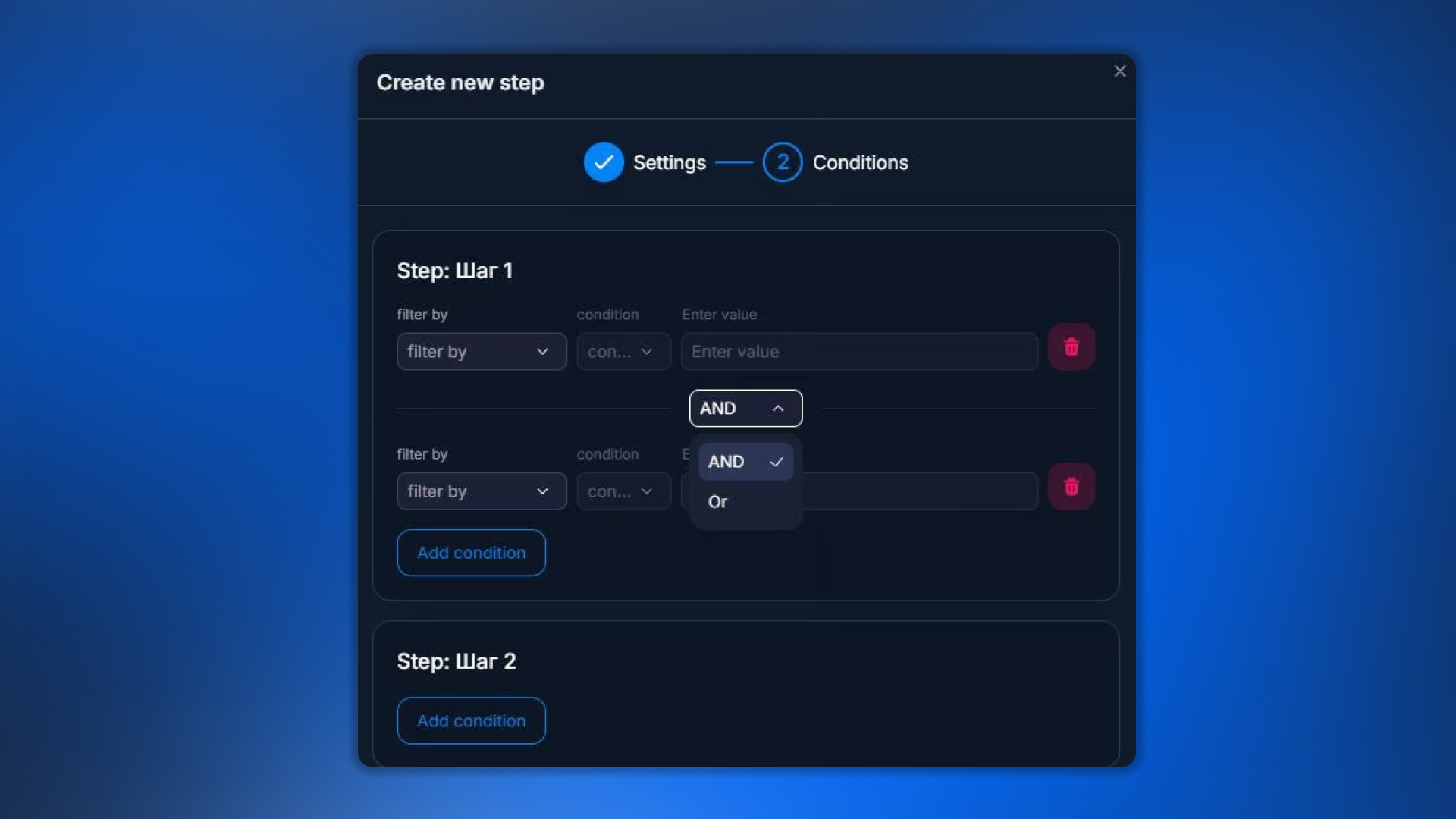
You can add multiple conditions to one branch using Add condition. The logic is AND (all must be met).
Multiple branches
A step can have multiple output branches (lines to different next steps). Each branch has its own set of conditions. Branch checking logic is sequential: the lead goes to the first branch whose conditions are met.
Setup steps
1
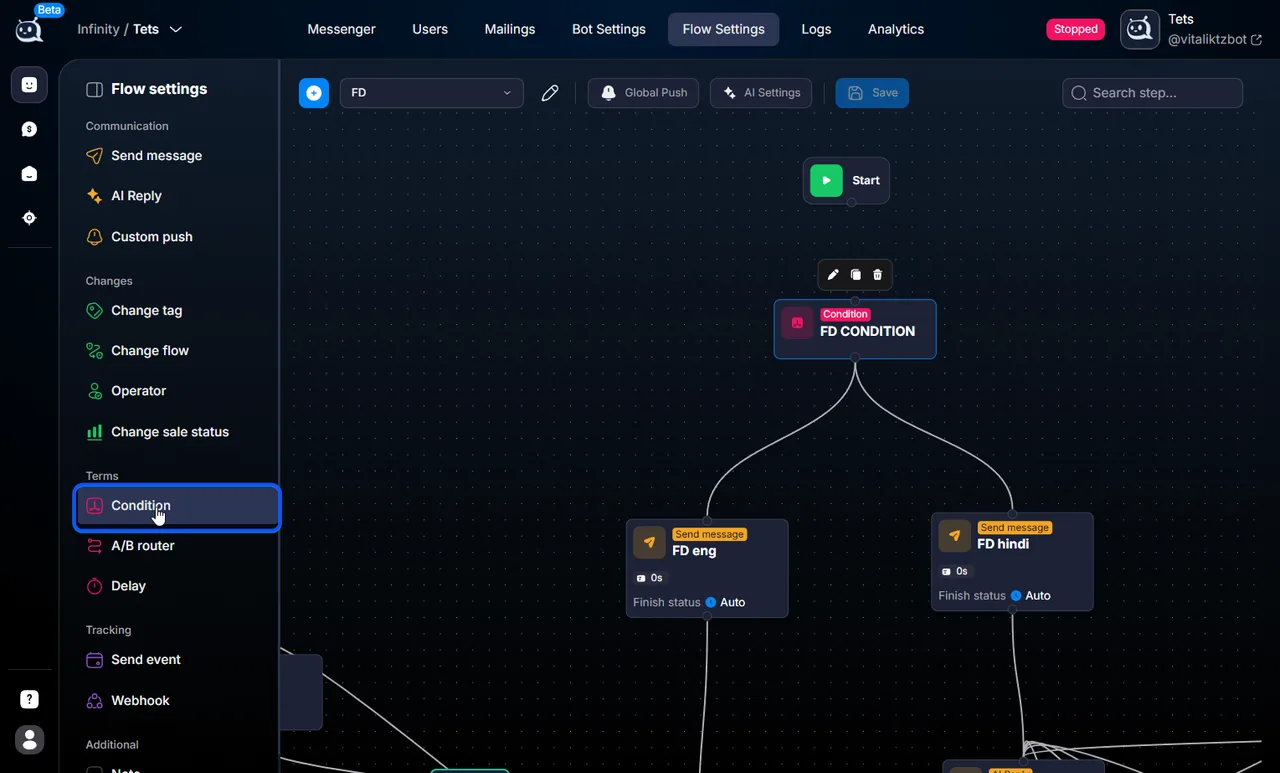
Add a Condition step to the flow
Using the slash menu or by dragging from the sidebar.
2
Open the Conditions block
In the step settings.
3
Select Filter by
Tag / Custom Field / Total Deposit / other.
4
Specify the operator
is / has / more than / etc.
5
Enter a value if required
6
Use Add condition if needed
If you need multiple conditions in one branch.
7
Connect the branch to the next step
Using a line from Condition to the required step.
Usage examples
Examples of real-world conditions
Day/night handler
Day branch: Current time → range exclude → 00:00 → 12:00 (that is, from 12 to 24).
Night branch: Current time → range include → 00:00 → 12:00.
Leads with a deposit vs without one
With deposit: Total Deposit → more than → 0 — to the “follow up” branch.
No deposit: Total Deposit → is → 0 — to the “push to first deposit” branch.
Leads by tag
VIP: Tags → has → VIP — to the VIP branch.
Default: the rest — to the standard branch.
Leads with partner_id (registration confirmed)
Registered: Custom Field → partner_id → has — to the “after registration” branch.
Default: not registered yet — to nurturing.
What to keep in mind
Important step specifics
Conditions within a single branch work according to the AND or OR principle (see settings).
The lead goes to only one branch — the first one whose conditions are met.
If no condition matches, the dialog moves to manual status (it is transferred to an operator).
Use a default branch (“without conditions”) for catch-all cases.
Frequently asked questions
By default, the dialog moves to manual status — it is transferred to an operator. To avoid this, always add a default branch without conditions — it catches everyone “else.”
There is a toggle in the step settings. AND is used by default.
This parameter is available only for leads that came through Tracker — Overview. Organic leads do not have tracker parameters, so filters based on them will not work.
There is no direct “field A vs field B” comparison in the step. If needed, use a webhook to your system, which will compare them and return the result via webhook → Custom Field, then check it through Condition.
exists means the event exists. not exists means there is no event. For example, “event registration exists” = “the lead registered” (the postback was received).