Skip to content
ChatterfyHelp Center
HomeGeneralCRMAI ManagerTrackerPlatformsFAQUpdate log
General
Billing
Company
General company settings
Administration (Company)
Users — company users
User Roles
How to Invite Users
Custom roles — company and space permissions
Security
Spaces
Logs
  1. General
  2. Company
  3. How to Invite Users

How to Invite Users

In Chatterfy, you can invite an employee by email (an email with a link and automatic role assignment) or by link (one link for everyone — send it in any messenger or chat). Before you start Decide in

Updated September 11, 20262 min
In Chatterfy, you can invite an employee by email (an email with a link and automatic role assignment) or by link (one link for everyone — send it in any messenger or chat).
Before you start
Decide in advance which role you will assign ( User Roles if you’re not sure). If the new employee will work with chats, after sending the invitation, add them to the appropriate Spaces — Workspaces with a role within the Space.


Two ways to invite users

Use this if you want to send an invitation directly to a specific employee email. They will receive an email with a link and an automatically assigned role.
  1. 1

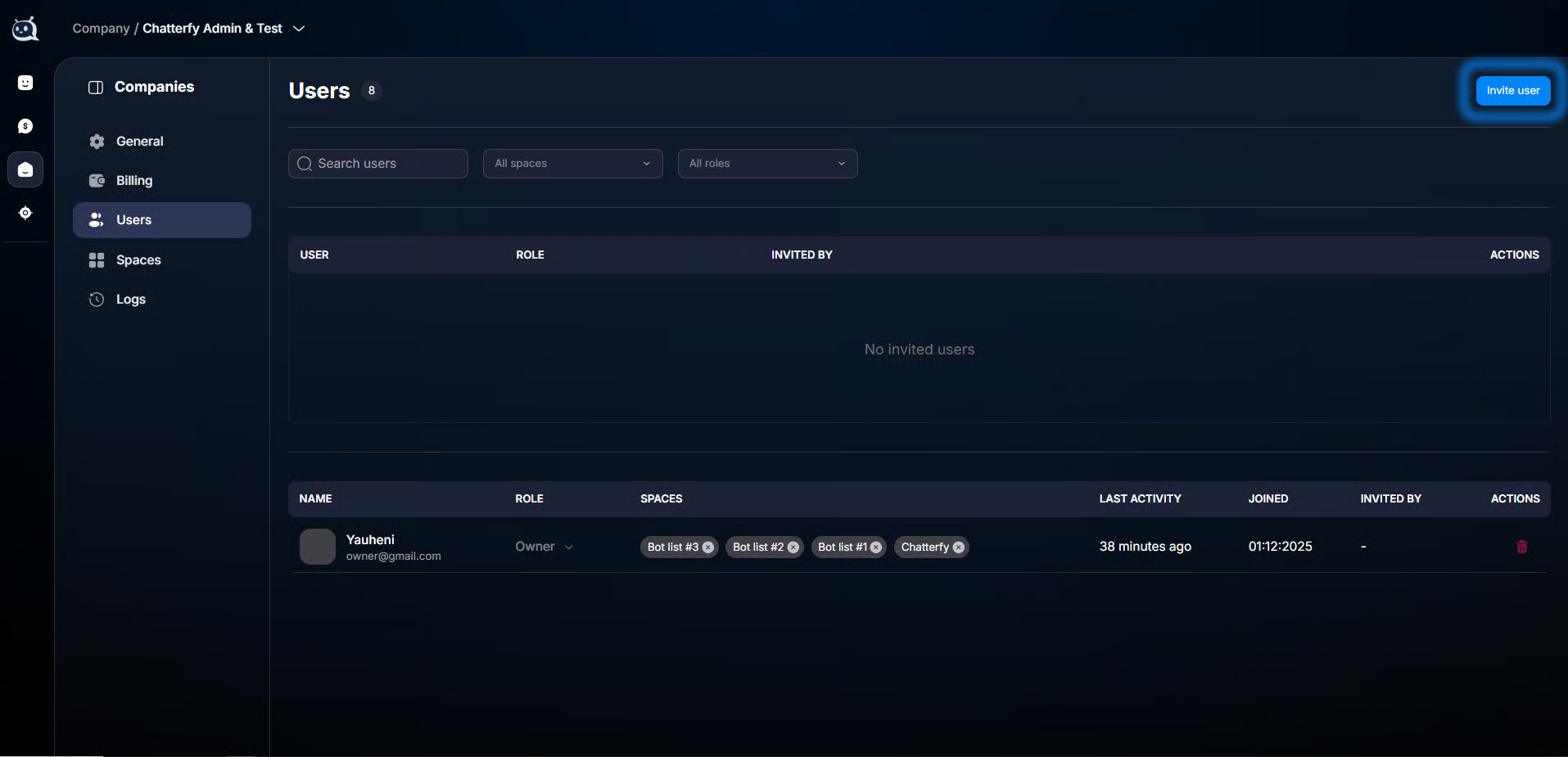
    Go to Company → Users

    Open the section in the left menu.
  2. 2

    Click Invite user

    The button is in the upper-right corner.
  3. 3

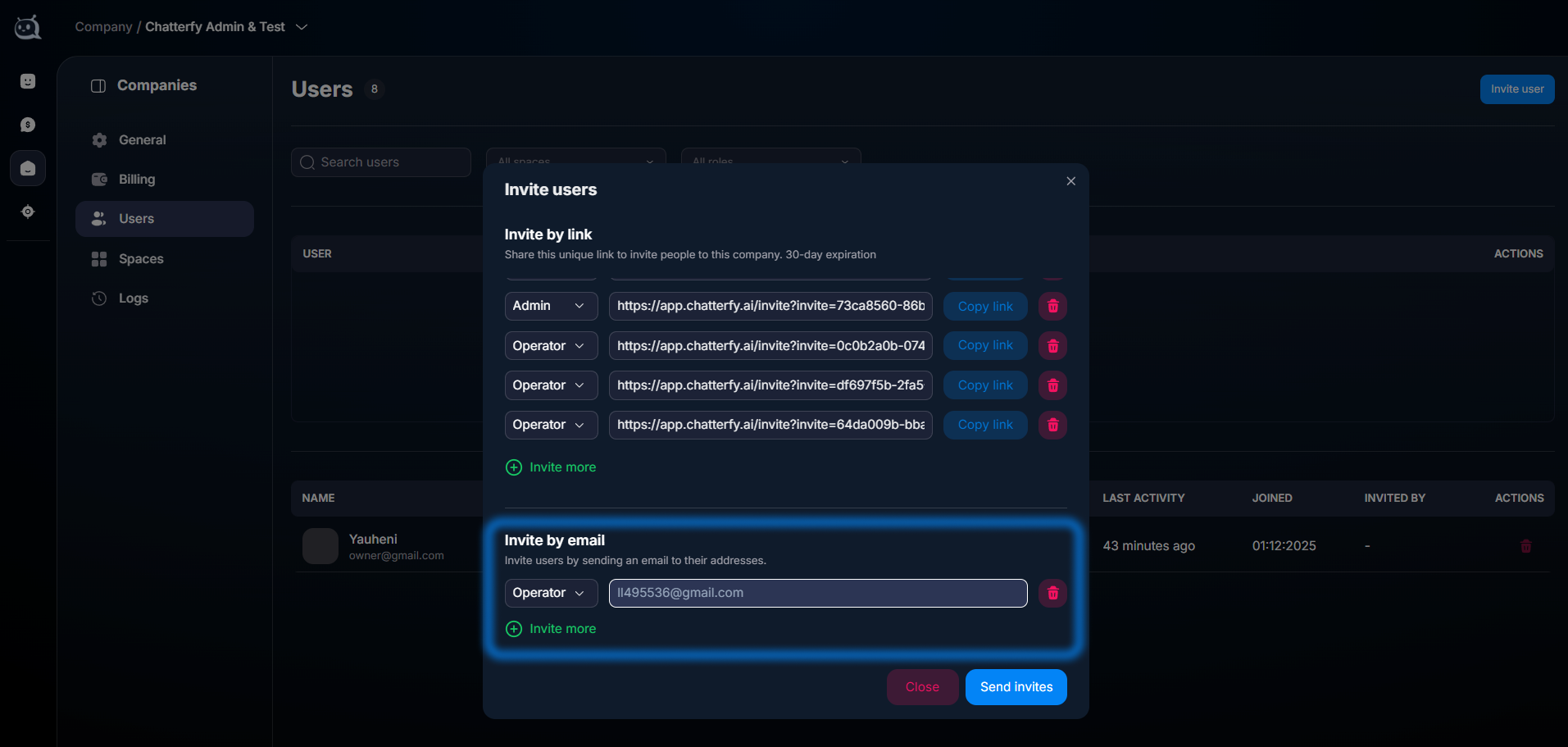
    Select the Invite by email block

    In the window that opens, switch to the email tab.
  4. 4

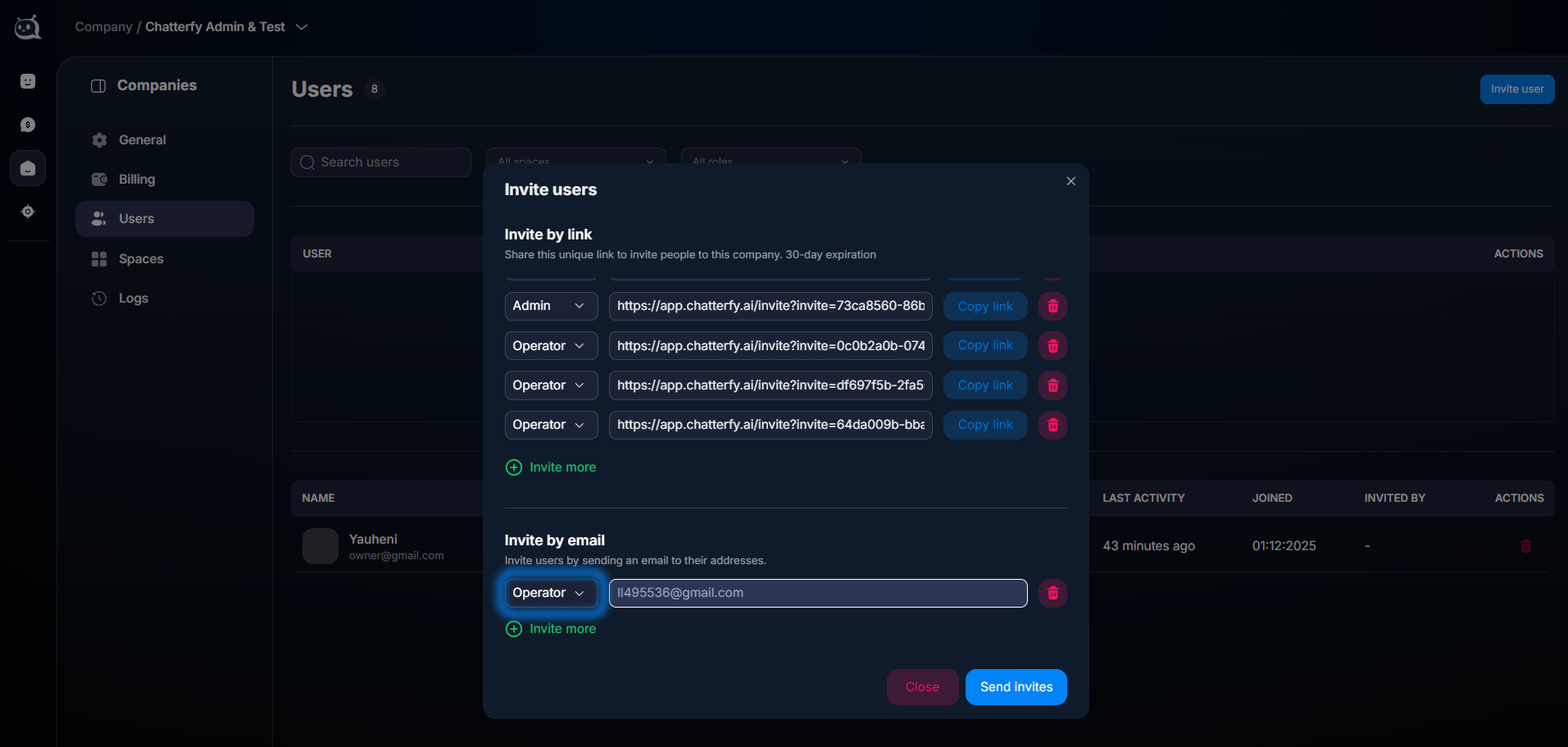
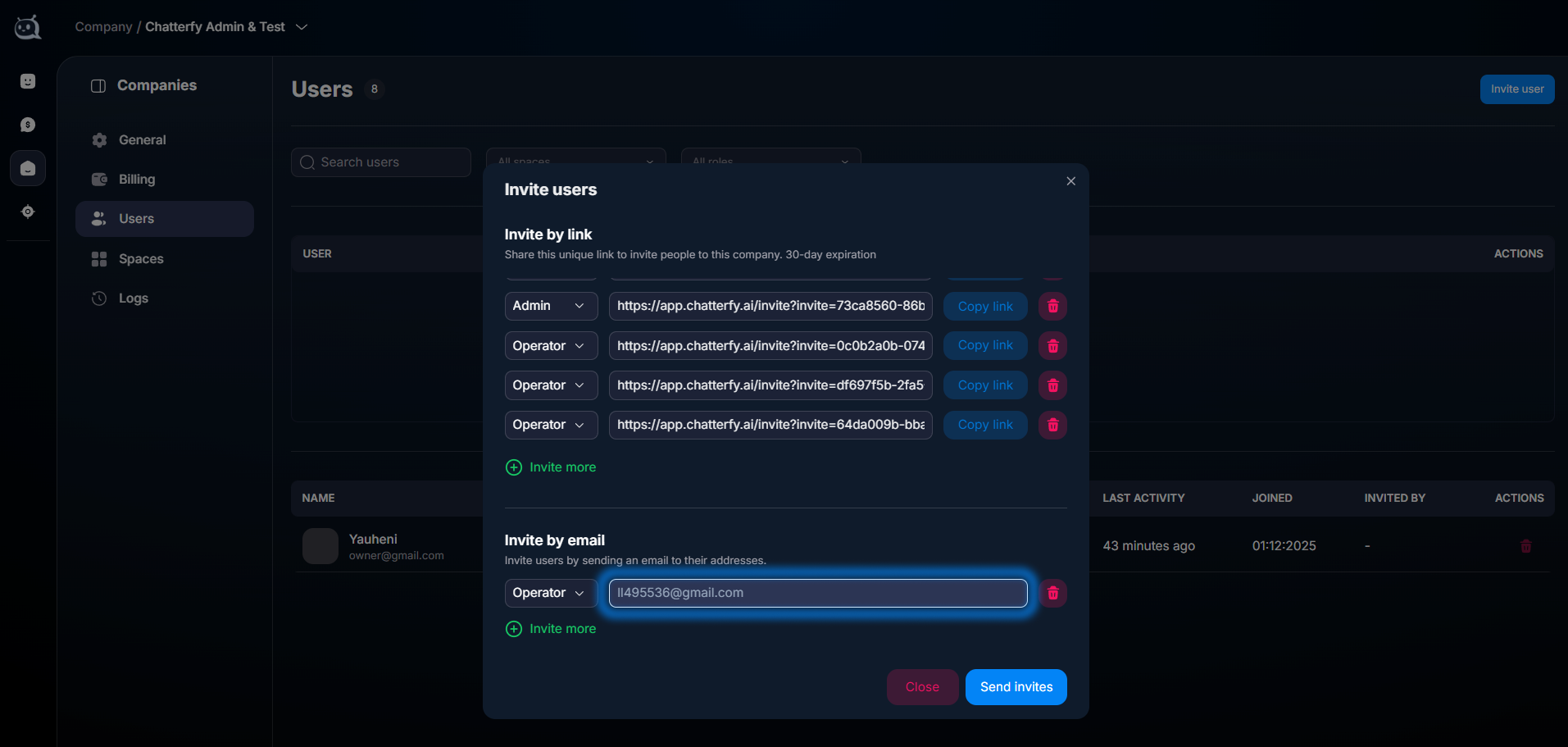
    Enter the email and role

    Enter the employee’s email. Select a role ( User Roles — reference guide).
  5. 5

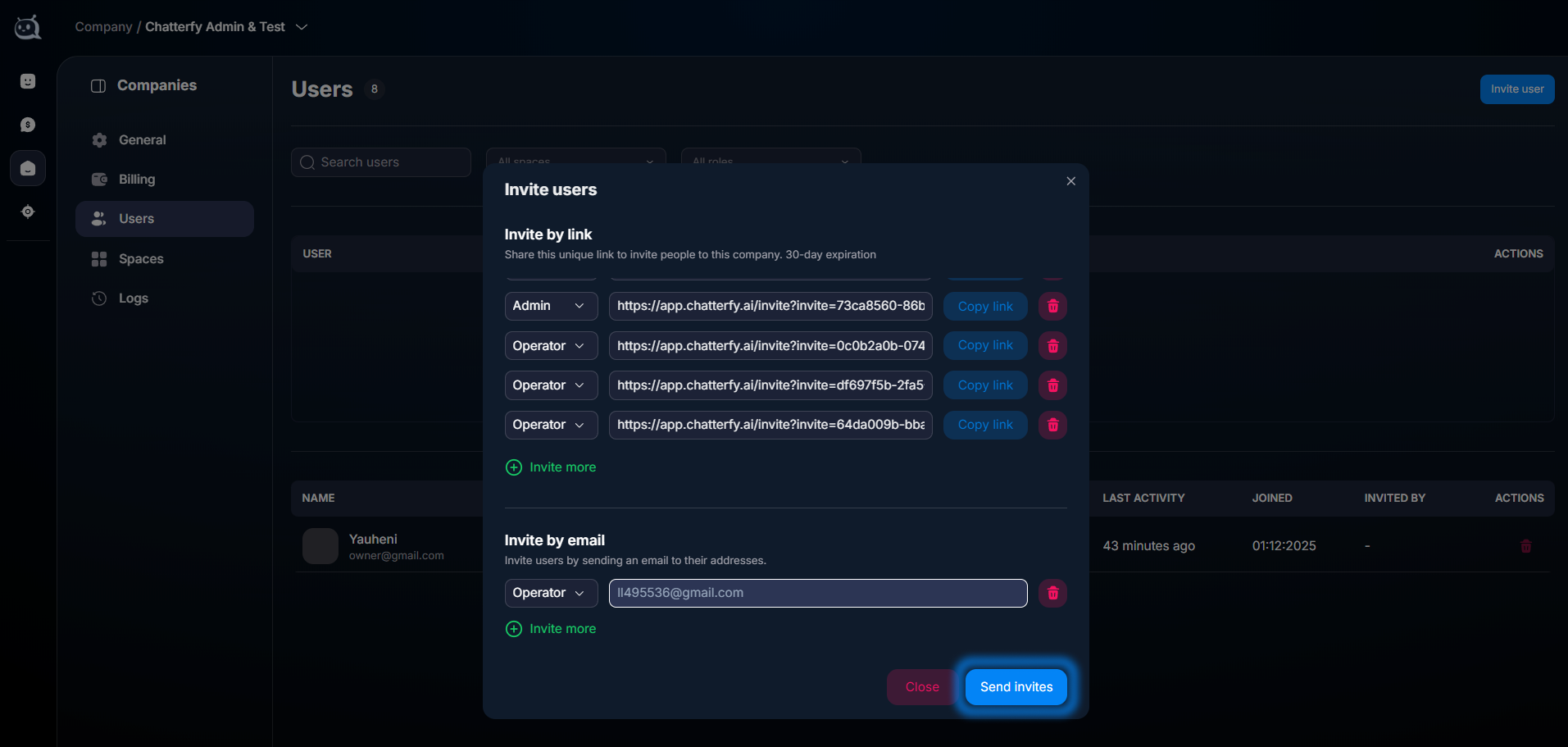
    Click Send invites

    The email will be sent. The employee follows the link and accepts the invitation.
Use this if you want to send the link manually — in Telegram, Slack, or a direct message. The link is the same for everyone and is tied to the selected role.
  1. 1

    Go to Company → Users

    Open the section in the left menu.
  2. 2

    Click Invite user

    The button is in the upper-right corner.
  3. 3

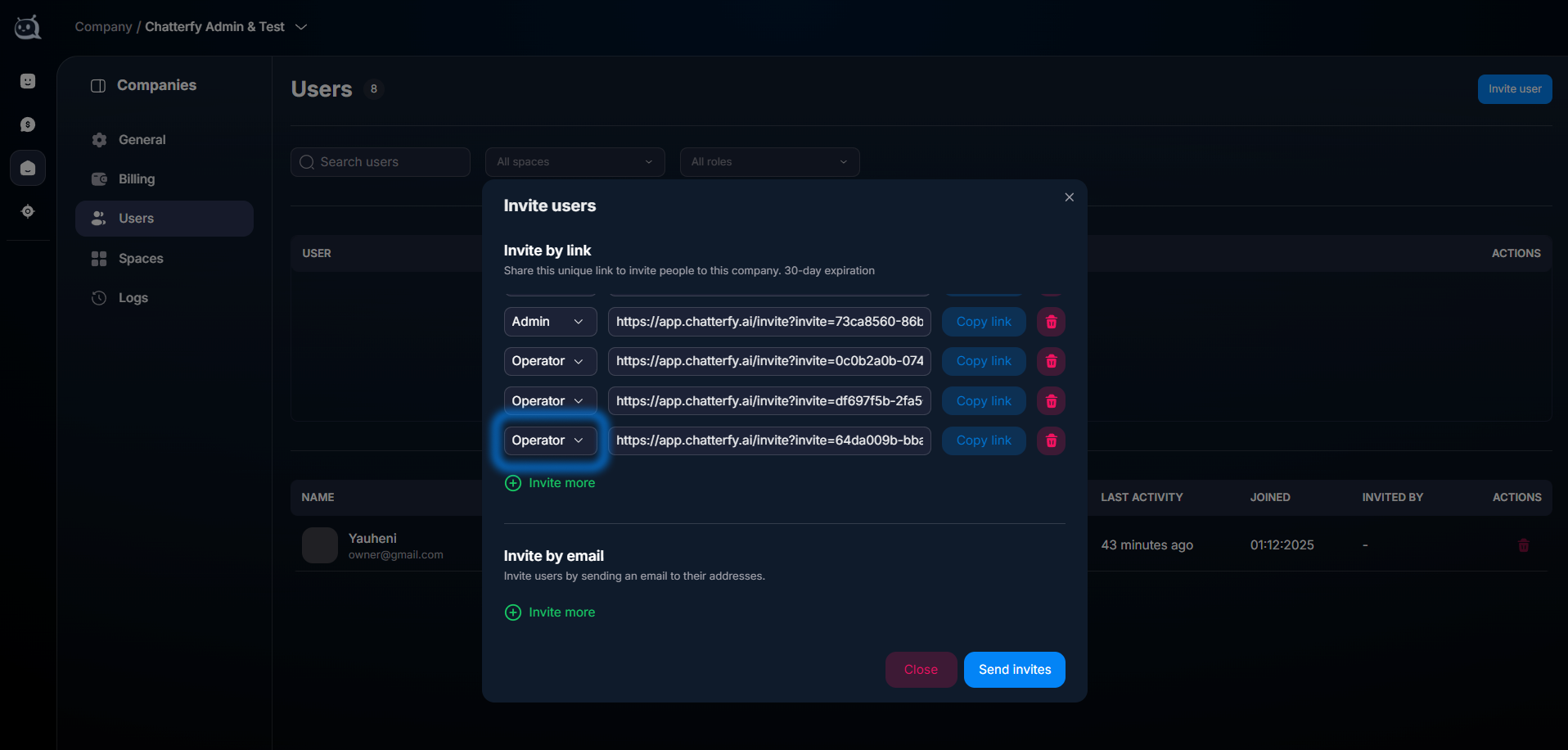
    Select the Invite by link block

    In the window that opens, switch to the link tab.
  4. 4

    Select a role

    This role will be automatically assigned to anyone who follows the link.
  5. 5

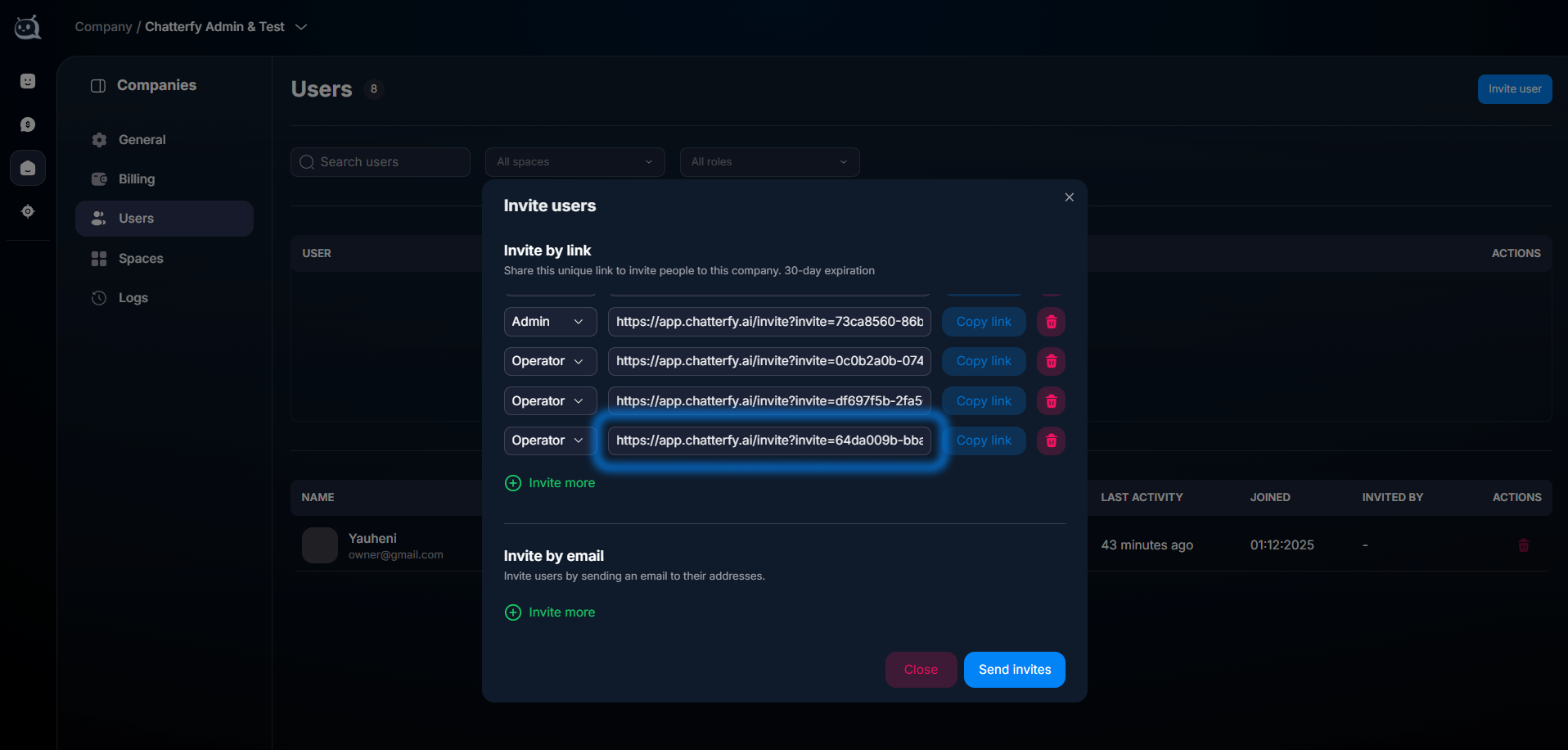
    Copy the link and send it to the employee

    Use any convenient method — messenger, email, chat. The employee follows it and activates their account.


How it looks in the interface
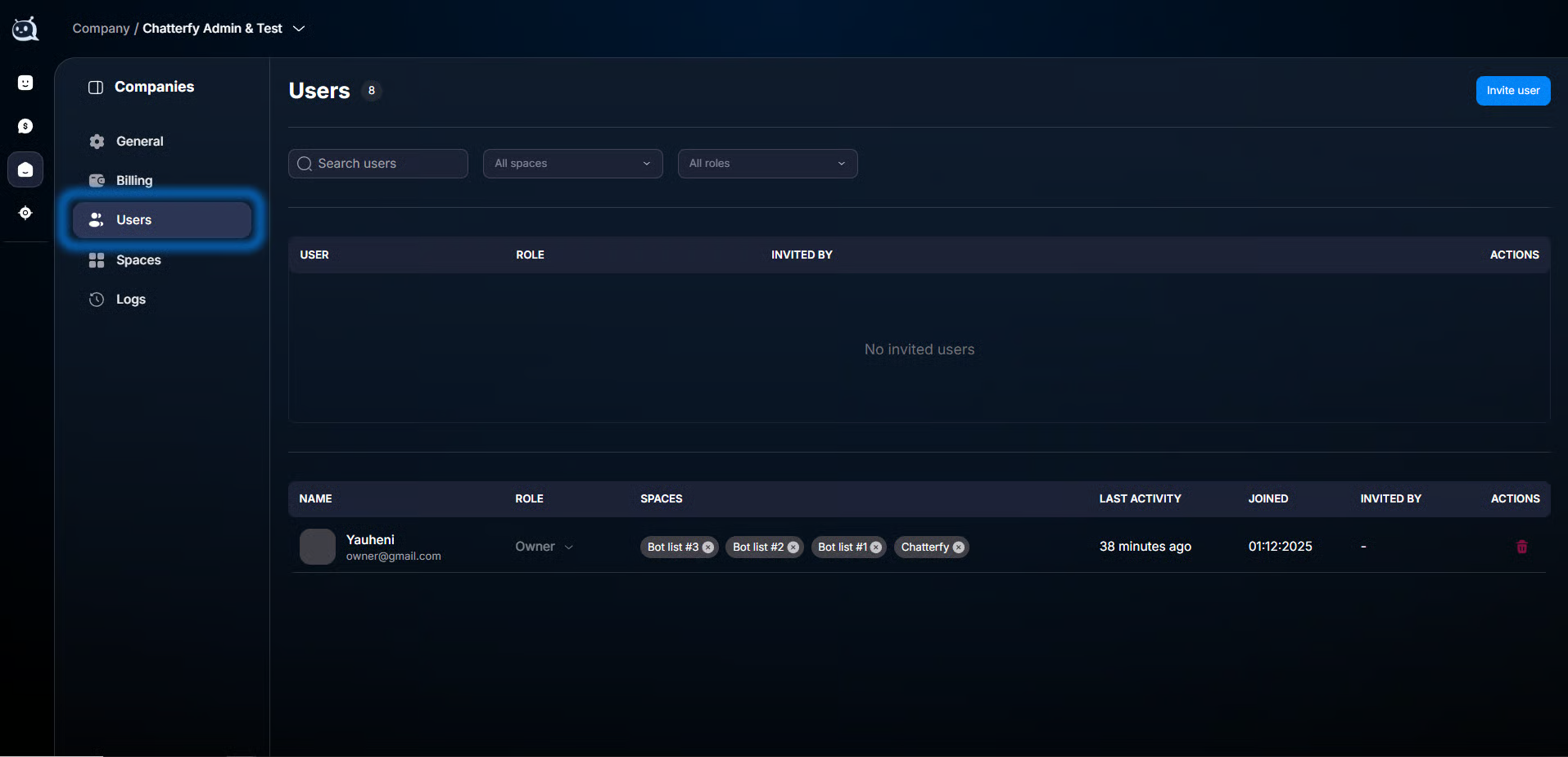
Раздел Users
Раздел Users в Company
Кнопка Send invites
Кнопка Send invites
Окно приглашения
Окно приглашения
Invite by email — поля
Email и роль (Invite by email)
Письмо отправлено
Письмо отправлено сотруднику
Кнопка Invite user
Кнопка Invite user
Invite by link
Invite by link — выбор роли
Скопированная ссылка
Скопированная ссылка для отправки


What’s next

After the employee has accepted the invitation:
If they will work with chats, add them to Spaces — Workspaces with a role within the Space ( Managing Users and Roles within a Space).
If they will work with ads, assign the Buyer or Buyer Team Lead role; see Buyers — Buyers and Team Leads.
Check the log ( Logs — company activity log) — the invitation action should be recorded there.


Related

User Roles
To configure a custom set of permissions, use Company → Roles & permissions. Creating and assigning custom roles for the company and spaces is described in a separate guide: . When to refer to this ar
Users — company users
The Users section is a table of all company employees. Here you can see each person's role, which Spaces they have access to, and when they last signed in. Available only to Owner and Admin. Operator
Managing Users and Roles within a Space
Key Information If a user is not in the company yet, first invite them via . If they are already in the company but do not have access to a Space, add them via the Space section. Only then will they s
Security
Security in Chatterfy means properly assigned access rights plus monitoring actions through the log. The broader an employee’s permissions, the more data and sections they can see. This article is not

Was this article helpful?

BackUser RolesNextCustom roles — company and space permissions

On this page

  • Two ways to invite users
  • How it looks in the interface
  • What’s next
  • Related