

Users — company users
The Users section is a table of all company employees. Here you can see each person's role, which Spaces they have access to, and when they last signed in. Available only to Owner and Admin. Operator
The Users section is a table of all company employees. Here you can see each person's role, which Spaces they have access to, and when they last signed in.
Available only to Owner and Admin. Operator and Buyer do not see the Users section.
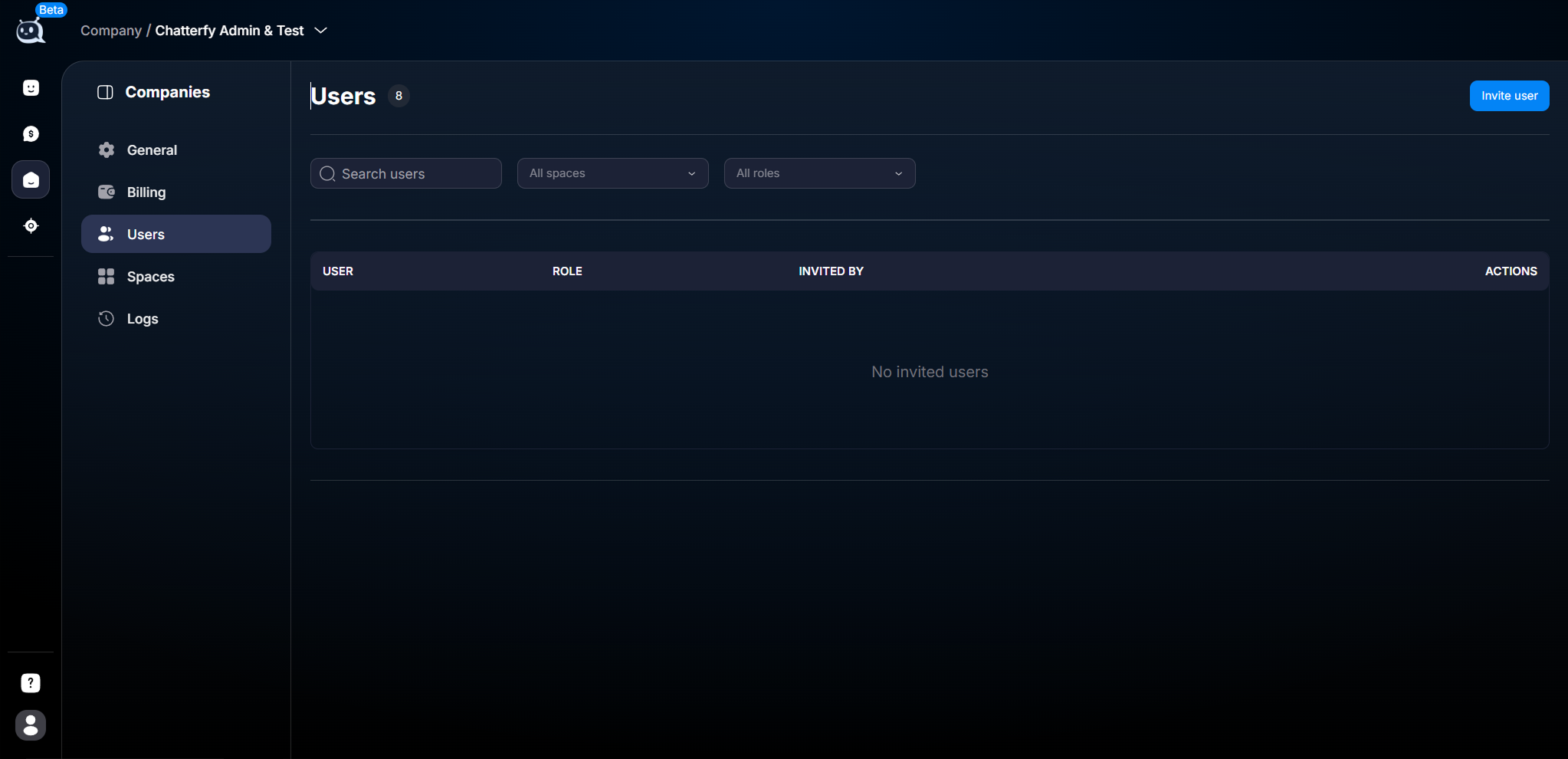
Users — company users
When to use this section
Invite a new employee
Change an existing employee's role when increasing or decreasing their access level
Deactivate an employee when they leave the company
Check which Spaces each person is connected to
Regular audit — once a month, check whether any old accounts with excessive permissions remain

Table fields
Field | What it shows |
Name | User name |
Role | Company-level role |
Spaces | Which Spaces the user has access to |
Last activity | Time of the last activity — useful for audits |
Joined | Date they joined the company |
Invited by | Who sent the invitation |
Actions | Available actions: change role, deactivate. The set depends on your role |
Typical scenarios
Invite a new employee
The Invite user button is in the upper-right corner. Step-by-step instructions are in the article How to Invite Users.
Understand who has access to what
Sort the table by Role or Spaces. This makes it faster to see how permissions are distributed.
Deactivation when an employee leaves
In the employee’s row, select Actions → Deactivate. The employee loses access to all sections — Spaces, Tracker, billing.
When an employee leaves, deactivate the account immediately; do not postpone it. Active access for a former employee is a common cause of data leaks.
Regular audit
Once a month, review the list of roles and whether they match current tasks. Especially after team changes — promotions, transfers between projects, departures.
Related


Was this article helpful?