

Custom roles — company and space permissions
Roles & permissions allows you to create custom sets of permissions at the company and space levels. This article covers how to create and assign roles, as well as details for each permission: what it
Roles & permissions allows you to create custom sets of permissions at the company and space levels. This article covers how to create and assign roles, as well as details for each permission: what it allows, what level it belongs to, and what limitations to consider.
Where to configure roles
Open Company → Roles & permissions. On the Company tab, you can configure company roles, and on the Space tab, you can configure space roles. The level defines the available set of permissions; the scope of the role is chosen when assigning it.
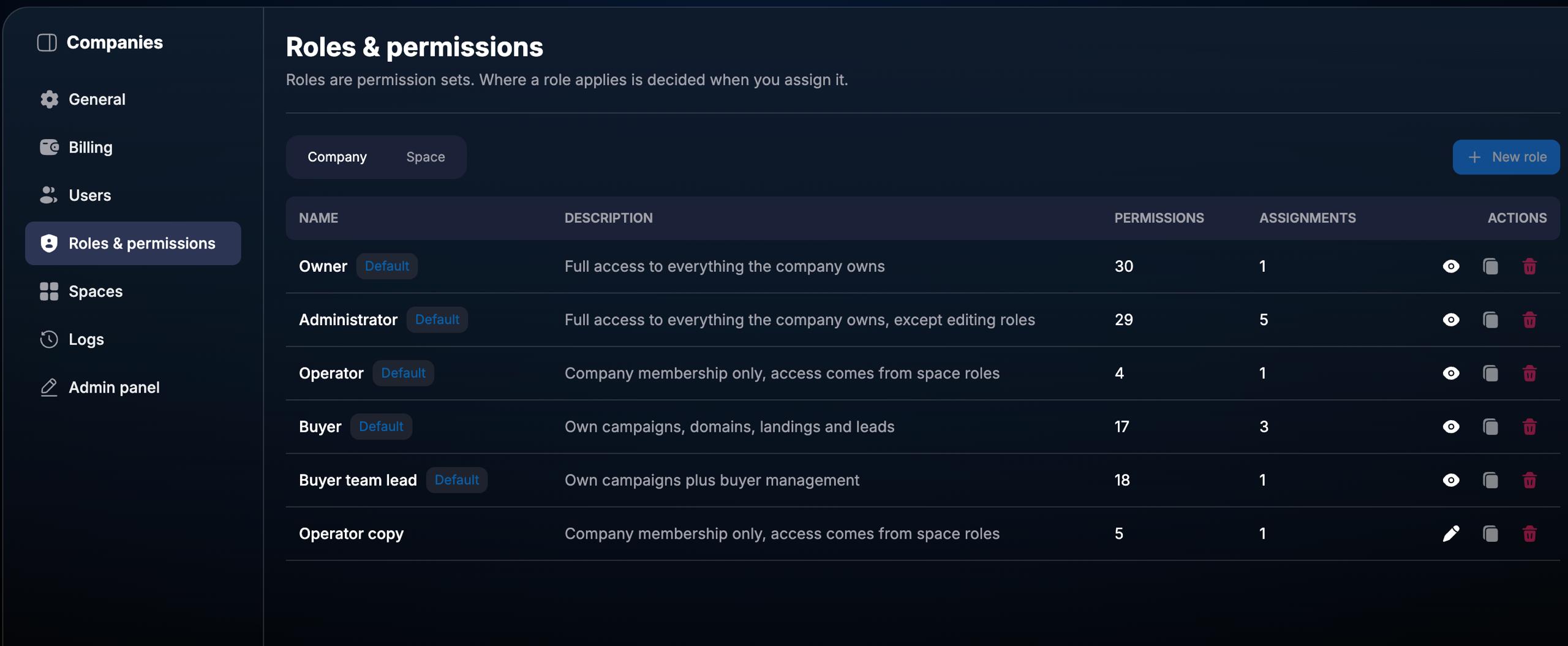
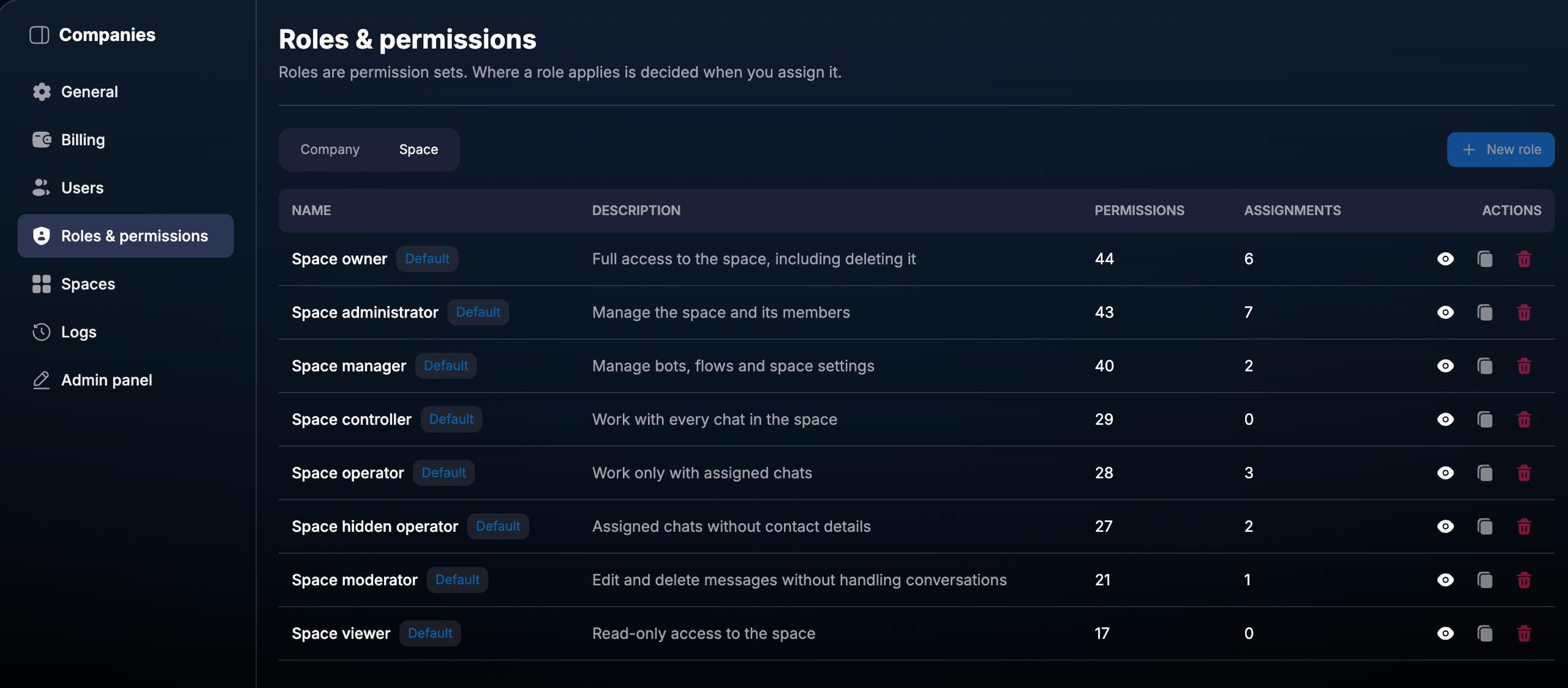
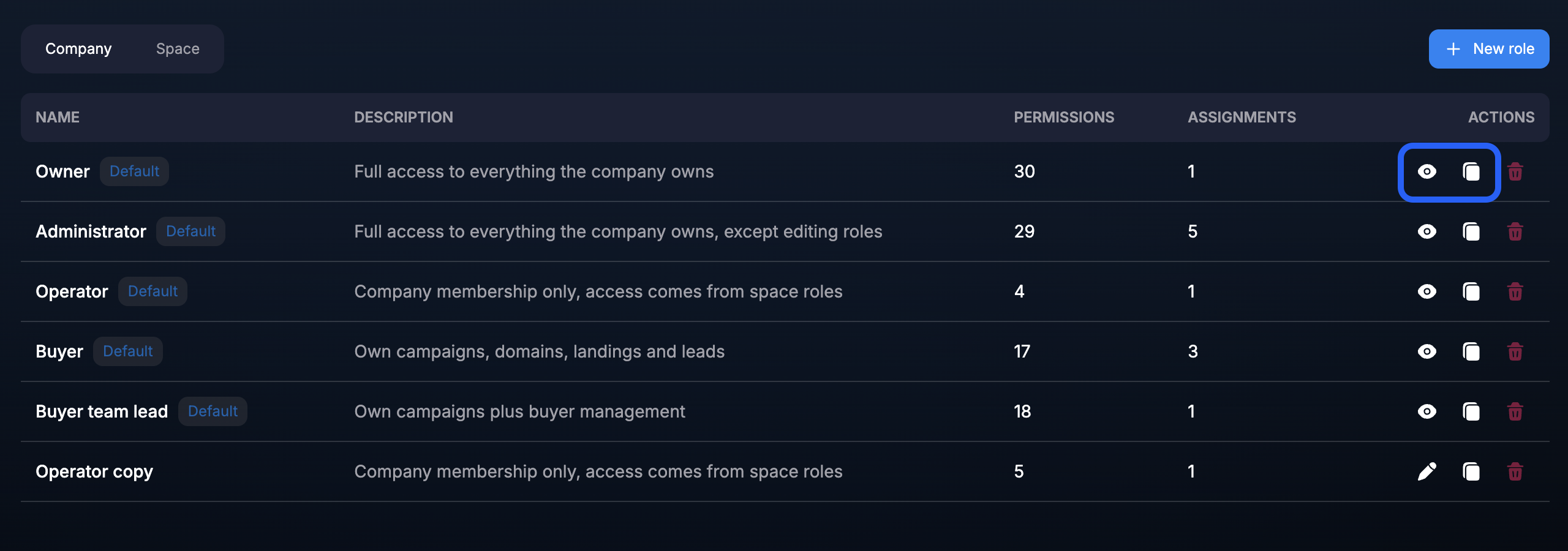
The list displays the role name and description, the number of permissions, and the number of assignments. The Default label indicates a standard platform role.
How to create a custom role
1. Choose the level
In Company → Roles & permissions, open the Company or Space tab depending on your task.
2. Open the form
Click New role.
3. Fill in the role details
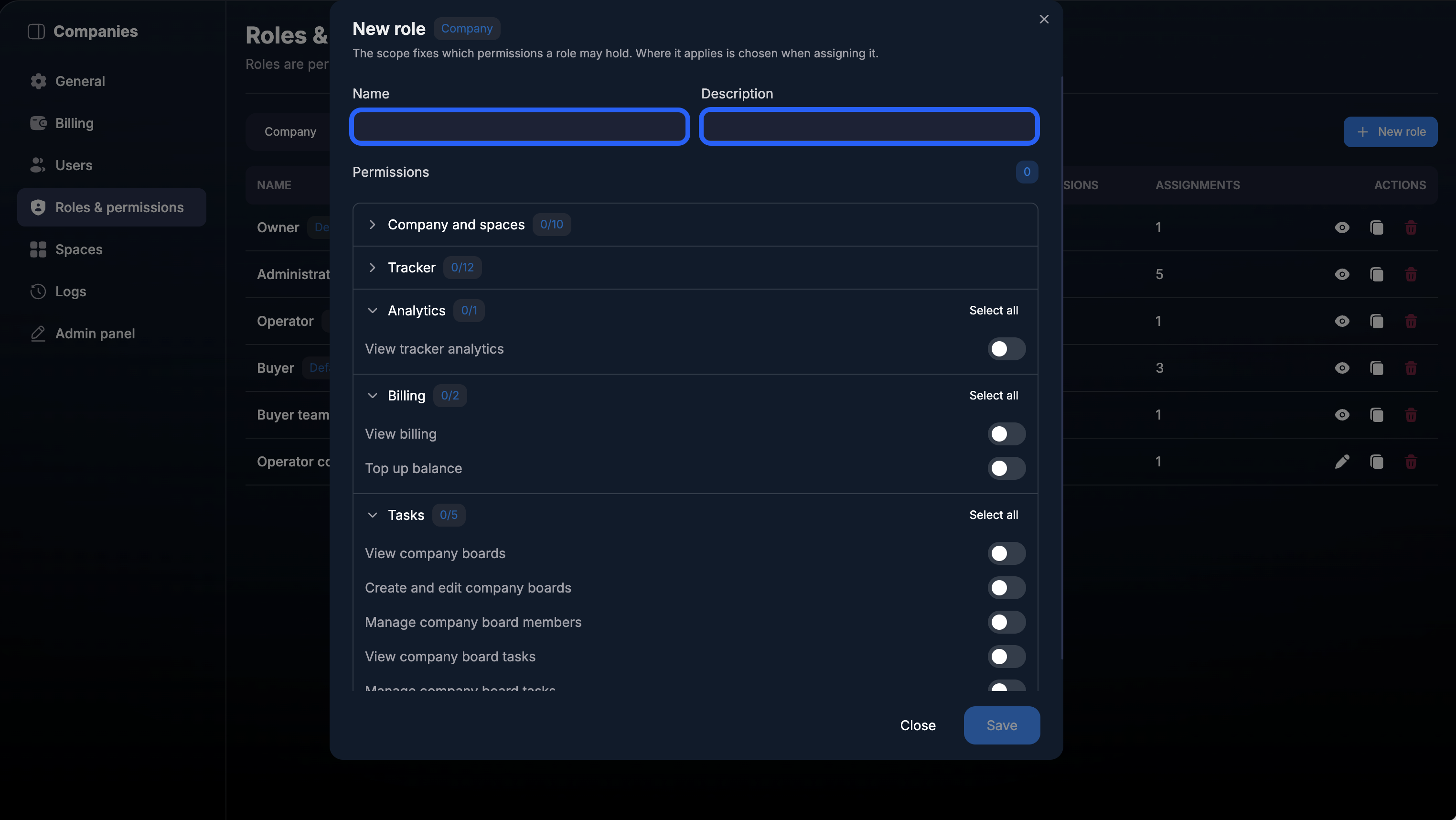
Enter a clear name in the Name field and describe the purpose of the role in the Description field.
4. Select permissions
Expand the required groups in Permissions and enable the necessary permissions. Use Select all to select an entire group.
5. Save
Click Save. The created role will appear in the list for the selected level.
How to select permissions
Permissions are divided by Company and Space levels and grouped by product section. Below is a reference guide for the 32 Company permissions and 44 Space permissions. Permission names are kept in English, just as they appear in the interface.
Viewing and managing are set by separate permissions. For example, View billing controls access to billing information, while Top up balance allows for topping up the balance. Enable the actions that an employee needs to perform their work.
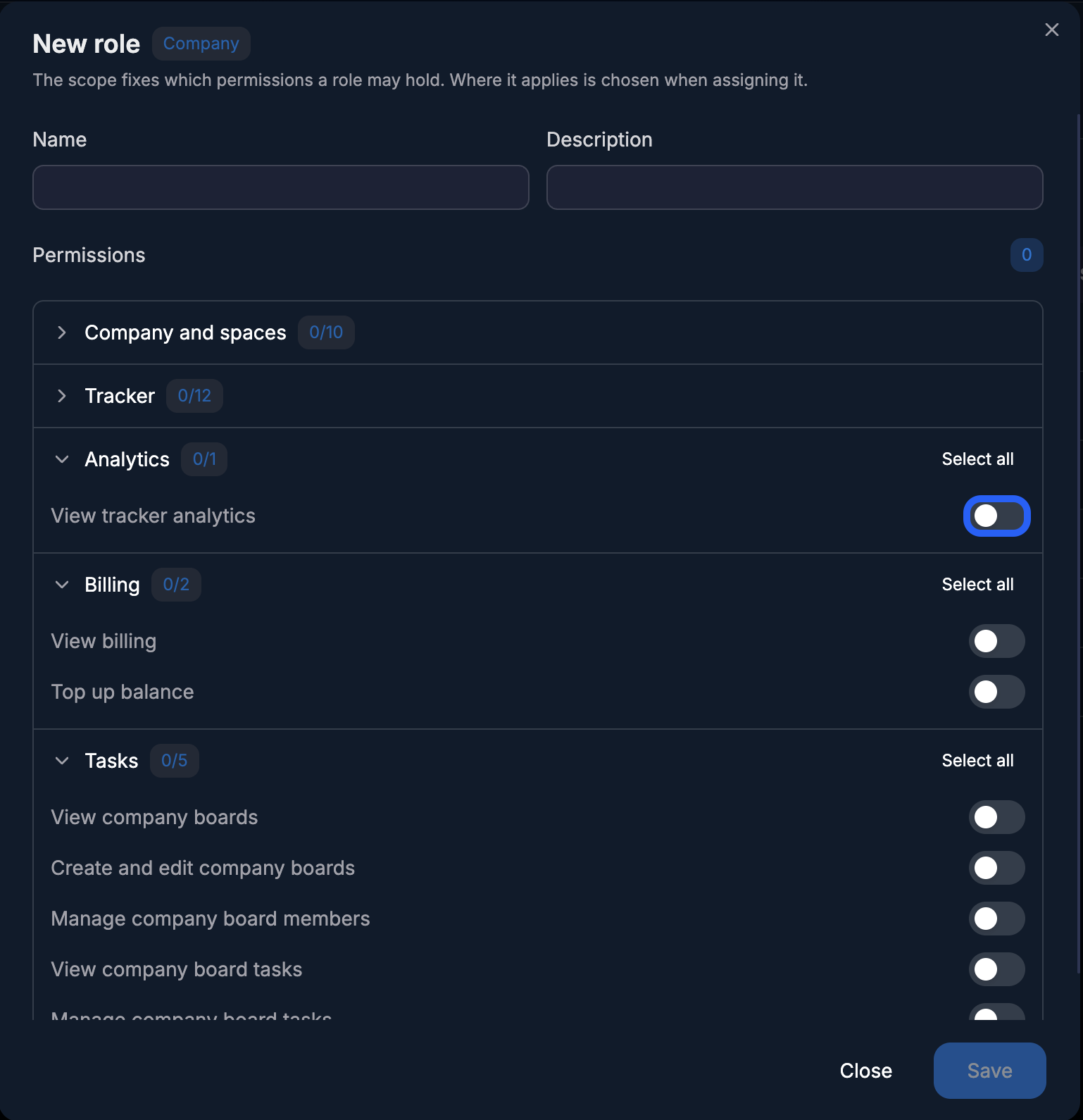
For example, if an employee needs to view Tracker analytics, find View tracker analytics in the Analytics group. The permission to view analytics does not mean that campaign management or billing rights are selected for the role; configure those separately if necessary.
Company-level permissions
These permissions are configured on the Company tab and relate to the company: its employees, roles, Tracker, billing, and company tasks.
Company → Company and spaces
Permission | What it allows | Level |
|---|---|---|
View company | Opens the Company → General tab. | Company |
Manage company | Allows you to see the company name and ID and change its name. | Company |
View company members | Opens the list of employees in Company → Users. | Company |
Manage company members and invites | Allows you to add and remove company employees. | Company |
View roles | Allows you to see roles in Company → Users and Roles & permissions. | Company |
Manage roles and assignments | Allows you to change role permissions, create and delete roles in Roles & permissions. | Company |
View audit log | Opens Company → Logs and allows exporting data from this section. | Company |
View service accounts | Currently not in use. | Company |
Manage service accounts | Currently not in use. | Company |
Create spaces | Allows creating spaces. Only an Owner can grant this permission. | Company |
Company → Tracker
Permission | What it allows | Level |
|---|---|---|
View campaigns | Allows viewing campaigns in Tracker → Campaigns. | Company |
Manage campaigns | Allows editing information within campaigns. | Company |
View domains | Allows viewing domains in Tracker → Domains and in the Tracker Data section of a client card. | Company |
Manage domains | Allows you to create, edit, and delete domains. | Company |
View landings | Allows you to view landings and their information in the customer's Tracker Data card. | Company |
Manage landings | Allows you to create, edit, and delete landings. | Company |
View buyers | Opens information in Tracker → Buyers. | Company |
Manage buyers | | Company |
View proxies | Allows you to view information about proxies in Tracker. | Company |
Manage proxies | Allows you to create, edit, and delete proxies. | Company |
View integrations | Opens information in Tracker → Integrations. | Company |
Manage integrations | Allows you to create and edit integrations. | Company |
View tracker labels | Displays the campaign and source in Tracker Data. | Company |
Is a buyer | Designates an employee as a buyer so they can be assigned to campaigns, domains, and landing pages. It does not provide access by itself. The role determines whether an employee is a buyer or a team lead. | Company |
Company → Analytics
Permission | What it allows | Level |
|---|---|---|
View tracker analytics | Opens information in Tracker → Analytics and Dashboards. | Company |
Company → Billing
Permission | What it allows | Level |
|---|---|---|
View billing | Opens Company → Billing. | Company |
Top up balance | Allows you to create wallets for top-ups via the Top up balance button. | Company |
Company → Tasks
Permission | What it allows | Level |
|---|---|---|
View company boards | Allows viewing information in the Tasks section at the company level. | Company |
Create and edit company boards | Allows creating company boards and editing their names and columns. | Company |
Manage company board members | Allows adding and removing employees from company boards. | Company |
View company board tasks | Allows viewing comments and updates on company board tasks. | Company |
Manage company board tasks | Allows modifying company board tasks: assignee, deadline, title, and position in columns. | Company |
Space level permissions
These permissions are configured on the Space tab and apply to the space, its bots, chats, scenarios, analytics, and bot tasks.
Space → Company and space
Permission | What it allows | Level |
|---|---|---|
View space | Allows you to view a space and the bots located within it. | Space |
Edit space | Allows you to modify the name and description of a space. | Space |
Delete space | Allows you to delete a space. | Space |
View space members | Displays the list of space members in Company → Spaces. | Space |
Manage space members | Allows you to add and remove space members and change their roles in Company → Spaces. | Space |
Space → Bots and chats
Permission | What it allows | Level |
|---|---|---|
View bot | Allows you to open a bot. | Space |
Create and edit bots | Allows you to create bots, edit the General section of a bot, and transfer bots between spaces. | Space |
View bot settings | Allows you to view bot settings. | Space |
Manage bot settings | Allows you to change settings in Bot Settings, except for the General section. | Space |
View bot logs | Opens the bot Logs and allows you to export data from this section. | Space |
View chats | Allows you to view chats within the bot. | Space |
Manage chats | Allows you to manage chats. | Space |
Delete chats | Allows you to delete chats. | Space |
Export chats | Allows you to export chats. | Space |
View chat contact details | Displays the user's name and username in the chat. | Space |
View messages | Allows viewing messages in chats. | Space |
Send messages | Allows sending messages in chats. | Space |
Edit and pin messages | Allows editing and pinning messages in a chat. | Space |
Delete messages | | Space |
View message templates | Allows viewing and using quick replies — Templates. | Space |
Manage message templates | Allows creating and editing quick replies — Templates. | Space |
View mailings | Allows viewing the contents of the Mailings tab. | Space |
Manage mailings | Allows sending messages via Mailings. | Space |
View bulk chat actions | Shows bulk chat changes performed via Edit Chats in the logs. | Space |
Manage bulk chat actions | Allows for bulk chat editing via Users → Edit Chats. | Space |
View telegram channels | Allows viewing of Telegram channels linked to the bot for campaign creation. | Space |
Manage telegram channels | Allows selecting Telegram channels linked to the bot for campaign creation. | Space |
View telegram groups | Shows groups and settings in Bot Settings → Notifications. | Space |
Manage telegram groups | Allows creating and editing notifications in Bot Settings → Notifications. | Space |
View lead details in a chat | Opens the Events tab in the lead card. | Space |
Record lead conversions from a chat | Allows sending events via Send Event in the client card. | Space |
View bot spend | Opens Analytics → Billing for the bot. Also requires View bot analytics. | Space |
Space → Flows
Permission | What it allows | Level |
|---|---|---|
View flow | Allows viewing steps and flows in Flow Settings. To see the Flow Settings tab itself, Manage flow is required. View flow is also needed for a regular agent to select steps via the client card. | Space |
Manage flow | | Space |
View global pushes | Allows viewing global pushes. | Space |
Manage global pushes | Allows creating, editing, and deleting global pushes. | Space |
Space → Analytics
Permission | What it allows | Level |
|---|---|---|
View bot analytics | Opens the Analytics section within the bot. | Space |
Space → AI
Permission | What it allows | Level |
|---|---|---|
Run AI requests | Allows generating conditions using AI Helper, for example, for routings and broadcasts. | Space |
View AI requests | | Space |
Space → Tasks
Permission | What it allows | Level |
|---|---|---|
View bot boards | Allows viewing boards with tasks, including those for Create Task steps within Flow. | Space |
Create and edit bot boards | Allows creating and editing boards within a bot. | Space |
Manage bot board members | Allows adding and removing employees from bot boards. | Space |
View bot board tasks | Opens Tasks within the bot and in client cards. | Space |
Manage bot board tasks | Allows creating tasks and editing their content. | Space |
How to create a role based on a standard one
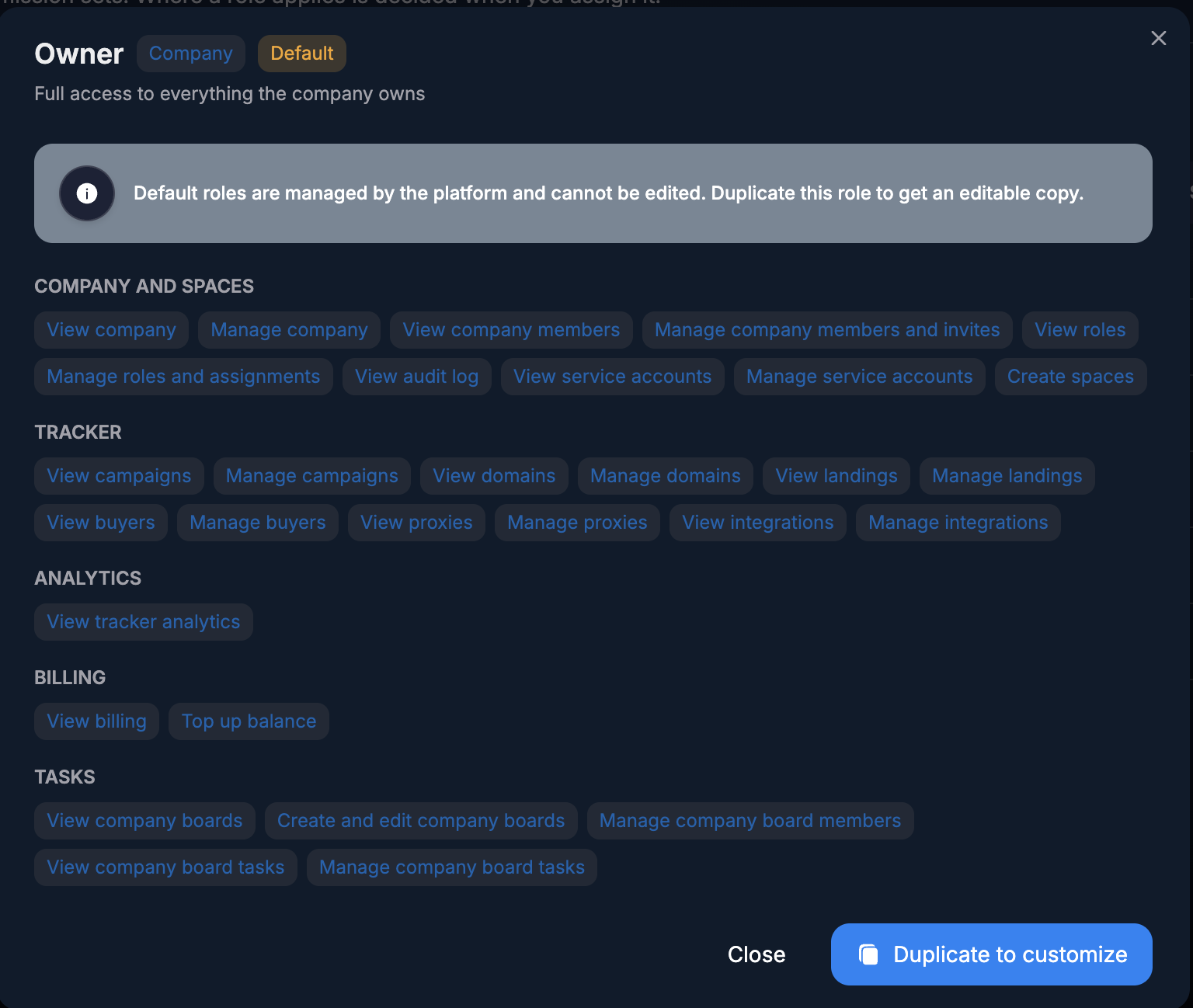
If a ready-made role is close to the required set of permissions, use it as a base. Click the copy icon next to the role in the list. Another way is to open it for viewing and select Duplicate to customize.
Default cannot be edited
Standard roles are managed by the platform. To configure your own set of permissions, create a copy and modify it.
Assign a name, description, and the necessary permissions to the copy, then save. In the custom roles list, the pencil icon allows you to open a role for editing.
How to assign a role to an employee
Company role — go to Company → Users and assign the created company-level role to the employee.
Space role — open Company → Spaces, select the required space, and assign the created Space-level role to the employee.
Creating a role and assigning it are separate actions. After saving the set of permissions, go to the employee or space members and select this role.
FAQ
Why won't Analytics → Billing open for a bot?
To view bot expenses, enable View bot spend and View bot analytics at the Space level.
Does Is a buyer grant access to Tracker?
No. Is a buyer designates an employee as a buyer for assignment to campaigns, domains, and landing pages. Configure the necessary Tracker viewing and management permissions separately.
Who can grant the Create spaces permission?
Only the Owner can grant the Create spaces permission at the Company level.
What is the difference between Company and Space levels?
The level determines which permissions can be included in a role. Company is used for company roles, Space for space roles. When assigning, you choose where the role is applied.
Can I modify a default role?
No. Create an editable copy using Duplicate to customize or the copy icon. After configuring it, assign that specific copy to the employee.
The role is created, but the employee hasn't received access yet. What should I check?
Check that the role is assigned to the employee in Users or in the required Space, and that its permissions include the necessary action. Simply having a role in Roles & permissions does not assign it to a user.
Was this article helpful?