Creating a Space takes 30 seconds. Users are not added automatically to the new Space. What you’ll have at the end A new isolated Space with an empty set of bots and an empty team. Next, add participa
Updated September 11, 20261 min
Creating a Space takes 30 seconds. Users are not added automatically to the new Space.
What you’ll have at the end
A new isolated Space with an empty set of bots and an empty team. Next, add participants ( Managing Users and Roles within a Space) and connect the required bots to the Space.
4 key steps
1
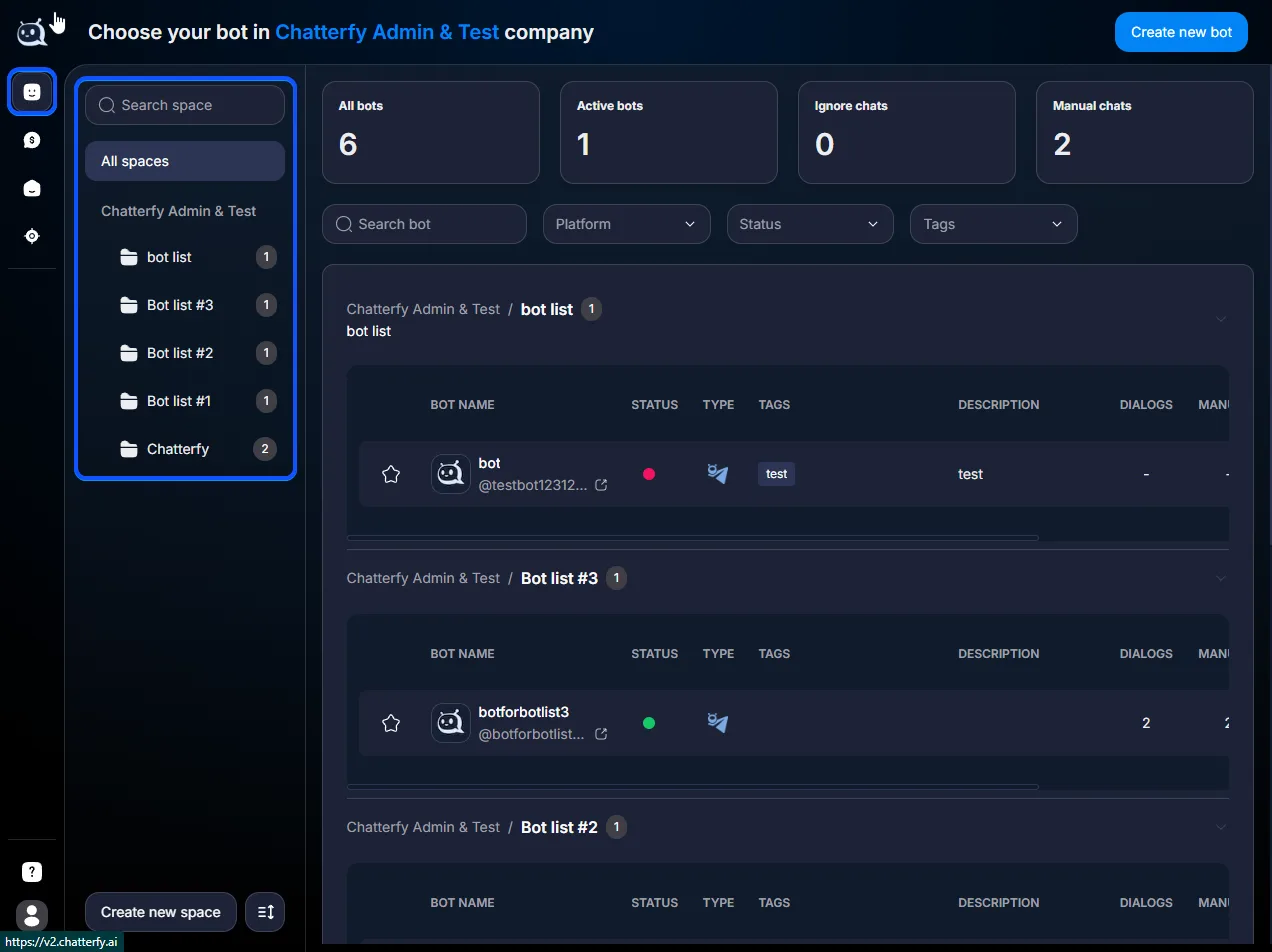
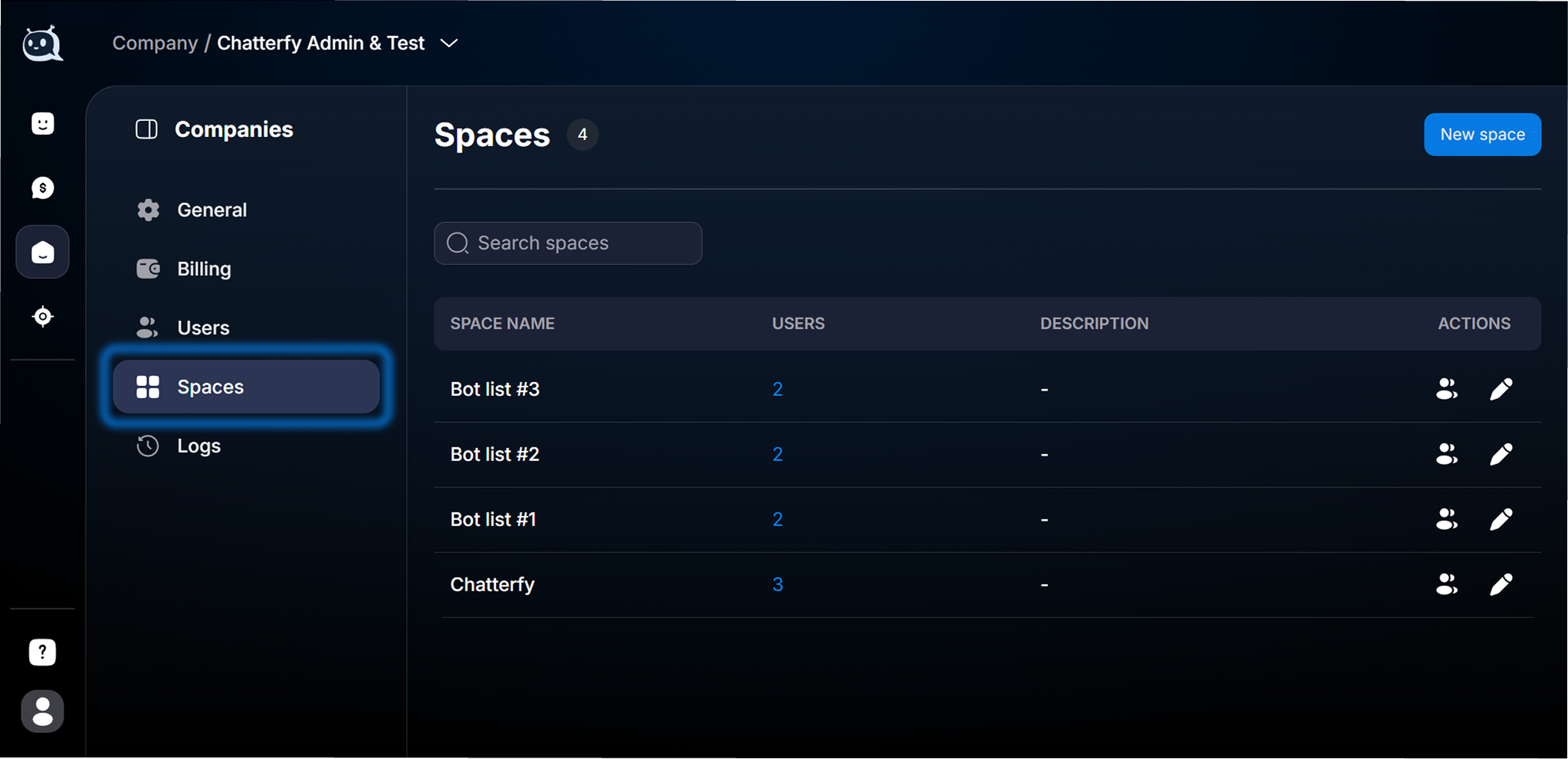
Open Company → Spaces
This section is in the left Company menu.
List of existing Spaces
2
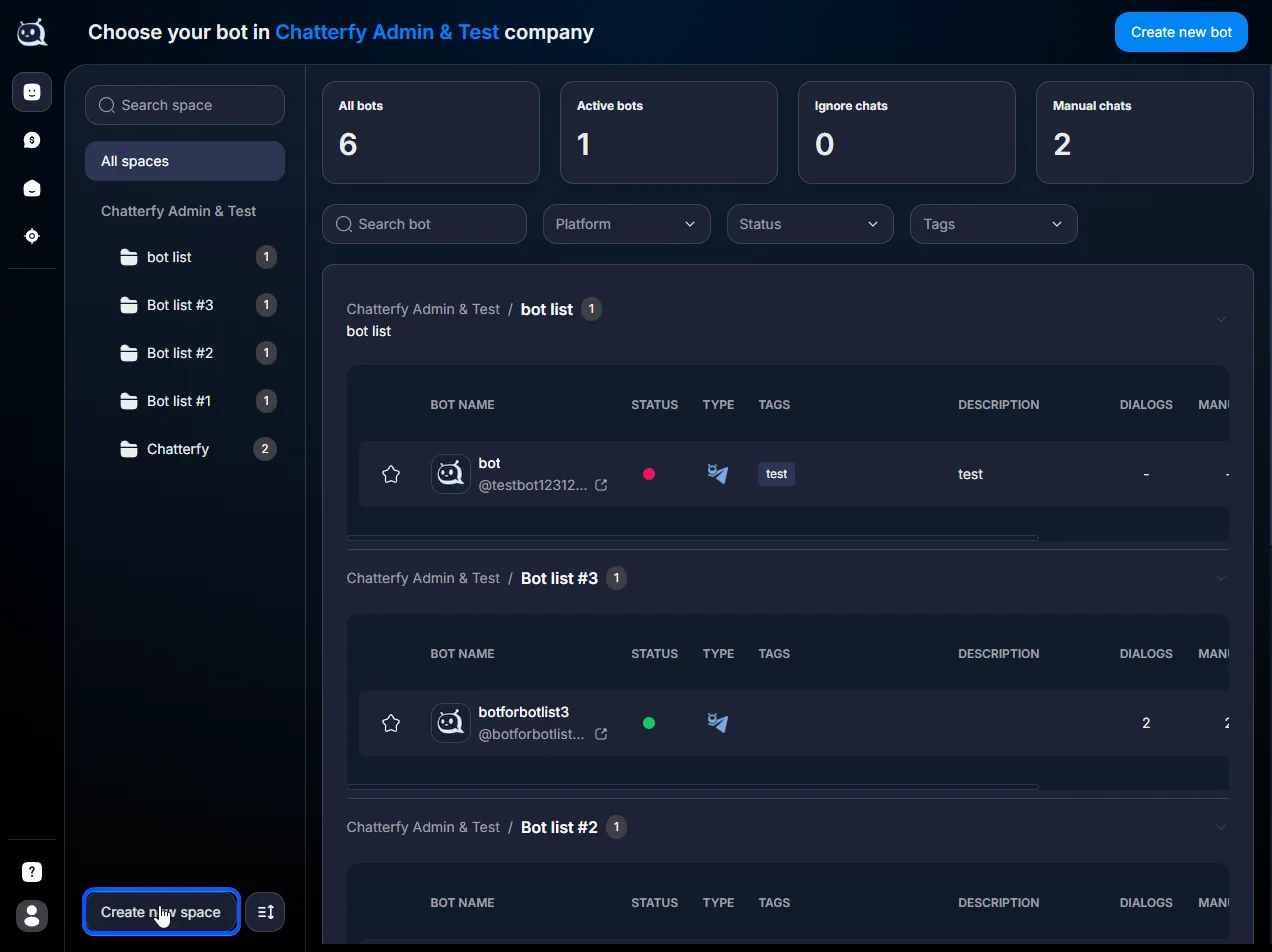
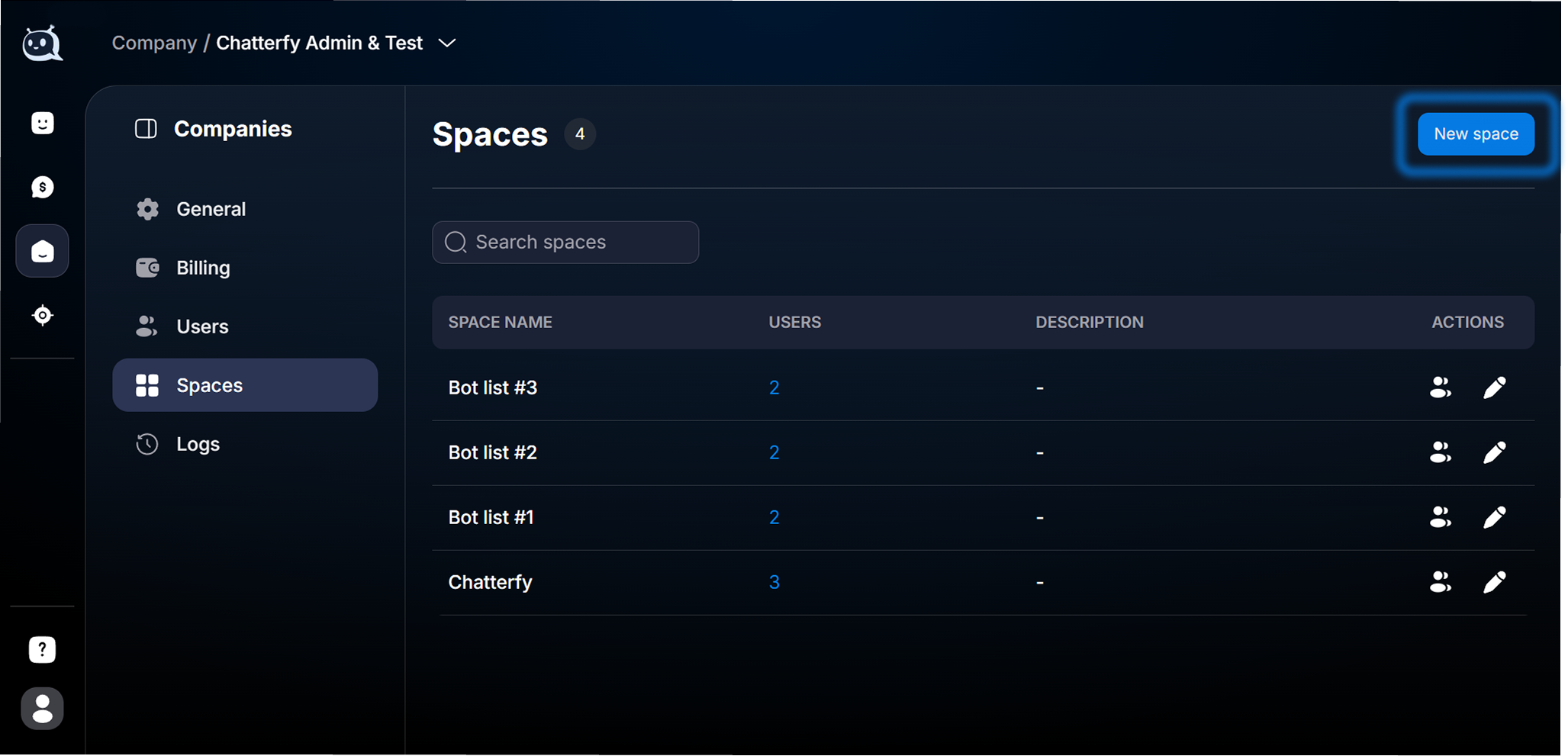
Click New space
The button in the upper-right corner.
New space button
3
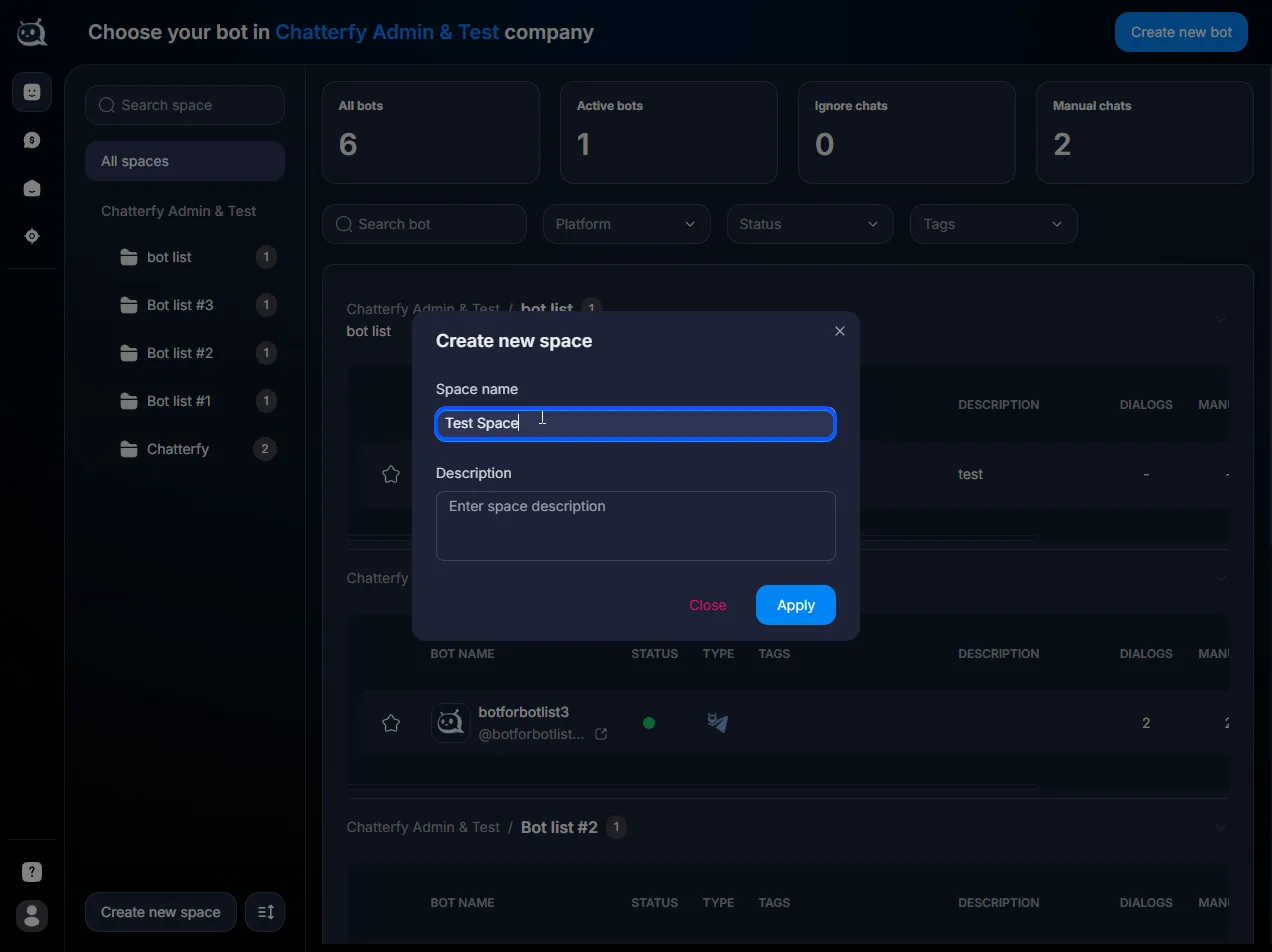
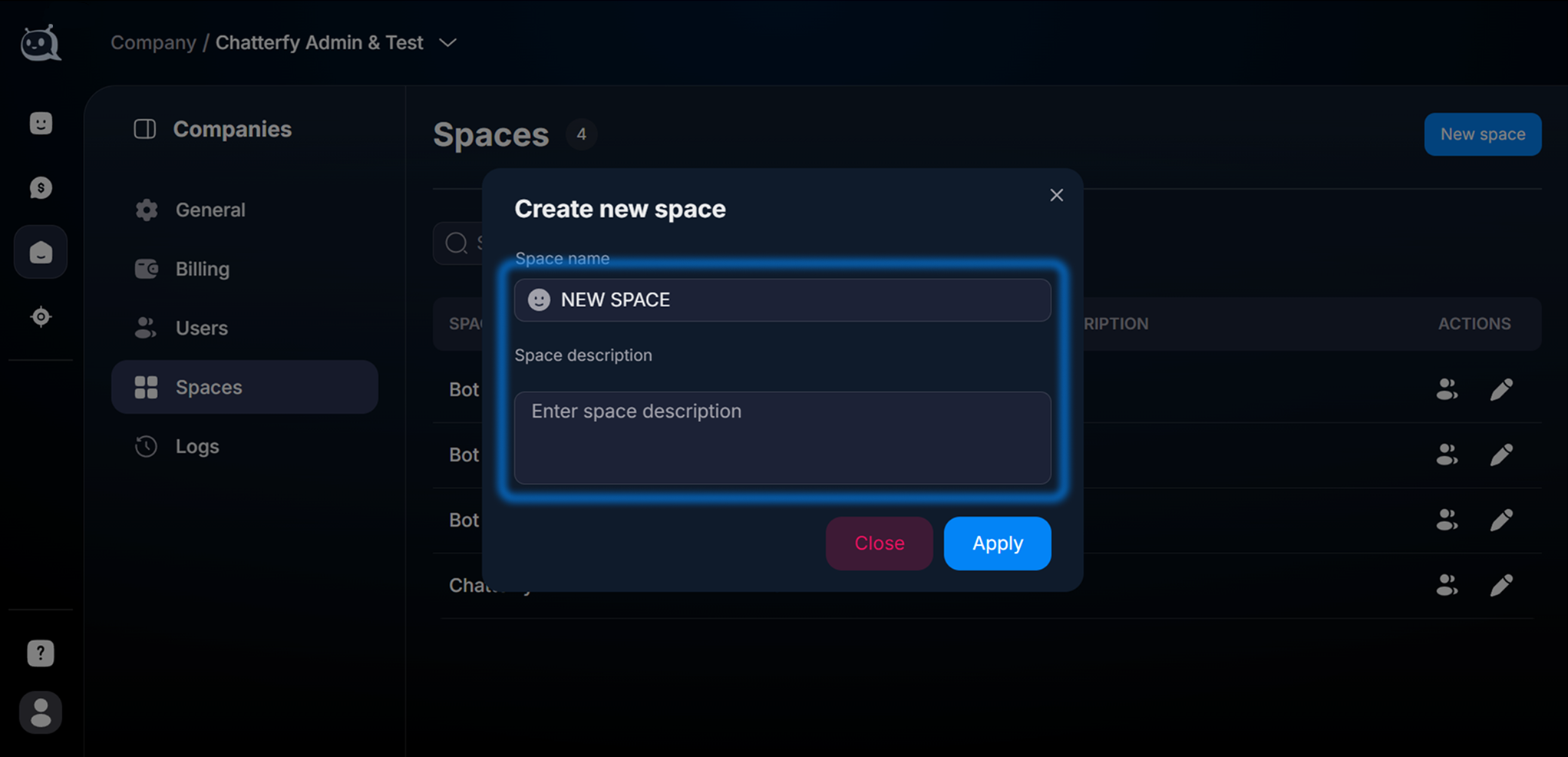
Enter a name and description
The name is shown in the list of all Spaces. The description is for the team (why it’s needed and what’s inside).
Name and description
4
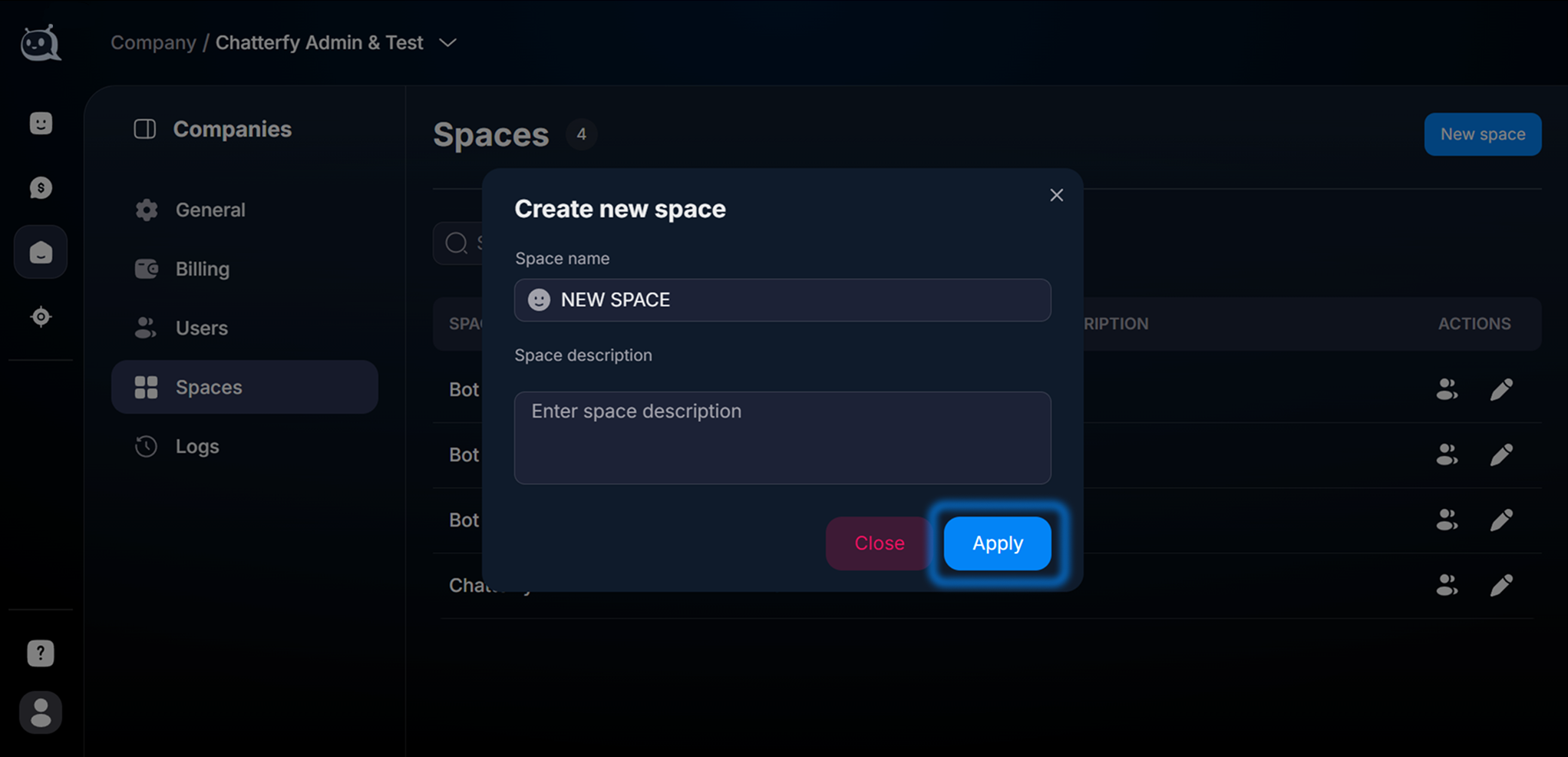
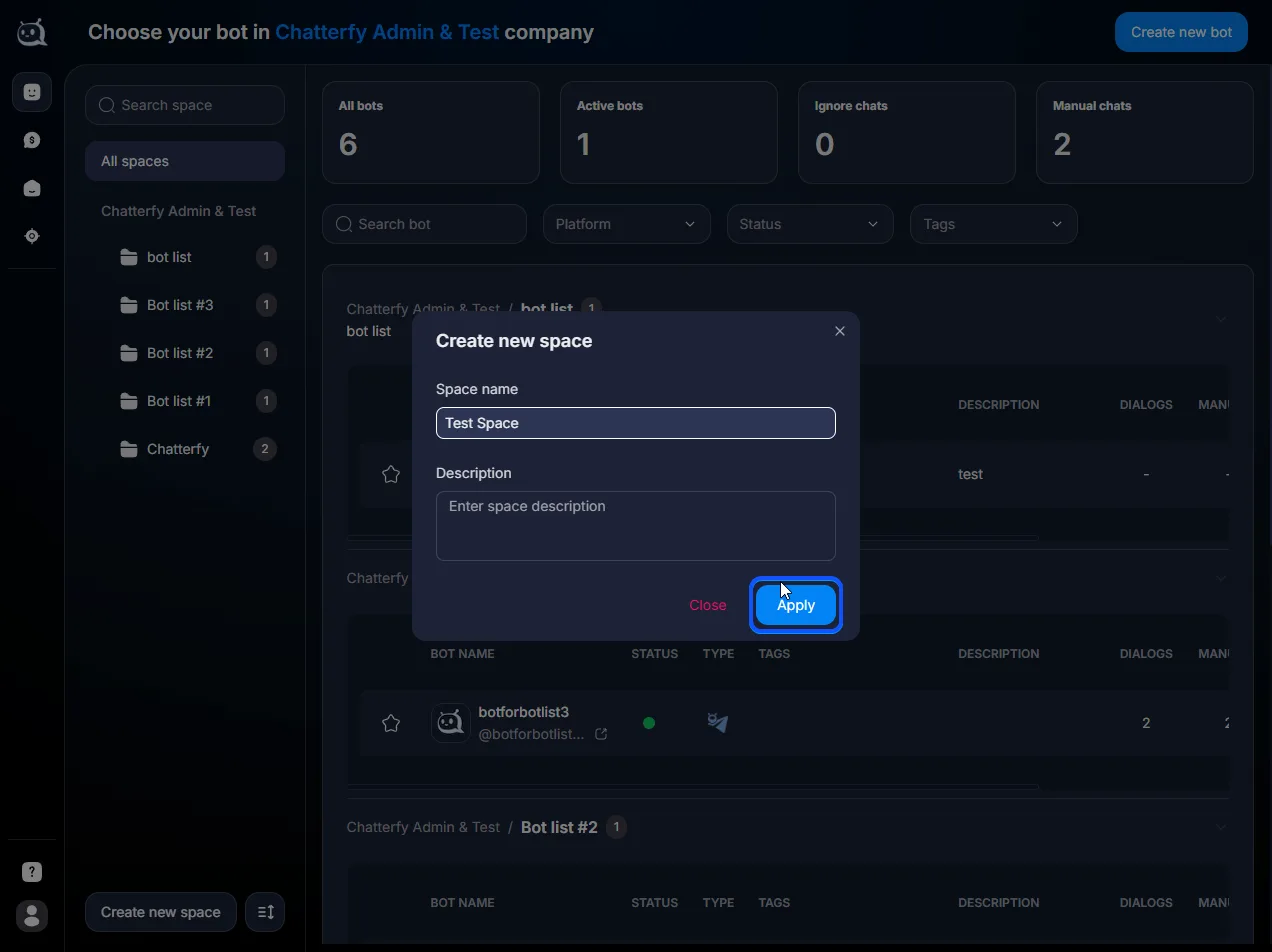
Click Apply
The Space will appear in the list. You can open it and work with it.
Space created and shown in the list
What’s important to know
Access to a Space is granted separately
Creating a Space does not grant access automatically. To work in a Space, you need to explicitly add participants via Managing Users and Roles within a Space.
Additionally:
If the user is not added to any Space, they do not have access to chats or the bot.
The same user can be in multiple Spaces with different roles.
Bots are linked to a single Space and are visible only to members of that Space.