

Top-up history
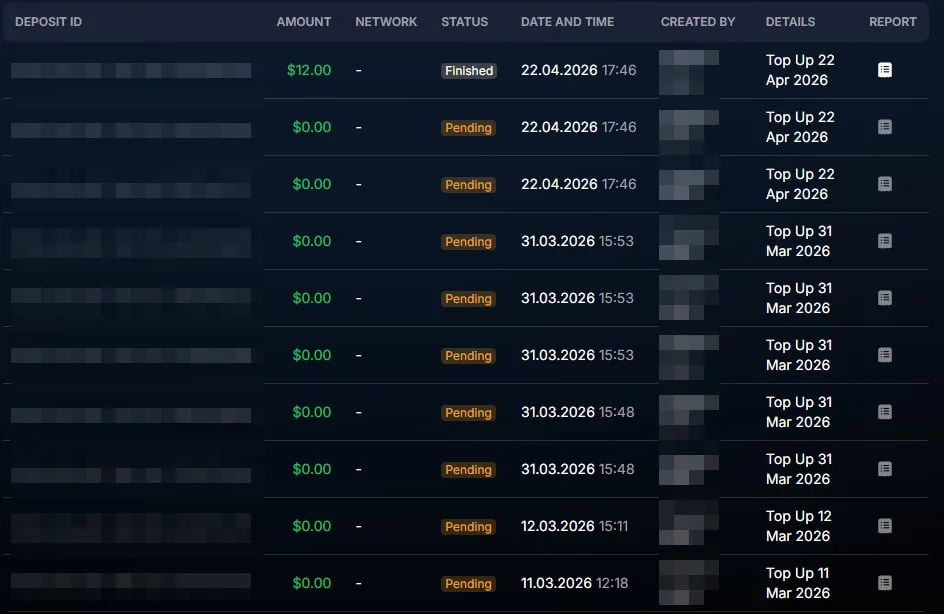
The Deposits history block in the Billing section shows all your top-ups since the company was created. It is a financial ledger: records are never deleted or edited. It is used for three tasks: recon
The Deposits history block in the Billing section shows all your top-ups since the company was created. It is a financial ledger: records are never deleted or edited.
It is used for three tasks: reconciling after a top-up, finding the Deposit ID for support (if something went wrong), and reporting for a period (accounting, taxes).
When to open this section
After a top-up, make sure the company balance has increased. Reconcile the amount sent with the amount credited (the network fee may have affected it). Find the Deposit ID for a support request if the deposit is not displayed. Before reporting, collect all top-ups for the quarter. Check who on the team initiated the top-up if you are the Owner and want to monitor the team.
How it works
—
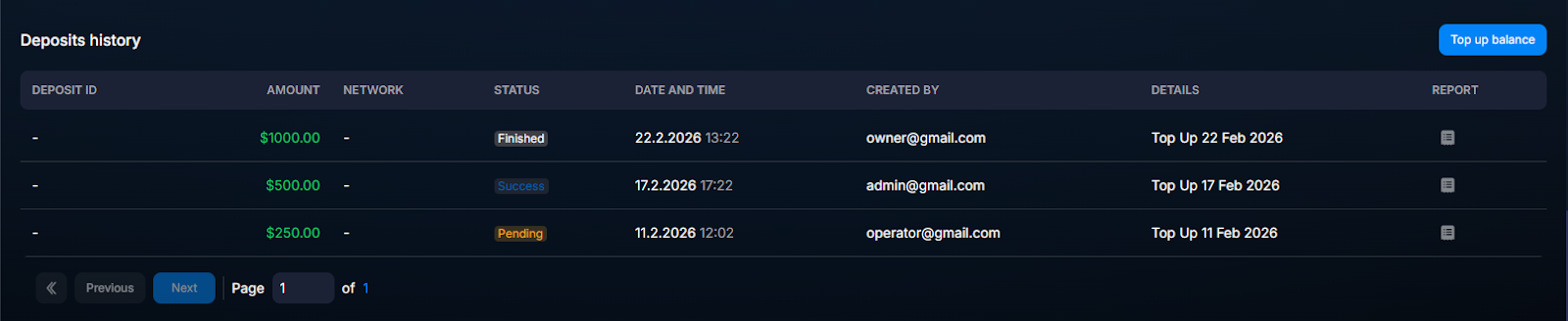
pending — the transaction has been detected on the network and is waiting for confirmations.—
confirmed — the network has confirmed the required number of blocks, and the company balance has increased automatically.—
failed — the transaction failed validation (rare case — for example, it was sent on the wrong network).Records are stored indefinitely — this is a financial ledger. You cannot edit or delete a record. The history remains available even if the bot, project, or Space that was topped up has already been deleted.
Table fields
Field | What it shows | When to check |
|---|---|---|
Deposit ID | The unique deposit identifier inside Chatterfy. | When contacting support if the deposit was not credited. |
Amount | The amount in USDT credited to the company balance. | Reconcile it with what you sent. |
Network | The transaction network — TRC20 or ERC20. | If you sent it on one network, but it arrived on another. |
Status | pending / confirmed / failed. | To understand whether the deposit has arrived. |
Date and time | When the transaction entered the system. | For reports covering a period. |
Created by | Which company user initiated the top-up. | Team control (Owner / Admin). |
Details | Additional information, a link to the blockchain transaction. | For independent verification in the network explorer. |
Usage examples
Reconciliation after a top-up
Sent $200 via TRC20 → wait 5–15 minutes → open Deposits history → see an entry for $200, status
confirmed, and the company balance has increased. If the status remains pending for more than an hour, contact support.Support request
The deposit is not displayed, although it is visible on the blockchain. Open the network explorer (for example, tronscan.org for TRC20), copy the TX hash. Open Deposits history — there is no entry. Write to support: “Deposit was not credited, TX hash: <…>, time: <…>, network: TRC20”. Support finds the transaction manually and credits it (if it really arrived at the Chatterfy address).
Quarterly reporting
The accountant collects data for the quarter. Opens the section, filters by dates, and sees the entire inflow of funds. Reconciles it with the bank statement of the company transferring USDT (if an intermediary exchange service is used).
Team audit
Owner checks which admins topped up and when. Opens
Created by — sees the full list of initiators with amounts.The address is one-time use and network-specific
Each address is issued for one transaction. Do not send to an old address again — funds may be lost. Do not send on another network (USDT BEP20 to a TRC20 address) — funds will be lost. Check the network before sending.
Frequently asked questions
Connection with other sections
Deposits history is directly linked to the company balance:
Balance at the top of Billing = the sum of all confirmed deposits minus all debits. See debits in Charge History. Expense analysis by bots and Spaces — Resource Usage.Related


Was this article helpful?