The Delay step transitions to the next step at a specific time according to the bot's time zone. Unlike the Delay parameter inside other steps (relative delay), here you specify an absolute time of da
Updated June 21, 20263 min
The Delay step transitions to the next step at a specific time according to the bot's time zone. Unlike the Delay parameter inside other steps (relative delay), here you specify an absolute time of day.
Used for schedules — “send a reminder at 10:00”, “continue the flow at 18:30 local time”. Essential for building scenarios tied to the time of day.
When to use
You want to send a reminder at 10 AM in the bot's time zone. You start a broadcast at a specific time. The sales dialog should continue during business hours. The funnel has an “evening offer” at 19:00. Leads need to be “parked” until tomorrow morning.
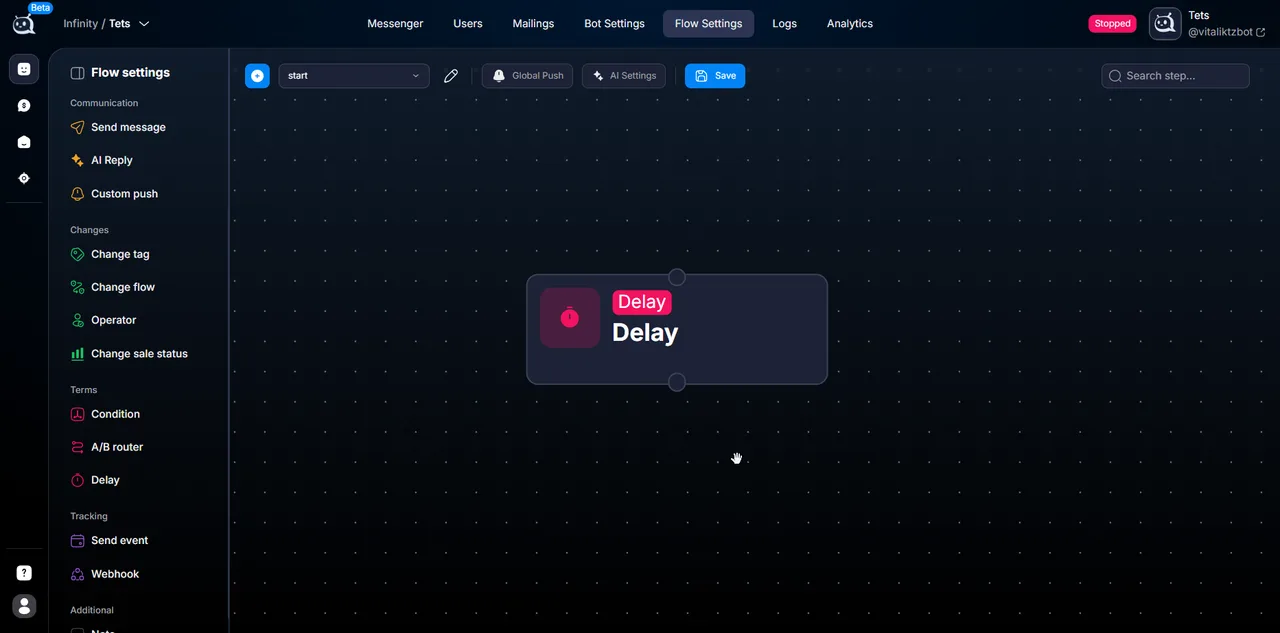
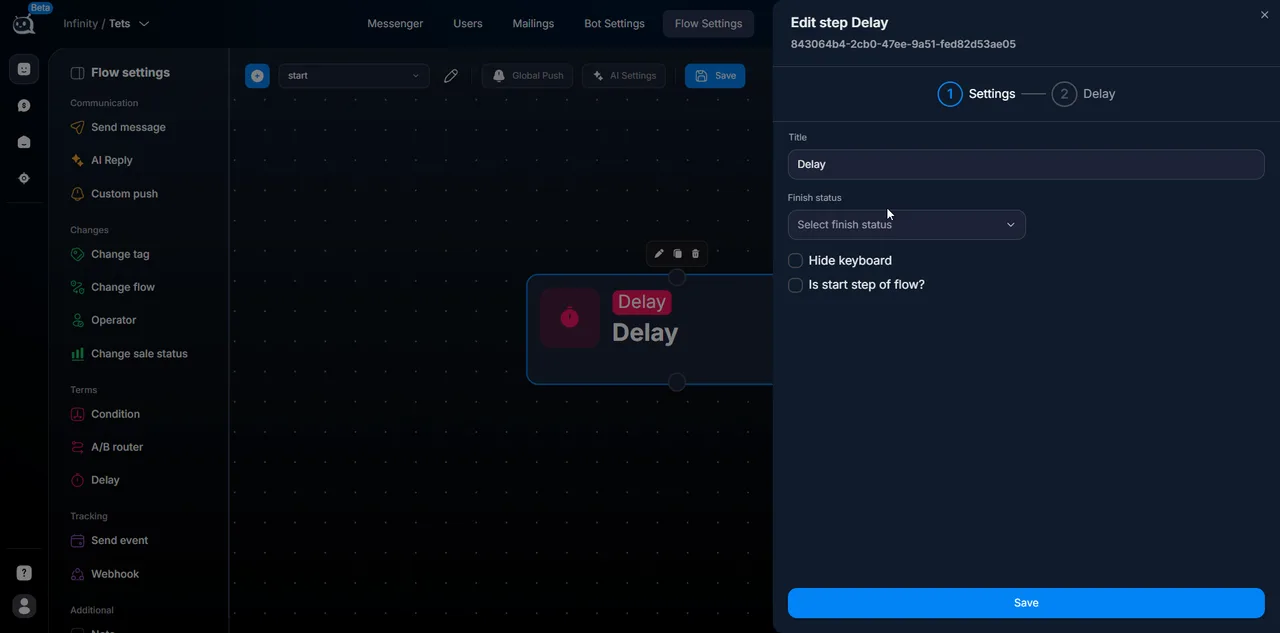
Delay step in the tree
How it works
The lead reaches the Delay step.
The scenario is paused until the specified time.
When the specified time arrives — transition to the next step.
If the specified time has already passed today, the step will run tomorrow at the same time.
Configuration steps
1
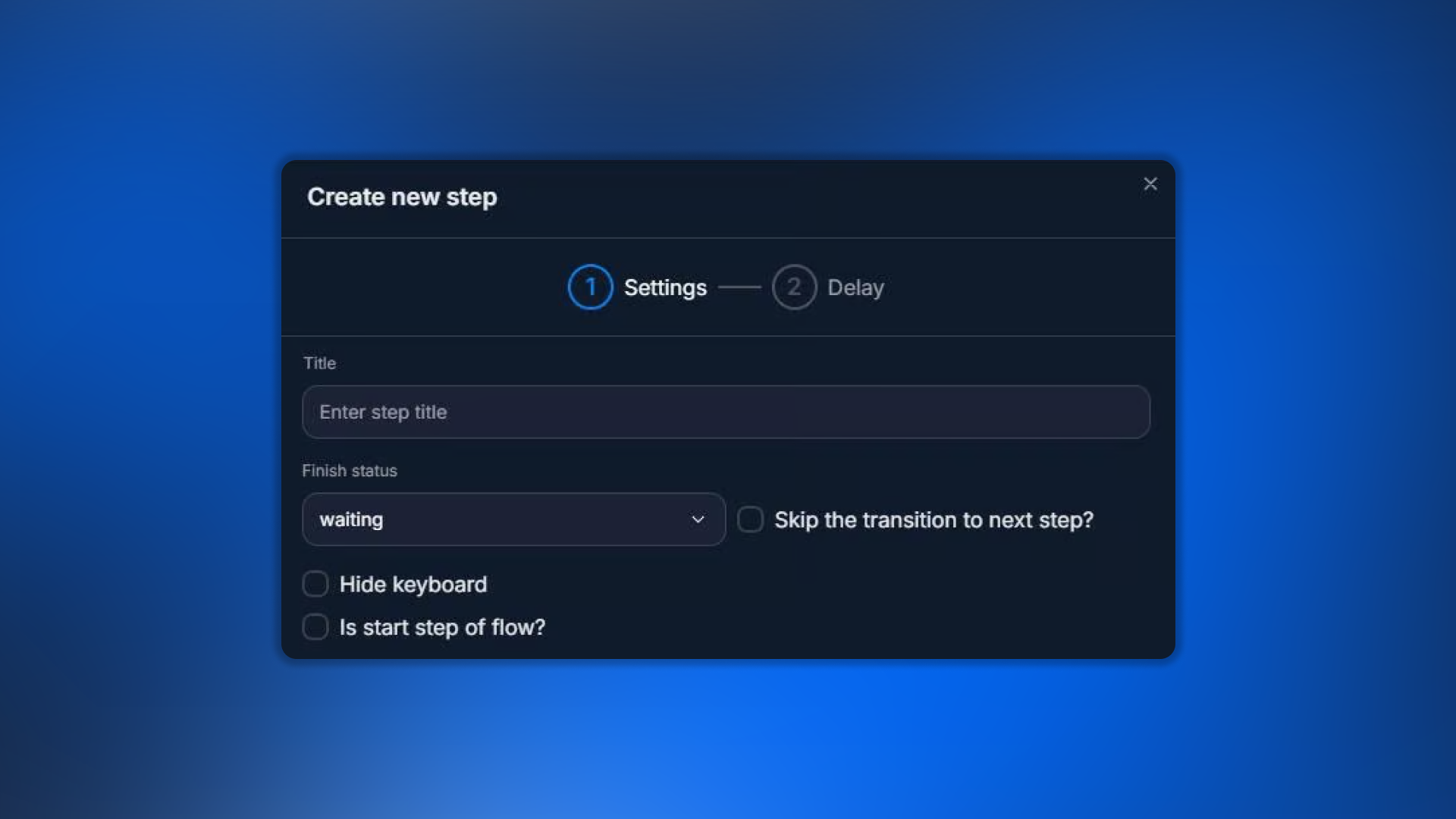
Add a Delay step to the flow
2
Open the Delay block
3
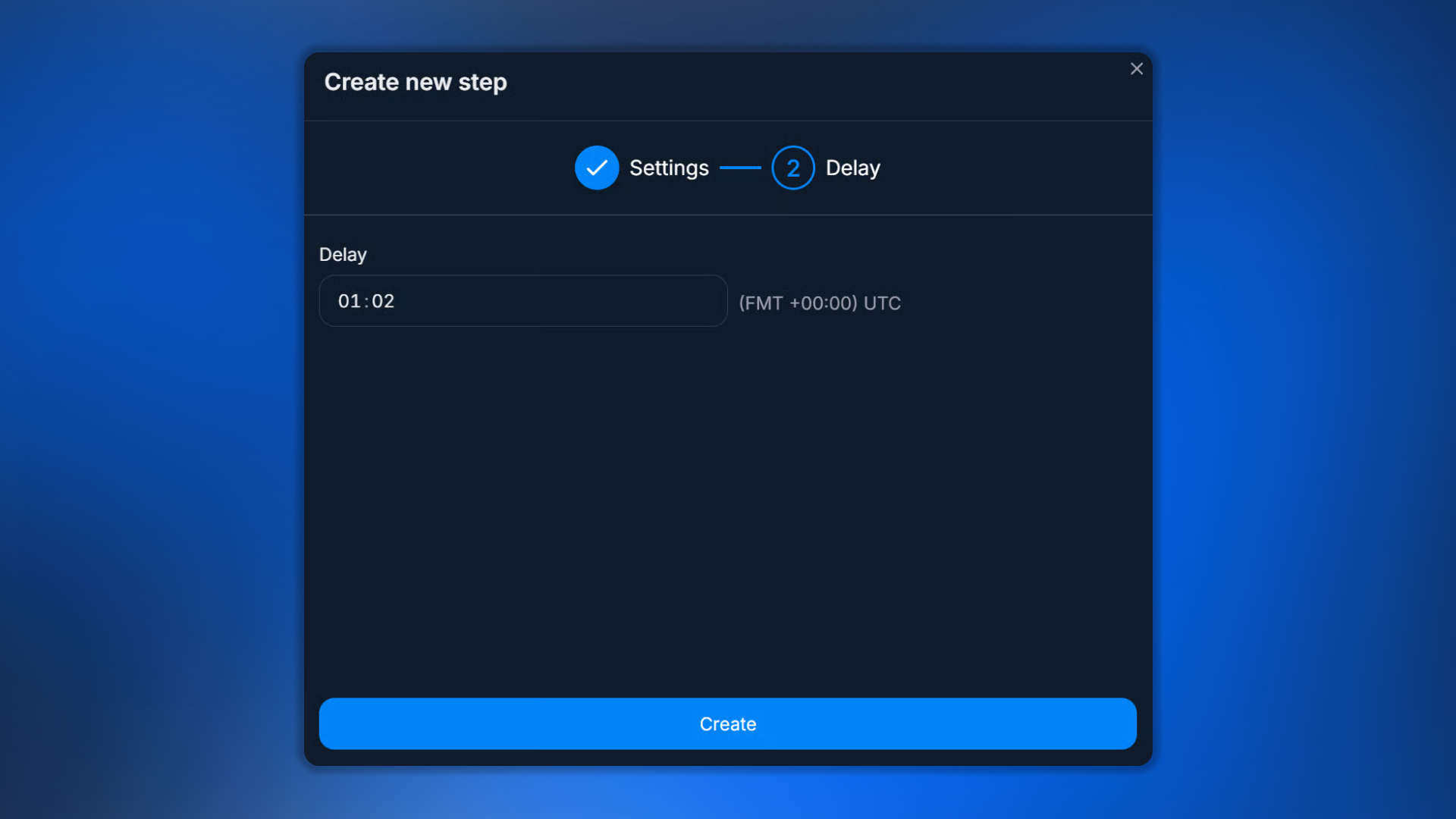
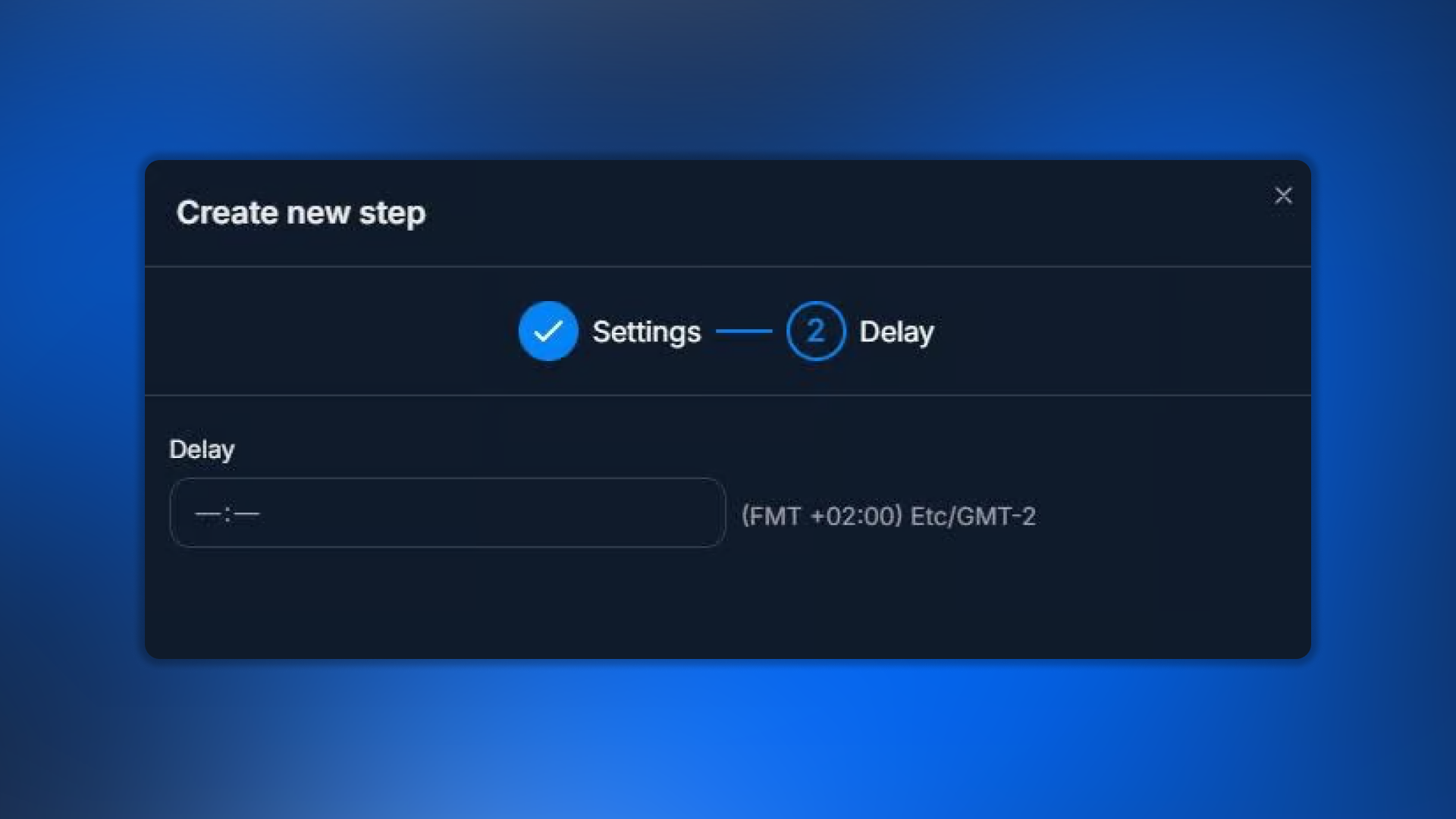
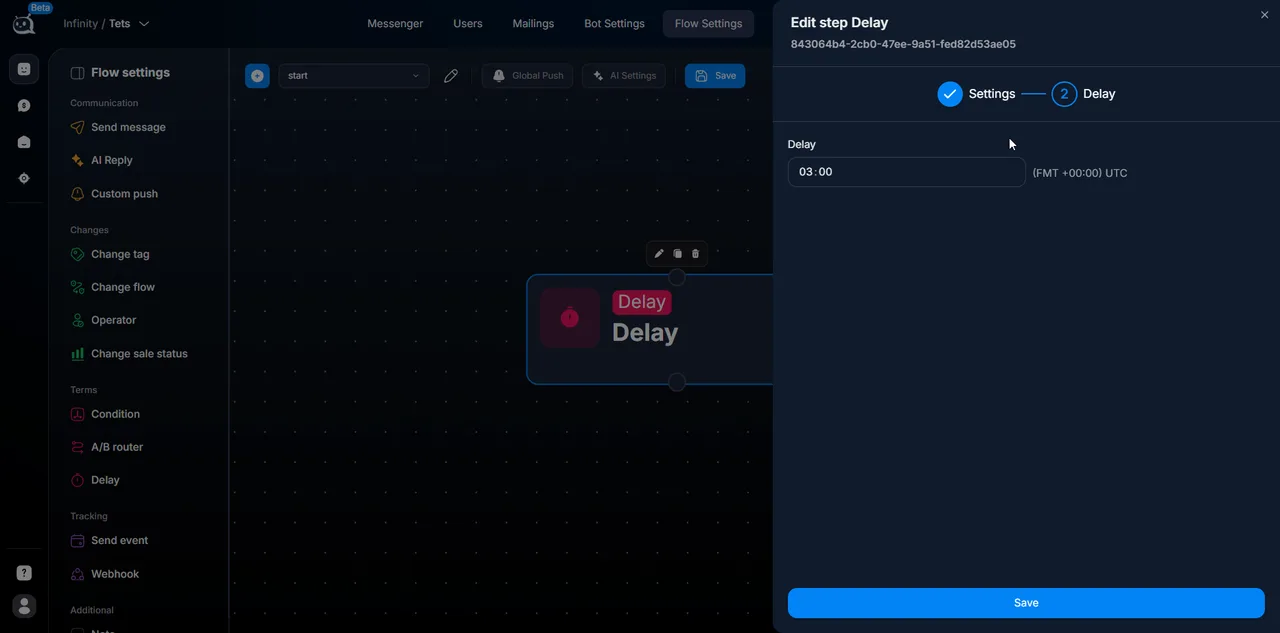
Specify the exact execution time
In HH:MM format.
4
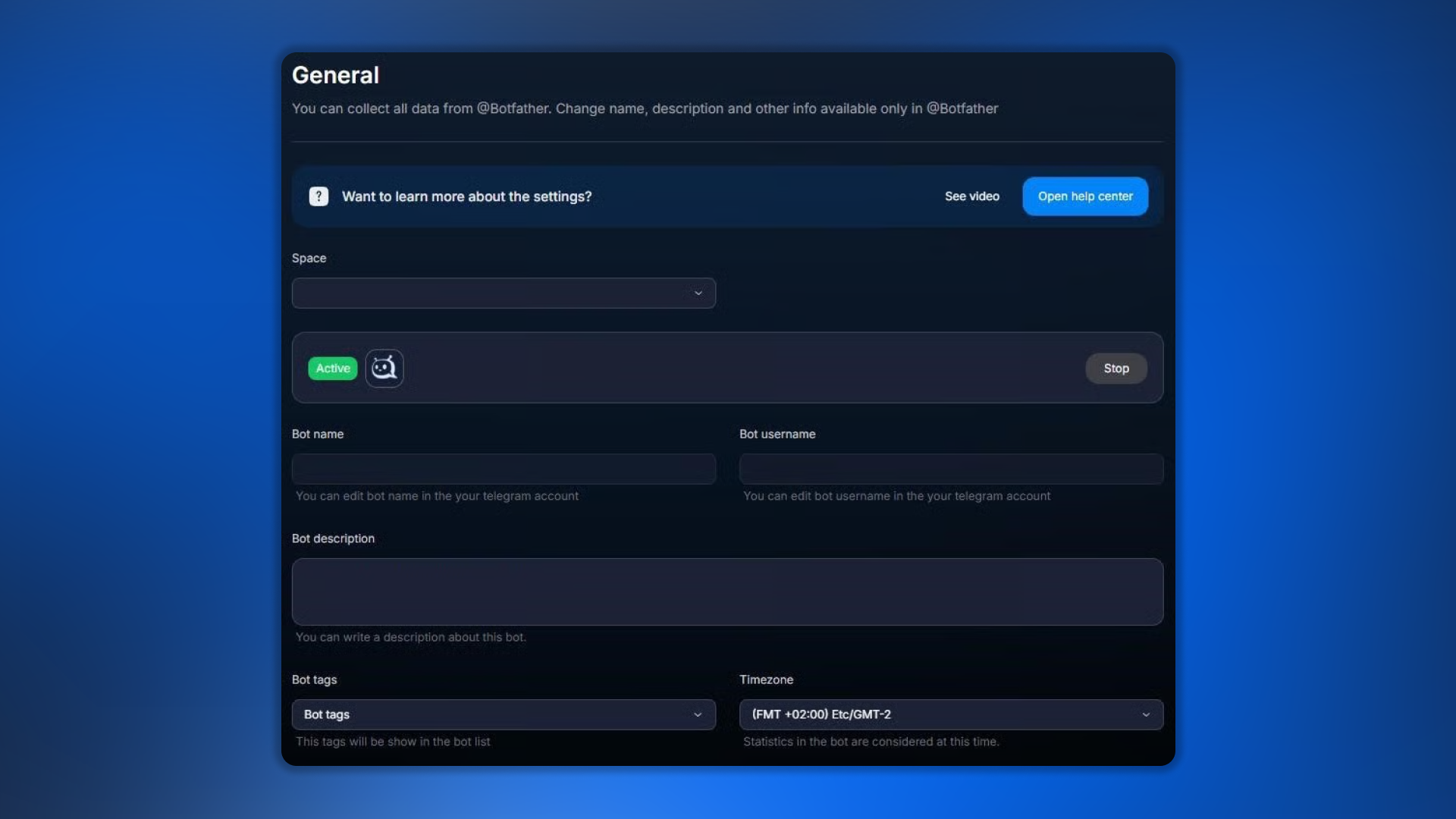
Check the bot's time zone
In Bot Settings → General → Timezone.
5
Connect the next step
Usage examples
Examples of real-world scenarios
Delay → 10:00 — the message will be sent at 10:00 in the bot's timezone.
Delay → 18:30 — the step will run at 18:30.
“Morning reminder” scenario:
AI Reply collects context in the evening.
Change tag “morning_reminder”.
Delay → 10:00 — pause until morning.
Send message — a morning reminder with an offer.
What to keep in mind
Timezone is critical
If the bot has the wrong timezone set, Delay will trigger at the wrong time. Before launch, check Timezone in Bot Settings → General. Leads from India will receive a “10:00 morning message by Moscow time” as 12:30 Indian time — that’s normal, but if you want exactly 10:00 Indian time, the timezone must be Asia/Kolkata.
Delay vs relative delay
Other steps (Send message, AI Reply) have a Delay parameter in the settings — this is a relative delay from the previous step in seconds. The Delay step (this one) is an absolute time. Don’t confuse them.
Frequently asked questions
The step will run tomorrow at the same time. The lead will “hang” until morning — this is normal behavior.
Not currently — only time of day. If you need “in 7 days”, use Push messages with a long delay or Custom Push.
No, the time is set statically in the step settings.
The lead’s message will appear in Messenger, and an operator can reply. Delay itself will continue running — after the specified time, the flow will move to the next step (if the status has not changed to manual). AI Reply is often added after Delay to continue the conversation while taking into account what was said.
Accurate to the minute. If 10:00 is specified, it will trigger at 10:00:XX, where XX depends on the task queue. Usually within a minute or two.