

Custom Push — a separate step for push notifications
The Custom Push step is a dedicated step for sending pushes. Unlike the pushes built into Send message and AI Reply, Custom Push is a separate step in the flow that does nothing except send a sequence
The Custom Push step is a dedicated step for sending pushes. Unlike the pushes built into Send message and AI Reply, Custom Push is a separate step in the flow that does nothing except send a sequence of delayed messages.
Useful when you need a long nurture sequence at a specific point in the funnel. For example, after registration, a lead disappears for a day — Custom Push sends 5 messages at intervals of an hour, a day, and a week.
When to use
The lead has completed the main steps but is “stuck” (no sale event, no reply). A nurture sequence for several days. You want to separate push logic from other steps — for analytics or editing. After registration, before FD — a series of motivating messages.
How it works
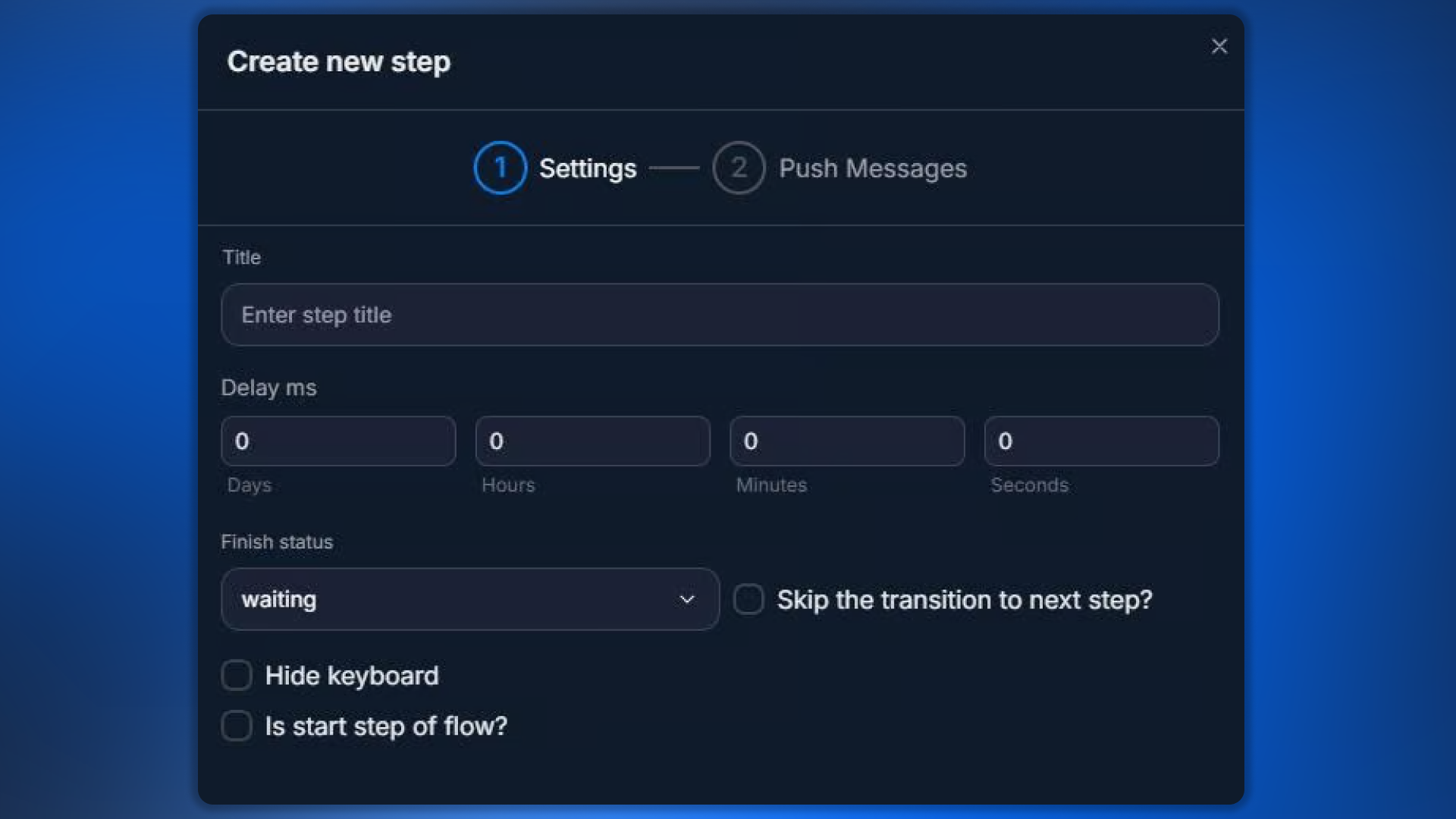
Settings
Parameter | What it sets |
|---|---|
Title | Step name in the flow |
Delay ms | Delay before starting the first push |
Finish Status | Usually waiting — to wait for the lead’s reply |
Available Finish Status values:
nothing — go to the next step immediately.auto — continue automatically.waiting — wait for the lead’s reply (the most common choice for Custom Push).manual — hand over to an operator.blocked — block.finished — finish.Push Messages — push setup
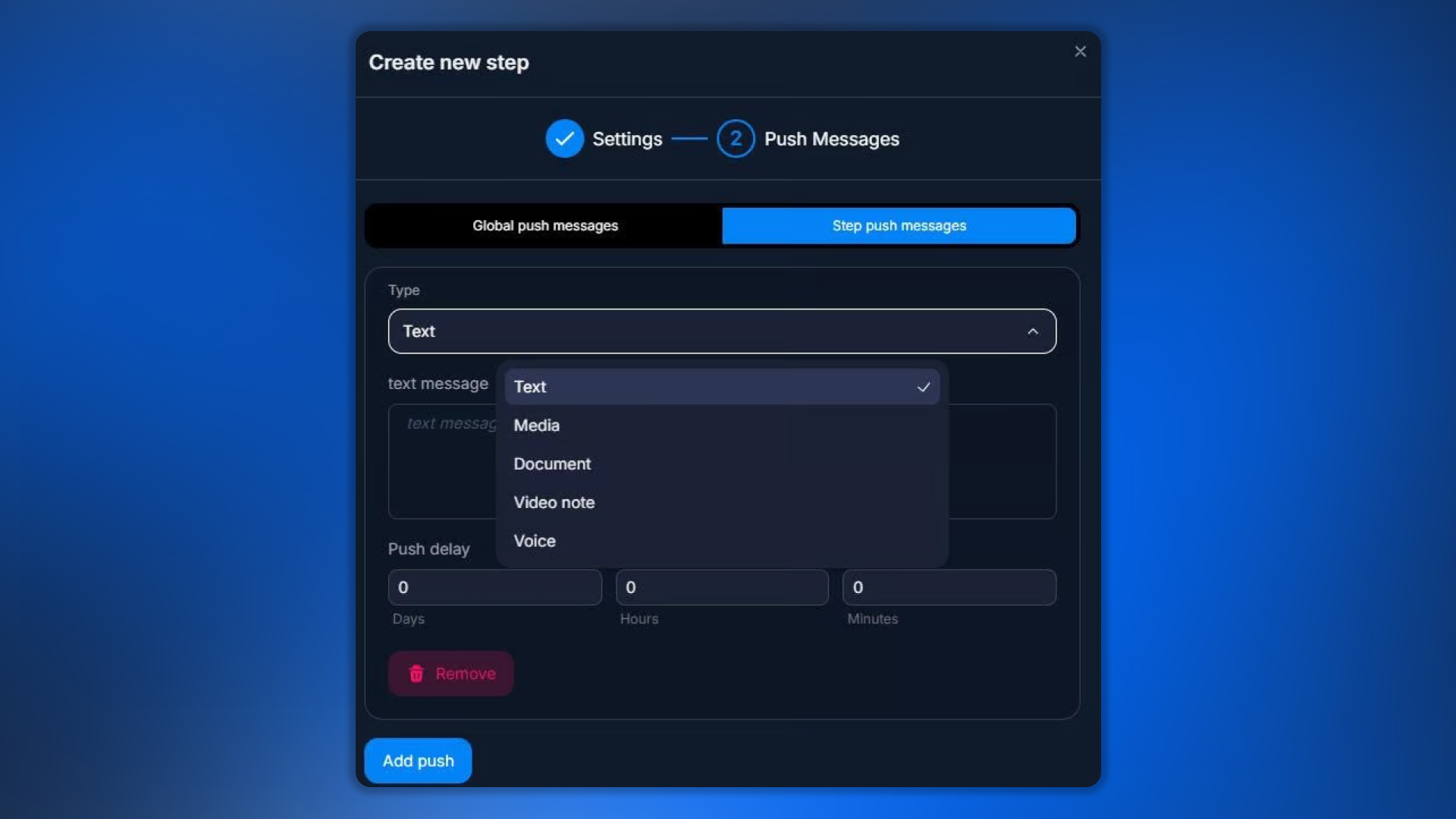
You can use the same content types as in regular pushes:
Text — text.
Media — images, videos.
Document — files.
Video Note — round video.
Voice — voice message.
Push source configuration options:
Global push messages — taken from the bot’s global settings.
Step push messages — configured manually inside the step.
Skip transition + waiting
If you use Custom Push on the waiting status, be sure to enable Skip the transition to next step. Otherwise, the flow will move to the next step immediately, without giving the pushes time to run. This is the most common mistake with Custom Push.
Pushes and Delay ms
Pushes are not sent during Delay ms — this is the waiting period BEFORE the sequence starts. If the lead replies during the Delay, Custom Push is canceled and the flow moves on.
Example scenario
The lead registered in the affiliate program but did not make the first deposit:
AI Reply confirms the registration.
The event is recorded via a Send event step.
Next — Custom Push with Delay = 60 minutes (wait for an hour).
Push 1 (after an hour): “Hi! Ready to start trading?”
Push 2 (after 4 hours): “The minimum deposit is $10. I’ll show you how.”
Push 3 (after 1 day): “Today there is a 100% bonus on the first deposit — don’t miss it!”
If the lead replies, transition to the qualification AI Reply.
Custom Push vs regular push messages in a step
Aspect | Custom Push | Push in a step |
|---|---|---|
What it is | A separate step in the flow | A settings block inside Send message / AI Reply |
When to use | A long nurturing sequence (hours / days) | A short reminder after a specific step |
Visibility in the flow | A separate node on the canvas | Hidden inside the main step |
Analytics | Separate statistics for the step | Within the main step |
Frequently asked questions
Related


Was this article helpful?