An API key is a password that your program uses to log into Chatterfy. The key is not issued to you personally, but to a service account — a separate company member specifically for integrations. You
Updated November 2, 20265 min
An API key is a password that your program uses to log into Chatterfy. The key is not issued to you personally, but to a service account — a separate company member specifically for integrations. You cannot log into the application with it: it only works via API.
In this article, you will create a service account, save the key, grant the account access to bots, and learn how to replace or delete the key. This will take about five minutes.
What you will need
Owner or Administrator role in the company. You can also use a custom role with the Manage service accounts permission.
List of Spaces where the necessary bots are located.
A place to store the key: a password manager or a secure note.
Create a service account
Service accounts are created on the Company → Service accounts page by clicking the Create account button. The API key is shown only once, immediately after creation — save it before closing the window.
1
Open the Service accounts section
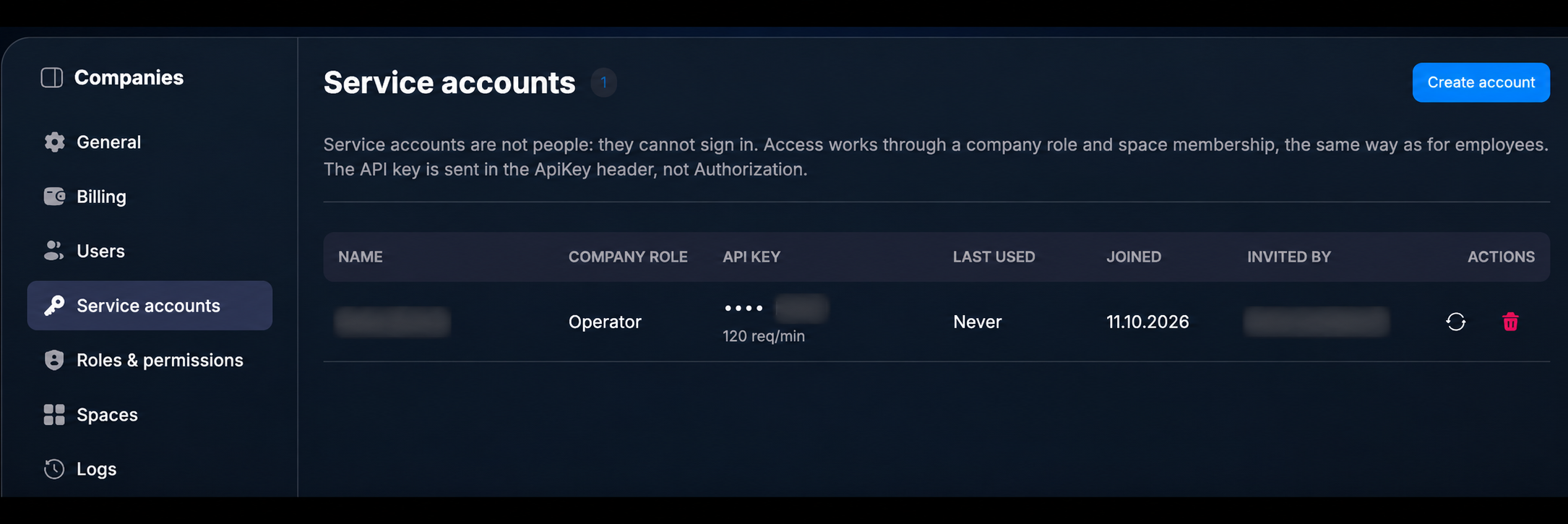
Go to Company → Service accounts and click Create account.
Company → Service accounts: list of service accounts and the Create account button.
2
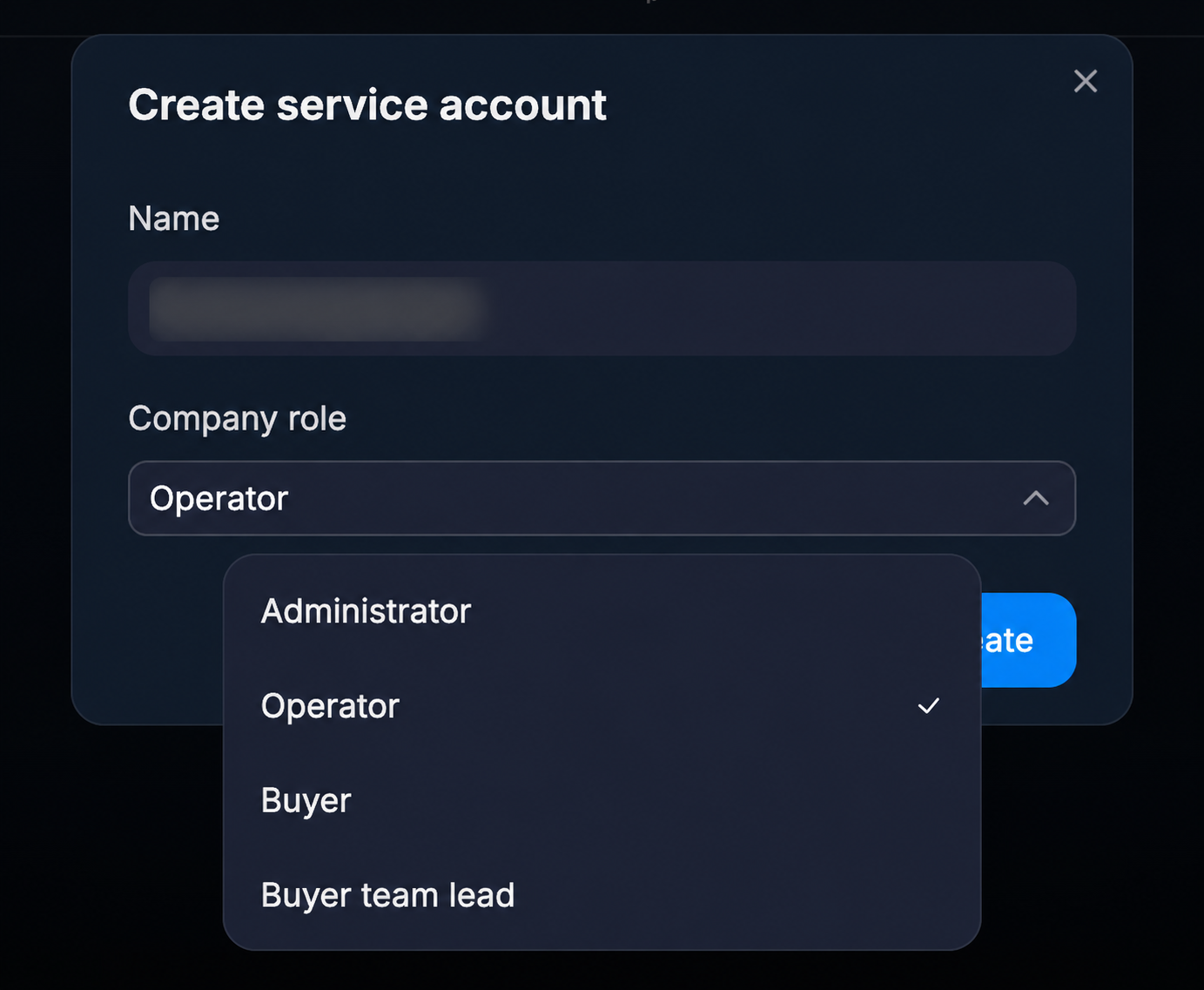
Fill in the name and role
In the Name field, write what the key is for, for example, "Export to Google Sheets". This way, in six months, you will understand what this account is. Maximum 64 characters.
In the Company role field, select a company role. For working with chats, Operator is enough: the account will receive access to bots in the next step, via Space. For working with Tracker, you need Administrator — more details in the article API Key Permissions: Which Role to Assign.
Click Create.
Create service account window: name and company role.
3
Copy the key
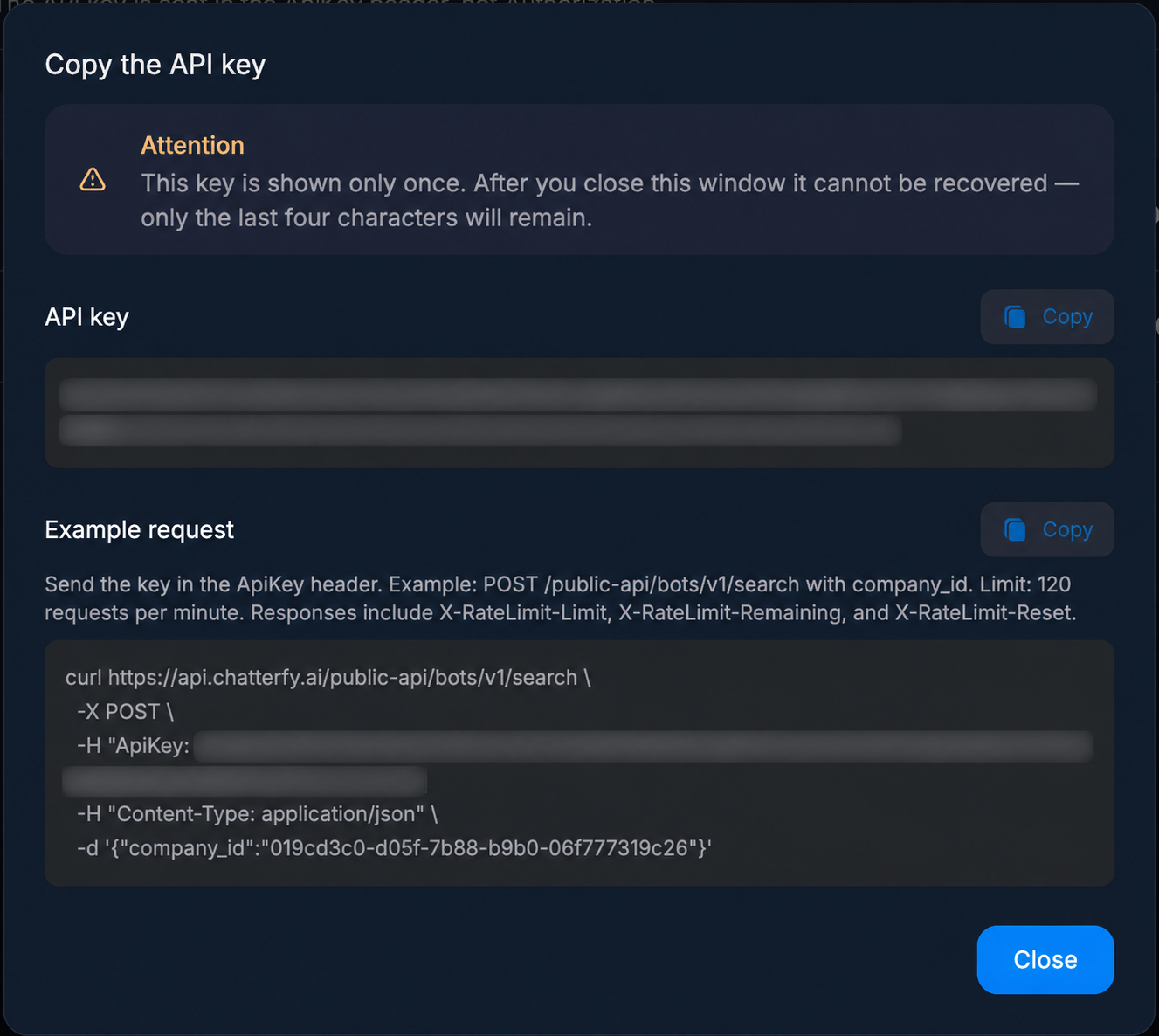
The Copy the API key window will open. Click the copy button next to the API key field and immediately save the key to a safe place. The Example request field contains a ready-made request example — you can copy it too.
Copy the API key window. The key is hidden in the screenshot.
4
Close the window
Click Close. Chatterfy will ask "Close without saving?". If the key is saved, click I copied the key.
The key is shown only once
After closing the window, you cannot view the full key — only the last four characters will remain. If the key is lost, issue a new one as described below.
Grant the service account access to bots
A new service account does not see any bots: access to bots is granted via Space, just like for regular employees. Add the account to the Space with bots via Add user → Company users and select a role — usually Space controller.
1
Open Space
Go to Company → Spaces and open the Space containing the necessary bots.
2
Add a service account
Click Add user and select the Company users tab. Service accounts are marked with an API icon.
3
Select a role in the Space
In the Role in space field, select a role. For most integrations, Space controller is suitable: it can see all chats, reply to them, and export them. If you need analytics or tag management, select Space manager. For read-only access — Space viewer.
4
Save
Click Apply. Repeat the steps for each Space that the integration will work with.
Do not select Space operator
The Space operator role usually sees only chats assigned to that member. Chats are not assigned to a service account, so the API might return empty lists even though the key is working.
Check if the key is working
Whether the API key is working can be seen in the table on the Service accounts page. Each service account there has:
API key — the last four characters of the key and the request limit, for example •••• a1b2 and 120 req/min;
Last used — when the key was last used. Never means no requests have been made yet.
Make the first request according to the instructions First API request in 5 minutes. After that, the time will appear in the Last used column.
Replace the key: Reissue key
Issue a new API key using the Reissue key button if the old one is lost, compromised, or if an employee who had access to it has left.
1
Click Reissue key
In the service account row, click the Reissue key update icon.
2
Confirm replacement
In the Reissue API key window, click Reissue key.
3
Save the new key
Copy the new key from the Copy the API key window and replace the old one with it in all your programs.
The old key stops working immediately
Integrations using the old key will receive a 401 error until you insert the new key into them. Change the key when you are ready to update it everywhere at once.
If the account does not have an active key, there will be an Issue key button in the row instead of Reissue key—this issues a key.
Delete the service account
Click the trash bin icon in the account row and confirm the deletion in the Delete service account window. The key will stop working, and the account will disappear from all Spaces. Deletion cannot be undone.
How to store your API key
Store the key in a password manager or in server settings (in an environment variable), not in the application text.
Do not send the key in chats, emails, or screenshots.
Do not insert the key into the website or mobile app code—any visitor will be able to see it.
Create a separate service account for each integration. This allows you to disable one integration without affecting the others.
FAQ
No, you cannot view the API key again: Chatterfy stores only the last four characters. Issue a new key using the Reissue key button.
One service account has one active API key. If you need multiple keys—for example, for different integrations—create several service accounts.
If the key is working but the chat list is empty, most likely the service account has not been added to the Space with bots or it has the Space operator role. Add the account to the Space via Add user → Company users with the Space controller role.
No, you cannot log into the application using a service account: it has no password or email; it only works via API.
After deleting a service account, its key will immediately stop working, and the account will disappear from all Spaces. The integration that was using it will start receiving a 401 error.