

Tasks — team tasks
Tasks are task boards within the bot. Tasks can be created manually, from Flow Settings, or opened from a linked chat. Where to open Tasks Go to Tasks via the bot's top navigation or the task icon but
Tasks are task boards within the bot. Tasks can be created manually, from Flow Settings, or opened from a linked chat.
Where to open Tasks
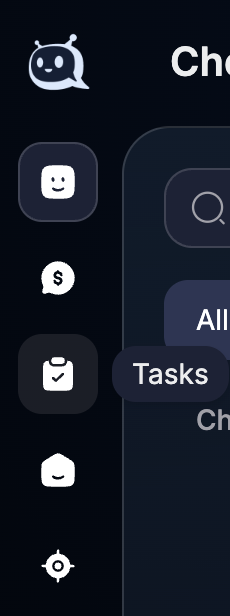
Go to Tasks via the bot's top navigation or the task icon button in the Messenger sidebar.
Working with the board
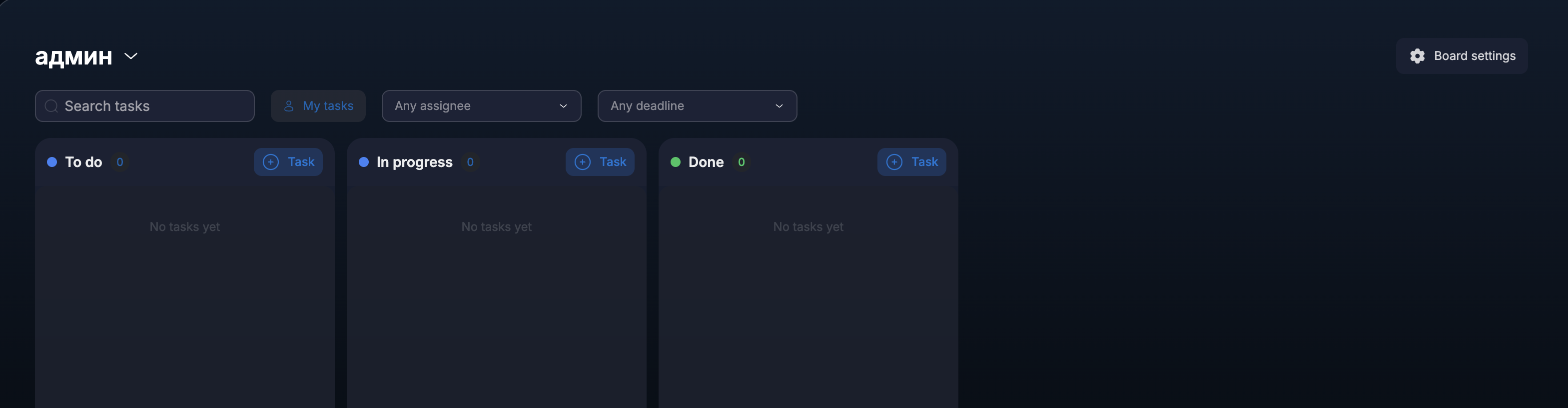
Search, the My tasks filter, and selection by assignee and deadline are available on the board. Tasks are distributed across columns, for example, To do, In progress, and Done. You can add a new task using the Task button in the required column.
Tasks in chat
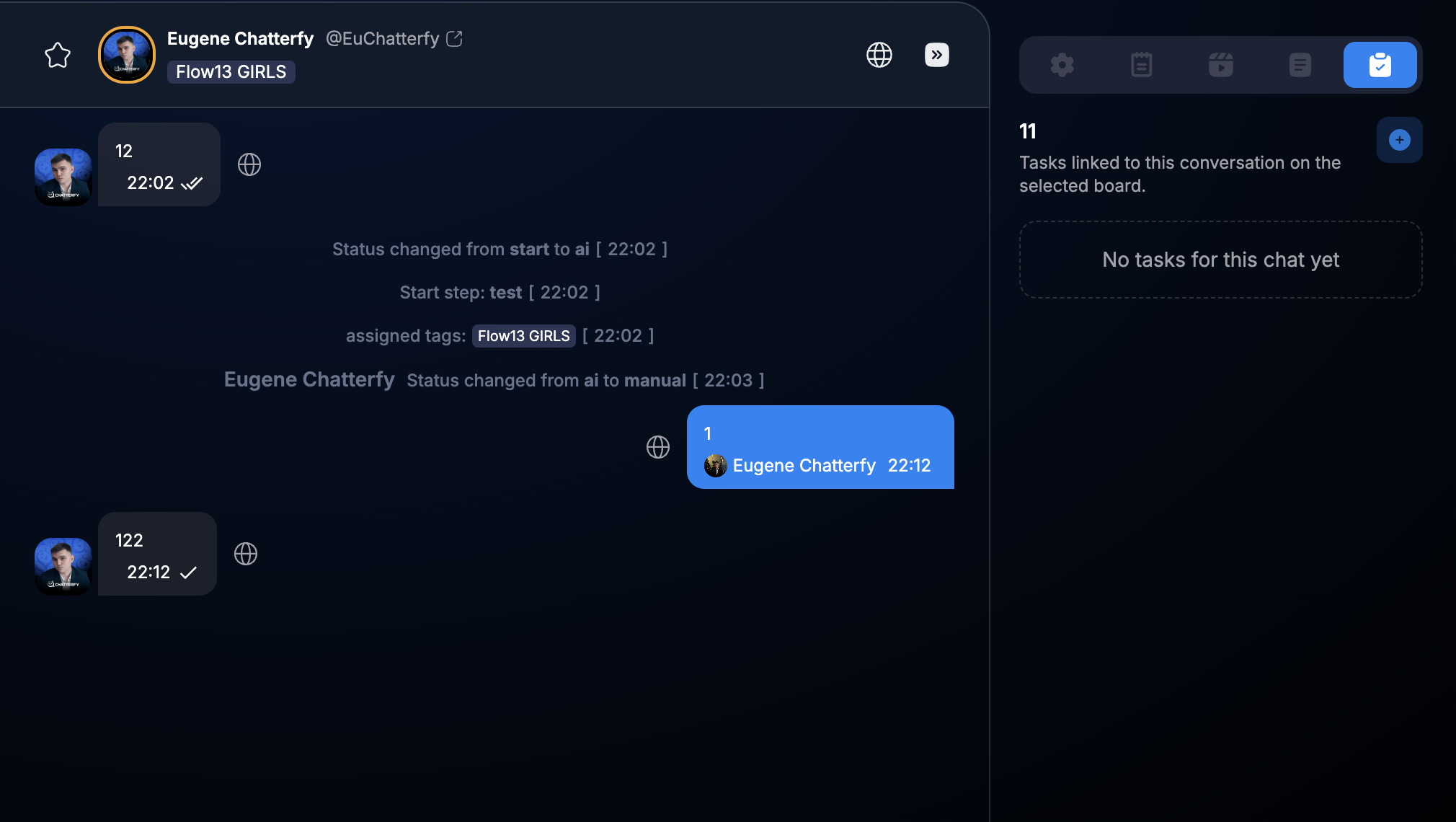
In the Tasks tab in the right Messenger panel, you can see tasks linked to the current conversation. Click the add button to create a task for this lead or open an existing one.
Creating from Flow Settings
The
Create task step automatically creates a task after a specific lead action. Full setup is described in the article Create task — создание задач из Flow.Notifications
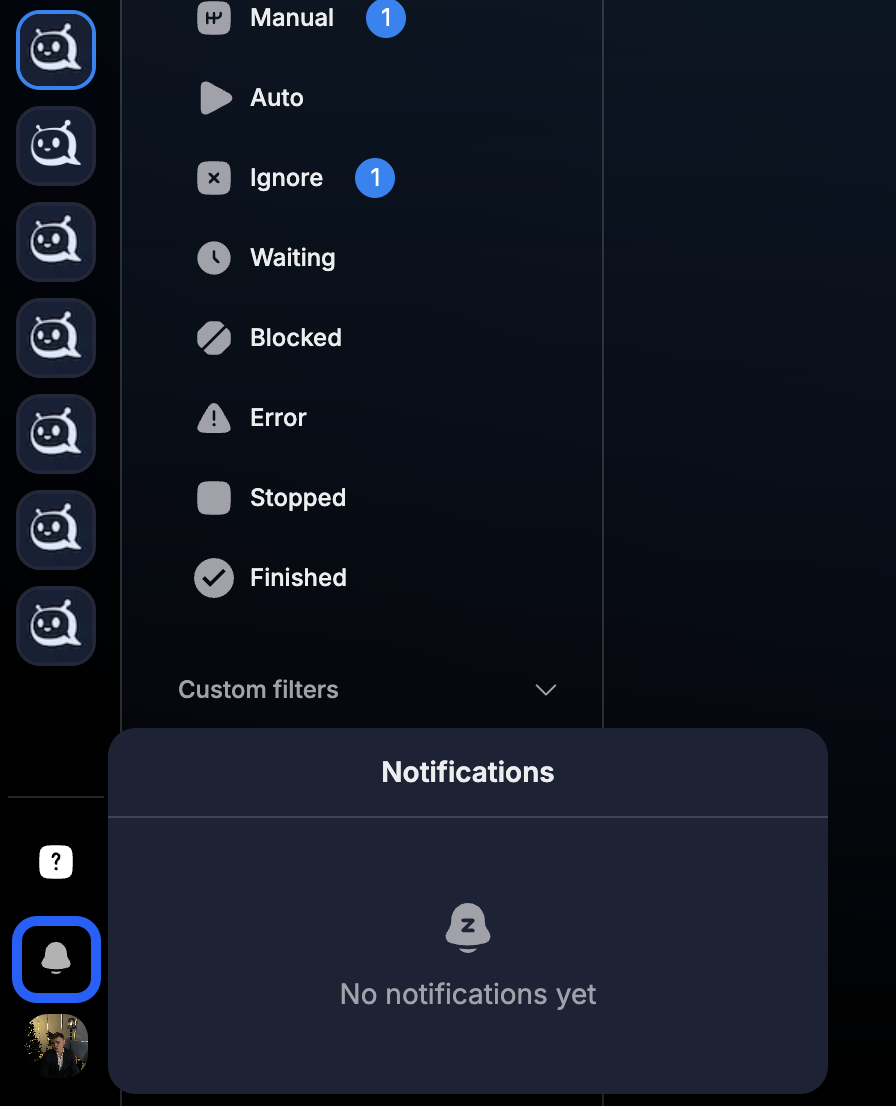
The bell button in the sidebar opens the notification list. Here you can quickly view new system messages and updates related to chat and task management.
Was this article helpful?