

AI Recognition — deep dive
AI Recognition — processing media with AI AI Recognition is a module in Automation & AI: AI reads attachments (voice, photos, video note, screenshots) and turns them into text and data for the flow. W
AI Recognition — processing media with AI
AI Recognition is a module in Automation & AI: AI reads attachments (voice, photos, video note, screenshots) and turns them into text and data for the flow.
Why you need it
Without Recognition, the bot only sees that there is a file. With Recognition, the meaning of the media is added to the context for AI Reply, Conditions, and Routings.
Supported | After recognition, AI can |
|---|---|
voice · photos · video note · images · screenshots | understand content · reply · extract fields · write to Custom Fields · use data in CRM |
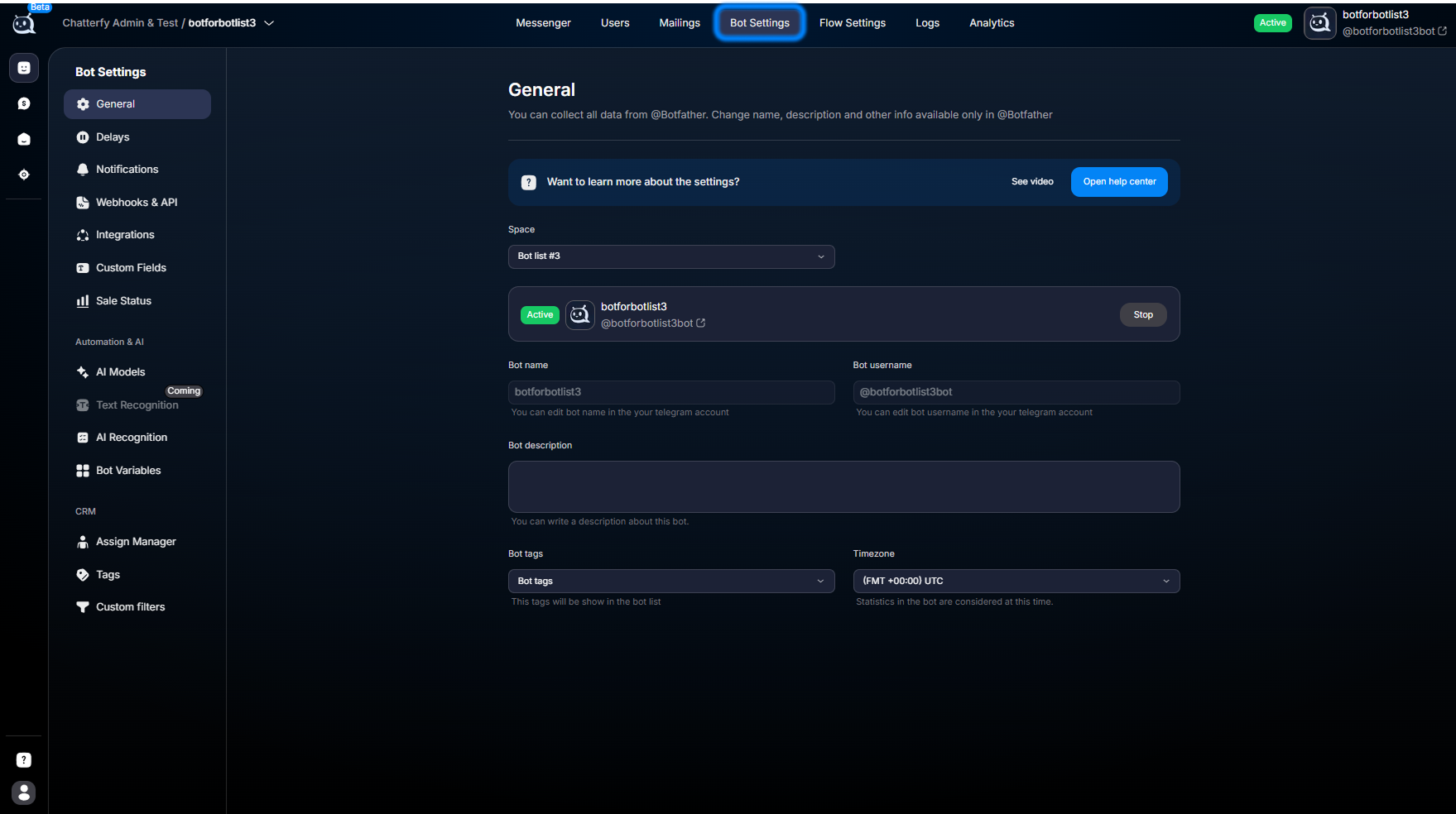
Why you need AI Recognition
Without Recognition | What breaks | With Recognition |
|---|---|---|
only the attachment type is available | a screenshot is treated as a “photo,” with no text or ID | media → text, description, structured data |
the file has no meaning | AI does not see the UI or numbers in the image | the data behaves like a regular message in the conversation |
Media types and modes
Each media type has its own mode toggle (one per type).
Media type | Available modes |
|---|---|
Photo | Recognition / Manual / Skip |
Voice | Recognition / Manual / Skip |
Video Note | Recognition / Manual / Skip |
Video | Manual / Skip |
Document | Manual / Skip |
Three modes — comparison
Mode | When to choose | What happens |
|---|---|---|
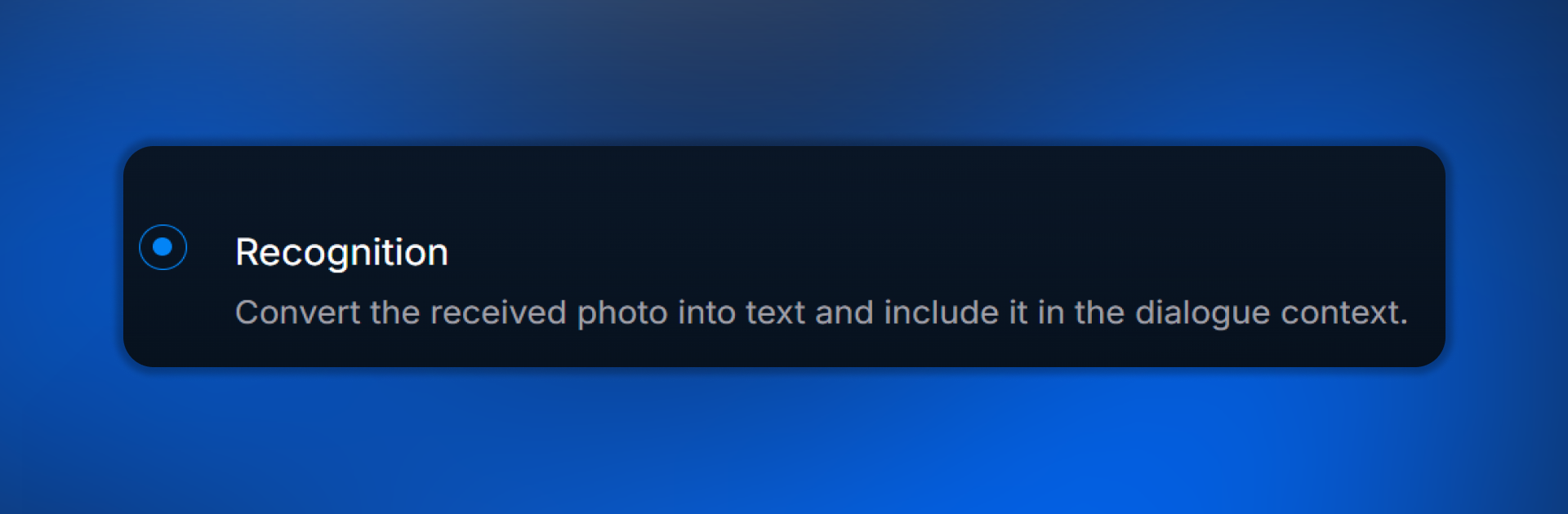
Recognition | you need automation | AI processes media itself → result in the conversation and flow |
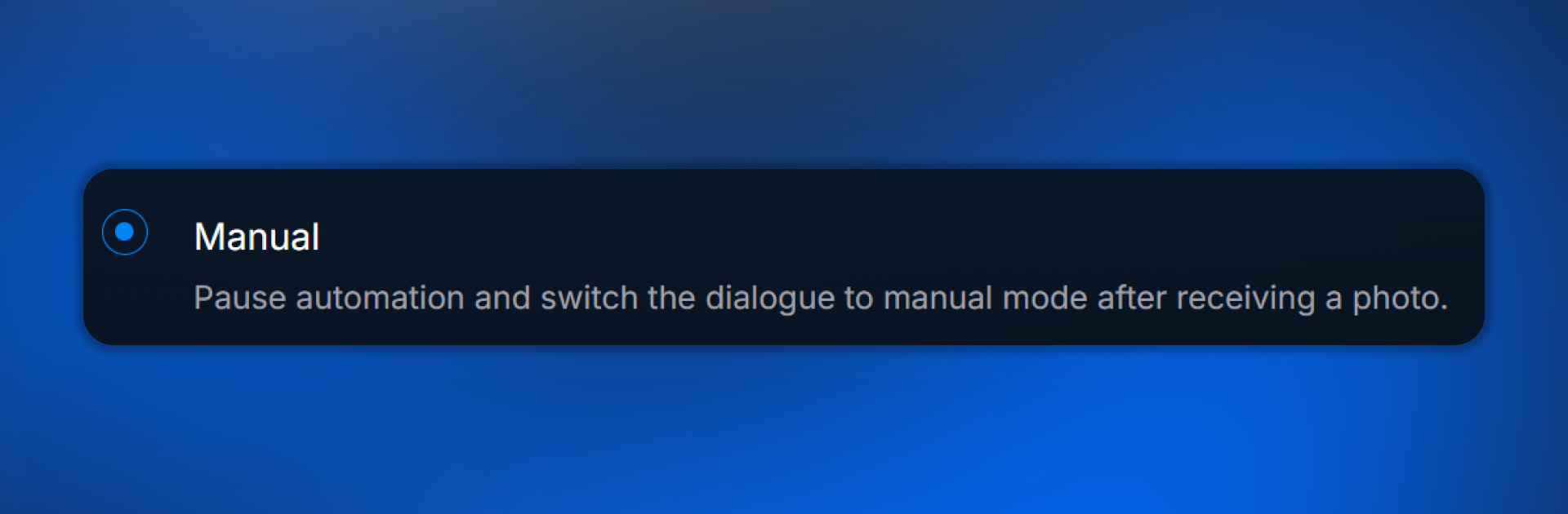
Manual | you need an operator or have sensitive data | the conversation switches to Manual, AI does not process the attachment itself |
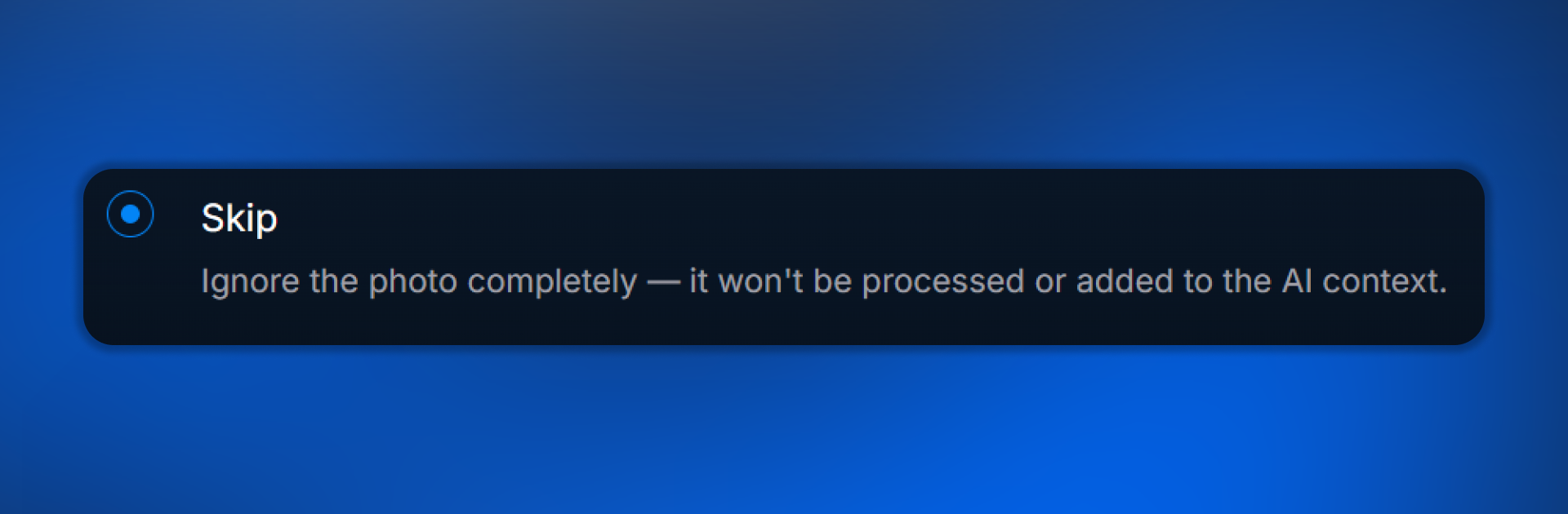
Skip | the file should not affect the model | AI does not analyze or use the attachment in the response |
What each mode looks like in the interface:
Voice: processing chain and quality
- The user sends a voice message.
- AI transcribes the voice to text and puts it into the conversation context.
- Then the response is generated the same way as for regular text.
Quality is affected by
background noise · microphone quality · language · accent · speech rate.
Photo: capabilities, Tasks, Functions
Photo AI | What it provides in the product |
|---|---|
OCR and text | reads text on screenshots and documents in the image |
Interface semantics | understands screens and common UI scenarios |
Data for the flow | extracts fields and can write them to CRM |
Tasks
This is an explicit instruction for “what to find in the image”. Only for Photo. Without Tasks, the model usually just describes the image; with Tasks, it looks for specifics.
Примеры Tasks (EN)plaintext
Find user ID from Exnova
Find transaction amount
Find payment status
Find country on screenshot
Good Task | Bad Task |
|---|---|
short · single focus · clear object | Analyze screenshot |
Working wording
Find user ID from PocketOption screenshotFunctions — writing to CRM
Post-processing Functions are available only for Photo Recognition.
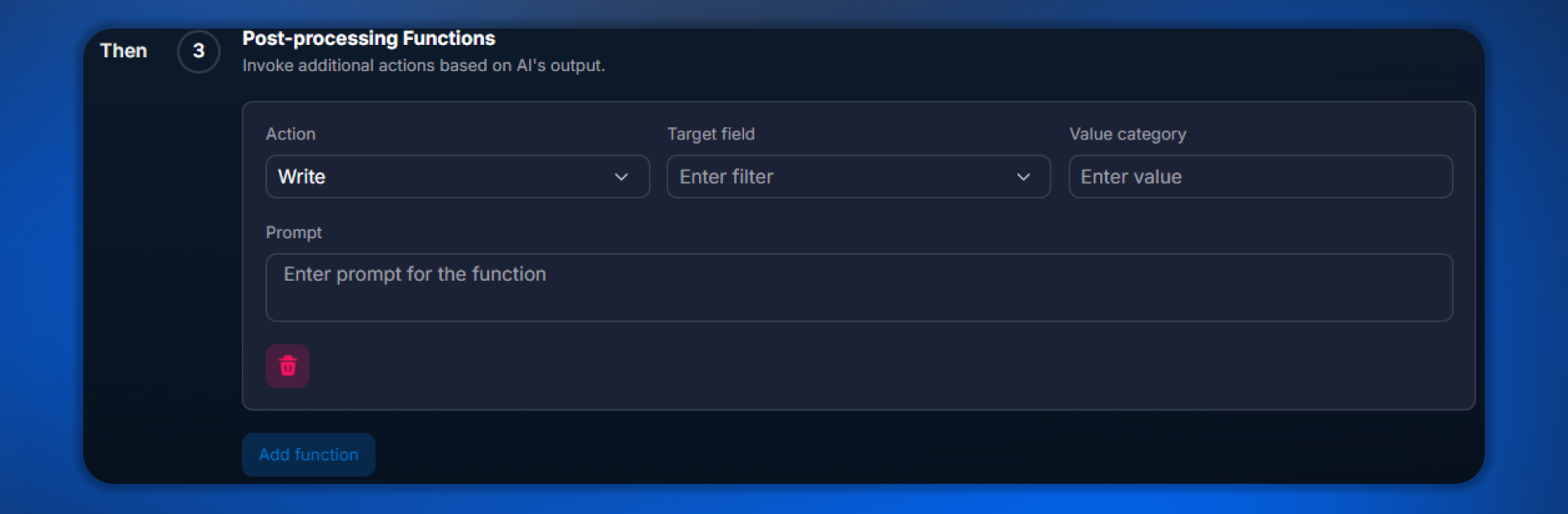
Step | AI action |
|---|---|
1. Search | finds the required value in the image |
2. Extraction | extracts the text/field based on the Prompt |
3. Writing | writes to a Custom Field and makes it available in CRM and the flow |
Common value types: ID, country, amount, date, status, text, number, and any of your custom fields.
Mini example of a single function
Field | Value |
|---|---|
Action | Write |
Field | trader_id |
Value | ID |
Prompt | User ID from registration screenshot |
Tasks + Functions combination
Tasksplaintext
Find user ID from Exnova
Find user's country
Action | Field | Value | Prompt |
|---|---|---|---|
Write | exnova_id | ID | User ID from screenshot |
Write | country | Country | User country from screenshot |
Where data is used after Recognition
Tool | Task |
|---|---|
AI Reply | response that takes into account the meaning of the voice message or image |
AI Routings | routing based on data after recognition |
Conditions | checks of recognized fields |
Filters | filtering and segmentation |
Messages | substitutions and step texts |
Usage examples
Scenario | Attachment | What you get |
|---|---|---|
Arbitrage | registration screenshot | ID in CRM via Functions; the flow continues |
Support | error screenshot | error text → the appropriate support scenario |
Sales | payment receipt | amount and currency → payment confirmation in CRM |
Operation and limitations
About cost and speed
Recognition slightly increases AI usage; photos and voice are usually more expensive and slower than text. The more precise the Tasks, the more predictable the result.
For each media type, only one active mode can be enabled at a time.
Important information about file types
Video and Document: only
Manual or Skip — there is no automatic content parsing.Model limitations
100% accuracy is not guaranteed.
Errors may occur with noisy or unreadable images.
The result strongly depends on the quality of the media and how the Tasks are worded.
Common issues — quick checklist
Symptom | Check |
|---|---|
AI can't see the data in the photo | image quality · Tasks · Recognition is enabled |
Voice is not recognized | Voice mode = Recognition · audio · language |
Functions are not writing to CRM | Custom Field exists · correct Field · valid Prompt |
Frequently asked questions
What you should get
After setup
Media is no longer a “black box” for the bot.
Voice is converted to text, images provide fields, Functions populate the CRM, and the flow relies on the actual content of attachments.
Related


Was this article helpful?