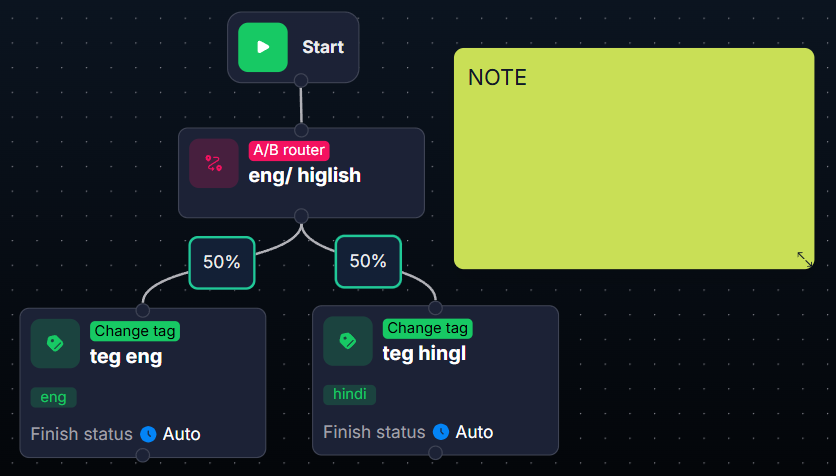
The Note step is a note on the canvas, a purely visual element. It does not communicate with the lead, does not change data, and does not participate in transition logic. It is used for text comments
Updated September 2, 20262 min
The Note step is a note on the canvas, a purely visual element. It does not communicate with the lead, does not change data, and does not participate in transition logic. It is used for text comments and explanations for the flow.
When a flow becomes complex (20+ steps, branches, loops), it is easy to get confused without notes. Note lets you “comment” the logic directly on the canvas, so colleagues (or you yourself a month later) can immediately understand what is happening and why.
When to use
Complex logic that is hard to understand without an explanation. TODO markers in unfinished parts of the flow. A description of an A/B test hypothesis next to A/B Router. Grouping visually related steps (“This is the reactivation block” / “This is the sales block”). Documentation for colleagues about nuances (“there is intentionally no push here because.”).
Note — text note on the canvas
How it works
Does not affect scenario execution.
Does not participate in transition logic.
Does not interact with the lead.
Is not visible in the customer card.
Used only for the team’s internal work.
Steps to add it
1
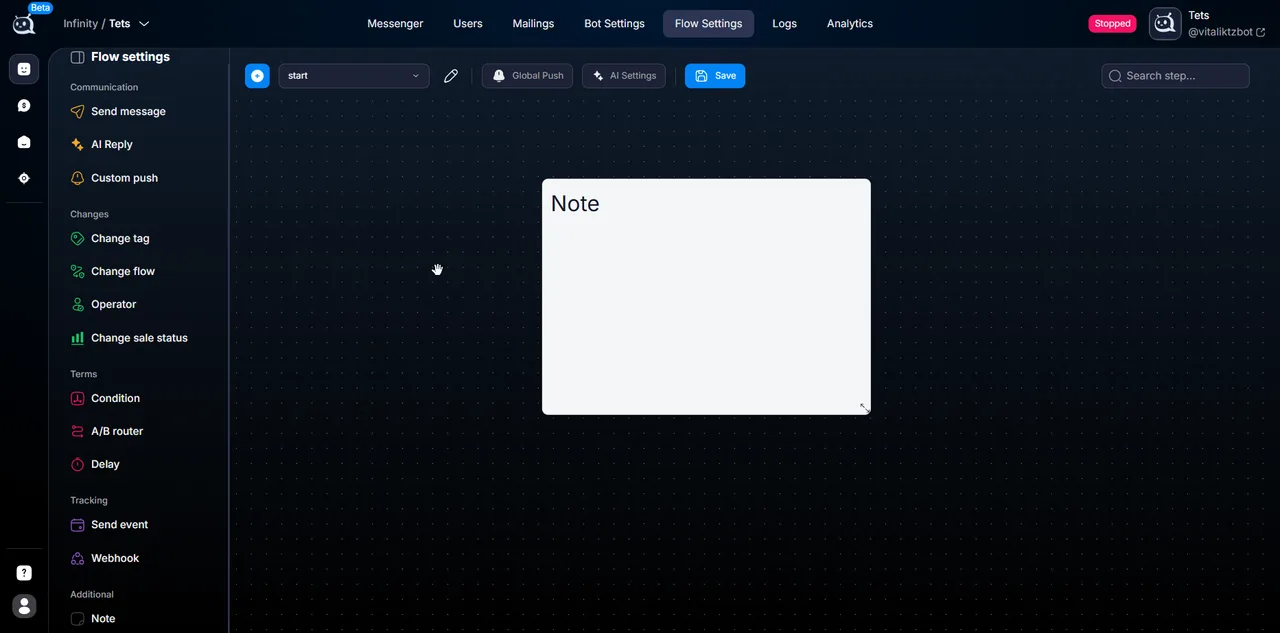
Add Note to the workspace
Use the slash menu or drag it from the sidebar.
2
Enter the text you need
Plain text is supported. No formatting.
3
Resize the block if needed
Drag the corners — the note can be very compact or large.
4
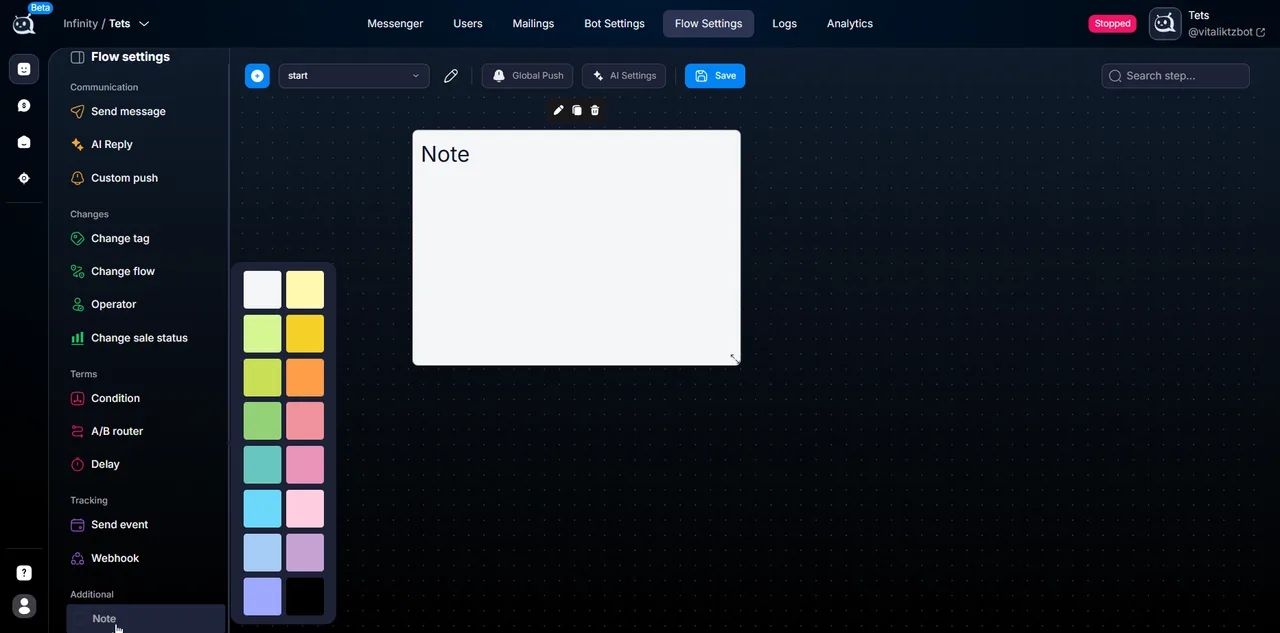
Choose the note color
Color helps visually separate different types of notes (for example, yellow for TODO, green for completed blocks).
5
Move it to the right place in the flow
The note is not “pinned” to steps — you can place it anywhere on the canvas. Usually, place it next to the group of steps it relates to.
Usage examples
Common types of notes:
Section description — “=== Reactivation flow ===” at the beginning of the block.
Logic explanation — “AI Routing checks the country, then different branches follow”.
TODO — “TODO: add the step for sending to Slack after release”.
A/B test hypothesis — “Testing: 50% receive an emoji in the first message, 50% do not”.
Historical note — “This step was changed in 2026-04 after complaints about Telegram spam blocking”.
What to keep in mind
Note — for the team, not for the lead
Notes on the canvas are visible only to the team that has access to Flow Settings. The lead will never see them. This is a tool for documenting the funnel, not part of communication with the customer.
Frequently asked questions
No. Note is a passive element; it is not executed and is not counted as a step, and it does not consume resources.
There is no limit. You can add as many as you need. The main thing is that the notes should help, not get in the way.
Currently, only plain text is supported. No bold, links, or lists.
Yes. When you import a flow into another bot, notes are transferred along with the step structure.
No. All notes are visible to the entire team that has access to the bot’s Flow Settings.